Problem: Windsurf AI Doesn't Follow You to Remote Machines Out of the Box
Windsurf remote development over SSH and containers closes the gap between your local AI-powered editor and the server where your code actually runs — but the setup has a few non-obvious steps that will silently break Cascade if you skip them.
You'll learn:
- How to connect Windsurf to any remote host via SSH (cloud VM, VPS, on-prem server)
- How to open a Docker dev container from Windsurf with the Cascade agent still active
- How to wire up WSL 2 as a transparent remote target on Windows
Time: 20 min | Difficulty: Intermediate
Why Remote Development Breaks in AI Editors
Standard VS Code-style remote extensions work by installing a small server binary on the target host, then tunneling LSP, file I/O, and terminal traffic through SSH. Windsurf follows the same model — but Cascade's context engine also needs to index the remote file system and stream completions back through that tunnel, which adds two failure points that plain VS Code never had.
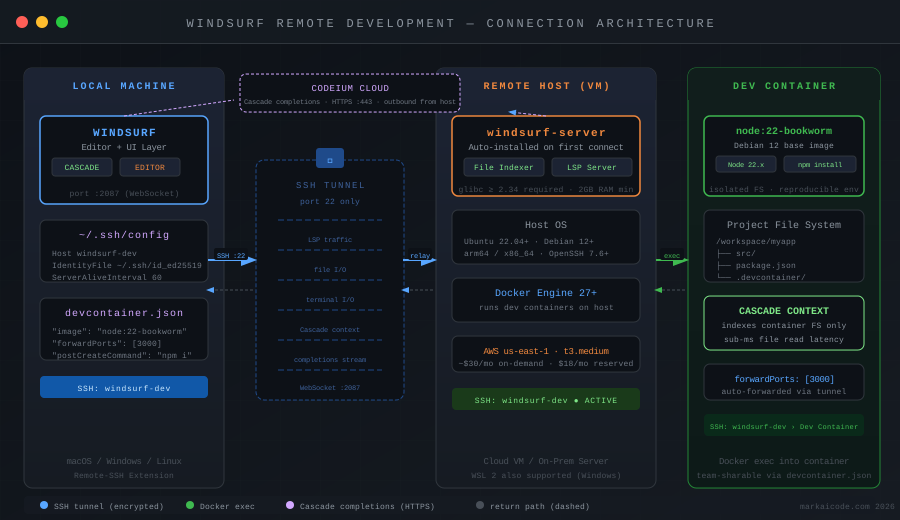 Windsurf remote flow: local Cascade UI → SSH tunnel → remote Windsurf server → container or VM file system
The most common symptom is Cascade loading forever or returning "Unable to reach language server" after you successfully SSH in. This is almost always a firewall blocking the secondary WebSocket port (default 2087) or a missing remote server binary on an ARM host.
Symptoms:
- "Cascade is unavailable on this remote" banner after connecting
- Terminal works but autocomplete and Cascade chat are dead
windsurf-serverprocess exits immediately on the remote withGLIBC_2.34 not found
Solution
Step 1: Verify Remote Host Requirements
Windsurf's remote server binary requires:
| Requirement | Minimum |
|---|---|
| OS | Linux (glibc ≥ 2.34) or macOS 13+ |
| Arch | x86_64 or arm64 |
| RAM | 2 GB free (4 GB recommended for Cascade indexing) |
| SSH | OpenSSH 7.6+ with AllowTcpForwarding yes |
| Ports | 22 (SSH) open; no extra ports needed (all traffic tunnels over SSH) |
Check glibc version on your target:
# Confirm glibc version — must be 2.34 or higher
ldd --version | head -1
Expected output: ldd (Ubuntu GLIBC 2.35-0ubuntu3) 2.35
If you see 2.31 (Debian 11, Ubuntu 20.04), upgrade the host or use a Docker container with a newer base image. Windsurf will not fall back gracefully — it just silently fails.
Step 2: Configure SSH Keys and ~/.ssh/config
Windsurf reads your local ~/.ssh/config directly. A clean config entry makes reconnecting one click.
# Generate a dedicated key if you don't have one (Ed25519 is faster than RSA for tunnel auth)
ssh-keygen -t ed25519 -C "windsurf-remote" -f ~/.ssh/windsurf_remote

# Copy public key to remote host
ssh-copy-id -i ~/.ssh/windsurf_remote.pub user@YOUR_SERVER_IP
Add a host block to ~/.ssh/config:
Host windsurf-dev
  HostName YOUR_SERVER_IP
  User ubuntu
  IdentityFile ~/.ssh/windsurf_remote
  ServerAliveInterval 60
  ServerAliveCountMax 3
  # Cascade streams large payloads — increase buffer to avoid stalls
  IPQoS throughput
Test the connection before touching Windsurf:
ssh windsurf-dev "echo connected && uname -m"
Expected output:
connected
x86_64
Step 3: Install Windsurf Remote Extension and Connect
Open Windsurf, then install the Remote - SSH extension from the Extensions panel (it ships with Windsurf but may need enabling).
- Open the Command Palette:
Ctrl+Shift+P(orCmd+Shift+Pon macOS) - Run Remote-SSH: Connect to Host…
- Select
windsurf-devfrom the dropdown (pulls from your~/.ssh/config) - A new Windsurf window opens. Windsurf automatically downloads and installs
windsurf-serveron the remote — this takes 30–60 seconds on first connect.
You'll see SSH: windsurf-dev in the bottom-left status bar when the tunnel is live.
If it fails:
Permission denied (publickey)→ Runssh-add ~/.ssh/windsurf_remoteto load the key into your agentwindsurf-server: command not foundloop → Check that/tmpis notnoexecon the remote (mount | grep /tmp); if it is, set"remote.SSH.serverInstallPath": "/home/ubuntu/.windsurf-server"in Windsurf settings- Cascade banner "unavailable" → Check remote RAM:
free -h. Cascade indexer needs at least 1.5 GB free.
Step 4: Open a Remote Folder and Verify Cascade
In the new remote Windsurf window:
- File → Open Folder → navigate to your project on the remote (e.g.
/home/ubuntu/myapp) - Wait for the file indexer to complete (progress indicator bottom-right)
- Open Cascade panel (
Ctrl+L) and send a test message: "What files are in this project?"
Cascade should list actual files from the remote directory. If it lists your local home directory instead, close the window and reconnect — the folder picker defaulted to local.
Step 5: Connect to a Docker Dev Container
Windsurf supports dev containers via the Dev Containers extension. You need a devcontainer.json in your project.
Minimal devcontainer.json for a Node.js project:
{
  "name": "My App Dev Container",
  "image": "mcr.microsoft.com/devcontainers/javascript-node:22-bookworm",
  "features": {
    "ghcr.io/devcontainers/features/git:1": {}
  },
  "forwardPorts": [3000],
  "postCreateCommand": "npm install",
  "customizations": {
    "windsurf": {
      "extensions": [
        "esbenp.prettier-vscode"
      ]
    }
  }
}
To open the container:
- Open the project folder locally in Windsurf
- Command Palette → Dev Containers: Reopen in Container
- Windsurf builds the image (first run ~2 min), then reopens the window inside the container
- The status bar shows Dev Container: My App Dev Container
# Verify you're inside the container, not the host
cat /etc/os-release | grep PRETTY_NAME
node --version
Expected output:
PRETTY_NAME="Debian GNU/Linux 12 (bookworm)"
v22.x.x
Cascade indexes the container file system automatically. All Cascade context, chat history, and tab completions now run against the container's file tree, not your local machine.
If Dev Containers option is missing:
# Confirm Docker daemon is running locally
docker info | grep "Server Version"
If Docker is not running, start it. On Linux: sudo systemctl start docker.
Step 6: Combine Remote SSH + Container (Cloud Dev Workflow)
For teams running dev containers on a shared cloud VM (the most cost-effective setup for US-based startups on AWS us-east-1 or similar), you chain both connections:
- Connect Windsurf to the remote VM via SSH (Step 3)
- In the remote Windsurf window, open your project folder on the VM
- Command Palette → Dev Containers: Reopen in Container
Windsurf opens a third window that is SSH-tunneled into the VM and exec'd into the container. The status bar shows both: SSH: windsurf-dev › Dev Container: My App.
Cascade works fully in this mode. The indexer runs on the VM inside the container, so latency is sub-millisecond for file reads regardless of your local internet speed.
Step 7: WSL 2 as a Remote Target (Windows)
On Windows, treat WSL 2 as a remote host using the Remote - WSL extension:
- Command Palette → Remote-WSL: New WSL Window
- Select your distro (Ubuntu 24.04 recommended)
- Windsurf installs
windsurf-serverinside WSL automatically
For dev containers from WSL, ensure Docker Desktop has Use WSL 2 based engine enabled in Settings → General. Then follow Step 5 inside the WSL Windsurf window.
# Inside WSL — confirm Docker socket is accessible
docker run --rm hello-world
Verification
From inside your remote or container Windsurf window:
# Confirm remote server process is running
ps aux | grep windsurf-server | grep -v grep
You should see: A windsurf-server --port ... process owned by your user.
Open Cascade and ask: "List the top-level directories in this project." It should return the actual remote/container directory tree within 2–3 seconds.
Remote vs Local Windsurf: Quick Comparison
| Local | Remote SSH | Dev Container | |
|---|---|---|---|
| Cascade context | Local files | Remote files | Container files |
| Terminal | Local shell | Remote shell | Container shell |
| Port forwarding | N/A | Auto via SSH | Auto via devcontainer |
| Team sharable | ❌ | With shared VM | ✅ via devcontainer.json |
| US cloud cost (AWS t3.medium) | $0 | ~$30/mo | ~$30/mo |
What You Learned
- Windsurf's remote server requires glibc ≥ 2.34 — Ubuntu 20.04 and Debian 11 will silently fail
- All tunnel traffic runs over SSH port 22 — no extra firewall rules needed
- Chaining SSH + Dev Containers gives fully reproducible, team-sharable cloud dev environments
- Cascade context always reflects the file system of the innermost connection layer
Tested on Windsurf 1.x, Docker 27, Ubuntu 24.04, WSL 2 (Windows 11), AWS t3.medium (us-east-1)
FAQ
Q: Does Windsurf remote development work on ARM servers like AWS Graviton?
A: Yes, as of Windsurf 1.x the remote server binary ships for both x86_64 and arm64. Confirm with uname -m on the target — it must return aarch64 and have glibc ≥ 2.34 (Ubuntu 22.04 arm64 ships 2.35 and works fine).
Q: What is the difference between Remote-SSH and Dev Containers in Windsurf?
A: Remote-SSH connects directly to a host OS and gives you its full file system. Dev Containers exec into a Docker container (locally or on a remote host) and give you a sandboxed, reproducible environment defined by devcontainer.json. Use Remote-SSH for quick server access; use Dev Containers when the environment needs to be versioned and shared.
Q: Can multiple developers share one remote Windsurf server?
A: No — each developer needs their own SSH session. windsurf-server runs per-user. For shared cloud environments, each dev SSHes with their own key to the same VM and gets an isolated server process.
Q: Does Cascade work offline inside a container with no internet? A: Cascade completions require an outbound HTTPS connection to Codeium's servers (or your enterprise endpoint). The container itself can be isolated, but the host or tunnel must have outbound internet access on port 443.
Q: How much does running Windsurf remote on AWS cost?
A: A t3.medium (2 vCPU, 4 GB RAM) in us-east-1 runs around $30/month on-demand. For solo devs, a t3.small at ~$15/month is sufficient for projects under 50k files. Reserved instances cut that by ~40%.