LM Studio vs Ollama: TL;DR
| LM Studio | Ollama | |
|---|---|---|
| Best for | GUI-first exploration, Windows/macOS devs | Headless servers, Docker, CI, scripting |
| API compatibility | OpenAI-compatible REST (/v1) | OpenAI-compatible REST + native /api |
| Self-hosted (headless) | ❌ Requires desktop GUI | ✅ Native daemon, Docker image available |
| Model management | GUI + HuggingFace search built-in | CLI (ollama pull) + Modelfile |
| GPU support | CUDA, Metal, Vulkan (auto-detected) | CUDA, Metal, ROCm, CPU fallback |
| Custom model configs | Limited via preset profiles | Full control via Modelfile |
| Pricing | Free (Pro tier: $0/mo personal, team plans) | Free, open-source (MIT) |
| Platform | Windows, macOS, Linux (beta) | Windows, macOS, Linux, Docker |
Choose LM Studio if: You want a polished GUI to browse, download, and test models without touching a terminal — especially on Windows or macOS.
Choose Ollama if: You're building a backend service, running models in Docker, scripting inference in Python, or deploying on a headless Linux server.
What We're Comparing
LM Studio vs Ollama is the most common question developers ask when setting up a local LLM stack in 2026. Both run models fully offline, support GGUF quantization, and expose an OpenAI-compatible API. The differences are almost entirely about workflow and deployment target.
This comparison covers:
- Setup and first-run experience
- Model management and customization
- API surface and OpenAI compatibility
- GPU configuration and performance
- Headless and Docker deployment
- When each tool breaks down
Tested on: Ubuntu 24.04 (RTX 4080), macOS Sonoma (M3 Max), Windows 11 (RTX 3090). LM Studio 0.3.x, Ollama 0.6.x.
LM Studio Overview
LM Studio is a desktop application for running LLMs locally. You open it, search HuggingFace from within the UI, download a GGUF model, and start a local server — no terminal required.
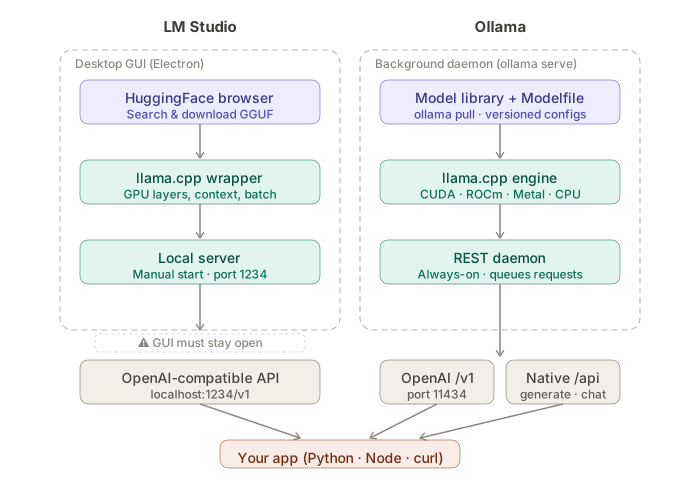 LM Studio wraps llama.cpp in a GUI; Ollama runs as a persistent background daemon with a CLI and REST API
Strengths:
- Zero-config model discovery — search HuggingFace directly inside the app
- Preset hardware profiles auto-configure GPU layers, context length, and batch size
- Built-in chat UI for quick testing before integrating into code
- Works out of the box on Windows, where Ollama's Docker story is weaker
Weaknesses:
- Cannot run headless — the GUI must be open and the server manually started
- No Modelfile equivalent — you can't script model behavior or system prompts at the server level
- Linux support is still labeled beta as of 0.3.x
- Harder to automate in CI pipelines or shell scripts
Pricing: Free for personal use. Team and enterprise tiers exist for shared inference endpoints — check lmstudio.ai for current USD pricing, as tiers have shifted in early 2026.
Ollama Overview
Ollama runs as a background daemon (ollama serve) that you interact with via CLI or HTTP. It manages model storage, handles GPU allocation, and exposes both an OpenAI-compatible /v1 endpoint and its own /api/generate and /api/chat routes.
Strengths:
- True headless operation — runs as a systemd service, in Docker, or on a remote server
- Modelfile gives you Git-style model versioning with custom system prompts, temperature, and stop tokens baked in
ollama pull,ollama run,ollama ps— all scriptable- Official Docker image (
ollama/ollama) with CUDA and ROCm variants - Active library of pre-quantized models at ollama.com/library
Weaknesses:
- No GUI — model discovery requires knowing the model name upfront
- HuggingFace GGUF import works but requires a manual
ollama createstep with a Modelfile - GPU layer tuning (
OLLAMA_NUM_GPU) needs manual setting on multi-GPU machines
Pricing: Fully open-source under MIT. No cost, no account required.
Head-to-Head
Setup and First Run
LM Studio wins on first-run experience. Download the .dmg or .exe, open it, search "llama 3.2 3b", click Download, then Start Server. You're calling /v1/chat/completions in under 5 minutes.
Ollama is nearly as fast on macOS and Linux:
# Install
curl -fsSL https://ollama.com/install.sh | sh

# Pull and run a model
ollama pull llama3.2:3b
ollama run llama3.2:3b "Explain RAG in one paragraph"
On Windows, Ollama requires WSL2 for GPU passthrough — add 10 minutes if WSL2 isn't already configured.
API Compatibility
Both expose an OpenAI-compatible endpoint. You can swap between them by changing one base URL:
from openai import OpenAI

# LM Studio — server must be running in the GUI
lms_client = OpenAI(base_url="http://localhost:1234/v1", api_key="lm-studio")

# Ollama — daemon runs in background
ollama_client = OpenAI(base_url="http://localhost:11434/v1", api_key="ollama")

response = ollama_client.chat.completions.create(
    model="llama3.2:3b",
    messages=[{"role": "user", "content": "What is quantization?"}]
)
Ollama also exposes /api/generate for single-turn completions with streaming:
curl http://localhost:11434/api/generate \
  -d '{"model": "llama3.2:3b", "prompt": "What is quantization?", "stream": false}'
LM Studio has no equivalent native endpoint — it's OpenAI-compatible only.
Model Management and Customization
This is where Ollama pulls ahead for developers who need reproducible environments.
Ollama Modelfile — define a model variant once, use it everywhere:
FROM llama3.2:3b

# Bake in a system prompt
SYSTEM """
You are a senior Python engineer. Be concise. Return code snippets, not explanations.
"""

# Set inference parameters
PARAMETER temperature 0.2
PARAMETER num_ctx 8192
PARAMETER stop "<|eot_id|>"
ollama create python-assistant -f ./Modelfile
ollama run python-assistant "Write a FastAPI route that validates a UUID path param"
LM Studio has no equivalent. You can save preset profiles in the GUI, but they're not portable or scriptable.
GPU Configuration
LM Studio auto-detects your GPU and assigns layers. The slider in the GUI adjusts GPU layer count if the default underperforms.
Ollama auto-detects as well, but you have full environment variable control:
# Force all layers to GPU (RTX 4080 with 16GB VRAM)
OLLAMA_NUM_GPU=99 ollama serve

# Split across two GPUs
OLLAMA_GPU_SPLIT="0.6,0.4" ollama serve

# Limit VRAM usage per model
OLLAMA_MAX_LOADED_MODELS=2 ollama serve
On M-series Macs, both tools use Metal equally well. On ROCm (AMD Linux), Ollama has first-class support; LM Studio's Vulkan backend works but requires more tuning.
Docker and Headless Deployment
Ollama is the clear winner here. The official image supports CUDA out of the box:
# docker-compose.yml — production local LLM stack
services:
  ollama:
    image: ollama/ollama:latest
    runtime: nvidia
    environment:
      - NVIDIA_VISIBLE_DEVICES=all
      - OLLAMA_NUM_GPU=99
    ports:
      - "11434:11434"
    volumes:
      - ollama_models:/root/.ollama

  open-webui:
    image: ghcr.io/open-webui/open-webui:main
    environment:
      - OLLAMA_BASE_URL=http://ollama:11434
    ports:
      - "3000:3000"

volumes:
  ollama_models:
LM Studio has no Docker image and requires the desktop GUI to be running with the server manually started. It cannot be deployed in a container or on a headless VPS.
Performance
At equivalent quantization levels (Q4_K_M), token generation speed is nearly identical — both are wrappers around llama.cpp. The real performance difference is startup time: Ollama's daemon keeps models warm in VRAM between requests; LM Studio loads on demand unless you explicitly leave the server running.
For production-like workloads (concurrent requests, streaming to multiple clients), Ollama handles queuing automatically. LM Studio's server is single-threaded for concurrent requests.
Which Should You Use?
Use LM Studio if:
- You're on Windows and want zero-config local inference
- You need to quickly evaluate a new model without writing any code
- Your team includes non-developers who need a GUI
Use Ollama if:
- You're integrating local inference into a Python, Node.js, or Rust backend
- You're deploying on a Linux server, Raspberry Pi, or in Docker
- You want reproducible model configs via Modelfile (like a Dockerfile for models)
- You need to run models in CI or automate model swaps in scripts
For most developers building local LLM-powered apps in 2026, Ollama is the better foundation. LM Studio is an excellent companion for model exploration — many developers run both and use LM Studio to find models, then pull them into Ollama for actual development.
FAQ
Q: Can LM Studio and Ollama run at the same time? A: Yes, but they use different ports (1234 vs 11434) and manage their own model storage. You can run both simultaneously with no conflicts, though they'll compete for VRAM.
Q: Does LM Studio support the same models as Ollama? A: Both support GGUF format. LM Studio pulls directly from HuggingFace; Ollama hosts a curated library at ollama.com/library and also supports custom GGUF imports via Modelfile. Model selection is broader on HuggingFace, but Ollama's pre-quantized library covers 95% of popular models.
Q: What is the minimum RAM to run a useful model on either tool? A: For a 3B parameter model at Q4_K_M quantization, you need roughly 3GB VRAM or 4GB unified memory. Both tools can CPU-offload on machines with 8GB RAM, but token/second will drop significantly below 10 t/s.
Q: Can Ollama expose models to other machines on my network?
A: Yes — set OLLAMA_HOST=0.0.0.0:11434 before starting the daemon. LM Studio also supports this via the Network toggle in its server settings.
Q: Does Ollama work with LangChain and LlamaIndex? A: Both LangChain and LlamaIndex have first-class Ollama integrations. LM Studio works through the OpenAI-compatible wrapper in both frameworks, which is slightly less feature-complete (no streaming tool calls in some versions).