Problem: Choosing the Right Local LLM GUI
You want to run LLMs locally — for privacy, offline access, or just to stop paying API bills. Two tools dominate: LM Studio and GPT4All. Both are free, both run on your hardware, but they make very different tradeoffs.
You'll learn:
- Which tool fits your workflow (dev vs. casual use)
- How they compare on model support, API compatibility, and performance
- When to switch — or use both
Time: 12 min | Level: Intermediate
Why This Matters
Local LLMs have gone mainstream. Models like Llama 3.3, Mistral 7B, and Phi-4 run comfortably on consumer hardware. The GUI you pick determines how much friction you deal with daily.
The core tension:
- LM Studio is built for developers — OpenAI-compatible local server, deep model config, great for integration work
- GPT4All targets broader audiences — simpler UI, built-in document chat, lower hardware demands
Neither is wrong. They're optimized for different things.
Head-to-Head Comparison
Model Library and Format Support
LM Studio pulls models directly from Hugging Face, giving you access to thousands of GGUF-format models with one click. You can search, filter by size, and download without leaving the app. It also supports MLX models on Apple Silicon natively.
GPT4All has a curated model library — smaller, but hand-picked for stability. Every listed model is tested against the app. Less choice, fewer surprises. It also supports GGUF but doesn't expose the full Hugging Face catalog.
Winner for model variety: LM Studio. The Hugging Face integration alone makes it hard to beat.
Local API Server (OpenAI Compatibility)
This is where LM Studio pulls decisively ahead for developers.
# LM Studio starts a local server on port 1234
# Drop-in replacement for OpenAI API calls
curl http://localhost:1234/v1/chat/completions \
  -H "Content-Type: application/json" \
  -d '{
    "model": "lmstudio-community/Meta-Llama-3.1-8B-Instruct-GGUF",
    "messages": [{"role": "user", "content": "Hello"}]
  }'
Your existing OpenAI SDK code works with one env var change:
import openai

client = openai.OpenAI(
    base_url="http://localhost:1234/v1",
    api_key="not-needed"  # LM Studio ignores this
)

response = client.chat.completions.create(
    model="local-model",  # Uses whatever's loaded in LM Studio
    messages=[{"role": "user", "content": "Explain GGUF format"}]
)
print(response.choices[0].message.content)
GPT4All added a local API server in v3.x, but it's less mature — limited streaming support and no embeddings endpoint as of early 2026.
Winner for API/dev integration: LM Studio, clearly.
Performance and Hardware Use
Both tools use llama.cpp under the hood, so raw inference speed is nearly identical for the same model and quantization. The differences are in GPU layer configuration and memory management.
LM Studio gives you granular control:
GPU Layers: 0–48 (slider)
Context Length: 512–128k
CPU Threads: manual
Flash Attention: toggle
GPT4All keeps it simple — it auto-detects your hardware and picks reasonable defaults. Great if you don't want to tune. Frustrating if you do.
On Apple Silicon: LM Studio's MLX backend consistently outperforms llama.cpp for supported models. If you're on M2/M3/M4, this matters.
Winner for performance tuning: LM Studio. GPT4All wins on "just works" simplicity.
Privacy and Local Document Chat
GPT4All has a strong built-in LocalDocs feature. You point it at a folder, it indexes your files with local embeddings, and you can ask questions against your own documents — all offline, nothing leaves your machine.
LM Studio doesn't have this natively. You'd need to wire up your own RAG pipeline using its local API.
# GPT4All LocalDocs: just point at a folder in settings
# No code needed — it's built into the UI

# LM Studio equivalent requires manual RAG setup:
# 1. Embed docs with local embeddings (e.g., nomic-embed-text)
# 2. Store in a vector DB (ChromaDB, LanceDB)
# 3. Query + inject context into prompts via the API
Winner for document chat out of the box: GPT4All.
System Requirements
| LM Studio | GPT4All | |
|---|---|---|
| Min RAM | 8 GB | 4 GB |
| GPU (optional) | NVIDIA/AMD/Apple | NVIDIA/AMD/Apple |
| Windows | Yes | Yes |
| macOS | Yes (M-series optimized) | Yes |
| Linux | Yes | Yes |
GPT4All runs on lower-end hardware. LM Studio's performance features shine most on beefier machines.
Solution: Which One to Install
Use LM Studio if you:
- Are integrating local LLMs into your own apps or scripts
- Want the broadest model selection (Hugging Face access)
- Use Apple Silicon and want MLX acceleration
- Need fine-grained control over inference parameters
Use GPT4All if you:
- Want to chat with your local documents without building anything
- Are on lower-spec hardware
- Prefer a simpler interface with sane defaults
- Don't need API integration
Use both if you:
- Want GPT4All for quick document Q&A and LM Studio for dev work — they don't conflict and use different ports.
Quick Setup: LM Studio in 5 Steps
# 1. Download from lmstudio.ai (no brew formula yet)
# 2. Open app → Search tab → search "llama 3.1 8b"
# 3. Download Q4_K_M quantization (good quality/size balance)
# 4. Load the model → Local Server tab → Start Server
# 5. Test it:

curl http://localhost:1234/v1/models
# Should return the loaded model info
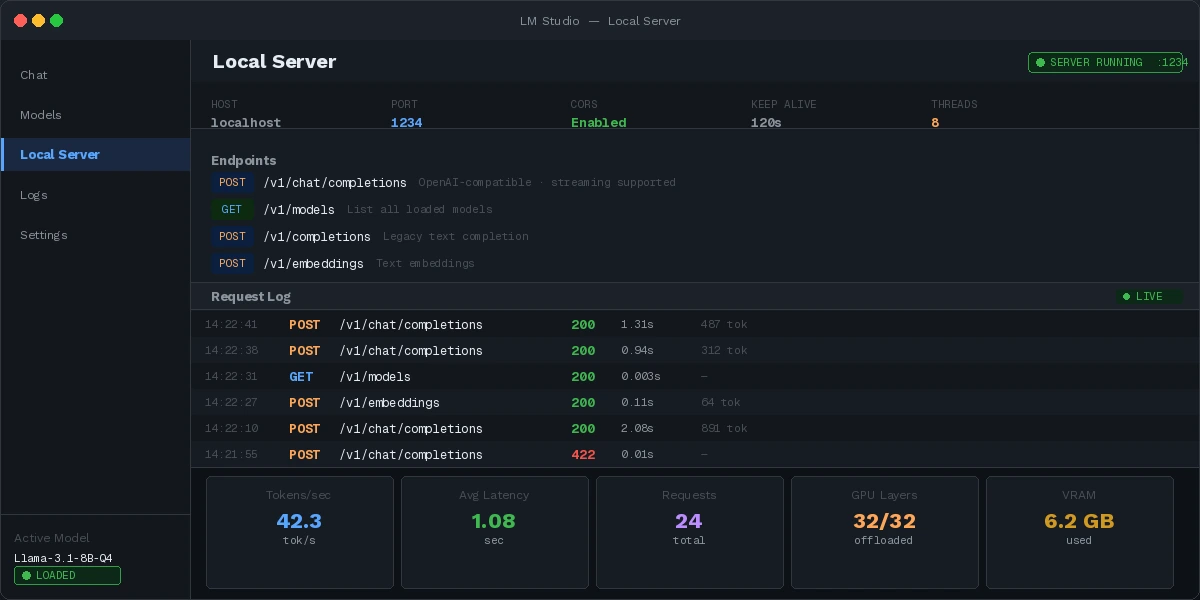 Local server running — ready to replace your OpenAI API calls
Verification
Test your LM Studio setup end-to-end:
import openai

client = openai.OpenAI(base_url="http://localhost:1234/v1", api_key="lm-studio")

response = client.chat.completions.create(
    model="local-model",
    messages=[{"role": "user", "content": "Say 'local LLM working' and nothing else"}],
    temperature=0
)

assert "local LLM working" in response.choices[0].message.content
print("✓ Local LLM API working correctly")
You should see: ✓ Local LLM API working correctly
What You Learned
- LM Studio wins for dev integration — OpenAI-compatible API, broad model support, MLX acceleration on Apple Silicon
- GPT4All wins for simplicity and built-in document chat with zero setup
- Both use llama.cpp, so raw inference speed is comparable on the same hardware
- Limitation: Neither tool handles multi-GPU setups well yet — that's still llama.cpp's territory via CLI
- Don't use either if you need serious fine-tuning — look at Ollama + Open WebUI for a more composable stack
Tested on LM Studio 0.3.x and GPT4All 3.x, macOS 15 (M3) and Ubuntu 24.04 with RTX 4070