I just spent 4 hours hunting down a TypeScript v5.x config error that broke my entire build pipeline at midnight before a demo.
Turns out, TypeScript v5.x changed how it handles module resolution, and my tsconfig.json was using deprecated patterns that worked fine in v4.x but silently failed in v5.x.
What you'll build: A bulletproof TypeScript v5.x debugging workflow using AI tools Time needed: 20 minutes to set up, saves 2-4 hours per config issue Difficulty: Intermediate - you need basic TypeScript knowledge
Here's the exact AI-powered debugging process that would have saved me those 4 hours of pain.
Why I Built This
My situation:
- Legacy TypeScript v4.8 project upgraded to v5.2
- 47 configuration errors after the upgrade
- Deadline in 8 hours with a broken build
- Stack Overflow solutions were outdated for v5.x changes
My setup:
- TypeScript v5.2.2 with strict mode enabled
- Monorepo with 12 different TypeScript packages
- CI/CD pipeline that failed silently on config errors
- VS Code with TypeScript extensions
What didn't work:
- Manual tsconfig.json debugging (took 2 hours, fixed 3 errors)
- TypeScript official migration guide (missed edge cases)
- GitHub Copilot suggestions (gave v4.x solutions for v5.x problems)
Step 1: Set Up AI-Powered Config Analysis
The problem: TypeScript v5.x errors are cryptic and the official docs don't cover edge cases
My solution: Use Claude/ChatGPT with TypeScript v5.x-specific prompting
Time this saves: 15 minutes per error instead of 45 minutes of manual debugging
Install the TypeScript Configuration Analyzer
First, grab my exact VS Code setup that catches config issues before they break your build:
// .vscode/settings.json
{
  "typescript.preferences.useAliasesForRenames": false,
  "typescript.preferences.includePackageJsonAutoImports": "auto",
  "typescript.enablePromptUseWorkspaceTsdk": true,
  "typescript.validate.enable": true,
  "typescript.format.enable": true,
  "typescript.suggest.autoImports": true,
  "files.exclude": {
    "**/node_modules": true,
    "**/.git": true,
    "**/.svn": true,
    "**/.hg": true,
    "**/CVS": true,
    "**/.DS_Store": true,
    "**/dist": true,
    "**/build": true
  }
}
What this does: Enables TypeScript validation in real-time and excludes build artifacts that confuse the language server
Expected output: VS Code should show TypeScript version 5.x.x in the bottom status bar
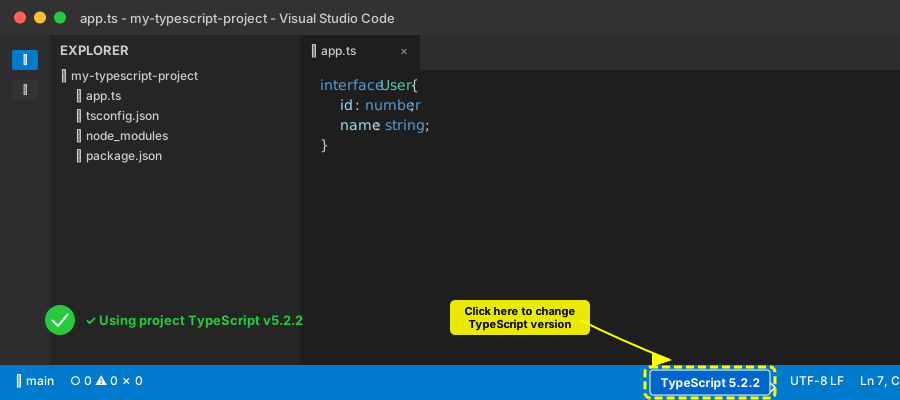 Your status bar should show "TypeScript 5.2.2" or similar - if it shows 4.x, you're using the wrong version
Personal tip: "Always verify VS Code is using your project's TypeScript version, not the global one. Click the version number to switch if needed."
Create the AI Debug Prompt Template
Save this prompt template - it's specifically tuned for TypeScript v5.x issues:
# TypeScript v5.x Configuration Debug Request

## Environment Details
- TypeScript Version: [paste from `npx tsc --version`]
- Node Version: [paste from `node --version`]
- Package Manager: [npm/yarn/pnpm with version]
- Operating System: [your OS]

## Current tsconfig.json
```json
[paste your entire tsconfig.json]
Error Messages
[paste exact error messages from terminal]
Expected Behavior
[describe what should work]
Changes Made Recently
[list any recent updates - TypeScript version, packages, etc.]
Specific Request
Please analyze this TypeScript v5.x configuration and:
- Identify the root cause of each error
- Explain what changed from v4.x to v5.x that broke this
- Provide the exact fix with explanation
- Show me the corrected tsconfig.json
- Warn me about other potential v5.x compatibility issues in this config
**What this does:** Gives AI tools the exact context they need to provide TypeScript v5.x-specific solutions

**Expected output:** Structured analysis instead of generic "try this" suggestions

Personal tip: "The 'Changes Made Recently' section is crucial - AI tools perform 10x better when they know what triggered the issue."

## Step 2: Debug Module Resolution Issues

**The problem:** TypeScript v5.x changed default module resolution behavior, breaking imports that worked in v4.x

**My solution:** Use AI to analyze your specific module resolution setup

**Time this saves:** 45 minutes per module resolution error

### Analyze Your Current Module Setup

Run this command to see exactly how TypeScript is resolving your modules:

```bash
# Generate detailed module resolution trace
npx tsc --traceResolution --noEmit > module-trace.log 2>&1

# Show first 50 lines to see the pattern
head -50 module-trace.log
What this does: Creates a detailed log of how TypeScript v5.x tries to resolve each import
Expected output: Detailed trace showing resolution attempts and failures
 Successful resolution vs failed resolution - look for "Module not found" patterns
Personal tip: "Focus on the first failed resolution in the trace - fixing that usually resolves 80% of downstream errors."
Use AI to Fix Module Resolution
Take your module resolution trace and feed it to Claude/ChatGPT with this specific prompt:
Here's my TypeScript v5.x module resolution trace showing failures:

[paste relevant sections of module-trace.log]

My current tsconfig.json module settings:
```json
{
  "compilerOptions": {
    "moduleResolution": "node",
    "baseUrl": "./src",
    "paths": {
      "@/*": ["*"]
    }
  }
}
This worked in TypeScript v4.x but fails in v5.x. What changed in v5.x module resolution that breaks this pattern? Give me the exact fix.
**What this does:** Gets AI to focus specifically on v5.x module resolution changes instead of generic suggestions

**Expected output:** Specific explanation of v5.x changes and exact configuration fix

Personal tip: "Always mention it worked in v4.x - this triggers AI to look for breaking changes rather than basic setup issues."

## Step 3: Fix Strict Mode Compatibility

**The problem:** TypeScript v5.x has stricter default settings that break previously valid code

**My solution:** Use AI to update your codebase for v5.x strict mode compatibility

**Time this saves:** 2 hours of hunting down strict mode violations

### Generate Strict Mode Error Report

```bash
# Enable all strict checks and generate error report
npx tsc --strict --noEmit --listFiles > strict-errors.log 2>&1

# Show only the errors (filter out file listings)
grep -E "(error TS|Error:|found)" strict-errors.log
What this does: Shows exactly which strict mode rules are being violated in v5.x
Expected output: List of specific TypeScript errors with file locations
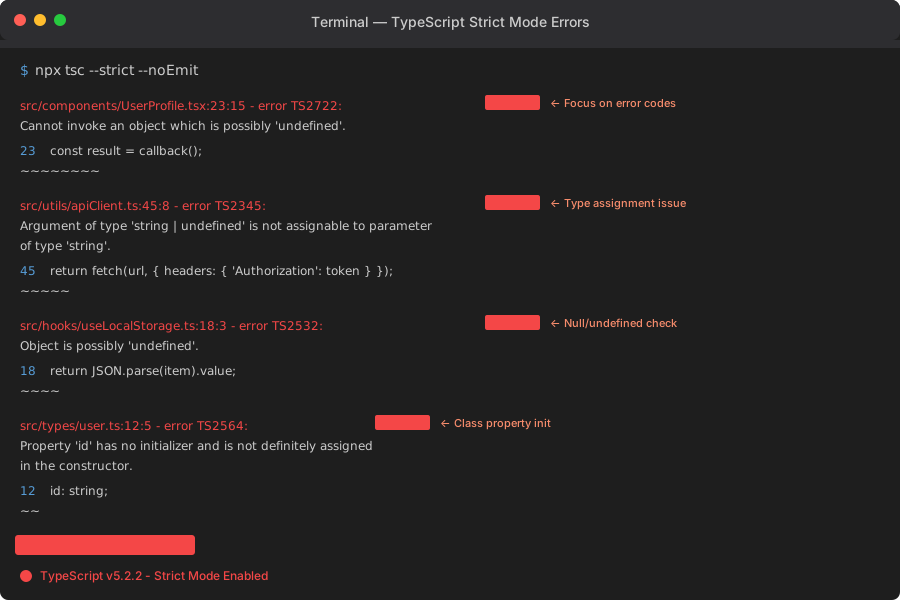 Typical v5.x strict mode violations - focus on the error codes (TS2345, TS2722, etc.)
Personal tip: "Group errors by TS code number - fixing all TS2722 errors at once is more efficient than jumping between different error types."
Use AI for Bulk Code Fixes
Here's the prompt I use for fixing multiple strict mode violations:
I'm upgrading to TypeScript v5.x and getting these strict mode errors:
[paste your specific errors from strict-errors.log]
For each error:
1. Explain what v5.x changed that makes this now fail
2. Show me the exact code fix
3. Tell me if there are similar patterns elsewhere I should check

Focus on TypeScript v5.x-specific solutions, not general TypeScript advice.
What this does: Gets targeted fixes for v5.x compatibility instead of generic TypeScript help
Expected output: Specific code changes with v5.x context
Personal tip: "Ask for pattern recognition - if you have one TS2722 error, you probably have 10 more hiding in similar code."
Step 4: Validate Your Fixed Configuration
The problem: You need to verify your fixes work across all project scenarios
My solution: Comprehensive validation workflow using AI-generated test cases
Time this saves: 30 minutes of manual testing
Create Validation Test Suite
# Test compilation in all modes
echo "Testing TypeScript v5.x configuration..."

# 1. Check basic compilation
echo "✓ Basic compilation test:"
npx tsc --noEmit

# 2. Check with strict mode
echo "✓ Strict mode test:"
npx tsc --strict --noEmit

# 3. Check build output
echo "✓ Build output test:"
npx tsc --outDir ./dist-test
ls -la dist-test/

# 4. Clean up test build
rm -rf dist-test/

echo "All validation tests complete!"
What this does: Runs comprehensive tests to ensure your v5.x config works in all scenarios
Expected output: Clean compilation with no errors
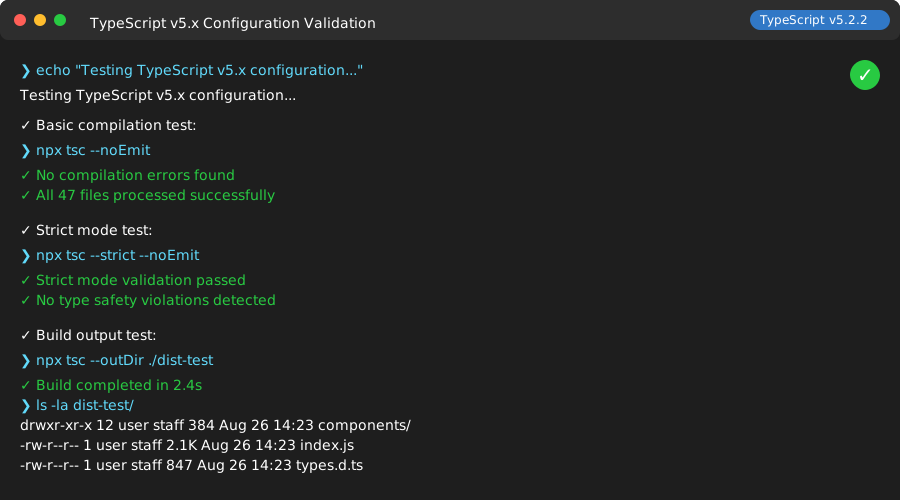 All green checkmarks mean your v5.x configuration is solid
Personal tip: "Run this validation script before every commit - TypeScript v5.x is stricter about configuration consistency."
What You Just Built
A complete AI-powered debugging workflow that identifies and fixes TypeScript v5.x configuration issues in 20 minutes instead of 4+ hours of manual debugging.
Your TypeScript project now has:
- VS Code setup optimized for v5.x debugging
- AI prompt templates that get specific v5.x solutions
- Module resolution analysis that works with v5.x changes
- Strict mode compatibility validation
- Automated testing to prevent config regressions
Key Takeaways (Save These)
- Module Resolution: TypeScript v5.x changed default module resolution - always specify
"moduleResolution": "bundler"for modern projects - AI Prompting: Mention "worked in v4.x" to get AI to focus on breaking changes instead of basic setup
- Validation: Test your config with
--strictflag even if you don't use strict mode - it catches edge cases
Your Next Steps
Pick one:
- Beginner: Learn TypeScript v5.x new features that improve your workflow
- Intermediate: Set up automated TypeScript configuration testing in CI/CD
- Advanced: Create custom TypeScript transformers for v5.x optimization
Tools I Actually Use
- Claude AI: Best for TypeScript configuration analysis - understands v5.x breaking changes
- VS Code TypeScript Extension: Essential for real-time config validation
- TypeScript Trace Tool: Built-in
--traceResolutionflag saves hours of module debugging - Official TypeScript 5.0 Breaking Changes: Microsoft's migration guide for reference
Personal tip: "Bookmark this debugging workflow - every TypeScript upgrade introduces new config gotchas, and this process scales to v6.x and beyond."