Problem: Multiple Cameras Killing Each Other's Throughput
You plug in a second (or third) USB camera and suddenly everything degrades — dropped frames, device disconnects, or one camera simply refuses to initialize. The hardware looks fine, the drivers are loaded, but something is silently failing.
You'll learn:
- How USB controllers share bandwidth and why that's the root cause
- How to identify which physical controller each device is on
- How to redistribute cameras across controllers to eliminate contention
Time: 15 min | Level: Intermediate
Why This Happens
USB bandwidth isn't per-port — it's per host controller. A single USB 3.0 controller has ~5 Gbps total throughput shared across every device plugged into it, including internal hubs. Most motherboards and laptops expose multiple physical ports but route many of them through the same controller.
A single uncompressed 1080p30 webcam using MJPEG consumes roughly 100–250 Mbps. A raw (YUY2) stream can hit 1.5 Gbps on its own. Two or three cameras on one controller quickly saturate it.
Common symptoms:
- One camera shows solid video while the other stutters or shows a black frame
dmesg(Linux) or Device Manager (Windows) showsxhci_hcderrors or "USB device not accepting address"- Frame rate caps at exactly half what you expect (controller throttling)
- Devices work individually but fail when both are connected
 Linux dmesg output showing xhci bandwidth allocation failure
Solution
Step 1: Map Your USB Controllers
Before moving anything, know your topology.
Linux:
# List all USB controllers and the devices attached to each
lsusb -t
The output shows a tree. Each /: Bus XX.Port 1 is a separate host controller. Devices nested beneath it share its bandwidth.
# More detail — shows device speed and power
lsusb -v 2>/dev/null | grep -E "Bus|idVendor|idProduct|bcdUSB|MaxPower"
Windows (PowerShell):
# List USB host controllers and connected devices
Get-PnpDevice -Class USB | Select-Object FriendlyName, InstanceId, Status | Sort-Object FriendlyName
Then open Device Manager → View → Devices by connection to see the physical tree visually.
Expected: You should see at least 2 separate USB host controllers listed. If all your ports trace back to one controller, the fix is hardware (a PCIe USB card — see Step 3).
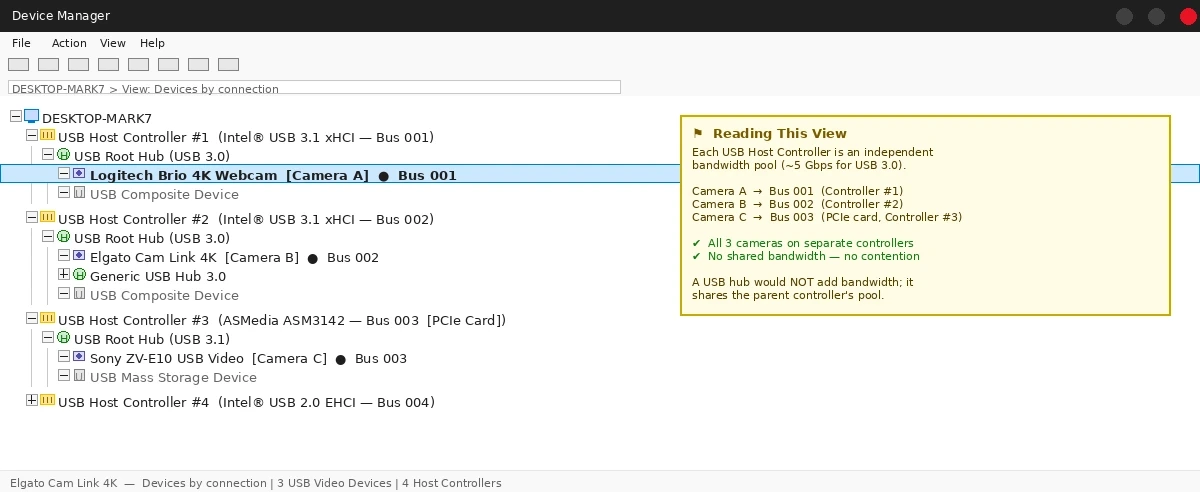 Device Manager in "Devices by connection" mode — each USB Host Controller is a separate bandwidth pool
Step 2: Check Current Bandwidth Consumption
Linux:
# See allocated vs. available bandwidth per bus
cat /sys/kernel/debug/usb/devices | grep -E "^B:|^D:|^P:"
Look for Bandwidth=XX% — anything above 80% will cause instability under load.
# Real-time USB traffic (requires usbmon kernel module)
sudo modprobe usbmon
sudo cat /sys/kernel/debug/usb/usbmon/1u | head -50
Windows:
Download USBTreeView (free, no install required). It shows actual bandwidth allocation per controller in real time, including which devices are consuming what.
If it fails:
- Linux —
/sys/kernel/debug/usb/devicesis empty: Mount debugfs first withsudo mount -t debugfs none /sys/kernel/debug - Windows — no USBTreeView access: Check Event Viewer → System for
usbhubwarnings as an alternative
Step 3: Redistribute Cameras Across Controllers
Now that you know the topology, physically move cameras to different controllers.
# After reconnecting, verify the camera moved to a new bus
lsusb -t

# Confirm bus assignment for a specific device (replace vid:pid)
lsusb | grep "046d:085e"  # Example: Logitech Brio
# Note the Bus number, then check lsusb -t to confirm it's on a different controller
If you only have one controller (common on laptops):
Add a PCIe USB card with its own dedicated controller chip (not a USB hub). Cards based on the Renesas µPD720201 or ASMedia ASM3142 are well-supported on Linux and Windows. A hub shares bandwidth — it does not add it.
# After adding a PCIe card, verify it appears as a new host controller
lsusb -t | grep "^/:"
Expected: Each camera should now appear under a different Bus entry.
Step 4: Reduce Per-Camera Bandwidth (If Hardware Changes Aren't Possible)
If redistribution isn't an option, compress at the source.
Force MJPEG instead of raw YUY2 in OBS or v4l2:
# Linux — list supported formats and their bandwidth
v4l2-ctl --device=/dev/video0 --list-formats-ext

# Force MJPEG capture (much lower bandwidth than YUY2)
v4l2-ctl --device=/dev/video0 --set-fmt-video=width=1920,height=1080,pixelformat=MJPG
In OBS Studio: Under each video capture source → Properties → Video Format → select MJPEG instead of YUY2. MJPEG at 1080p30 uses ~150 Mbps vs. ~1.5 Gbps for raw YUY2 — a 10x reduction.
If it fails:
- Camera doesn't offer MJPEG: Check
v4l2-ctl --list-formats-ext— some budget cameras only expose YUY2 - MJPEG looks blocky: Increase bitrate in camera settings if exposed, or accept the tradeoff
Verification
# Linux: confirm each camera is on a different bus
lsusb -t

# Run both cameras for 60 seconds and check for errors
dmesg -w | grep -i "usb\|xhci\|bandwidth"
You should see: No xhci_hcd errors, no "cannot enable. Maybe the USB cable is bad?" messages, and both cameras streaming at their configured frame rate.
On Windows, reopen USBTreeView — each camera should appear under a different host controller with combined bandwidth usage well below 80% on each.
What You Learned
- USB bandwidth is per host controller, not per port — a hub doesn't help
- Most machines have 2–4 USB controllers; use
lsusb -tor Device Manager to find them - MJPEG vs. YUY2 is a 10x bandwidth difference — always prefer MJPEG for multi-camera setups
- A PCIe USB expansion card adds a genuinely new controller; a USB hub does not
Limitation: Thunderbolt/USB4 docks often route through a single controller internally — check with lsusb -t even if the dock has many ports.
When NOT to use this: If your cameras are dropping frames due to CPU encoding overhead rather than USB saturation, this won't help — profile CPU usage first with htop or Task Manager.
Tested on Ubuntu 24.04, Windows 11 23H2, with Logitech Brio 4K, Elgato Cam Link 4K, and Sony ZV-E10 via USB.