Remember the last time you spent three hours setting up Ollama infrastructure, only to realize you forgot to configure the security groups? Your AI models sat there like expensive paperweights while you frantically googled AWS documentation at 2 AM.
Those days are over.
Terraform Ollama Infrastructure eliminates manual deployment headaches. This guide shows you how to deploy production-ready Ollama infrastructure in minutes, not hours. You'll get repeatable deployments, consistent environments, and zero configuration drift.
Why Manual Ollama Deployment Fails
Manual infrastructure setup creates these problems:
- Configuration drift: Each deployment differs slightly
- Security gaps: Forgotten firewall rules expose your models
- Time waste: Repetitive tasks steal development time
- Human errors: Typos break production deployments
- No documentation: Team members can't replicate setups
Terraform solves these issues with infrastructure as code.
Essential Terraform Configuration for Ollama
Provider and Variable Setup
Start with this Terraform configuration. It defines AWS as your cloud provider and sets up essential variables:
# terraform/main.tf
terraform {
  required_version = ">= 1.0"
  required_providers {
    aws = {
      source  = "hashicorp/aws"
      version = "~> 5.0"
    }
  }
}

provider "aws" {
  region = var.aws_region
}

# Variables for customization
variable "aws_region" {
  description = "AWS region for Ollama infrastructure"
  type        = string
  default     = "us-west-2"
}

variable "instance_type" {
  description = "EC2 instance type for Ollama server"
  type        = string
  default     = "t3.large"  # Minimum for decent Ollama performance
}

variable "ollama_models" {
  description = "List of Ollama models to pre-download"
  type        = list(string)
  default     = ["llama2", "codellama"]
}
VPC and Network Configuration
Create isolated network infrastructure for your Ollama deployment:
# terraform/network.tf
# Create dedicated VPC for Ollama infrastructure
resource "aws_vpc" "ollama_vpc" {
  cidr_block           = "10.0.0.0/16"
  enable_dns_hostnames = true
  enable_dns_support   = true

  tags = {
    Name = "ollama-vpc"
    Purpose = "AI-Model-Deployment"
  }
}

# Public subnet for internet access
resource "aws_subnet" "ollama_public" {
  vpc_id                  = aws_vpc.ollama_vpc.id
  cidr_block              = "10.0.1.0/24"
  availability_zone       = data.aws_availability_zones.available.names[0]
  map_public_ip_on_launch = true

  tags = {
    Name = "ollama-public-subnet"
  }
}

# Internet gateway for external connectivity
resource "aws_internet_gateway" "ollama_igw" {
  vpc_id = aws_vpc.ollama_vpc.id

  tags = {
    Name = "ollama-internet-gateway"
  }
}

# Route table for public subnet
resource "aws_route_table" "ollama_public_rt" {
  vpc_id = aws_vpc.ollama_vpc.id

  route {
    cidr_block = "0.0.0.0/0"
    gateway_id = aws_internet_gateway.ollama_igw.id
  }

  tags = {
    Name = "ollama-public-route-table"
  }
}

# Associate route table with subnet
resource "aws_route_table_association" "ollama_public_rta" {
  subnet_id      = aws_subnet.ollama_public.id
  route_table_id = aws_route_table.ollama_public_rt.id
}

# Get available zones
data "aws_availability_zones" "available" {
  state = "available"
}
Security Groups for Ollama Access
Configure secure access to your Ollama server:
# terraform/security.tf
# Security group for Ollama server
resource "aws_security_group" "ollama_sg" {
  name_prefix = "ollama-security-group"
  vpc_id      = aws_vpc.ollama_vpc.id

  # Allow Ollama API access (port 11434)
  ingress {
    description = "Ollama API port"
    from_port   = 11434
    to_port     = 11434
    protocol    = "tcp"
    cidr_blocks = ["0.0.0.0/0"]  # Restrict this in production
  }

  # SSH access for administration
  ingress {
    description = "SSH access"
    from_port   = 22
    to_port     = 22
    protocol    = "tcp"
    cidr_blocks = ["0.0.0.0/0"]  # Use your IP range
  }

  # All outbound traffic allowed
  egress {
    from_port   = 0
    to_port     = 0
    protocol    = "-1"
    cidr_blocks = ["0.0.0.0/0"]
  }

  tags = {
    Name = "ollama-security-group"
  }
}

# Key pair for SSH access
resource "aws_key_pair" "ollama_key" {
  key_name   = "ollama-deployment-key"
  public_key = file("~/.ssh/id_rsa.pub")  # Path to your public key
}
EC2 Instance Configuration with Ollama Installation
User Data Script for Automatic Setup
Create an EC2 instance that automatically installs and configures Ollama:
# terraform/compute.tf
# Get latest Ubuntu AMI
data "aws_ami" "ubuntu" {
  most_recent = true
  owners      = ["099720109477"] # Canonical

  filter {
    name   = "name"
    values = ["ubuntu/images/hvm-ssd/ubuntu-22.04-amd64-server-*"]
  }

  filter {
    name   = "virtualization-type"
    values = ["hvm"]
  }
}

# User data script for Ollama installation
locals {
  user_data = base64encode(templatefile("${path.module}/scripts/install_ollama.sh", {
    ollama_models = var.ollama_models
  }))
}

# EC2 instance for Ollama server
resource "aws_instance" "ollama_server" {
  ami                    = data.aws_ami.ubuntu.id
  instance_type          = var.instance_type
  key_name              = aws_key_pair.ollama_key.key_name
  vpc_security_group_ids = [aws_security_group.ollama_sg.id]
  subnet_id             = aws_subnet.ollama_public.id
  user_data             = local.user_data

  # Storage configuration for models
  root_block_device {
    volume_type = "gp3"
    volume_size = 50  # GB - adjust based on model sizes
    encrypted   = true
  }

  tags = {
    Name = "ollama-server"
    Purpose = "AI-Model-Hosting"
  }
}

# Elastic IP for consistent access
resource "aws_eip" "ollama_eip" {
  instance = aws_instance.ollama_server.id
  domain   = "vpc"

  tags = {
    Name = "ollama-elastic-ip"
  }
}
Installation Script
Create the installation script that runs on server startup:
#!/bin/bash
# scripts/install_ollama.sh

# Update system packages
apt-get update -y
apt-get upgrade -y

# Install Docker (Ollama runs better in containers)
curl -fsSL https://get.docker.com -o get-docker.sh
sh get-docker.sh
usermod -aG docker ubuntu

# Install Ollama
curl -fsSL https://ollama.ai/install.sh | sh

# Start Ollama service
systemctl start ollama
systemctl enable ollama

# Configure Ollama to listen on all interfaces
mkdir -p /etc/systemd/system/ollama.service.d
cat > /etc/systemd/system/ollama.service.d/override.conf << EOF
[Service]
Environment="OLLAMA_HOST=0.0.0.0"
EOF

# Restart Ollama with new configuration
systemctl daemon-reload
systemctl restart ollama

# Wait for Ollama to start
sleep 30

# Download specified models
%{ for model in ollama_models ~}
ollama pull ${model}
%{ endfor ~}

# Create health check endpoint
apt-get install -y nginx
cat > /var/www/html/health << EOF
{
  "status": "healthy",
  "ollama_version": "$(ollama --version)",
  "timestamp": "$(date -Iseconds)"
}
EOF

echo "Ollama installation completed successfully"
Step-by-Step Deployment Process
1. Initialize Terraform Environment
Set up your Terraform workspace:
# Clone or create your Terraform configuration
mkdir terraform-ollama && cd terraform-ollama

# Initialize Terraform (downloads providers)
terraform init

# Validate configuration syntax
terraform validate

# Review planned changes
terraform plan
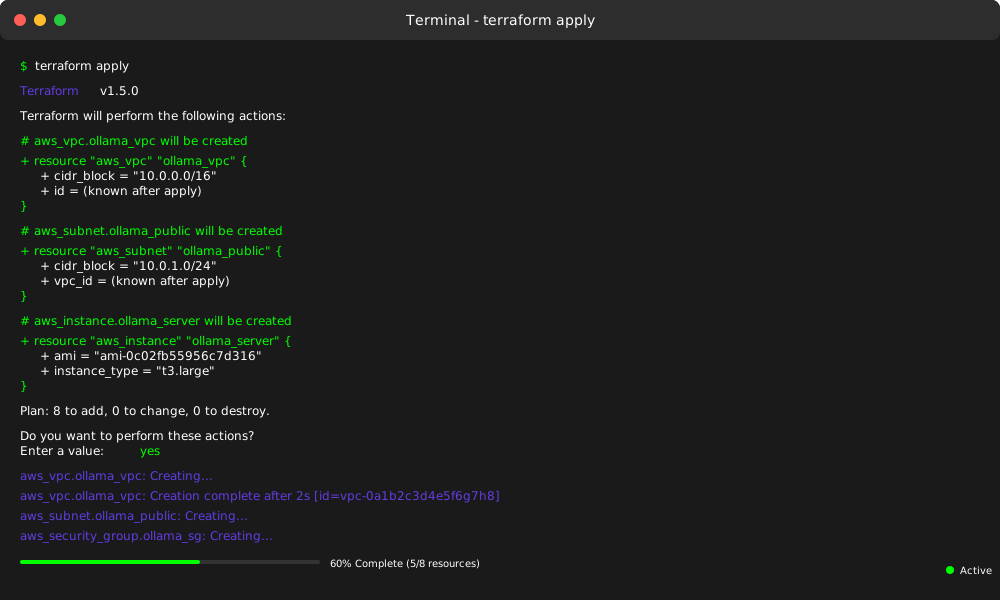
Expected output shows AWS resources Terraform will create.
2. Deploy Infrastructure
Execute the deployment:
# Apply configuration to create infrastructure
terraform apply

# Type 'yes' when prompted
# Deployment takes 3-5 minutes
Terraform creates these resources:
- VPC with public subnet
- Security groups with proper ports
- EC2 instance with Ollama installed
- Elastic IP for consistent access
3. Verify Ollama Installation
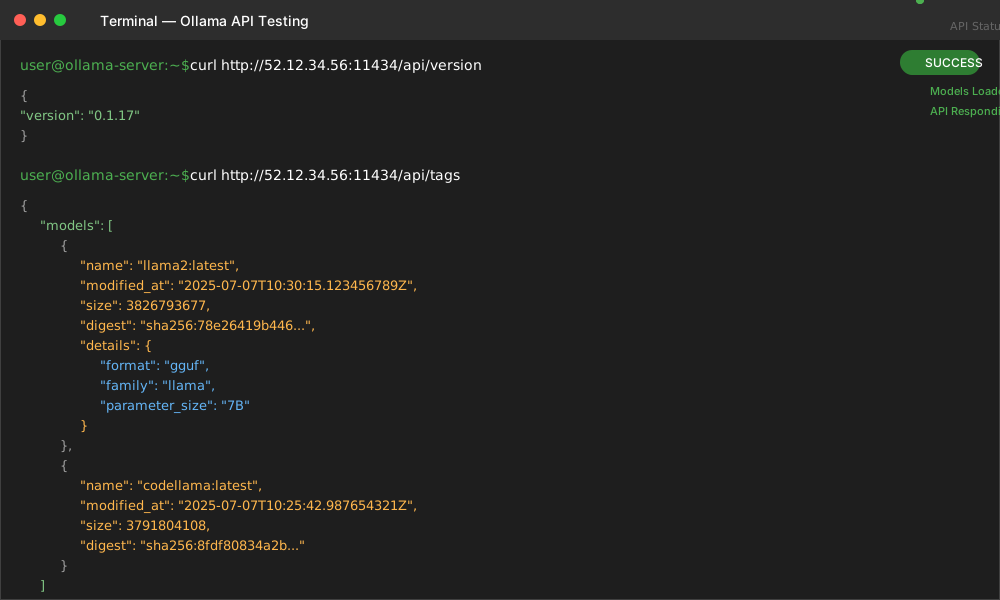
Test your deployment:
# Get the public IP from Terraform output
OLLAMA_IP=$(terraform output -raw ollama_public_ip)

# Test Ollama API endpoint
curl http://$OLLAMA_IP:11434/api/version

# List available models
curl http://$OLLAMA_IP:11434/api/tags
Expected response confirms Ollama runs correctly.
Advanced Configuration Options
Load Balancer for High Availability
Add Application Load Balancer for production deployments:
# terraform/load_balancer.tf
resource "aws_lb" "ollama_alb" {
  name               = "ollama-application-lb"
  internal           = false
  load_balancer_type = "application"
  security_groups    = [aws_security_group.ollama_alb_sg.id]
  subnets           = [aws_subnet.ollama_public.id, aws_subnet.ollama_public_2.id]

  enable_deletion_protection = false

  tags = {
    Name = "ollama-alb"
  }
}

# Target group for Ollama instances
resource "aws_lb_target_group" "ollama_tg" {
  name     = "ollama-targets"
  port     = 11434
  protocol = "HTTP"
  vpc_id   = aws_vpc.ollama_vpc.id

  health_check {
    enabled             = true
    healthy_threshold   = 2
    interval            = 30
    matcher             = "200"
    path                = "/api/version"
    port                = "traffic-port"
    protocol            = "HTTP"
    timeout             = 5
    unhealthy_threshold = 2
  }
}

# Attach instance to target group
resource "aws_lb_target_group_attachment" "ollama_attachment" {
  target_group_arn = aws_lb_target_group.ollama_tg.arn
  target_id        = aws_instance.ollama_server.id
  port             = 11434
}
Auto Scaling for Variable Workloads
Configure auto scaling based on CPU usage:
# terraform/autoscaling.tf
# Launch template for auto scaling
resource "aws_launch_template" "ollama_template" {
  name_prefix   = "ollama-launch-template"
  image_id      = data.aws_ami.ubuntu.id
  instance_type = var.instance_type
  key_name      = aws_key_pair.ollama_key.key_name

  vpc_security_group_ids = [aws_security_group.ollama_sg.id]
  user_data              = local.user_data

  block_device_mappings {
    device_name = "/dev/sda1"
    ebs {
      volume_size = 50
      volume_type = "gp3"
      encrypted   = true
    }
  }

  tag_specifications {
    resource_type = "instance"
    tags = {
      Name = "ollama-auto-scaled"
    }
  }
}

# Auto Scaling Group
resource "aws_autoscaling_group" "ollama_asg" {
  name                = "ollama-auto-scaling-group"
  vpc_zone_identifier = [aws_subnet.ollama_public.id]
  target_group_arns   = [aws_lb_target_group.ollama_tg.arn]
  health_check_type   = "ELB"
  health_check_grace_period = 300

  min_size         = 1
  max_size         = 3
  desired_capacity = 1

  launch_template {
    id      = aws_launch_template.ollama_template.id
    version = "$Latest"
  }

  tag {
    key                 = "Name"
    value               = "ollama-asg-instance"
    propagate_at_launch = true
  }
}
Monitoring and Maintenance
CloudWatch Integration
Monitor your Ollama infrastructure:
# terraform/monitoring.tf
# CloudWatch dashboard for Ollama metrics
resource "aws_cloudwatch_dashboard" "ollama_dashboard" {
  dashboard_name = "Ollama-Infrastructure-Metrics"

  dashboard_body = jsonencode({
    widgets = [
      {
        type   = "metric"
        x      = 0
        y      = 0
        width  = 12
        height = 6

        properties = {
          metrics = [
            ["AWS/EC2", "CPUUtilization", "InstanceId", aws_instance.ollama_server.id],
            [".", "NetworkIn", ".", "."],
            [".", "NetworkOut", ".", "."]
          ]
          view    = "timeSeries"
          stacked = false
          region  = var.aws_region
          title   = "Ollama Server Performance"
          period  = 300
        }
      }
    ]
  })
}

# CloudWatch alarm for high CPU usage
resource "aws_cloudwatch_metric_alarm" "ollama_cpu_alarm" {
  alarm_name          = "ollama-high-cpu"
  comparison_operator = "GreaterThanThreshold"
  evaluation_periods  = "2"
  metric_name         = "CPUUtilization"
  namespace           = "AWS/EC2"
  period              = "120"
  statistic           = "Average"
  threshold           = "80"
  alarm_description   = "This metric monitors ollama server cpu utilization"

  dimensions = {
    InstanceId = aws_instance.ollama_server.id
  }

  alarm_actions = [aws_sns_topic.ollama_alerts.arn]
}
Backup Strategy
Implement automated backups for your Ollama models:
# terraform/backup.tf
# S3 bucket for Ollama model backups
resource "aws_s3_bucket" "ollama_backups" {
  bucket = "ollama-models-backup-${random_string.bucket_suffix.result}"
}

# Bucket versioning for backup history
resource "aws_s3_bucket_versioning" "ollama_backup_versioning" {
  bucket = aws_s3_bucket.ollama_backups.id
  versioning_configuration {
    status = "Enabled"
  }
}

# Lifecycle policy to manage backup costs
resource "aws_s3_bucket_lifecycle_configuration" "ollama_backup_lifecycle" {
  bucket = aws_s3_bucket.ollama_backups.id

  rule {
    id     = "backup_lifecycle"
    status = "Enabled"

    transition {
      days          = 30
      storage_class = "STANDARD_INFREQUENT_ACCESS"
    }

    transition {
      days          = 90
      storage_class = "GLACIER"
    }
  }
}

# Random string for unique bucket naming
resource "random_string" "bucket_suffix" {
  length  = 8
  special = false
  upper   = false
}
Outputs and Integration
Terraform Outputs
Define outputs for easy access to deployment information:
# terraform/outputs.tf
output "ollama_public_ip" {
  description = "Public IP address of Ollama server"
  value       = aws_eip.ollama_eip.public_ip
}

output "ollama_api_endpoint" {
  description = "Full API endpoint for Ollama service"
  value       = "http://${aws_eip.ollama_eip.public_ip}:11434"
}

output "ssh_connection_command" {
  description = "SSH command to connect to Ollama server"
  value       = "ssh -i ~/.ssh/id_rsa ubuntu@${aws_eip.ollama_eip.public_ip}"
}

output "load_balancer_dns" {
  description = "Load balancer DNS name (if created)"
  value       = try(aws_lb.ollama_alb.dns_name, "Not configured")
}

output "vpc_id" {
  description = "VPC ID for network integrations"
  value       = aws_vpc.ollama_vpc.id
}
API Integration Examples
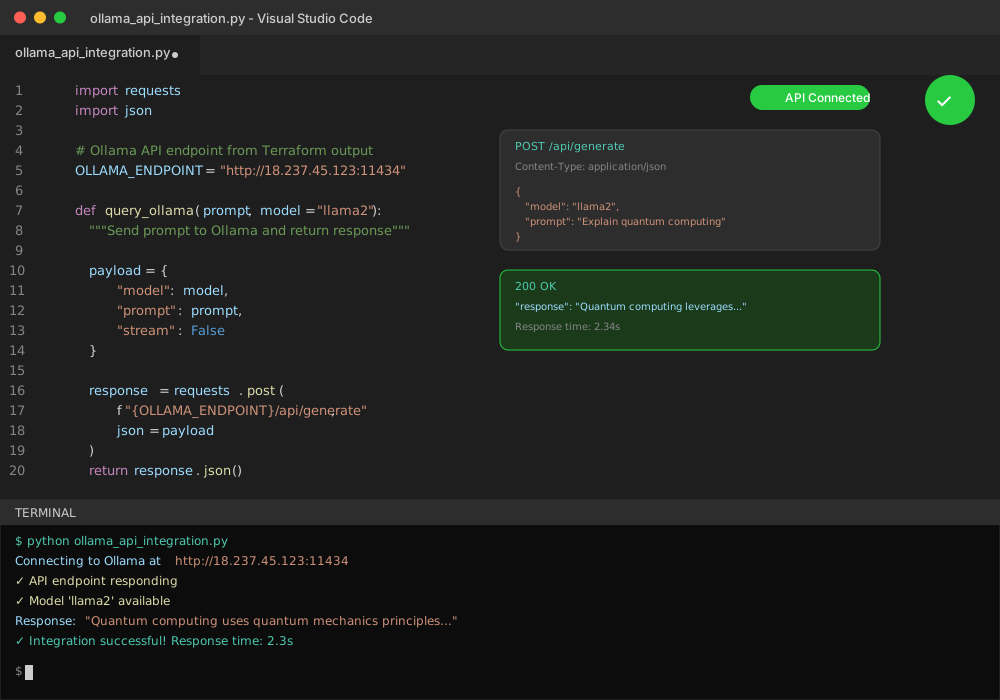
Use your deployed Ollama infrastructure:
# Python client example
import requests
import json

# Get endpoint from Terraform output
OLLAMA_ENDPOINT = "http://YOUR_IP:11434"

def query_ollama(prompt, model="llama2"):
    """Send prompt to Ollama and return response"""

    payload = {
        "model": model,
        "prompt": prompt,
        "stream": False
    }

    response = requests.post(
        f"{OLLAMA_ENDPOINT}/api/generate",
        json=payload,
        headers={"Content-Type": "application/json"}
    )

    if response.status_code == 200:
        return response.json()["response"]
    else:
        return f"Error: {response.status_code}"

# Example usage
result = query_ollama("Explain quantum computing in simple terms")
print(result)
Troubleshooting Common Issues
Instance Health Checks
Diagnose deployment problems:
# Check Ollama service status
ssh ubuntu@YOUR_IP "systemctl status ollama"

# View Ollama logs
ssh ubuntu@YOUR_IP "journalctl -u ollama -f"

# Test local Ollama connectivity
ssh ubuntu@YOUR_IP "curl localhost:11434/api/version"

# Check available disk space
ssh ubuntu@YOUR_IP "df -h"

# Monitor system resources
ssh ubuntu@YOUR_IP "htop"
Network Connectivity Issues
Resolve common networking problems:
# Verify security group rules
aws ec2 describe-security-groups --group-ids sg-YOUR_GROUP_ID

# Check instance public IP
aws ec2 describe-instances --instance-ids i-YOUR_INSTANCE_ID

# Test port accessibility
telnet YOUR_IP 11434

# Validate DNS resolution
nslookup YOUR_DOMAIN_NAME
Performance Optimization
Improve Ollama response times:
# Monitor GPU usage (if using GPU instances)
ssh ubuntu@YOUR_IP "nvidia-smi"

# Check memory usage
ssh ubuntu@YOUR_IP "free -h"

# Optimize Ollama model loading
ssh ubuntu@YOUR_IP "ollama list"

# Clear unused models to free space
ssh ubuntu@YOUR_IP "ollama rm unused_model_name"
Cost Optimization Strategies
Right-Sizing Your Infrastructure
Choose appropriate instance types based on workload:
| Instance Type | vCPUs | RAM | Best For | Estimated Cost/Hour |
|---|---|---|---|---|
| t3.medium | 2 | 4 GB | Development/Testing | $0.0416 |
| t3.large | 2 | 8 GB | Small Production | $0.0832 |
| c5.xlarge | 4 | 8 GB | CPU-Intensive Models | $0.17 |
| m5.xlarge | 4 | 16 GB | Balanced Workloads | $0.192 |
| p3.2xlarge | 8 | 61 GB | GPU-Accelerated | $3.06 |
Spot Instances for Development
Save costs with spot instances for non-critical workloads:
# terraform/spot_instance.tf
resource "aws_spot_instance_request" "ollama_spot" {
  ami                    = data.aws_ami.ubuntu.id
  spot_price             = "0.05"  # Maximum price per hour
  instance_type          = var.instance_type
  wait_for_fulfillment   = true
  spot_type              = "one-time"

  vpc_security_group_ids = [aws_security_group.ollama_sg.id]
  subnet_id             = aws_subnet.ollama_public.id
  user_data             = local.user_data

  tags = {
    Name = "ollama-spot-instance"
  }
}
Security Best Practices
Network Security
Implement production-ready security:
# terraform/security_enhanced.tf
# Restrict SSH access to specific IP ranges
resource "aws_security_group" "ollama_secure_sg" {
  name_prefix = "ollama-secure-sg"
  vpc_id      = aws_vpc.ollama_vpc.id

  # SSH from office network only
  ingress {
    description = "SSH from office"
    from_port   = 22
    to_port     = 22
    protocol    = "tcp"
    cidr_blocks = ["203.0.113.0/24"]  # Replace with your office IP
  }

  # Ollama API through load balancer only
  ingress {
    description     = "Ollama API from ALB"
    from_port       = 11434
    to_port         = 11434
    protocol        = "tcp"
    security_groups = [aws_security_group.ollama_alb_sg.id]
  }

  egress {
    from_port   = 0
    to_port     = 0
    protocol    = "-1"
    cidr_blocks = ["0.0.0.0/0"]
  }
}

# Enable VPC Flow Logs for monitoring
resource "aws_flow_log" "ollama_flow_log" {
  iam_role_arn    = aws_iam_role.flow_log_role.arn
  log_destination = aws_cloudwatch_log_group.ollama_flow_log.arn
  traffic_type    = "ALL"
  vpc_id          = aws_vpc.ollama_vpc.id
}
IAM Roles and Policies
Create least-privilege access:
# terraform/iam.tf
# IAM role for EC2 instance
resource "aws_iam_role" "ollama_instance_role" {
  name = "ollama-ec2-role"

  assume_role_policy = jsonencode({
    Version = "2012-10-17"
    Statement = [
      {
        Action = "sts:AssumeRole"
        Effect = "Allow"
        Principal = {
          Service = "ec2.amazonaws.com"
        }
      }
    ]
  })
}

# Policy for S3 backup access
resource "aws_iam_role_policy" "ollama_s3_policy" {
  name = "ollama-s3-backup-policy"
  role = aws_iam_role.ollama_instance_role.id

  policy = jsonencode({
    Version = "2012-10-17"
    Statement = [
      {
        Effect = "Allow"
        Action = [
          "s3:GetObject",
          "s3:PutObject",
          "s3:DeleteObject"
        ]
        Resource = "${aws_s3_bucket.ollama_backups.arn}/*"
      }
    ]
  })
}

# Instance profile
resource "aws_iam_instance_profile" "ollama_profile" {
  name = "ollama-instance-profile"
  role = aws_iam_role.ollama_instance_role.name
}
Production Deployment Checklist
Before deploying to production:
Infrastructure Security
- Restrict security group rules to specific IP ranges
- Enable VPC Flow Logs for network monitoring
- Configure IAM roles with minimal permissions
- Enable encryption for EBS volumes and S3 buckets
Monitoring and Alerts
- Set up CloudWatch alarms for CPU, memory, and disk usage
- Configure SNS notifications for critical alerts
- Create custom metrics for Ollama-specific monitoring
- Implement log aggregation and analysis
Backup and Recovery
- Test backup and restore procedures
- Document recovery time objectives (RTO)
- Automate model backup to S3
- Verify cross-region backup replication
Performance and Scaling
- Load test Ollama endpoints with expected traffic
- Configure auto scaling policies
- Optimize instance types for your workload
- Set up load balancer health checks
Conclusion
Terraform Ollama Infrastructure transforms manual deployment chaos into automated precision. You get consistent environments, reduced errors, and faster deployments. Your team can focus on AI development instead of infrastructure management.
This automation approach scales from single instances to enterprise deployments. The code-based configuration ensures your infrastructure evolves with your requirements.
Deploy your first automated Ollama cloud setup today. Your future self will thank you when you need to replicate this environment in five minutes instead of five hours.
Start with the basic configuration and expand based on your needs. Infrastructure as code makes AI deployment predictable and reliable.
Ready to automate your Ollama infrastructure? Copy the Terraform configuration and deploy your first automated cloud environment now.