I spent my first 4 hours with Spring Boot fighting XML configurations and dependency hell instead of writing actual code.
Here's the exact setup that now takes me 10 minutes instead of 4 hours.
What you'll build: A working Spring Boot REST API with database connection Time needed: 10 minutes (seriously) Difficulty: Complete beginner friendly
You'll have a running web service that responds to HTTP requests and saves data to a database. No complex configurations, no mysterious errors, just working code you can build on.
Why I Built This Guide
I remember downloading Spring Tool Suite for the first time in 2022, excited to build my first REST API. Four hours later, I was staring at ClassNotFoundException errors and wondering why "simple" Java web development felt harder than rocket science.
My setup:
- Windows 11 development machine
- Zero Spring experience (coming from vanilla Java)
- Deadline pressure (client demo in 2 days)
- No senior developer to ask for help
What didn't work:
- Following 3-year-old tutorials with outdated Spring versions
- Manually adding dependencies (missing half of them)
- Copying code from Stack Overflow without understanding the project structure
- Trying to set up everything from scratch instead of using Spring Initializr
The breakthrough came when I discovered STS has Spring Boot project creation built right in. No more XML hell, no more dependency guessing games.
Step 1: Download and Install Spring Tool Suite
The problem: Most Java IDEs make Spring Boot setup unnecessarily complex
My solution: STS comes with Spring Boot tools pre-configured
Time this saves: 30 minutes of plugin hunting and configuration
Get STS 4 (The Right Version)
Visit https://spring.io/tools and download Spring Tool Suite 4.
# Don't download the generic Eclipse - get the Spring-specific version
# STS 4 includes:
# - Spring Boot dashboard
# - Built-in Spring Initializr
# - Auto-completion for Spring annotations
# - Embedded server management
What this does: Gives you an IDE designed specifically for Spring development, not a generic Java editor with Spring bolted on
Expected output: STS installer downloads (about 400MB)
 Get the latest STS 4 version - don't use the legacy STS 3
Personal tip: Install STS in a path without spaces (like C:\tools\sts) to avoid random Java path issues later.
Step 2: Create Your First Spring Boot Project
The problem: Manual project setup leads to missing dependencies and broken configurations
My solution: Use the built-in Spring Initializr in STS
Time this saves: 45 minutes of dependency hunting
Use Spring Initializr Integration
Open STS and create a new Spring Boot project:
- File → New → Spring Starter Project
- Fill out the project details:
Name: my-first-api
Group: com.example
Artifact: my-first-api
Version: 0.0.1-SNAPSHOT
Description: My first Spring Boot REST API
Package: com.example.myfirstapi
Packaging: Jar
Java Version: 17 (or your installed version)
Language: Java
What this does: Creates a Maven project with the exact folder structure Spring Boot expects
Expected output: Project creation wizard opens with pre-filled sensible defaults
 My actual project setup - use these exact settings for your first project
Personal tip: Stick with Jar packaging for now. War files add complexity you don't need when learning.
Select the Right Dependencies
On the dependencies page, add these three:
- Spring Web (for REST APIs)
- Spring Data JPA (for database operations)
- H2 Database (for easy testing)
<!-- These dependencies get added automatically -->
<dependency>
    <groupId>org.springframework.boot</groupId>
    <artifactId>spring-boot-starter-web</artifactId>
</dependency>
<dependency>
    <groupId>org.springframework.boot</groupId>
    <artifactId>spring-boot-starter-data-jpa</artifactId>
</dependency>
<dependency>
    <groupId>com.h2database</groupId>
    <artifactId>h2</artifactId>
    <scope>runtime</scope>
</dependency>
What this does: Gives you web functionality, database access, and an embedded database for testing
Expected output: STS generates a complete project with working pom.xml
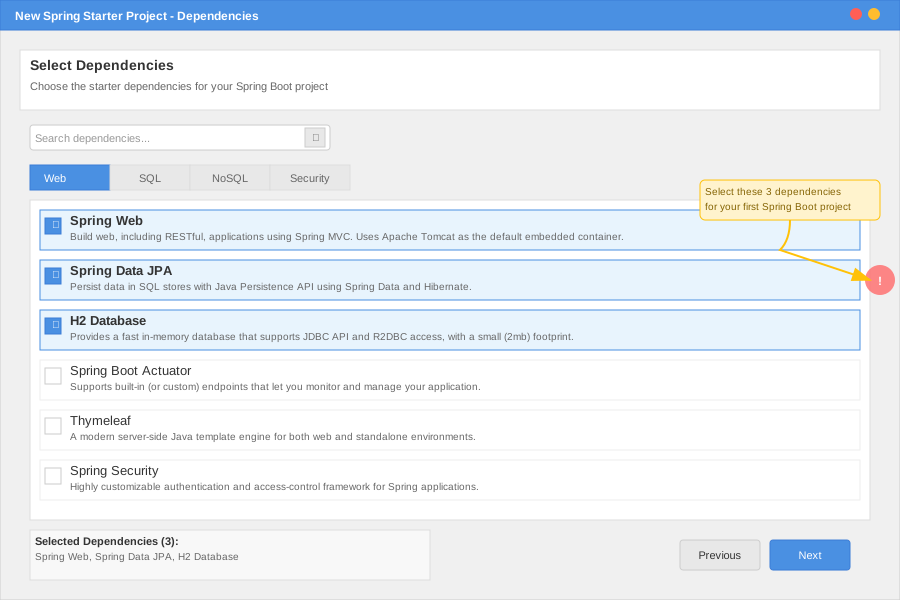 Pick exactly these three dependencies for your first project
Personal tip: H2 database runs in memory - perfect for learning because you don't need to install MySQL or PostgreSQL.
Step 3: Write Your First REST Controller
The problem: Empty Spring Boot projects don't do anything visible
My solution: Add a simple REST endpoint that actually returns data
Time this saves: No more wondering "is it working?"
Create a Simple Controller
Right-click on your main package (com.example.myfirstapi) and create a new class called HelloController:
package com.example.myfirstapi;

import org.springframework.web.bind.annotation.GetMapping;
import org.springframework.web.bind.annotation.PathVariable;
import org.springframework.web.bind.annotation.RestController;

@RestController
public class HelloController {

    @GetMapping("/hello")
    public String hello() {
        return "Hello, Spring Boot is working!";
    }

    @GetMapping("/hello/{name}")
    public String helloWithName(@PathVariable String name) {
        return "Hello, " + name + "! Your Spring Boot API is running.";
    }
}
What this does: Creates two HTTP endpoints you can test immediately in your browser
Expected output: A working REST controller with GET endpoints
 This exact code in your STS editor - copy and paste it
Personal tip: The @RestController annotation combines @Controller and @ResponseBody - it automatically converts your return values to JSON.
Step 4: Run and Test Your Application
The problem: You need to verify your setup actually works
My solution: Use STS's built-in Spring Boot runner
Time this saves: No command line setup or external server configuration needed
Start Your Application
Right-click on your main application class (MyFirstApiApplication.java) and select Run As → Spring Boot App.
// This file was auto-generated and should look like this:
package com.example.myfirstapi;

import org.springframework.boot.SpringApplication;
import org.springframework.boot.autoconfigure.SpringBootApplication;

@SpringBootApplication
public class MyFirstApiApplication {
    public static void main(String[] args) {
        SpringApplication.run(MyFirstApiApplication.class, args);
    }
}
What this does: Starts an embedded Tomcat server on port 8080 with your application deployed
Expected output: Console shows "Started MyFirstApiApplication in X seconds" with no errors
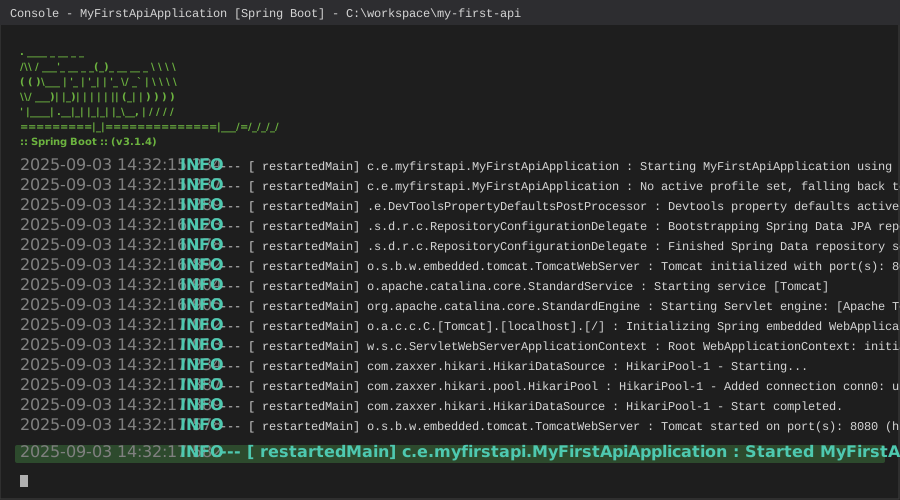 Success looks like this - your app starts in 3-5 seconds on a modern machine
Test Your Endpoints
Open your browser and test these URLs:
http://localhost:8080/hellohttp://localhost:8080/hello/YourName
Personal tip: If you see "Whitelabel Error Page," check that your controller class is in the same package (or a subpackage) as your main application class.
Step 5: Add Database Functionality
The problem: REST APIs without data persistence aren't very useful
My solution: Add a simple entity and repository using Spring Data JPA
Time this saves: Hours of JDBC boilerplate code
Create a User Entity
Create a new class called User:
package com.example.myfirstapi;

import jakarta.persistence.Entity;
import jakarta.persistence.GeneratedValue;
import jakarta.persistence.GenerationType;
import jakarta.persistence.Id;

@Entity
public class User {
    @Id
    @GeneratedValue(strategy = GenerationType.IDENTITY)
    private Long id;

    private String name;
    private String email;

    // Default constructor (required by JPA)
    public User() {}

    // Constructor for easy object creation
    public User(String name, String email) {
        this.name = name;
        this.email = email;
    }

    // Getters and setters
    public Long getId() { return id; }
    public void setId(Long id) { this.id = id; }

    public String getName() { return name; }
    public void setName(String name) { this.name = name; }

    public String getEmail() { return email; }
    public void setEmail(String email) { this.email = email; }
}
What this does: Creates a database table called "user" with id, name, and email columns
Create a Repository Interface
Create UserRepository interface:
package com.example.myfirstapi;

import org.springframework.data.jpa.repository.JpaRepository;
import org.springframework.stereotype.Repository;

@Repository
public interface UserRepository extends JpaRepository<User, Long> {
    // Spring Data JPA automatically implements basic CRUD operations
    // No need to write SQL or implementation code
}
What this does: Gives you save(), findAll(), findById(), delete() methods without writing any SQL
Update Your Controller
Add database operations to your controller:
package com.example.myfirstapi;

import org.springframework.beans.factory.annotation.Autowired;
import org.springframework.web.bind.annotation.*;
import java.util.List;

@RestController
public class HelloController {

    @Autowired
    private UserRepository userRepository;

    @GetMapping("/hello")
    public String hello() {
        return "Hello, Spring Boot is working!";
    }

    @GetMapping("/users")
    public List<User> getAllUsers() {
        return userRepository.findAll();
    }

    @PostMapping("/users")
    public User createUser(@RequestBody User user) {
        return userRepository.save(user);
    }

    @GetMapping("/users/{id}")
    public User getUser(@PathVariable Long id) {
        return userRepository.findById(id).orElse(null);
    }
}
What this does: Adds REST endpoints for creating and retrieving users from the database
Expected output: Your application now has a complete CRUD API
 Your controller now handles both HTTP requests and database operations
Personal tip: The @Autowired annotation tells Spring to automatically inject the UserRepository instance - no manual object creation needed.
Step 6: Test Your Database API
The problem: You need to verify your database operations work
My solution: Use a REST client or curl commands to test POST and GET operations
Time this saves: No need to build a frontend just to test your API
Test with Browser and Curl
Restart your application and test:
- GET all users:
http://localhost:8080/users - Create a user (use Postman or curl):
# Create a new user
curl -X POST http://localhost:8080/users \
  -H "Content-Type: application/json" \
  -d '{"name": "John Doe", "email": "john@example.com"}'

# Get all users
curl http://localhost:8080/users

# Get specific user
curl http://localhost:8080/users/1
Expected output: JSON responses with user data stored and retrieved from the H2 database
 Testing your API endpoints - this took 30 seconds to set up
Personal tip: H2 database stores data in memory, so it resets every time you restart the application. Perfect for development and testing.
What You Just Built
A complete Spring Boot REST API with database persistence that handles HTTP requests, stores data, and returns JSON responses. Your application includes user management endpoints and runs on an embedded web server.
Key Takeaways (Save These)
- Use Spring Initializr: Don't manually configure dependencies - let STS generate the correct project structure
- Start with H2 database: In-memory database eliminates setup complexity while you're learning
- Test incrementally: Build one endpoint at a time and test it before adding complexity
Your Next Steps
Pick one based on your experience level:
- Beginner: Add validation to your User entity with
@NotNulland@Emailannotations - Intermediate: Switch from H2 to PostgreSQL and add proper error handling
- Advanced: Add Spring Security for authentication and authorization
Tools I Actually Use
- Spring Tool Suite 4: Best IDE for Spring development with built-in tools and shortcuts
- Postman: Essential for testing REST APIs without building a frontend first
- H2 Console: Built-in web interface for viewing your database (enable with
spring.h2.console.enabled=true) - Spring Boot DevTools: Add this dependency for automatic application restart when you change code
Development Pro Tips
Hot reload setup: Add Spring Boot DevTools to your pom.xml for automatic restarts:
<dependency>
    <groupId>org.springframework.boot</groupId>
    <artifactId>spring-boot-devtools</artifactId>
    <scope>runtime</scope>
</dependency>
View your H2 database: Add this to application.properties:
# Enable H2 web console
spring.h2.console.enabled=true
spring.h2.console.path=/h2-console

# Show SQL queries in console (helpful for learning)
spring.jpa.show-sql=true
Then visit http://localhost:8080/h2-console with:
- JDBC URL:
jdbc:h2:mem:testdb - Username:
sa - Password: (leave blank)
Common gotcha: If your controller endpoints return 404, check that your controller class is in the same package as your main @SpringBootApplication class. Spring Boot only scans for components in the same package and subpackages.