Problem: You Want a Proper UI for Your Local Ollama Models
Open WebUI ollama frontend gives your local models a ChatGPT-class interface — file uploads, RAG, tool calling, image generation, multi-user auth, and a model library — all running on your own machine.
Running ollama run llama3.2 in a terminal works fine for testing. It breaks down the moment you want conversation history, document Q&A, or to share access with a teammate.
You'll learn:
- Install Open WebUI with Docker and connect it to a running Ollama instance
- Configure persistent storage, authentication, and environment variables
- Enable RAG pipelines, web search, and tool calling from the UI
Time: 20 min | Difficulty: Intermediate
Why You Need a Frontend for Ollama
Ollama exposes a REST API on localhost:11434. It handles model pulling, inference, and basic chat — nothing else. There is no conversation history, no file context, no user management.
Open WebUI fills that gap. It is the most actively maintained open-source frontend for Ollama, with over 90k GitHub stars as of 2026. It runs as a separate Docker container that proxies requests to the Ollama API.
Symptoms that you need this:
- Losing conversation context every time you restart
ollama run - No way to upload a PDF and ask questions about it
- Teammates need access but you don't want to expose raw API endpoints
- You want image generation (AUTOMATIC1111 / ComfyUI) alongside text models
Architecture Overview
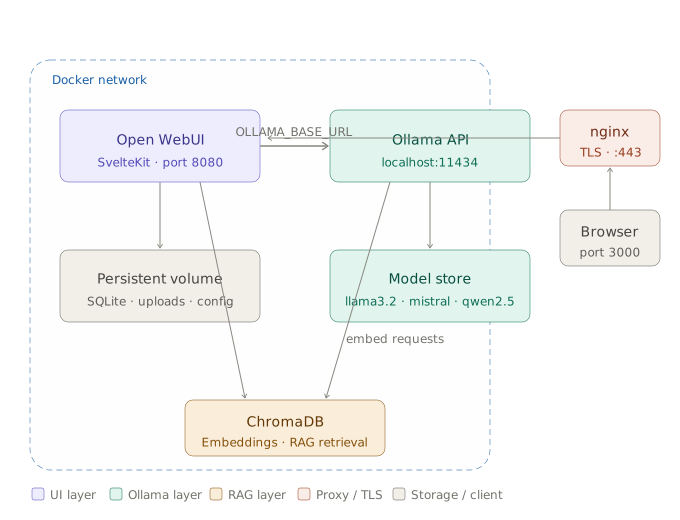 Open WebUI proxies all model requests through the Ollama API — your models stay local, the UI adds context and session management on top
Open WebUI runs as a Python/SvelteKit app in a Docker container. It stores conversations in a SQLite database (upgradeable to PostgreSQL), user uploads in a local volume, and proxies all inference to OLLAMA_BASE_URL.
Three deployment patterns exist:
| Pattern | Ollama location | Open WebUI location | Use case |
|---|---|---|---|
| Same host, Docker | Host process | Docker container | Single dev machine |
| Docker Compose | Docker container | Docker container | Clean local setup |
| Remote Ollama | Remote server (GPU box) | Local/cloud container | Team sharing a GPU |
This guide covers all three. Start with the Docker Compose pattern — it is the most reliable.
Prerequisites
- Docker 24+ and Docker Compose v2 (
docker compose version) - Ollama installed and running:
ollama serveor the Ollama desktop app - At least one model pulled:
ollama pull llama3.2 - 4GB disk space for the Open WebUI image
Confirm Ollama is responding before continuing:
curl http://localhost:11434/api/tags
Expected output: JSON with a models array listing your pulled models.
Solution
Step 1: Create the Docker Compose File
Create a project directory and the compose file:
mkdir ~/open-webui && cd ~/open-webui
# docker-compose.yml
# Open WebUI + Ollama running together in an isolated Docker network
services:
  open-webui:
    image: ghcr.io/open-webui/open-webui:main
    container_name: open-webui
    restart: unless-stopped
    ports:
      - "3000:8080"           # Access at http://localhost:3000
    volumes:
      - open-webui:/app/backend/data   # Persists DB, uploads, and config
    environment:
      # Point to the Ollama API — use host.docker.internal if Ollama runs on host
      - OLLAMA_BASE_URL=http://host.docker.internal:11434
      # Admin account auto-created on first launch — change this immediately
      - WEBUI_SECRET_KEY=change-this-to-a-random-string
    extra_hosts:
      - "host.docker.internal:host-gateway"   # Required on Linux; no-op on macOS

volumes:
  open-webui:
If you want Ollama inside Docker too, add this to services:
  ollama:
    image: ollama/ollama:latest
    container_name: ollama
    restart: unless-stopped
    volumes:
      - ollama-models:/root/.ollama   # Persists downloaded models
    ports:
      - "11434:11434"
    # Uncomment for NVIDIA GPU pass-through
    # deploy:
    #   resources:
    #     reservations:
    #       devices:
    #         - driver: nvidia
    #           count: all
    #           capabilities: [gpu]

volumes:
  open-webui:
  ollama-models:
Then change OLLAMA_BASE_URL to http://ollama:11434 — the Docker service name resolves internally.
Step 2: Start the Stack
docker compose up -d
The first pull takes 2–3 minutes depending on connection speed (the image is ~1.5GB).
Watch the logs to confirm startup:
docker compose logs -f open-webui
Expected output: Uvicorn running on http://0.0.0.0:8080 followed by Application startup complete.
If it fails:
Connection refusedto Ollama → Verifyollama serveis running on the host:curl http://localhost:11434host.docker.internalnot resolving on Linux → Make sureextra_hostsis present in the compose file- Port 3000 already in use → Change the left side of the port mapping:
"3001:8080"
Step 3: Create Your Admin Account
Open http://localhost:3000 in your browser.
The first account registered becomes the admin. Fill in name, email, and password — this is stored locally, no external service involved.
After login, navigate to Settings → Admin Panel → Connections and confirm the Ollama URL shows a green connected indicator.
Step 4: Pull and Select Models
Open WebUI has a built-in model library that calls ollama pull for you.
Go to Settings → Models → Pull a model from Ollama.com. Type a model name — llama3.2, mistral, qwen2.5:14b, deepseek-r1:8b — and click the download icon.
Models you already have appear automatically in the model selector at the top of every chat.
For quantized models on limited VRAM, pull the specific tag:
# From the host — Q4_K_M is the sweet spot for quality vs memory on 8GB VRAM
ollama pull llama3.2:3b-instruct-q4_K_M
Step 5: Enable RAG (Document Q&A)
Open WebUI includes a built-in RAG pipeline backed by ChromaDB. No external vector DB setup required.
Navigate to Settings → Documents:
- Embedding model — defaults to
nomic-embed-text. Pull it first:ollama pull nomic-embed-text - Chunk size — 1500 tokens works well for technical docs; drop to 500 for dense legal PDFs
- Top K — how many chunks are retrieved per query; 5 is a safe default
To use RAG in a chat, click the + icon in the message bar, upload a PDF or .txt file, then ask questions referencing the document. The retrieval happens automatically — no special prompt syntax needed.
Step 6: Configure Web Search (Optional)
Open WebUI can inject live search results into the context window before answering.
Go to Settings → Web Search:
- Select a provider — SearXNG (free, self-hosted) or Google PSE ($5/1000 queries via Google Cloud)
- Enter the API key or the SearXNG instance URL
- Toggle Enable Web Search on
In any chat, click the globe icon to activate search for that message. Open WebUI fetches the top results and prepends them to the prompt automatically.
Step 7: Lock Down Multi-User Access
By default, new registrations are allowed. For a shared instance you'll want to tighten this.
In Settings → Admin Panel → General:
- Default User Role — set to
pendingso new accounts need admin approval - JWT Expiry — default is 7 days; set to
24hfor stricter session control - Enable Community Sharing — disable unless you want public model sharing
For a team deployment exposed beyond localhost, put Open WebUI behind a reverse proxy with HTTPS:
# /etc/nginx/sites-available/open-webui
server {
    listen 443 ssl;
    server_name llm.yourcompany.com;

    ssl_certificate     /etc/letsencrypt/live/llm.yourcompany.com/fullchain.pem;
    ssl_certificate_key /etc/letsencrypt/live/llm.yourcompany.com/privkey.pem;

    location / {
        proxy_pass         http://localhost:3000;
        proxy_http_version 1.1;
        # Required for streaming responses — without this, output buffers until complete
        proxy_buffering    off;
        proxy_set_header   Upgrade $http_upgrade;
        proxy_set_header   Connection "upgrade";
        proxy_set_header   Host $host;
    }
}
Certbot free TLS: sudo certbot --nginx -d llm.yourcompany.com. Pricing for a US-based AWS EC2 t3.medium starts at ~$30/month on-demand (us-east-1).
Verification
# Confirm container is running
docker ps --filter name=open-webui

# Check the health endpoint
curl http://localhost:3000/health
You should see: {"status":true} from the health check and Up X minutes in the container list.
Send a test message in the UI. You should see a streaming response from your Ollama model with no delay beyond inference time.
Open WebUI vs Alternatives
| Open WebUI | Ollama Web UI (legacy) | AnythingLLM | |
|---|---|---|---|
| Active maintenance | ✅ weekly releases | ❌ archived | ✅ active |
| RAG built-in | ✅ ChromaDB | ❌ | ✅ |
| Multi-user auth | ✅ | ❌ | ✅ paid tier |
| Tool / function calling | ✅ | ❌ | limited |
| Self-hosted, free | ✅ | ✅ | ✅ community |
| Image generation | ✅ AUTOMATIC1111 | ❌ | ❌ |
Open WebUI is the clear choice if you're running Ollama in 2026. AnythingLLM makes sense for non-technical teams that need a polished no-code setup and don't mind the paid tier for SSO.
What You Learned
- Open WebUI runs as a separate Docker container and proxies all inference to
OLLAMA_BASE_URL— Ollama itself never changes host.docker.internal:host-gatewayis required on Linux to let the container reach the host's Ollama process- RAG uses ChromaDB under the hood with
nomic-embed-textas the default embedding model — pull the embedding model before enabling document Q&A - Disable open registration and set Default User Role to
pendingbefore sharing a deployment
Tested on Open WebUI v0.6.x, Ollama v0.6, Docker 27, Ubuntu 22.04 and macOS Sequoia
FAQ
Q: Does Open WebUI work without Docker?
A: Yes — pip install open-webui && open-webui serve runs it directly. Docker is recommended because it handles all Python dependencies and avoids version conflicts with your local environment.
Q: How do I update Open WebUI to the latest version?
A: Run docker compose pull && docker compose up -d. Your data volume persists across updates — no migration needed unless a major version bump says otherwise in the release notes.
Q: Can Open WebUI connect to OpenAI or Anthropic at the same time as Ollama? A: Yes. Go to Settings → Connections and add an OpenAI-compatible endpoint. You can then select GPT-4o or Claude models from the same chat interface alongside your local Ollama models.
Q: What is the minimum RAM to run Open WebUI alongside Ollama? A: The Open WebUI container uses ~500MB RAM. The real constraint is Ollama — a 7B Q4 model needs ~6GB RAM. A system with 16GB total RAM comfortably runs both alongside a browser.
Q: Why are my responses not streaming — they appear all at once?
A: This is almost always the nginx proxy_buffering setting. Set proxy_buffering off in the location block. Without it, nginx buffers the full response before forwarding it to the client.