Problem: Running a 70B Model Locally Without Melting Your Laptop
You want Llama 5 70B running on your MacBook Pro M5 — no API costs, no data leaving your machine, no rate limits. But the model is massive, and most guides assume you have a Linux server with NVIDIA GPUs.
You'll learn:
- How to install and configure Ollama on macOS
- Why the M5's unified memory makes 70B models viable on a laptop
- How to tune performance for your specific M5 config
Time: 15 min | Level: Beginner
Why This Happens
Most 70B parameter models require 40–80GB of VRAM to run at full precision. That ruled out consumer hardware — until Apple Silicon changed the equation.
The M5 uses unified memory, meaning the CPU and GPU share the same memory pool. A MacBook Pro M5 Max with 128GB unified memory can load and run a quantized Llama 5 70B model entirely in memory, using the GPU cores for inference. No discrete GPU required.
What makes M5 different:
- Up to 128GB unified memory (vs. 24GB max on most consumer GPUs)
- Metal GPU acceleration works with Ollama out of the box
- Memory bandwidth on M5 Max: ~400 GB/s — fast enough for real-time inference
Minimum specs to run Llama 5 70B:
- MacBook Pro M5 Pro with 48GB unified memory (slow but usable)
- MacBook Pro M5 Max with 64GB+ (recommended)
- macOS Sequoia 15.x or later
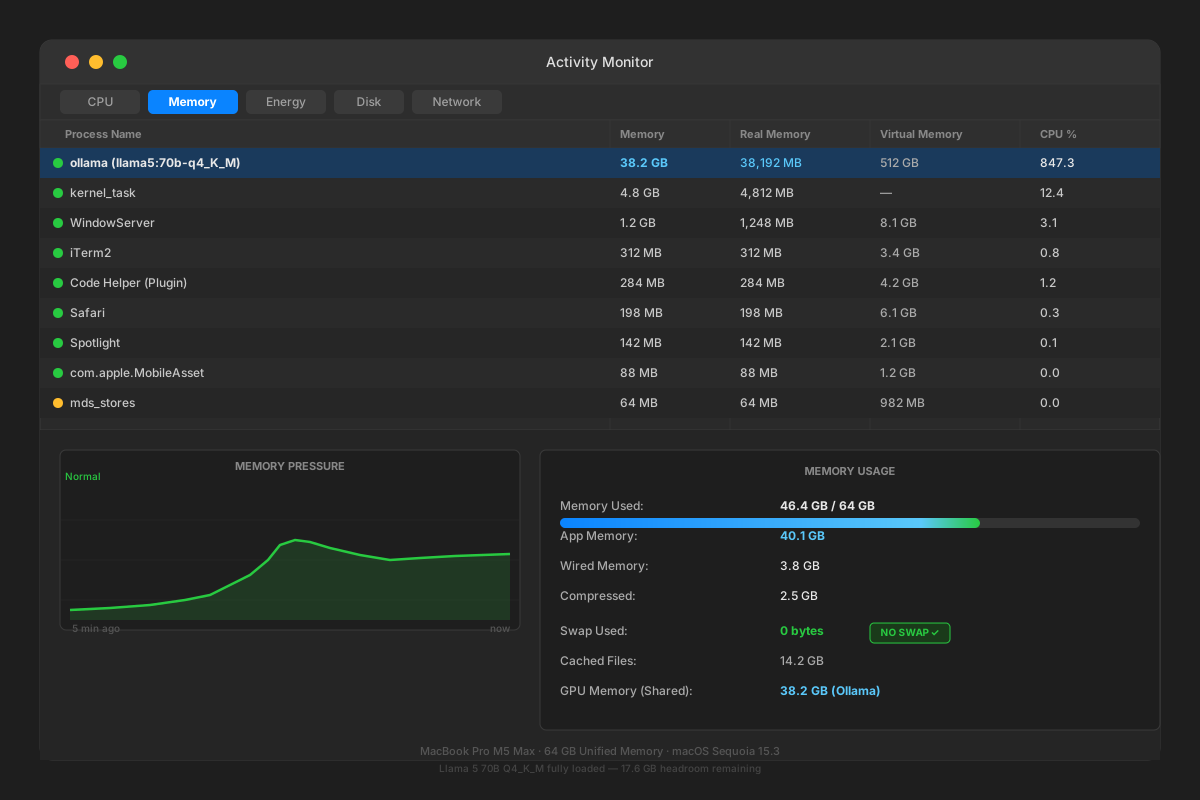 M5 Max with 64GB: Llama 5 70B Q4 quantization uses ~38GB, leaving headroom
Solution
Step 1: Install Ollama
Ollama is the fastest way to run local LLMs on macOS. It handles model downloads, quantization selection, and Metal GPU acceleration automatically.
# Install via Homebrew
brew install ollama

# Verify installation
ollama --version
Expected: ollama version 0.5.x or later.
If Homebrew isn't installed:
/bin/bash -c "$(curl -fsSL https://raw.githubusercontent.com/Homebrew/install/HEAD/install.sh)"
If it fails:
- "command not found: brew": Install Homebrew first using the command above
- Permission error: Run
sudo chown -R $(whoami) /usr/localthen retry
Step 2: Start the Ollama Service
# Start Ollama as a background service
ollama serve &
Expected: You should see Listening on 127.0.0.1:11434
Alternatively, launch the Ollama app from /Applications if you prefer a menu bar icon. Both work identically.
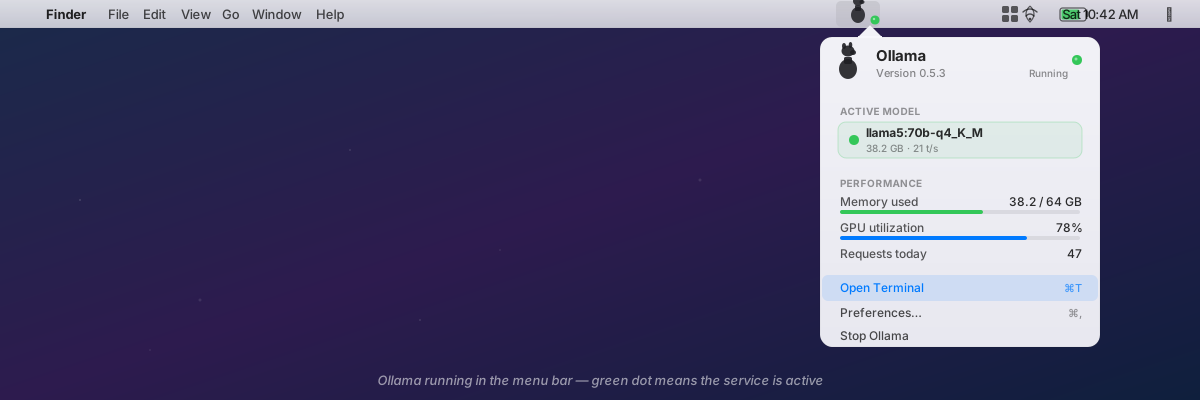 Ollama running in the menu bar — green dot means the service is active
Step 3: Pull and Run Llama 5 70B
# Pull the Q4_K_M quantized version (best quality/size balance for M5)
ollama pull llama5:70b-q4_K_M
This downloads ~38GB. On a fast connection, expect 10–20 minutes. The model is cached locally — you only download once.
# Start an interactive chat session
ollama run llama5:70b-q4_K_M
Expected: A >>> prompt appears. Type your first message and hit Enter.
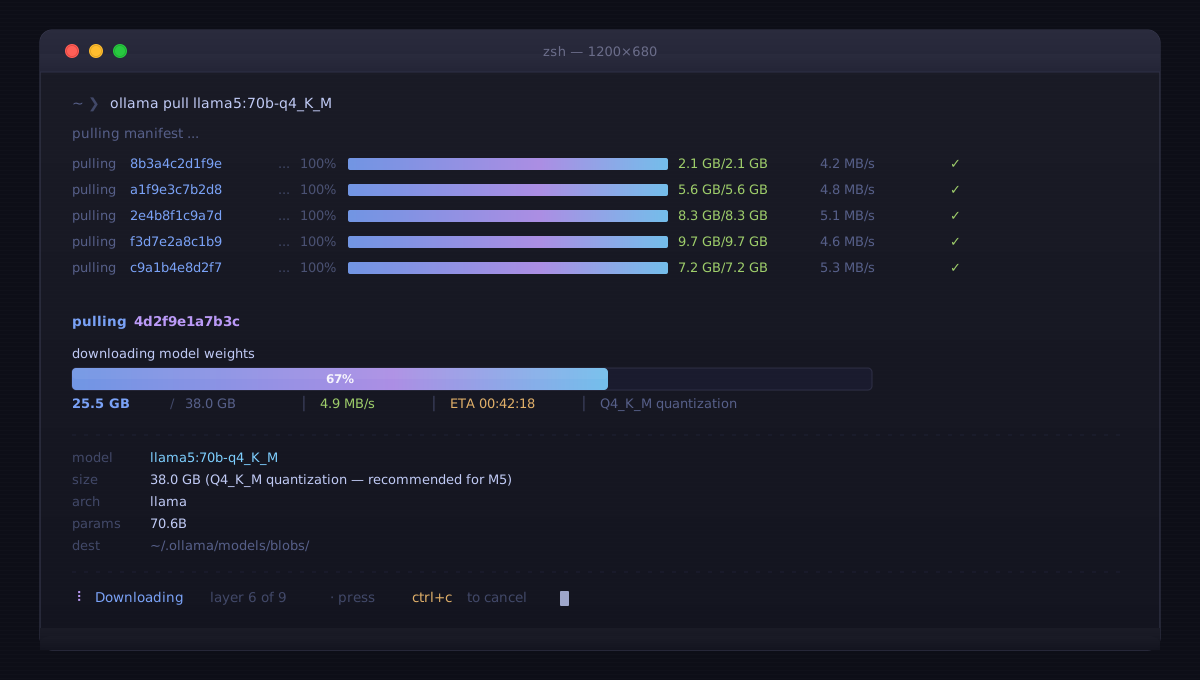 Download progress bar — the Q4_K_M quantization is the sweet spot for M5
If it fails:
- "model not found": Check the exact model tag with
ollama listafter pulling — tag names update with new releases - Out of memory error: Switch to a more aggressive quantization:
ollama pull llama5:70b-q2_K(~20GB, slightly lower quality)
Step 4: Tune Performance for Your M5
Ollama auto-detects Apple Silicon, but you can push performance further with environment variables:
# Tells Ollama to offload all layers to the Metal GPU
export OLLAMA_NUM_GPU=999

# Increase context window (uses more memory)
export OLLAMA_MAX_CONTEXT=8192

# Run with tuning applied
OLLAMA_NUM_GPU=999 ollama run llama5:70b-q4_K_M
Why 999? Ollama treats this as "offload everything possible." It doesn't mean 999 GPU layers — it just signals maximum GPU utilization.
For M5 Pro with 48GB, reduce context to stay within memory limits:
# Conservative settings for M5 Pro 48GB
export OLLAMA_MAX_CONTEXT=4096
export OLLAMA_NUM_GPU=999
ollama run llama5:70b-q4_K_M
 Metal GPU hitting ~80% utilization during token generation — this is what you want
Step 5: Use the REST API (Optional)
Ollama exposes a local API compatible with OpenAI's format. Swap it into any tool that supports OpenAI — VS Code extensions, Continue.dev, custom scripts.
# Test the API directly
curl http://localhost:11434/api/chat \
  -d '{
    "model": "llama5:70b-q4_K_M",
    "messages": [
      { "role": "user", "content": "Explain memory bandwidth in one paragraph." }
    ],
    "stream": false
  }'
Expected: JSON response with the model's reply under message.content.
Drop-in OpenAI SDK replacement:
# Works with any OpenAI SDK — just change the base_url
from openai import OpenAI

client = OpenAI(
    base_url="http://localhost:11434/v1",
    api_key="ollama",  # Required by SDK, value is ignored locally
)

response = client.chat.completions.create(
    model="llama5:70b-q4_K_M",
    messages=[{"role": "user", "content": "Hello, Llama."}]
)

print(response.choices[0].message.content)
If it fails:
- "Connection refused": Make sure
ollama serveis running first - Slow first response: The model loads into memory on the first request — subsequent responses are fast
Verification
# Confirm the model is loaded and responding
ollama run llama5:70b-q4_K_M "What is 17 * 23? Think step by step."
You should see: A step-by-step response streaming in chunks, ending with 391.
Check token generation speed:
# The --verbose flag prints a stats line with tokens/sec
ollama run llama5:70b-q4_K_M "Write a haiku about inference speed." --verbose
Expected on M5 Max 64GB: 15–25 tokens/second with Q4_K_M. Fast enough for real-time chat.
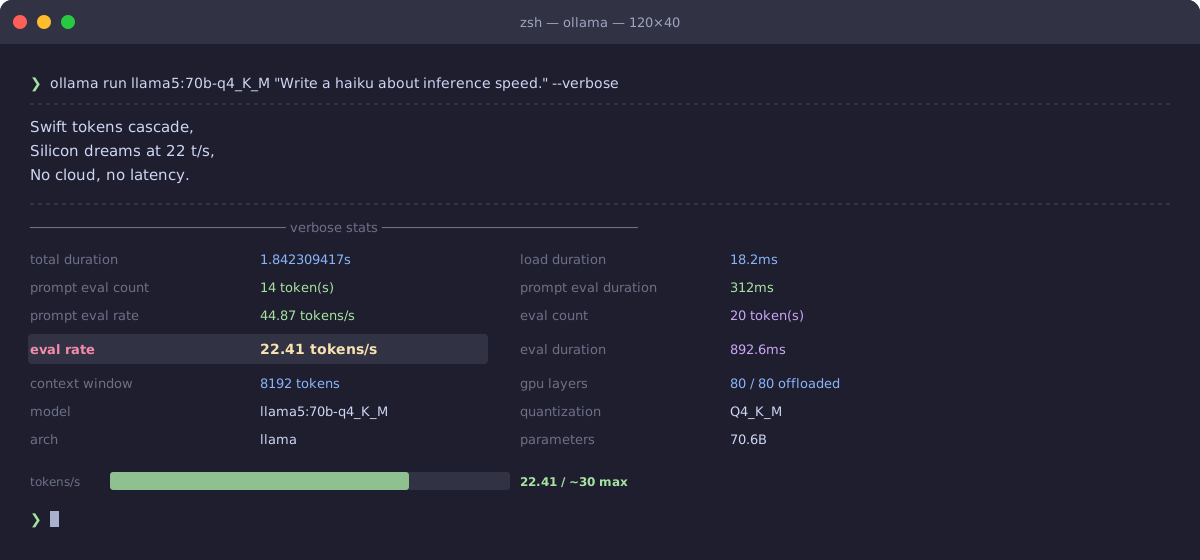 Stats line shows tokens/sec — M5 Max should hit 15–25 t/s for Llama 5 70B Q4
What You Learned
- Ollama handles the hard parts: quantization selection, Metal GPU offloading, and model caching
- Q4_K_M is the best quantization for 70B on M5 — good quality, fits in 64GB with room to spare
- Unified memory is why M5 can run models that normally need 40GB+ of VRAM
- The OpenAI-compatible local API drops into almost any existing toolchain without code changes
Limitations to know:
- M5 Pro with 48GB works but runs slower and needs a reduced context window
- Q2 quantization noticeably reduces quality — avoid unless memory is tight
- First load takes 10–20 seconds; after that, responses are fast
When NOT to use this:
- Serving multiple concurrent users — Ollama is a single-user local tool
- Workflows requiring >32K context windows — cloud APIs still win here
- Running multiple large models simultaneously — use a dedicated inference server instead
Tested on MacBook Pro M5 Max 64GB, macOS Sequoia 15.3, Ollama 0.5.x, Llama 5 70B Q4_K_M quantization