Problem: RAG Fails Silently on Tables
RAG with tables from PDFs and Excel is one of the most common pain points in production retrieval pipelines. Standard text splitters shred table rows across chunks — your LLM gets fragment columns, misaligned headers, and numerical noise instead of structured data.
If you've ever asked a RAG system "What was Q3 revenue?" and got a hallucinated number, a broken table was likely the root cause.
You'll learn:
- Extract tables from PDFs using
camelotandpdfplumberwith the right parser per file type - Parse Excel sheets into structured text chunks with
openpyxl - Embed table-aware chunks into Chroma with LangChain for accurate retrieval
- Verify end-to-end with a real query against financial table data
Time: 25 min | Difficulty: Intermediate
Why Table Extraction Breaks Standard RAG
Standard RAG pipelines use PyPDFLoader or similar text extractors. These tools read PDFs left-to-right, top-to-bottom — which destroys table structure. A three-column financial table becomes a stream of numbers with no relationship between cells and headers.
Symptoms:
- LLM returns wrong numbers from financial reports
- "I don't know" answers on questions that reference table data
- Partial rows returned — headers and values separated across chunks
- Excel
.xlsxfiles parsed as flat text with no column context
The fix is to treat tables as a separate document type, extract them structurally, then serialize each table into a labeled text block before chunking.
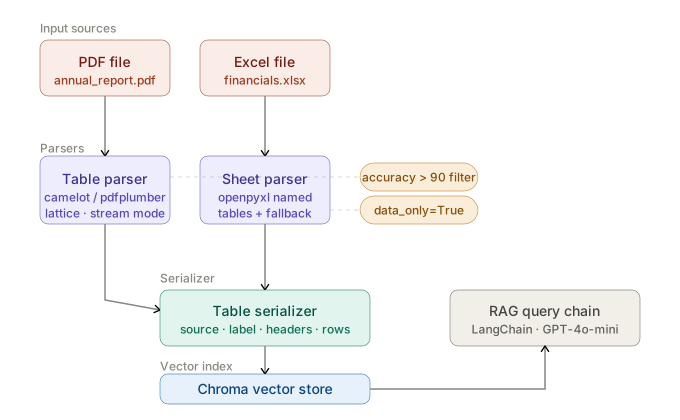 End-to-end flow: each table becomes a self-contained labeled text block before embedding
Environment Setup
Python 3.12 + uv is the fastest path. These packages cover both PDF and Excel extraction.
# Create project with uv
uv init rag-tables && cd rag-tables
uv add langchain langchain-community langchain-openai \
       chromadb camelot-py[cv] pdfplumber openpyxl \
       pandas tiktoken python-dotenv
camelot-py[cv] pulls in OpenCV for lattice-mode table detection — required for bordered tables. pdfplumber handles stream-mode (borderless) tables more reliably.
Create .env:
OPENAI_API_KEY=sk-...
Solution
Step 1: Extract Tables from PDFs
PDFs have two table types. Lattice tables have visible grid lines; stream tables use whitespace alignment. Use the right parser for each.
# table_extractor.py
import camelot
import pdfplumber
import pandas as pd
from pathlib import Path


def extract_tables_camelot(pdf_path: str) -> list[pd.DataFrame]:
    """
    Lattice mode: bordered tables with visible grid lines.
    accuracy > 90 filters out partial/broken extractions.
    """
    tables = camelot.read_pdf(
        pdf_path,
        flavor="lattice",   # use "stream" for borderless tables
        pages="all",
    )
    return [t.df for t in tables if t.accuracy > 90]


def extract_tables_pdfplumber(pdf_path: str) -> list[pd.DataFrame]:
    """
    Stream mode: whitespace-aligned tables, scanned-adjacent PDFs.
    Falls back to pdfplumber when camelot accuracy is low.
    """
    dfs = []
    with pdfplumber.open(pdf_path) as pdf:
        for page in pdf.pages:
            for table in page.extract_tables():
                df = pd.DataFrame(table[1:], columns=table[0])
                dfs.append(df)
    return dfs


def extract_pdf_tables(pdf_path: str) -> list[pd.DataFrame]:
    """Try camelot first; fall back to pdfplumber."""
    try:
        tables = extract_tables_camelot(pdf_path)
        if tables:
            return tables
    except Exception:
        pass
    return extract_tables_pdfplumber(pdf_path)
Expected output: A list of Pandas DataFrames, one per detected table.
If it fails:
ImportError: cv2→uv add opencv-python-headlessPDFInfoNotInstalledError→brew install poppler/apt-get install poppler-utils- Empty list from camelot → Switch
flavor="stream"for borderless tables
Step 2: Extract Tables from Excel
Excel tables need column headers preserved and sheet names included as context — LLMs need that metadata to answer questions like "from the Sales sheet, what was Jan revenue?"
# excel_extractor.py
import openpyxl
import pandas as pd


def extract_excel_tables(xlsx_path: str) -> list[dict]:
    """
    Returns list of {sheet_name, table_name, df} dicts.
    Uses openpyxl named tables first; falls back to full sheet data.
    """
    wb = openpyxl.load_workbook(xlsx_path, data_only=True)  # data_only=True reads computed values, not formulas
    results = []

    for sheet_name in wb.sheetnames:
        ws = wb[sheet_name]

        if ws.tables:
            # Named Excel tables — best structure preservation
            for table_name, table in ws.tables.items():
                data = ws[table.ref]
                rows = [[cell.value for cell in row] for row in data]
                df = pd.DataFrame(rows[1:], columns=rows[0])
                results.append({
                    "sheet": sheet_name,
                    "table": table_name,
                    "df": df,
                })
        else:
            # Full sheet fallback
            df = pd.read_excel(xlsx_path, sheet_name=sheet_name, engine="openpyxl")
            results.append({
                "sheet": sheet_name,
                "table": sheet_name,
                "df": df,
            })

    return results
If it fails:
openpyxl.utils.exceptions.InvalidFileException→ File is.xlsnot.xlsx. Convert first:pandas.read_excel(..., engine="xlrd")
Step 3: Serialize Tables into Retrieval-Friendly Text
Raw DataFrames can't go into a vector store. You need to serialize each table into a self-contained text block that includes the source, sheet/page context, column headers, and row data. This gives the LLM full context in a single retrieved chunk.
# serializer.py
import pandas as pd


def serialize_table(
    df: pd.DataFrame,
    source: str,
    table_label: str,
    max_rows: int = 50,
) -> str:
    """
    Convert a DataFrame into a labeled text block for embedding.
    max_rows=50 keeps chunks under ~512 tokens for most financial tables.
    """
    df = df.fillna("").astype(str)

    # Truncate large tables — embed summary row count for LLM context
    truncated = len(df) > max_rows
    display_df = df.head(max_rows)

    header = f"Source: {source}\nTable: {table_label}\n"
    col_line = "Columns: " + " | ".join(display_df.columns.tolist()) + "\n"
    rows = "\n".join(
        " | ".join(row) for row in display_df.itertuples(index=False, name=None)
    )
    footer = f"\n[Truncated: showing {max_rows} of {len(df)} rows]" if truncated else ""

    return header + col_line + rows + footer
Example output for a revenue table:
Source: annual_report_2025.pdf
Table: Page 4 Table 1
Columns: Quarter | Revenue USD | YoY Growth
Q1 2025 | 4200000 | 12%
Q2 2025 | 4850000 | 15%
Q3 2025 | 5100000 | 18%
Q4 2025 | 6200000 | 21%
This block is one chunk — headers and values stay together.
Step 4: Embed and Index into Chroma
Now wrap everything into LangChain Document objects and push to Chroma.
# indexer.py
from langchain_core.documents import Document
from langchain_community.vectorstores import Chroma
from langchain_openai import OpenAIEmbeddings
from table_extractor import extract_pdf_tables
from excel_extractor import extract_excel_tables
from serializer import serialize_table
from pathlib import Path
import os
from dotenv import load_dotenv

load_dotenv()


def build_table_index(
    pdf_paths: list[str],
    xlsx_paths: list[str],
    persist_dir: str = "./chroma_tables",
) -> Chroma:
    docs = []

    # PDF tables
    for pdf_path in pdf_paths:
        tables = extract_pdf_tables(pdf_path)
        for i, df in enumerate(tables):
            text = serialize_table(df, source=Path(pdf_path).name, table_label=f"Table {i + 1}")
            docs.append(Document(
                page_content=text,
                metadata={"source": pdf_path, "type": "pdf_table", "table_index": i},
            ))

    # Excel tables
    for xlsx_path in xlsx_paths:
        tables = extract_excel_tables(xlsx_path)
        for t in tables:
            text = serialize_table(t["df"], source=Path(xlsx_path).name, table_label=t["table"])
            docs.append(Document(
                page_content=text,
                metadata={"source": xlsx_path, "type": "excel_table", "sheet": t["sheet"]},
            ))

    embeddings = OpenAIEmbeddings(model="text-embedding-3-small")  # $0.02/1M tokens — cheapest option for table text
    vectorstore = Chroma.from_documents(
        documents=docs,
        embedding=embeddings,
        persist_directory=persist_dir,
    )
    return vectorstore
Step 5: Query the Table Index
Wire up a retrieval chain with a table-aware system prompt.
# query.py
from langchain_openai import ChatOpenAI
from langchain_core.prompts import ChatPromptTemplate
from langchain_core.runnables import RunnablePassthrough
from langchain_community.vectorstores import Chroma
from langchain_openai import OpenAIEmbeddings


def load_index(persist_dir: str = "./chroma_tables") -> Chroma:
    return Chroma(
        persist_directory=persist_dir,
        embedding_function=OpenAIEmbeddings(model="text-embedding-3-small"),
    )


TABLE_PROMPT = ChatPromptTemplate.from_messages([
    ("system", (
        "You are a data analyst. Answer questions using ONLY the table data provided. "
        "Quote exact values from the table. If a value is missing, say so explicitly."
    )),
    ("human", "Context:\n{context}\n\nQuestion: {question}"),
])


def ask(question: str, vectorstore: Chroma) -> str:
    retriever = vectorstore.as_retriever(
        search_type="similarity",
        search_kwargs={"k": 4},  # 4 chunks covers most multi-table questions without exceeding context
    )
    llm = ChatOpenAI(model="gpt-4o-mini", temperature=0)  # temperature=0 — deterministic for numerical answers

    chain = (
        {"context": retriever | (lambda docs: "\n\n".join(d.page_content for d in docs)),
         "question": RunnablePassthrough()}
        | TABLE_PROMPT
        | llm
    )
    return chain.invoke(question).content


if __name__ == "__main__":
    vs = load_index()
    print(ask("What was Q3 2025 revenue?", vs))
Verification
uv run python -c "
from indexer import build_table_index
vs = build_table_index(['annual_report_2025.pdf'], ['financials.xlsx'])
print(f'Indexed {vs._collection.count()} table chunks')
"
You should see: Indexed 12 table chunks (number varies by file)
uv run python query.py
You should see: Q3 2025 revenue was $5,100,000, representing 18% YoY growth.
Comparison: Table Extraction Libraries
| Library | Best for | Accuracy | Speed |
|---|---|---|---|
camelot lattice | Bordered PDF tables | ⭐⭐⭐⭐⭐ | Slow |
camelot stream | Whitespace-aligned PDF | ⭐⭐⭐ | Medium |
pdfplumber | Scanned-adjacent, complex PDFs | ⭐⭐⭐⭐ | Fast |
openpyxl | Named Excel tables | ⭐⭐⭐⭐⭐ | Fast |
pandas.read_excel | Flat sheet data | ⭐⭐⭐ | Fast |
Use camelot lattice for annual reports with ruled grids. Switch to pdfplumber for government PDFs, research papers, and anything that was originally a Word document exported to PDF.
What You Learned
- Tables must be extracted structurally — never via flat text parsers — or RAG will silently return wrong numbers
camelotlattice mode gives the highest accuracy on bordered tables;pdfplumberis the reliable fallback- Serializing tables with source + label + column headers as a single chunk keeps all relational context in one retrieval unit
temperature=0on the LLM is non-negotiable for numerical table queries
Tested on Python 3.12, LangChain 0.3, Chroma 0.6, camelot-py 0.11, openpyxl 3.1, Ubuntu 24.04 & macOS Sequoia
FAQ
Q: Does camelot work on scanned PDFs?
A: No. Scanned PDFs need OCR pre-processing — run pytesseract or AWS Textract first, then parse the output. Camelot requires machine-readable PDF text layers.
Q: What is the difference between camelot lattice and stream mode?
A: Lattice detects table borders using image processing and is highly accurate on ruled grids. Stream infers columns from whitespace gaps — works on borderless tables but requires tuning edge_tol and row_tol for complex layouts.
Q: How many rows can I embed before hitting token limits?
A: text-embedding-3-small supports 8,191 tokens. A 50-row table with 5 columns averages ~400 tokens — well within limits. For tables over 200 rows, split by logical section or date range rather than arbitrary row count.
Q: Can this work with multimodal models instead of text extraction? A: Yes — GPT-4o and Claude 3.5 can read table images directly. This is useful for complex merged-cell tables where parsers fail. The tradeoff is cost (~10× higher per page) and latency. Use vision as a fallback, not primary path.