Problem: Your LLM Is Too Big to Run Locally
You want to run a 7B or 13B model on your own hardware, but full-precision weights demand 14–26GB of VRAM — more than most consumer GPUs have. Quantization shrinks models by 2–4x with minimal quality loss.
You'll learn:
- How GGUF and AWQ differ and when to use each
- How to quantize any HuggingFace model to GGUF with llama.cpp
- How to quantize to AWQ for GPU-accelerated inference with vLLM or AutoAWQ
Time: 20 min | Level: Intermediate
Why This Happens
Full-precision (FP32) or half-precision (FP16) weights store each parameter as 4 or 2 bytes. A 7B model at FP16 = ~14GB. Quantization maps those weights to lower bit-widths (4-bit, 8-bit), cutting memory by 50–75%.
Two formats dominate in 2026:
- GGUF — CPU-friendly, runs via llama.cpp or Ollama, works on any hardware with enough RAM
- AWQ — GPU-optimized, 4-bit with activation-aware calibration, faster than naive INT4
Common symptoms that send you here:
RuntimeError: CUDA out of memorywhen loading a model- Inference taking 30+ seconds per token on CPU with full weights
- Can't fit a useful model in your GPU's VRAM
Solution
Step 1: Set Up Your Environment
You need Python 3.11+ and either a GPU (for AWQ) or CPU (for GGUF). Start with a clean venv.
python -m venv quant-env
source quant-env/bin/activate  # Windows: quant-env\Scripts\activate

# Core deps
pip install huggingface_hub transformers torch --break-system-packages
Download the base model you want to quantize. This example uses Mistral-7B-v0.3, but any HuggingFace causal LM works.
huggingface-cli download mistralai/Mistral-7B-v0.3 \
  --local-dir ./models/mistral-7b-fp16 \
  --local-dir-use-symlinks False
Expected: Model files (~14GB) download to ./models/mistral-7b-fp16/.
If it fails:
401 Unauthorized: Runhuggingface-cli loginfirst — some models require accepting a license- Slow download: Add
--include "*.safetensors"to skip tokenizer-only checkpoints
Step 2: Quantize to GGUF (CPU-Friendly)
GGUF runs on any machine via llama.cpp. Clone and build it first.
git clone https://github.com/ggerganov/llama.cpp
cd llama.cpp

# GPU support (optional but faster for conversion)
cmake -B build -DGGML_CUDA=ON
cmake --build build --config Release -j$(nproc)

# CPU-only build
cmake -B build
cmake --build build --config Release -j$(nproc)
Now convert the FP16 model to GGUF, then quantize it.
# Step A: Convert HuggingFace weights to GGUF (FP16 baseline)
python convert_hf_to_gguf.py ../models/mistral-7b-fp16 \
  --outfile ../models/mistral-7b-f16.gguf \
  --outtype f16

# Step B: Quantize to Q4_K_M (best quality/size tradeoff in 2026)
./build/bin/llama-quantize \
  ../models/mistral-7b-f16.gguf \
  ../models/mistral-7b-Q4_K_M.gguf \
  Q4_K_M
GGUF quantization types — pick based on your use case:
| Type | Size (7B) | Quality | Use when |
|---|---|---|---|
Q4_K_M | ~4.1GB | ★★★★☆ | Best default choice |
Q5_K_M | ~4.8GB | ★★★★★ | More VRAM, better coherence |
Q3_K_M | ~3.3GB | ★★★☆☆ | RAM-constrained (8GB system) |
Q8_0 | ~7.7GB | ★★★★★ | Near-lossless, GPU only |
Expected: Quantization takes 2–5 minutes and produces a single .gguf file.
If it fails:
unknown model architecture: Your model isn't supported yet — check llama.cpp issues for a conversion PRSegmentation faulton build: Use the CPU-only cmake build without-DGGML_CUDA=ON
Step 3: Test Your GGUF Model
Verify quality before moving on.
./build/bin/llama-cli \
  -m ../models/mistral-7b-Q4_K_M.gguf \
  -p "Explain quantization in one sentence:" \
  -n 80 \
  --temp 0.7
You should see: A coherent one-sentence response generated in under 5 seconds on a modern CPU.
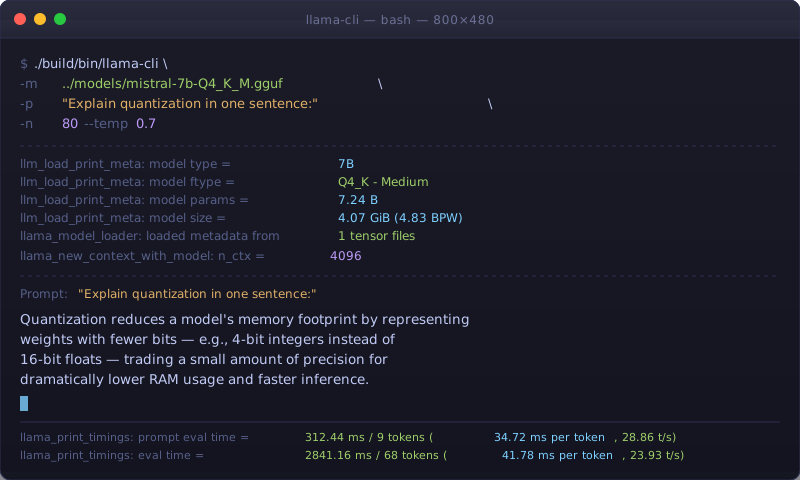 llama-cli output — response quality should be indistinguishable from FP16 for most prompts
Step 4: Quantize to AWQ (GPU-Accelerated)
AWQ (Activation-aware Weight Quantization) calibrates using real data, making 4-bit GPU inference significantly better than naive INT4. Requires an NVIDIA GPU with 16GB+ VRAM for the calibration step.
cd ..  # Back to project root
pip install autoawq autoawq-kernels --break-system-packages
# quantize_awq.py
from awq import AutoAWQForCausalLM
from transformers import AutoTokenizer

model_path = "./models/mistral-7b-fp16"
output_path = "./models/mistral-7b-awq"

# Load tokenizer
tokenizer = AutoTokenizer.from_pretrained(model_path, trust_remote_code=True)

# Load model for quantization (stays on GPU)
model = AutoAWQForCausalLM.from_pretrained(
    model_path,
    low_cpu_mem_usage=True,
    use_cache=False
)

# Quantize config — w_bit=4 is standard; zero_point=True improves accuracy
quant_config = {
    "zero_point": True,
    "q_group_size": 128,  # Larger = better quality, smaller = more compression
    "w_bit": 4,
    "version": "GEMM"     # GEMM for batch inference, GEMV for single-token
}

# Calibration uses 128 samples from WikiText — takes ~10 minutes
model.quantize(tokenizer, quant_config=quant_config)

# Save
model.save_quantized(output_path)
tokenizer.save_pretrained(output_path)
print(f"AWQ model saved to {output_path}")
python quantize_awq.py
Expected: Calibration prints loss values per layer, then saves ~4GB of quantized weights.
If it fails:
CUDA out of memoryduring calibration: Reducen_samplesby addingcalib_dataparam:model.quantize(tokenizer, quant_config=quant_config, calib_data=your_dataset)with 64 samplesversion: GEMM not supported: Use"version": "GEMV"— some older GPUs don't support GEMM kernels
Step 5: Run AWQ Inference
# infer_awq.py
from awq import AutoAWQForCausalLM
from transformers import AutoTokenizer, pipeline

model_path = "./models/mistral-7b-awq"

tokenizer = AutoTokenizer.from_pretrained(model_path)
model = AutoAWQForCausalLM.from_quantized(
    model_path,
    fuse_layers=True,    # Fuses attention layers for 20-30% speedup
    trust_remote_code=True,
    safetensors=True
)

pipe = pipeline("text-generation", model=model, tokenizer=tokenizer)
result = pipe("Explain quantization in one sentence:", max_new_tokens=80)
print(result[0]["generated_text"])
python infer_awq.py
You should see: Output in 1–2 seconds on an RTX 4090, or 3–5 seconds on an RTX 3080.
 AWQ inference keeps GPU utilization high — you want to see 80%+ sustained utilization
Verification
Run a quick benchmark to confirm your quantized models are performing correctly.
# GGUF benchmark (llama.cpp)
./llama.cpp/build/bin/llama-bench \
  -m ./models/mistral-7b-Q4_K_M.gguf \
  -n 128 -ngl 0  # -ngl 0 = CPU only; set to 35 for GPU offload

# AWQ: check memory usage
python -c "
from awq import AutoAWQForCausalLM
import torch
model = AutoAWQForCausalLM.from_quantized('./models/mistral-7b-awq', fuse_layers=True)
print(f'GPU memory: {torch.cuda.memory_allocated()/1e9:.1f}GB')
"
You should see:
- GGUF: 15–25 tokens/sec on a modern CPU (M3 Pro, Ryzen 9 9900X)
- AWQ GPU memory: ~4.2GB for a 7B model (vs 14GB at FP16)
What You Learned
- GGUF is for portability — runs everywhere, great for local dev and offline use
- AWQ is for GPU throughput — calibration takes time but inference is significantly faster than GGUF on GPU
- Q4_K_M is the default for GGUF — don't overthink the quantization type unless you're optimizing for a specific constraint
- Calibration data matters for AWQ — the default WikiText calibration works well for general models; use domain-specific data for coding or medical models
- Limitation: AWQ doesn't yet support all architectures (check
autoawqGitHub for compatibility); Mamba and SSM-based models need different tooling
When NOT to use quantization: Fine-tuning still requires full or BF16 precision. Quantize after training, not before.
Tested on Python 3.12, llama.cpp (Feb 2026 build), AutoAWQ 0.2.x, CUDA 12.4, Ubuntu 24.04 and macOS 15 (Sequoia)