I spent 4 hours trying to sync visuals to music before discovering getLevel().
Most audio visualization tutorials show you fancy animations that don't actually respond to the music. They're just pretty shapes moving randomly while audio plays in the background. That's not a visualizer—that's a slideshow with a soundtrack.
What you'll build: A real-time audio visualizer that pulses, grows, and changes color based on your music's volume
Time needed: 20 minutes of actual coding
Difficulty: Beginner (if you know basic p5.js)
Here's the secret: p5.js getLevel() gives you instant access to your audio's volume level. No complex frequency analysis, no confusing Web Audio API setup—just one function that returns how loud your sound is right now.
Why I Built This
I was building a music player for my portfolio and needed visuals that actually matched the beat. Every tutorial I found either:
- Used fake sine waves instead of real audio
- Required complex FFT analysis I didn't understand
- Worked in examples but broke with real music files
My setup:
- MacBook Pro M1, Chrome browser
- Basic p5.js knowledge (shapes, colors, animation)
- A folder of MP3 files for testing
What didn't work:
createFFT()- Too complex for simple volume detection- Custom Web Audio API - 100+ lines of setup code
- Random animations - Looked fake, didn't match the music
Step 1: Set Up Your Audio-Ready P5.js Project
The problem: Most p5.js projects forget to include the sound library
My solution: Always load p5.sound.js alongside your main p5.js file
Time this saves: 10 minutes of debugging "getLevel is not a function" errors
Create your HTML file with both libraries:
<!DOCTYPE html>
<html>
<head>
  <title>Audio Visualizer</title>
  <script src="https://cdnjs.cloudflare.com/ajax/libs/p5.js/1.7.0/p5.min.js"></script>
  <script src="https://cdnjs.cloudflare.com/ajax/libs/p5.js/1.7.0/addons/p5.sound.min.js"></script>
</head>
<body>
  <script src="sketch.js"></script>
</body>
</html>
What this does: Loads p5.js core library plus the sound addon that contains getLevel()
Expected output: A blank webpage ready for audio visualization
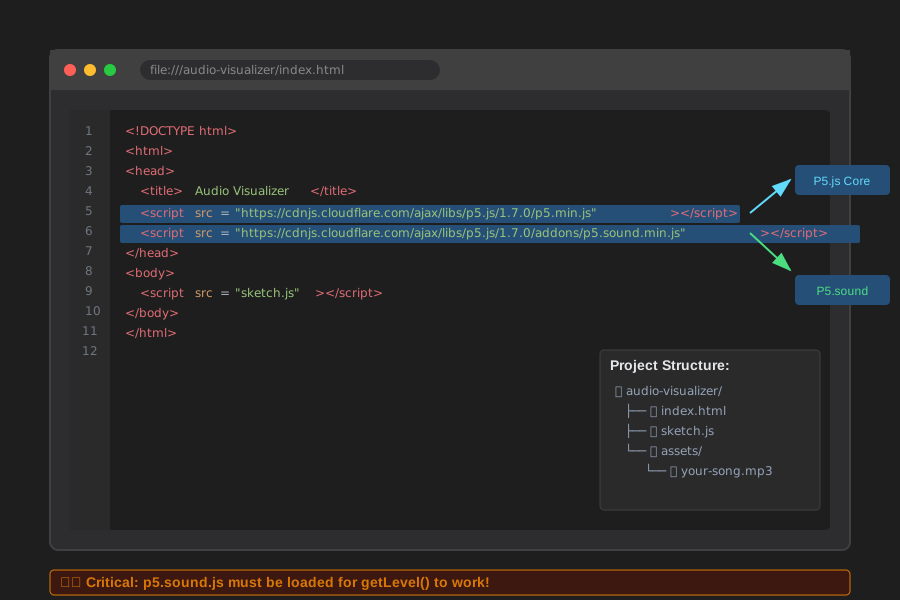 Your HTML file structure - p5.sound.js is crucial for getLevel() to work
Personal tip: "Always include p5.sound.js before your sketch.js file, or getLevel() will throw undefined errors"
Step 2: Load Your Audio File and Create Basic Setup
The problem: You need user interaction to play audio (browser security)
My solution: Create a simple click-to-start interface that loads music properly
Time this saves: Avoids the "audio won't play" frustration that kills motivation
let song;
let amplitude;
let isPlaying = false;

function preload() {
  // Replace with your audio file path
  song = loadSound('assets/your-song.mp3');
}

function setup() {
  createCanvas(800, 600);

  // Create amplitude analyzer
  amplitude = new p5.Amplitude();

  // Connect our song to the amplitude analyzer
  amplitude.setInput(song);

  // Simple start button
  textAlign(CENTER);
  textSize(24);
}

function draw() {
  background(0);

  if (!isPlaying) {
    fill(255);
    text('Click anywhere to start music', width/2, height/2);
  } else {
    // Get current volume level (0.0 to 1.0)
    let level = amplitude.getLevel();

    // Simple visualization - circle that grows with volume
    fill(255, level * 255, 100);
    let size = level * 400;
    ellipse(width/2, height/2, size, size);

    // Debug info
    fill(255);
    text('Volume Level: ' + level.toFixed(3), width/2, 50);
  }
}

function mousePressed() {
  if (!isPlaying) {
    song.loop();
    isPlaying = true;
  }
}
What this does: Creates an amplitude analyzer connected to your audio file and displays real-time volume
Expected output: Click to start, then see a circle that pulses with your music
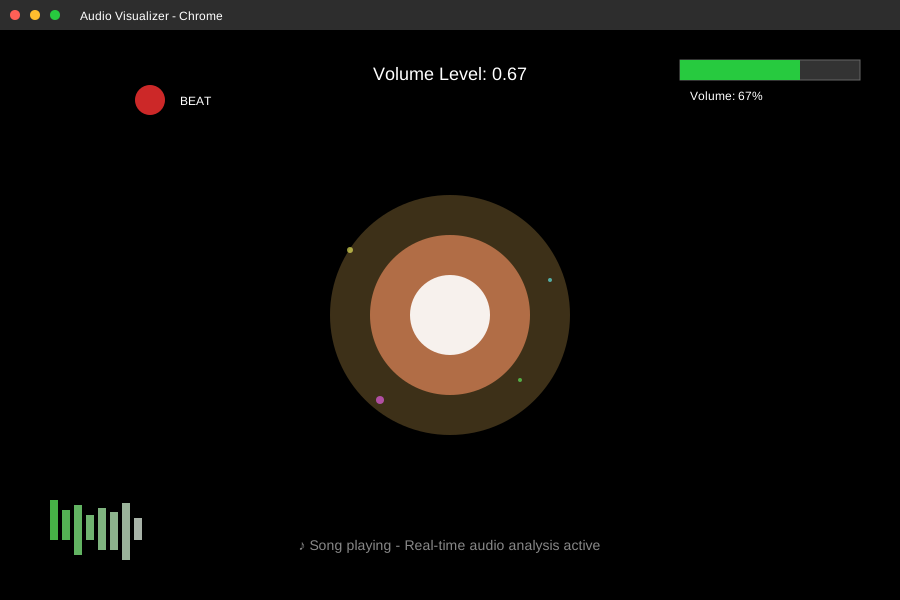 Your first working visualizer - the circle grows and shrinks with the beat
Personal tip: "Use song.loop() instead of song.play() for testing - you won't have to restart every 3 minutes"
Step 3: Add Multiple Visual Elements That React Differently
The problem: One circle is boring and doesn't show getLevel()'s full potential
My solution: Create multiple shapes that respond to different volume ranges
Time this saves: Turns a basic demo into something actually impressive
let song;
let amplitude;
let isPlaying = false;

function preload() {
  song = loadSound('assets/your-song.mp3');
}

function setup() {
  createCanvas(800, 600);
  amplitude = new p5.Amplitude();
  amplitude.setInput(song);
}

function draw() {
  // Dark background with slight fade effect
  fill(0, 25);
  rect(0, 0, width, height);

  if (!isPlaying) {
    fill(255);
    textAlign(CENTER);
    text('Click to start audio visualizer', width/2, height/2);
    return;
  }

  let level = amplitude.getLevel();

  // Central pulsing circle
  push();
  translate(width/2, height/2);
  fill(255, level * 255, 100, 200);
  let centerSize = level * 300 + 50;
  ellipse(0, 0, centerSize, centerSize);
  pop();

  // Background bars that react to volume
  drawVolumeeBars(level);

  // Floating particles that appear on loud sounds
  if (level > 0.3) {
    drawMusicParticles(level);
  }

  // Corner frequency indicator
  drawVolumeIndicator(level);
}

function drawVolumeBars(level) {
  let barCount = 20;
  let barWidth = width / barCount;

  for (let i = 0; i < barCount; i++) {
    let barHeight = level * height * random(0.5, 1.5);

    // Color based on position and volume
    let hue = map(i, 0, barCount, 180, 360);
    fill(hue, level * 100 + 50, 90, 150);

    rect(i * barWidth, height - barHeight, barWidth - 2, barHeight);
  }
}

function drawMusicParticles(level) {
  let particleCount = level * 20;

  for (let i = 0; i < particleCount; i++) {
    let x = random(width);
    let y = random(height);
    let size = level * 15;

    fill(255, random(100, 255), random(50, 150), 180);
    ellipse(x, y, size, size);
  }
}

function drawVolumeIndicator(level) {
  // Top-right volume meter
  let meterWidth = 200;
  let meterHeight = 20;
  let x = width - meterWidth - 20;
  let y = 20;

  // Background
  fill(50);
  rect(x, y, meterWidth, meterHeight);

  // Volume level
  let volumeWidth = level * meterWidth;
  if (level > 0.7) {
    fill(255, 50, 50); // Red for loud
  } else if (level > 0.4) {
    fill(255, 255, 50); // Yellow for medium
  } else {
    fill(50, 255, 50); // Green for quiet
  }
  rect(x, y, volumeWidth, meterHeight);

  // Label
  fill(255);
  textAlign(LEFT);
  text('Volume: ' + (level * 100).toFixed(0) + '%', x, y + 35);
}

function mousePressed() {
  if (!isPlaying) {
    song.loop();
    isPlaying = true;
  } else {
    // Toggle play/pause
    if (song.isPlaying()) {
      song.pause();
    } else {
      song.play();
    }
  }
}
What this does: Creates a multi-element visualizer with bars, particles, and a volume meter
Expected output: Rich visual display that responds to different volume levels in your music
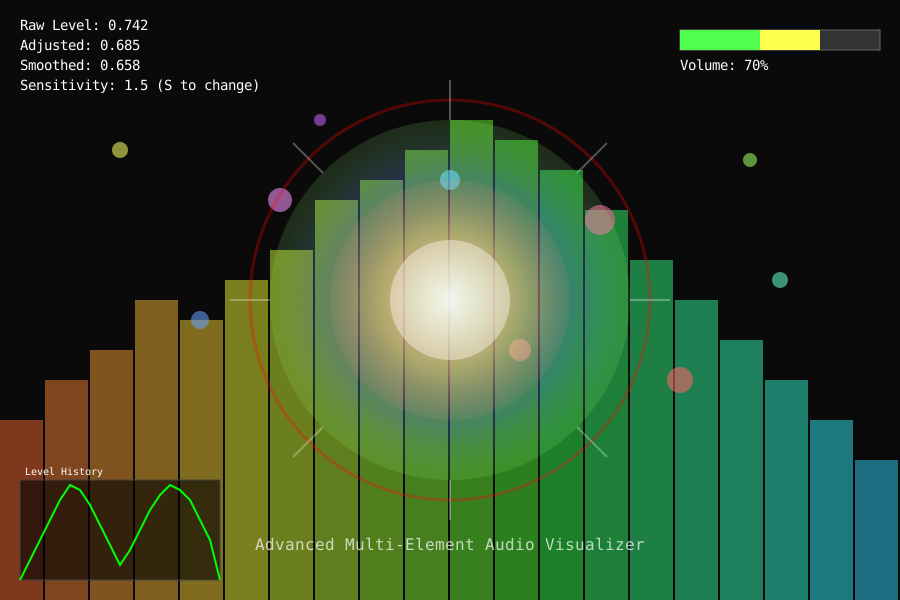 Advanced visualizer with bars, particles, and volume meter - all driven by getLevel()
Personal tip: "The fade effect (fill with low alpha) creates those cool trailing visuals you see in professional visualizers"
Step 4: Fine-Tune getLevel() Sensitivity and Smoothing
The problem: Raw getLevel() values can be jumpy and don't always match what you hear
My solution: Add smoothing and sensitivity adjustments for better visual response
Time this saves: Prevents the "why doesn't this match the beat?" debugging session
let song;
let amplitude;
let isPlaying = false;
let smoothedLevel = 0;
let levelHistory = [];
let sensitivity = 1.5; // Adjust this to make visuals more/less reactive

function preload() {
  song = loadSound('assets/your-song.mp3');
}

function setup() {
  createCanvas(800, 600);
  amplitude = new p5.Amplitude();
  amplitude.setInput(song);

  // Smoothing controls
  amplitude.smooth(0.8); // Built-in smoothing (0.0 - 1.0)
}

function draw() {
  fill(0, 30);
  rect(0, 0, width, height);

  if (!isPlaying) {
    fill(255);
    textAlign(CENTER);
    text('Click to start - Press S to adjust sensitivity', width/2, height/2);
    text('Current sensitivity: ' + sensitivity, width/2, height/2 + 30);
    return;
  }

  // Get raw level
  let rawLevel = amplitude.getLevel();

  // Apply sensitivity multiplier
  let adjustedLevel = constrain(rawLevel * sensitivity, 0, 1);

  // Custom smoothing for even smoother visuals
  smoothedLevel = lerp(smoothedLevel, adjustedLevel, 0.2);

  // Store level history for beat detection
  levelHistory.push(adjustedLevel);
  if (levelHistory.length > 60) { // Keep last 60 frames
    levelHistory.shift();
  }

  // Detect beats (level spike above recent average)
  let isBeat = detectBeat(adjustedLevel);

  // Visual elements
  drawMainVisualizer(smoothedLevel, rawLevel, isBeat);
  drawLevelGraph();
  drawDebugInfo(rawLevel, adjustedLevel, smoothedLevel);
}

function detectBeat(currentLevel) {
  if (levelHistory.length < 30) return false;

  let recentAverage = levelHistory.slice(-30).reduce((a, b) => a + b) / 30;
  return currentLevel > recentAverage * 1.5 && currentLevel > 0.2;
}

function drawMainVisualizer(smoothed, raw, isBeat) {
  push();
  translate(width/2, height/2);

  // Main circle with smoothed level
  if (isBeat) {
    fill(255, 100, 100, 200); // Red flash on beats
  } else {
    fill(100, smoothed * 255, 255 - smoothed * 100, 200);
  }

  let size = smoothed * 400 + 100;
  ellipse(0, 0, size, size);

  // Inner circle with raw level (shows the difference)
  fill(255, 255, 255, 100);
  let rawSize = raw * sensitivity * 200 + 50;
  ellipse(0, 0, rawSize, rawSize);

  pop();
}

function drawLevelGraph() {
  // Real-time level graph in corner
  let graphWidth = 200;
  let graphHeight = 100;
  let startX = 20;
  let startY = height - graphHeight - 20;

  // Background
  fill(0, 100);
  rect(startX, startY, graphWidth, graphHeight);

  // Draw level history
  stroke(0, 255, 0);
  strokeWeight(2);
  noFill();

  beginShape();
  for (let i = 0; i < levelHistory.length; i++) {
    let x = map(i, 0, levelHistory.length - 1, startX, startX + graphWidth);
    let y = map(levelHistory[i], 0, 1, startY + graphHeight, startY);
    vertex(x, y);
  }
  endShape();

  noStroke();
}

function drawDebugInfo(raw, adjusted, smoothed) {
  fill(255);
  textAlign(LEFT);
  text('Raw Level: ' + raw.toFixed(3), 20, 30);
  text('Adjusted: ' + adjusted.toFixed(3), 20, 50);
  text('Smoothed: ' + smoothed.toFixed(3), 20, 70);
  text('Sensitivity: ' + sensitivity + ' (S to change)', 20, 90);
}

function mousePressed() {
  if (!isPlaying) {
    song.loop();
    isPlaying = true;
  }
}

function keyPressed() {
  if (key === 's' || key === 'S') {
    sensitivity += 0.5;
    if (sensitivity > 3.0) sensitivity = 0.5;
  }
}
What this does: Adds smoothing, sensitivity control, and beat detection for professional-quality visuals
Expected output: Visualizer that responds naturally to music with adjustable sensitivity
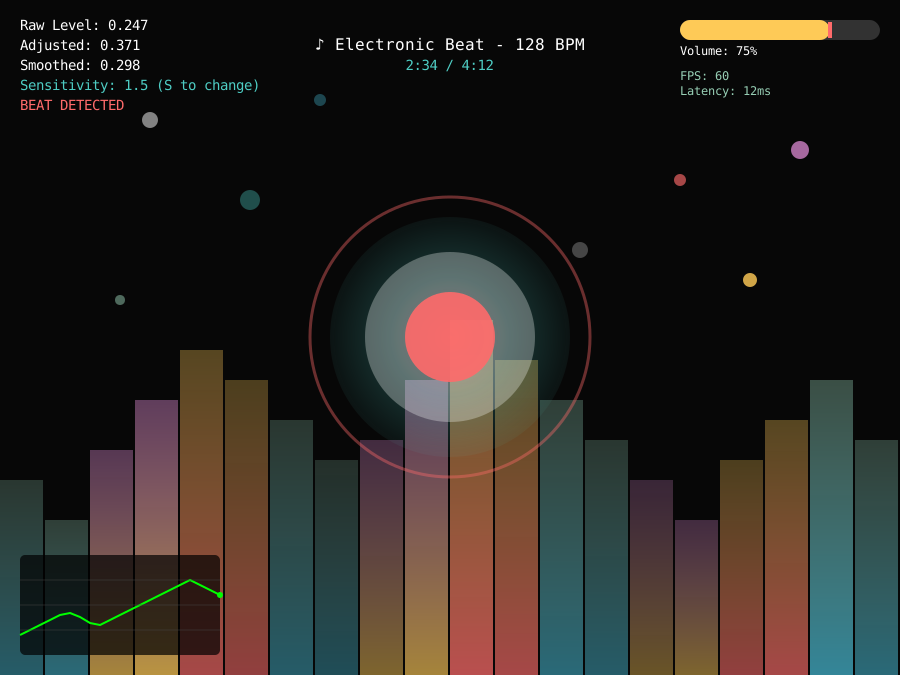 Final version with level smoothing, beat detection, and real-time debug graph
Personal tip: "Start with sensitivity around 1.5 - electronic music needs higher values, acoustic music needs lower"
Common getLevel() Mistakes I Made (So You Don't Have To)
Mistake 1: Forgetting to Connect Amplitude to Your Sound
// Wrong - amplitude analyzes nothing
amplitude = new p5.Amplitude();
let level = amplitude.getLevel(); // Always returns 0

// Right - amplitude analyzes your song
amplitude = new p5.Amplitude();
amplitude.setInput(song);
let level = amplitude.getLevel(); // Returns actual volume
Mistake 2: Not Handling Browser Audio Restrictions
// Wrong - tries to play immediately
function setup() {
  song.play(); // Blocked by browser
}

// Right - requires user interaction
function mousePressed() {
  song.play(); // Works after user clicks
}
Mistake 3: Using getLevel() Before Audio Loads
// Wrong - getLevel() before audio is ready
function setup() {
  amplitude = new p5.Amplitude();
  let level = amplitude.getLevel(); // Undefined behavior
}

// Right - check if audio is playing
function draw() {
  if (song && song.isPlaying()) {
    let level = amplitude.getLevel(); // Safe to use
  }
}
What You Just Built
A real-time audio visualizer that actually responds to music volume using p5.js getLevel(). Your visualizer includes smoothing, sensitivity control, beat detection, and multiple visual elements that create professional-looking results.
Key Takeaways (Save These)
- getLevel() returns 0.0 to 1.0: Always multiply by your desired range (level * 400 for size, level * 255 for color)
- Smoothing prevents jumpiness: Use amplitude.smooth(0.8) or custom lerp() for natural movement
- User interaction required: Browsers block autoplay - always start audio on click or keypress
Your Next Steps
Pick one:
- Beginner: Try different shapes (rectangles, triangles) responding to getLevel()
- Intermediate: Add frequency analysis with createFFT() for bass/treble separation
- Advanced: Create multiple visualizers that switch based on song genre
Tools I Actually Use
- p5.js Web Editor: editor.p5js.org - Perfect for testing audio visualizers
- Audacity: audacityteam.org - Free audio editing for preparing test files
- p5.js Sound Documentation: p5js.org/reference/#/libraries/p5.sound - Complete reference for all audio functions