Problem: Cloud AI Assistants Don't Work When You're Offline
ChatGPT closes when you shut your browser. Siri forgets everything you told it yesterday. Cloud assistants can't access your local files or run tasks while you sleep.
You'll learn:
- How to run OpenClaw 24/7 on a Raspberry Pi 5
- Which hardware you actually need (spoiler: $125-165 total)
- Why Pi 3 fails but Pi 5 succeeds
- Critical security settings before going live
Time: 45 min | Level: Beginner (no coding required)
What OpenClaw Actually Does
OpenClaw gives an AI (like Claude or GPT) real computer access. Unlike browser-based assistants, it can:
- Write and execute code on your behalf
- Manage files, schedule tasks, search the web
- Learn your patterns and remember conversations
- Connect to WhatsApp, Telegram, Discord, Slack
- Run autonomously while you're away
Think "Jarvis from Iron Man" but running on a $60 computer in your closet.
Why Raspberry Pi?
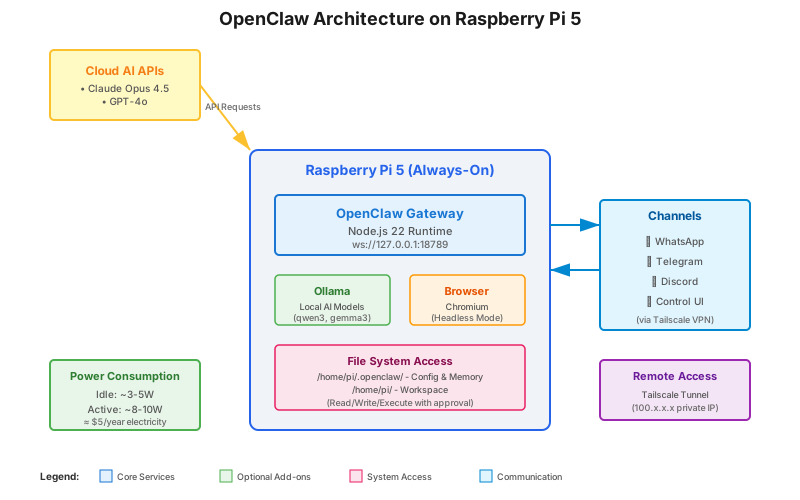
- Draws 5-10 watts (costs ~$5/year electricity)
- Always-on without leaving a laptop running
- Your data never leaves your hardware
- Replaces $10-30/month VPS fees
Why Raspberry Pi 3 Will Disappoint You
Don't waste time with old models:
| Model | RAM | CPU | Result |
|---|---|---|---|
| Pi 3 B+ | 1GB | 1.4GHz Cortex-A53 | Crashes during browser automation |
| Pi 4 (4GB) | 4GB | 1.5GHz Cortex-A72 | Works but slow (2-2.5x slower than Pi 5) |
| Pi 5 (8GB) | 8GB | 2.4GHz Cortex-A76 | Recommended - handles everything smoothly |
Why the difference matters: Modern web pages consume 70-150MB memory each. When OpenClaw controls a headless browser to check your email or book a restaurant, a 1GB Pi runs out of memory instantly. The Pi 5's faster CPU makes responses feel instant instead of sluggish.
Critical hardware note: RAM cannot be upgraded on Raspberry Pi. Buy 8GB now to avoid replacing it in 6 months.
Hardware Shopping List
Required ($125-165)
Core Components:
- Raspberry Pi 5 (8GB): $80 - Official site
- Official 27W USB-C Power Supply: $12 - Required for stability
- MicroSD Card (64GB+): $15 - SanDisk Extreme recommended
Better Option (+$40):
- NVMe SSD (256GB): $30 - 10x faster than SD cards
- NVMe Base for Pi 5: $10 - Pimoroni or official adapter
Why NVMe matters: SD cards slow down over time and fail unpredictably. NVMe SSDs are faster, more reliable, and boot in 8 seconds vs 45 seconds.
Budget Alternative ($100)
If $125 feels steep, the Raspberry Pi 5 4GB ($60) handles core OpenClaw tasks fine. You'll hit limits when running multiple browser tabs simultaneously or adding heavy integrations later.
Installation: The Fast Path
Step 1: Install Operating System
Download Raspberry Pi Imager: Official download
Settings to use:
- Choose Raspberry Pi OS Lite (64-bit) - Debian Bookworm
- Click Settings (gear icon)
- Enable SSH with password authentication
- Set hostname:
openclaw-pi - Set username/password you'll remember
- Configure WiFi credentials
- Click "Write"
Why Lite? No desktop GUI saves 500MB RAM for OpenClaw.
Expected: Imager writes in 5-8 minutes.
Step 2: First Boot Setup
Connect and SSH in:
# Find your Pi's IP address
# Option 1: Check your router's DHCP clients page
# Option 2: Use hostname
ssh pi@openclaw-pi.local

# Or use IP directly
ssh pi@192.168.1.XXX
Update system packages:
# Takes 3-5 minutes on first run
sudo apt update && sudo apt upgrade -y
If SSH fails:
- "Connection refused": Pi still booting, wait 60 seconds
- "Host key verification failed": Run
ssh-keygen -R openclaw-pi.local - Can't find hostname: Use IP address from router instead
Step 3: Install Node.js 22
OpenClaw requires Node.js 22 or newer. Raspberry Pi OS repositories ship older versions, so we use NodeSource:
# Install Node.js 22.x
curl -fsSL https://deb.nodesource.com/setup_22.x | sudo -E bash -
sudo apt install -y nodejs

# Verify installation
node --version  # Should show v22.x.x
Expected output: v22.11.0 or newer
Why this works: NodeSource maintains official Debian packages that auto-update.
Step 4: Install OpenClaw
# Install globally via npm
curl -fsSL https://openclaw.ai/install.sh | bash

# Verify installation
openclaw --version
Expected: openclaw version 0.x.x appears
If it fails:
- "openclaw command not found": Add to PATH:
export PATH="$HOME/.local/bin:$PATH" - Permission denied: Don't use
sudo- installs to your user directory
Step 5: Run Onboarding Wizard
This interactive wizard configures authentication, channels, and sets up the background service:
openclaw onboard --install-daemon
The wizard will ask:
Your name and timezone: Used for scheduling and memory
Choose AI provider:
- Anthropic (recommended) - Claude Opus 4.5 or Sonnet 4.5
- OpenAI - GPT-4o
- Google - Gemini 2.0
- Local models - Ollama (slower, but free)
API key setup: Get keys from:
- Anthropic: https://console.anthropic.com/
- OpenAI: https://platform.openai.com/api-keys
- Google: https://aistudio.google.com/
Communication channels: Pick at least one:
- WhatsApp (easiest for mobile)
- Telegram (no phone number needed)
- Discord (great for communities)
- Control UI only (browser-based chat)
Install as system service: Answer yes to run 24/7
Expected: Wizard completes and shows "Gateway running at http://127.0.0.1:18789"
Step 6: Verify Everything Works
Check service status:
openclaw gateway status
Expected output:
● openclaw-gateway.service - OpenClaw Gateway
   Loaded: loaded
   Active: active (running) since [timestamp]
   Memory: 245.2M
Open Control UI:
openclaw dashboard
Then visit http://openclaw-pi.local:18789 in your browser (or use the Pi's IP address).
Send your first message:
Type in the Control UI: "What can you do?"
You should see: OpenClaw responds describing its capabilities, tools available, and asks how it can help.
Access From Your Phone (Remote Setup)
By default, OpenClaw only accepts connections from localhost. For phone access via WhatsApp/Telegram, you need remote connectivity.
Option 1: Tailscale (Recommended - Free & Secure)
Tailscale creates a private VPN so only your devices can reach the Pi.
# Install Tailscale
curl -fsSL https://tailscale.com/install.sh | sh

# Connect your Pi
sudo tailscale up

# Get your Pi's Tailscale IP
tailscale ip -4
On your phone:
- Install Tailscale app
- Log in with same account
- Access Control UI at
http://[tailscale-ip]:18789
Why Tailscale wins: No port forwarding, no security risks, works anywhere.
Option 2: Cloudflare Tunnel (Advanced)
For public webhooks (like WhatsApp callbacks), use Cloudflare Tunnels. This exposes specific ports securely without opening your router.
Full guide: Cloudflare Tunnel docs
Warning: Don't expose port 18789 directly to the internet without authentication.
Setting Up Your First Channel
WhatsApp (Most Popular)
OpenClaw uses WhatsApp Business API via Evolution API or Baileys.
Quick setup:
# Configure WhatsApp in OpenClaw
openclaw channels add whatsapp

# Follow QR code pairing instructions
Expected: Scan QR code with WhatsApp → Connection confirmed
Limitation: WhatsApp may flag business API usage. Personal accounts work but violate TOS.
Telegram (Easier Alternative)
No phone number verification, works great for testing:
# Create bot with @BotFather on Telegram
# Get your bot token
openclaw channels add telegram --token YOUR_BOT_TOKEN
Test it: Message your bot on Telegram: "Hello!"
Critical Security Settings
OpenClaw has full system access. These rules are non-negotiable:
1. Enable Command Approval
Before OpenClaw runs ANY command, it should ask permission:
openclaw config set execution.requireApproval true
What this does: You get notifications before file deletions, installations, or external API calls.
2. Restrict Network Access
Prevent OpenClaw from accidentally DDoS-ing services or accessing sensitive internal networks:
# Block private network ranges
openclaw config set network.blockedCIDRs "10.0.0.0/8,172.16.0.0/12,192.168.0.0/16"
3. Set Budget Limits
Cloud AI costs money. Prevent surprise $500 bills:
# Daily limit in USD
openclaw config set budget.dailyLimit 10

# Monthly limit
openclaw config set budget.monthlyLimit 150
Expected behavior: OpenClaw stops making API calls when limits hit.
4. Review What NOT to Connect
Don't give OpenClaw access to:
- Banking apps or financial APIs
- Password managers
- Root/sudo access (run as regular user)
- Production databases
- Your main work computer (use Pi for testing first)
Why: Prompt injection attacks exist. A malicious email could trick OpenClaw into running harmful commands.
Improving Performance
Add Local Models with Ollama
For simple tasks, use local models to save API costs:
# Install Ollama
curl -fsSL https://ollama.com/install.sh | sh

# Download small, capable models
ollama pull qwen3:1.7b      # Text tasks
ollama pull qwen3-vl:2b     # Vision tasks
ollama pull gemma3:1b       # Fast responses

# Configure OpenClaw to use Ollama
openclaw config set agents.fallback ollama
When to use local vs cloud:
- Local (Ollama): Quick questions, text parsing, scheduling
- Cloud (Claude/GPT): Complex reasoning, coding, research
Performance note: qwen3:1.7b responds in 1-2 seconds on Pi 5. Larger models (7B+) are unusably slow.
Enable Browser Automation
For web tasks (booking reservations, checking prices):
# Install Chromium for headless browsing
sudo apt install -y chromium-browser chromium-chromedriver

# Enable browser skill
openclaw skills enable browser-control
Test it: "Find the current price of Bitcoin on CoinMarketCap"
What You Learned
- Pi 5 with 8GB RAM is the minimum viable hardware for smooth operation
- NVMe storage dramatically improves performance over SD cards
- Command approval prevents catastrophic mistakes
- Tailscale provides secure remote access without port forwarding
- Local models (Ollama) reduce API costs for simple tasks
Limitations:
- Not a replacement for ChatGPT's web UI (different use case)
- Requires constant API budget for cloud models
- Prompt injection remains an unsolved security risk
- Best suited for personal automation, not public services
Cost reality: Expect $5-15/day in API costs with moderate usage (Claude Opus). Using local models or cheaper models like GPT-4o-mini reduces this to $1-3/day.
Troubleshooting
OpenClaw won't start:
# Check logs
journalctl -u openclaw-gateway -n 50

# Common fix: restart service
sudo systemctl restart openclaw-gateway
Out of memory errors:
# Check current usage
free -h

# If using Pi 4GB, reduce browser instances:
openclaw config set browser.maxInstances 1
Slow responses:
- Switch to faster model (Claude Haiku instead of Opus)
- Increase swap space:
sudo dphys-swapfile swapoff && sudo nano /etc/dphys-swapfile(setCONF_SWAPSIZE=2048) - Check if SD card is failing:
sudo badblocks -v /dev/mmcblk0
API rate limits:
# Check current usage
openclaw stats api

# Reduce frequency of heartbeat checks
openclaw config set heartbeat.interval 3600  # Once per hour instead of 15min
Tested on Raspberry Pi 5 (8GB), Raspberry Pi OS Lite (64-bit) Bookworm, OpenClaw v0.32.0, February 2026
Community: