Run Ollama Vision Models Locally with LLaVA and BakLLaVA
Ollama vision models — LLaVA and BakLLaVA — let you run multi-modal image analysis fully offline, with no API keys and no data leaving your machine. Getting the image encoding wrong is the #1 source of invalid base64 and silent empty-response bugs. This guide shows exactly how to pull the models, send image prompts via CLI and REST API, and avoid the encoding pitfalls that waste hours.
You'll learn:
- Pull and run LLaVA 7B and BakLLaVA 7B with a single
ollama pullcommand - Send image prompts from the terminal and via Python using the
/api/generateendpoint - Choose between LLaVA and BakLLaVA based on your hardware and accuracy needs
Time: 20 min | Difficulty: Intermediate
How Ollama Vision Models Work
Standard LLMs process token sequences. Vision models add a second input path: a CLIP-based image encoder converts pixels into embeddings, which get projected into the same token space the LLM understands. LLaVA (Large Language and Vision Assistant) pioneered this two-tower approach. BakLLaVA swaps LLaVA's LLaMA backbone for Mistral 7B, trading a small accuracy gain for lower VRAM usage at the same 7B parameter count.
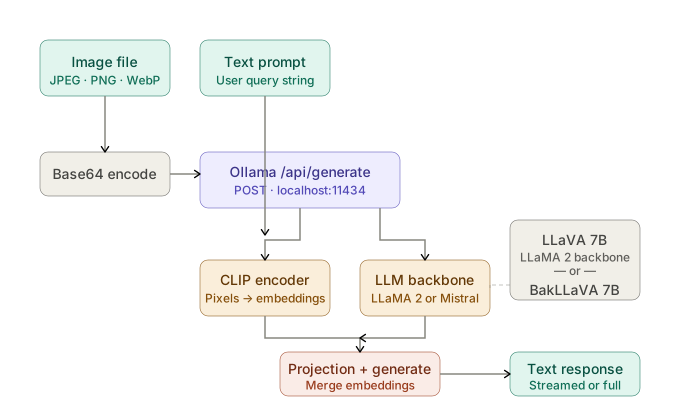 Ollama vision request flow: image and prompt merge at the CLIP encoder before the LLM generates a response
Ollama handles the projection layer internally. You only need to pass the image as a base64 string in the images array of the API payload — Ollama takes it from there.
Prerequisites
- Ollama 0.3.0+ installed (ollama.com/download)
- 8 GB VRAM minimum for LLaVA 7B and BakLLaVA 7B at Q4 quantization; 6 GB works on M2 with unified memory
- Python 3.11+ if using the API examples below
- macOS, Ubuntu 22.04+, or Windows 11 with WSL2
Pull the Vision Models
Pull LLaVA 7B first — it's the reference implementation and the most widely tested.
# Default pull is the Q4_0 quant — fits in 8 GB VRAM
ollama pull llava

# Pull BakLLaVA (Mistral 7B backbone — slightly lower VRAM pressure)
ollama pull bakllava

# Verify both models are available
ollama list
Expected output:
NAME                ID              SIZE    MODIFIED
bakllava:latest     1d3b44f3af99    4.7 GB  2 minutes ago
llava:latest        8dd30f6b0cb1    4.7 GB  3 minutes ago
If ollama pull hangs: Your Ollama daemon isn't running. Start it with ollama serve in a separate terminal on Linux, or open the Ollama desktop app on macOS/Windows.
Send Your First Vision Prompt via CLI
Ollama's CLI accepts image paths directly with the --image flag. No encoding needed for quick tests.
# Describe any image file on disk
ollama run llava "What objects are in this image? List them." --image /path/to/photo.jpg

# BakLLaVA with a more specific prompt
ollama run bakllava "Read all text visible in this image. Return only the text, no commentary." --image /path/to/screenshot.png
Expected output (LLaVA on a photo of a desk):
The image contains: a laptop computer, a ceramic coffee mug, a notebook,
and a mechanical keyboard. The laptop screen displays a code editor.
If output is empty or truncated: The image file path is wrong, or the file format isn't supported. Ollama vision models accept JPEG, PNG, GIF (first frame only), and WebP.
Call the REST API with Python
The CLI is fine for one-offs. For programmatic use — batch processing screenshots, building a pipeline, integrating with an agent — hit the REST API directly.
Step 1: Encode the Image as Base64
Ollama's /api/generate endpoint expects images as base64 strings in a list, not as file paths.
import base64
import json
import urllib.request

def encode_image(path: str) -> str:
    # Read bytes and encode — Ollama rejects data-URI prefixes like "data:image/jpeg;base64,"
    with open(path, "rb") as f:
        return base64.b64encode(f.read()).decode("utf-8")
Step 2: Build and Send the Request
def query_vision_model(image_path: str, prompt: str, model: str = "llava") -> str:
    payload = {
        "model": model,
        "prompt": prompt,
        "images": [encode_image(image_path)],  # list — supports multiple images in one request
        "stream": False,                         # set True to stream tokens for long responses
    }

    data = json.dumps(payload).encode("utf-8")
    req = urllib.request.Request(
        "http://localhost:11434/api/generate",
        data=data,
        headers={"Content-Type": "application/json"},
        method="POST",
    )

    with urllib.request.urlopen(req) as resp:
        result = json.loads(resp.read().decode("utf-8"))
        return result["response"]


# Usage
answer = query_vision_model(
    image_path="invoice.png",
    prompt="Extract the total amount due and the due date from this invoice.",
    model="llava",
)
print(answer)
Expected output:
Total amount due: $2,340.00
Due date: March 31, 2026
Common errors:
Connection refused→ Ollama daemon not running. Runollama serve.invalid base64→ You included adata:image/jpeg;base64,prefix. Strip it — pass raw base64 only.model not found→ Runollama pull llavafirst.
Stream Long Responses
For detailed image descriptions, streaming avoids the long wait before output appears.
import json
import urllib.request

def stream_vision_response(image_path: str, prompt: str, model: str = "llava") -> None:
    payload = {
        "model": model,
        "prompt": prompt,
        "images": [encode_image(image_path)],
        "stream": True,  # enables token-by-token streaming
    }

    data = json.dumps(payload).encode("utf-8")
    req = urllib.request.Request(
        "http://localhost:11434/api/generate",
        data=data,
        headers={"Content-Type": "application/json"},
        method="POST",
    )

    with urllib.request.urlopen(req) as resp:
        for line in resp:
            chunk = json.loads(line.decode("utf-8"))
            print(chunk["response"], end="", flush=True)
            if chunk.get("done"):
                print()  # newline after final token
                break
LLaVA vs BakLLaVA: Which to Use
| LLaVA 7B | BakLLaVA 7B | |
|---|---|---|
| Backbone | LLaMA 2 7B | Mistral 7B |
| Model size (Q4) | 4.7 GB | 4.7 GB |
| Min VRAM | 8 GB | 6 GB |
| OCR / text extraction | Good | Better |
| Scene description | Better | Good |
| Multi-image support | ✅ | ✅ |
| Ollama tag | llava | bakllava |
Choose LLaVA if: You need scene understanding, object detection, or visual Q&A on photographs.
Choose BakLLaVA if: You're extracting text from screenshots, invoices, or UI elements — Mistral's stronger instruction following improves OCR-style tasks.
For higher accuracy at the cost of more VRAM, llava:13b (8 GB Q4) and llava:34b (20 GB Q4) are available via ollama pull llava:13b.
Batch Process Multiple Images
Processing a folder of images is a common real-world task — inspecting product photos, parsing receipts, auditing UI screenshots.
import os
from pathlib import Path

def batch_analyze(image_dir: str, prompt: str, model: str = "llava") -> dict[str, str]:
    results = {}
    supported = {".jpg", ".jpeg", ".png", ".webp", ".gif"}

    for img_path in Path(image_dir).iterdir():
        if img_path.suffix.lower() not in supported:
            continue

        print(f"Processing {img_path.name}...")
        results[img_path.name] = query_vision_model(
            image_path=str(img_path),
            prompt=prompt,
            model=model,
        )

    return results


# Analyze all receipts in a folder
receipts = batch_analyze(
    image_dir="./receipts",
    prompt="Extract vendor name, date, and total amount. Return as JSON.",
    model="bakllava",  # BakLLaVA handles text-heavy images better
)

for filename, analysis in receipts.items():
    print(f"\n{filename}:\n{analysis}")
Verification
Run this to confirm both models respond correctly:
# Quick smoke test — no image file needed, just ASCII art
echo "Describe what you see." | ollama run llava --image https://upload.wikimedia.org/wikipedia/commons/thumb/4/47/PNG_transparency_demonstration_1.png/280px-PNG_transparency_demonstration_1.png
You should see: A description of colored dice or geometric shapes on a transparent background.
For the API path:
curl http://localhost:11434/api/generate \
  -d '{
    "model": "llava",
    "prompt": "What is in this image?",
    "images": ["'"$(base64 -i /path/to/test.jpg)"'"],
    "stream": false
  }'
You should see: A JSON response with a "response" key containing an image description.
What You Learned
- Ollama vision models use a CLIP encoder to project image pixels into the LLM's token space — you never handle that projection yourself
- The
imagesfield in the API payload takes a list of raw base64 strings — no data-URI prefix, and multiple images are supported in a single call - BakLLaVA's Mistral backbone gives it an edge on text extraction and instruction following; LLaVA is stronger on open-ended scene description
- Streaming (
"stream": true) is important for detailed prompts — without it, you wait for the full response before seeing any output
Tested on Ollama 0.3.14, LLaVA 1.6, BakLLaVA 1, Python 3.12, Ubuntu 22.04 + RTX 3080 (10 GB VRAM), and M2 MacBook Air (16 GB unified memory)
FAQ
Q: Does LLaVA work on CPU-only machines?
A: Yes, but expect 2–5 minutes per image on a modern CPU. Set OLLAMA_NUM_GPU=0 to force CPU inference and avoid partial GPU allocation errors.
Q: What is the maximum image resolution Ollama vision models support? A: LLaVA and BakLLaVA both resize input images to 336×336 pixels internally via the CLIP encoder. Higher-resolution inputs are downsampled automatically — no preprocessing needed, but fine text in large images may be harder to read.
Q: Can I use a remote Ollama instance instead of localhost?
A: Yes. Replace http://localhost:11434 with your server address, e.g. http://192.168.1.100:11434. Set OLLAMA_HOST=0.0.0.0 on the server to bind to all interfaces.
Q: How do I run LLaVA in a Docker container?
A: Use the official image: docker run -d --gpus all -p 11434:11434 ollama/ollama. Then docker exec -it <container> ollama pull llava to pull the model inside the container. The API is identical.
Q: Does BakLLaVA support multiple images in one request?
A: Yes. Pass multiple base64 strings in the images list. Both LLaVA and BakLLaVA support up to 4 images per request, though response quality drops beyond 2 with the 7B models.