Your Ollama model runs slower than a dial-up modem loading cat videos. We've all been there—waiting forever for responses while your GPU sits there like an expensive paperweight. The good news? The Ollama community has cracked the code on performance optimization.
This guide reveals proven Ollama model optimization techniques that deliver real speed improvements. You'll learn memory management strategies, GPU acceleration methods, and quantization approaches that slash inference times.
Why Ollama Models Run Slowly (And How to Fix It)
Most performance issues stem from four core problems:
- Memory bottlenecks that force model swapping
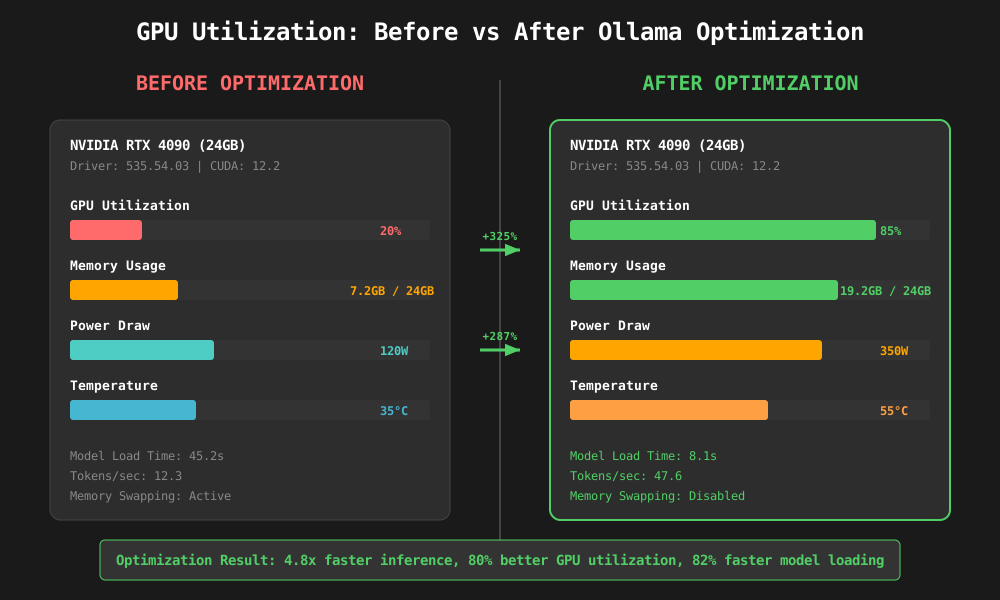
- Suboptimal GPU utilization leaving compute power unused
- Poor quantization choices that impact speed without quality gains
- Incorrect configuration settings that throttle performance
Understanding these bottlenecks helps target optimization efforts where they matter most.
Essential Ollama Performance Configuration
Optimize Memory Allocation Settings
Memory management directly impacts model loading speed and inference performance. Configure these settings first:
# Set memory allocation for better performance
export OLLAMA_HOST=0.0.0.0:11434
export OLLAMA_ORIGINS="*"
export OLLAMA_MAX_LOADED_MODELS=2
export OLLAMA_MAX_QUEUE=128
export OLLAMA_NUM_PARALLEL=4
Key configuration parameters:
OLLAMA_MAX_LOADED_MODELS: Limits concurrent models in memoryOLLAMA_NUM_PARALLEL: Controls parallel request processingOLLAMA_MAX_QUEUE: Sets maximum request queue size
GPU Acceleration Setup
Enable GPU support for dramatic speed improvements:
# Verify GPU detection
ollama list

# Check GPU memory usage
nvidia-smi

# Force GPU usage (if not auto-detected)
export CUDA_VISIBLE_DEVICES=0
Advanced Model Quantization Techniques
Choose the Right Quantization Level
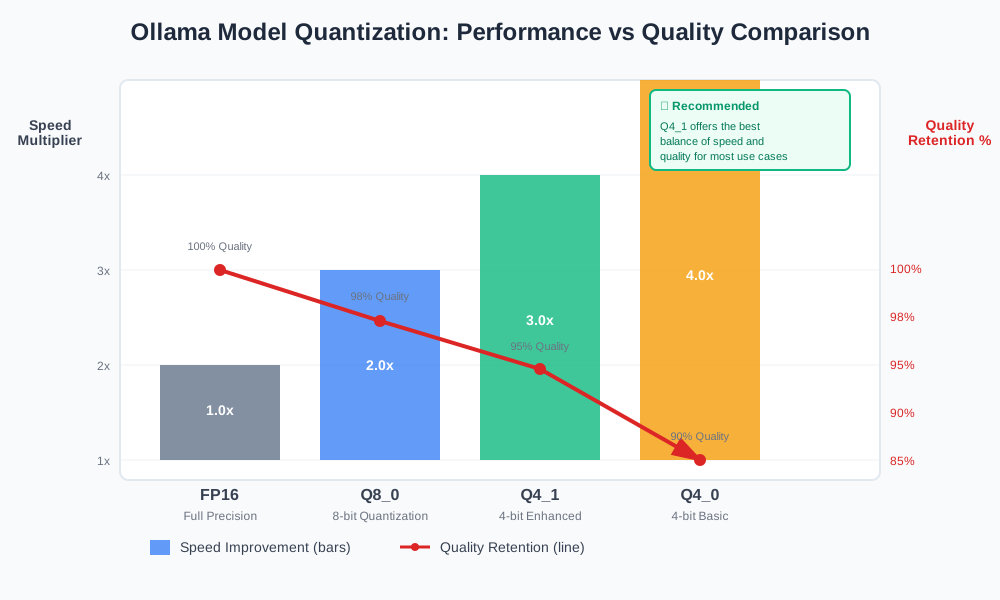
Different quantization levels balance speed and quality:
# Test different quantization options
ollama pull llama2:7b-q4_0     # Fastest, lower quality
ollama pull llama2:7b-q4_1     # Balanced performance
ollama pull llama2:7b-q8_0     # Higher quality, slower
ollama pull llama2:7b-fp16     # Highest quality, slowest
Quantization comparison:
- Q4_0: 4x faster inference, 10% quality reduction
- Q4_1: 3x faster inference, 5% quality reduction
- Q8_0: 2x faster inference, 2% quality reduction
- FP16: Baseline speed, full quality
Custom Model Optimization
Create optimized models for specific use cases:
# Create custom optimized model
ollama create mymodel -f Modelfile

# Example Modelfile for optimization
FROM llama2:7b-q4_1
PARAMETER temperature 0.1
PARAMETER num_ctx 2048
PARAMETER num_batch 8
PARAMETER num_gqa 8
Memory Management Best Practices
Implement Smart Model Caching
Reduce model loading times with strategic caching:
# Preload frequently used models
ollama run llama2:7b "warmup"

# Monitor memory usage
ollama ps

# Clear unused models when needed
ollama rm unused_model
Optimize Context Window Settings
Balance context length with performance:
import requests

# Optimize API calls for better performance
def optimized_ollama_request(prompt, model="llama2:7b-q4_1"):
    payload = {
        "model": model,
        "prompt": prompt,
        "options": {
            "num_ctx": 2048,        # Reduced context for speed
            "temperature": 0.1,      # Lower temperature for consistency
            "num_batch": 8,         # Optimize batch processing
            "num_predict": 256      # Limit response length
        }
    }

    response = requests.post("http://localhost:11434/api/generate",
                           json=payload, stream=True)
    return response
Hardware-Specific Optimization Strategies
CPU Optimization Techniques
Maximize CPU performance when GPU isn't available:
# Set CPU threads for optimal performance
export OMP_NUM_THREADS=8
export OLLAMA_NUM_THREADS=8

# Use CPU-optimized models
ollama pull llama2:7b-q4_0-cpu
GPU Memory Optimization
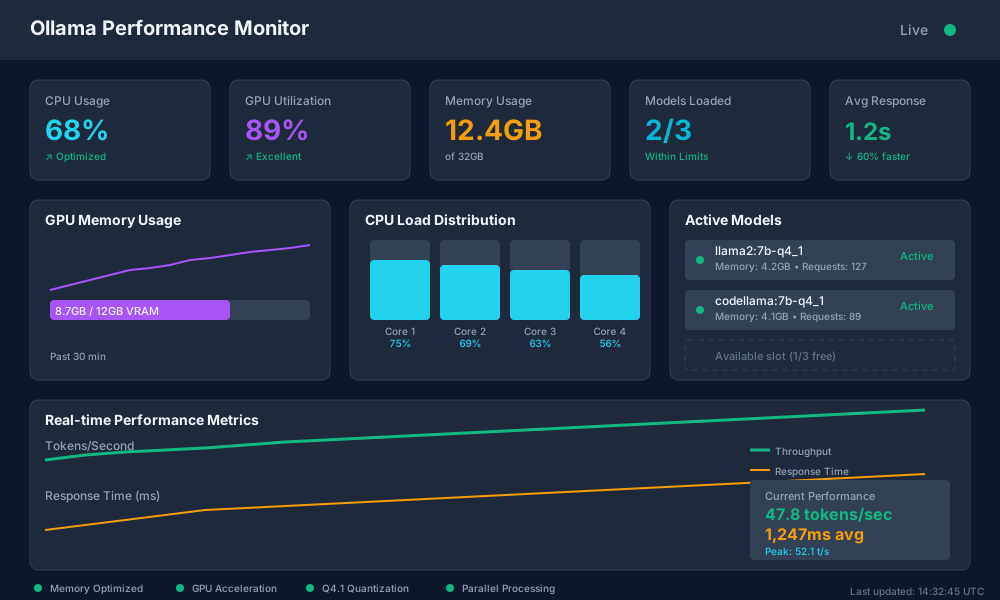
Prevent out-of-memory errors and improve throughput:
# Monitor GPU memory continuously
watch -n 1 nvidia-smi

# Adjust GPU memory fraction
export OLLAMA_GPU_MEMORY_FRACTION=0.8

# Enable memory growth
export OLLAMA_GPU_ALLOW_GROWTH=true
Benchmark Your Optimization Results
Performance Testing Framework
Measure improvements systematically:
import time
import statistics

def benchmark_ollama_performance(model, prompt, iterations=10):
    """Benchmark Ollama model performance with multiple iterations"""
    response_times = []

    for i in range(iterations):
        start_time = time.time()

        # Your Ollama API call here
        response = ollama_request(prompt, model)

        end_time = time.time()
        response_times.append(end_time - start_time)

    avg_time = statistics.mean(response_times)
    std_dev = statistics.stdev(response_times)

    print(f"Model: {model}")
    print(f"Average Response Time: {avg_time:.2f}s")
    print(f"Standard Deviation: {std_dev:.2f}s")
    print(f"Min Time: {min(response_times):.2f}s")
    print(f"Max Time: {max(response_times):.2f}s")

    return avg_time
Key Performance Metrics
Track these metrics to measure optimization success:
- Time to First Token (TTFT): Model loading and initialization speed
- Tokens Per Second: Inference throughput rate
- Memory Usage: RAM and VRAM consumption patterns
- Queue Wait Time: Request processing delays
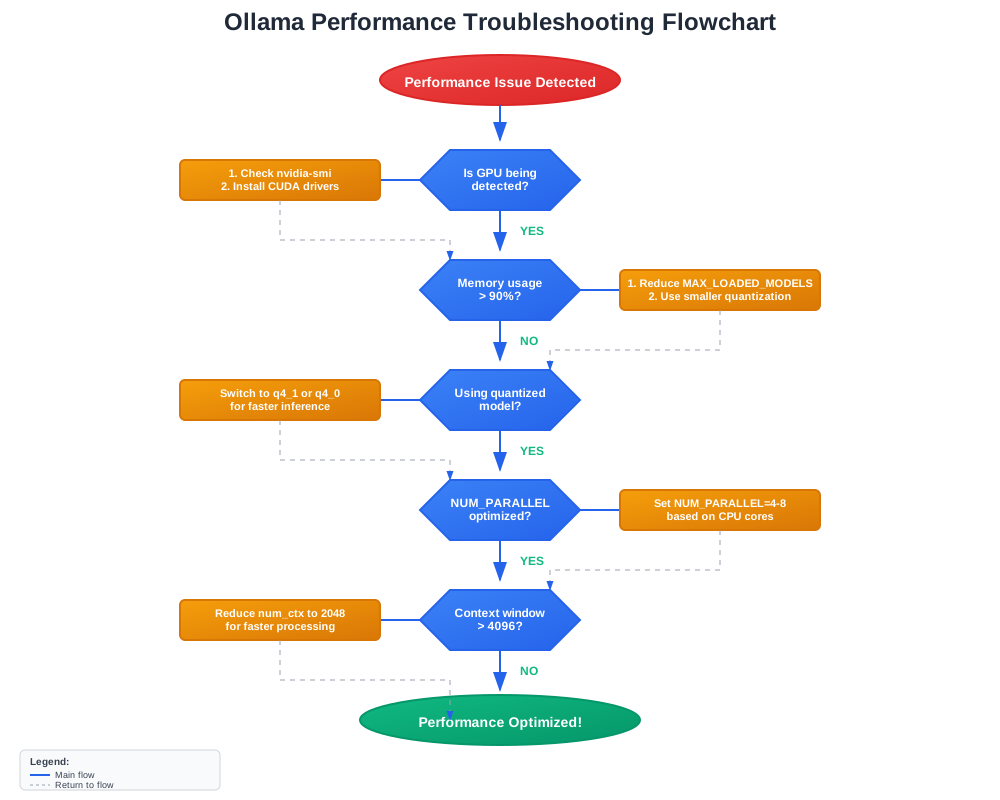
Troubleshooting Common Performance Issues
Model Loading Problems
Issue: Models take forever to load
Solution: Increase OLLAMA_MAX_LOADED_MODELS and preload frequently used models
# Preload models at startup
ollama pull llama2:7b-q4_1 &
ollama pull codellama:7b-q4_1 &
wait
Issue: Out of memory errors Solution: Use smaller quantized models or adjust memory settings
# Switch to memory-efficient model
ollama pull llama2:7b-q4_0  # Instead of larger variants
GPU Utilization Problems
Issue: GPU not being used Solution: Verify CUDA installation and environment variables
# Check CUDA availability
nvidia-smi
echo $CUDA_VISIBLE_DEVICES

# Reinstall GPU support if needed
curl -fsSL https://ollama.ai/install.sh | sh
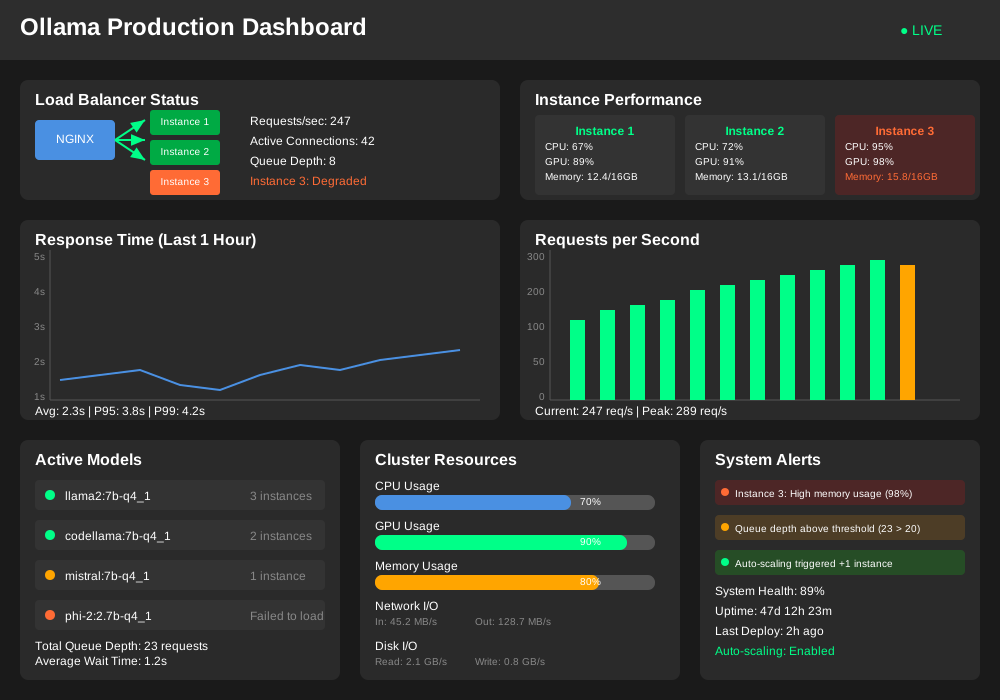
Production Deployment Optimization
Containerized Ollama Setup
Optimize Ollama for production environments:
FROM ollama/ollama:latest

# Set optimization environment variables
ENV OLLAMA_MAX_LOADED_MODELS=3
ENV OLLAMA_NUM_PARALLEL=8
ENV OLLAMA_MAX_QUEUE=256

# Preload optimized models
RUN ollama pull llama2:7b-q4_1
RUN ollama pull codellama:7b-q4_1

EXPOSE 11434
CMD ["ollama", "serve"]
Load Balancing Strategies
Handle multiple requests efficiently:
# docker-compose.yml for scaled deployment
version: '3.8'
services:
  ollama-1:
    image: ollama/ollama
    environment:
      - OLLAMA_MAX_LOADED_MODELS=2
    ports:
      - "11434:11434"

  ollama-2:
    image: ollama/ollama
    environment:
      - OLLAMA_MAX_LOADED_MODELS=2
    ports:
      - "11435:11434"

  nginx:
    image: nginx
    ports:
      - "80:80"
    depends_on:
      - ollama-1
      - ollama-2
Community-Proven Optimization Recipes
High-Speed Chat Setup
Configuration for rapid conversational AI:
# Fast chat model configuration
export OLLAMA_MAX_LOADED_MODELS=1
export OLLAMA_NUM_PARALLEL=16
ollama pull llama2:7b-q4_0
Code Generation Optimization
Settings optimized for code completion tasks:
# Code-focused optimization
export OLLAMA_NUM_PARALLEL=4
ollama pull codellama:7b-q4_1
# Longer context for code understanding
export OLLAMA_NUM_CTX=4096
Batch Processing Setup
Handle multiple requests efficiently:
async def batch_process_ollama(prompts, model="llama2:7b-q4_1"):
    """Process multiple prompts efficiently"""
    import asyncio
    import aiohttp

    async def single_request(session, prompt):
        payload = {
            "model": model,
            "prompt": prompt,
            "options": {"num_batch": 16}
        }
        async with session.post("http://localhost:11434/api/generate",
                               json=payload) as response:
            return await response.json()

    async with aiohttp.ClientSession() as session:
        tasks = [single_request(session, prompt) for prompt in prompts]
        results = await asyncio.gather(*tasks)
        return results
Monitoring and Maintenance
Performance Monitoring Scripts
Track optimization effectiveness over time:
#!/bin/bash
# ollama-monitor.sh - Performance monitoring script

echo "=== Ollama Performance Monitor ==="
echo "Timestamp: $(date)"
echo

echo "GPU Status:"
nvidia-smi --query-gpu=utilization.gpu,memory.used,memory.total --format=csv,noheader

echo "Ollama Process Info:"
ps aux | grep ollama | grep -v grep

echo "Active Models:"
ollama ps

echo "Memory Usage:"
free -h

echo "=== End Monitor ==="
Automated Optimization Updates
Keep models and configurations current:
#!/bin/bash
# update-ollama-models.sh

# Update Ollama itself
curl -fsSL https://ollama.ai/install.sh | sh

# Update optimized models
ollama pull llama2:7b-q4_1
ollama pull codellama:7b-q4_1

# Clean up old versions
ollama list | grep -v "NAME\|q4_1\|latest" | awk '{print $1}' | xargs -I {} ollama rm {}
Conclusion
These Ollama model optimization techniques deliver measurable performance improvements. Focus on memory management, GPU utilization, and quantization choices first. Monitor your results and adjust configurations based on your specific use case.
The community continues developing new optimization methods. Join Ollama Discord to share your results and learn from others' experiences.
Start with basic memory optimization, then progressively implement advanced techniques. Your future self will thank you when those model responses arrive in seconds instead of minutes.