Problem: Ollama Unloads Your Model Between Requests
Ollama keep-alive memory management is the fastest way to stop wasting 10–30 seconds on model reload latency every time your app sends a request after a short idle. By default, Ollama unloads a model from GPU memory 5 minutes after its last use. If your agent, API, or dev workflow sends requests intermittently, you pay that cold-start tax on every gap.
You'll learn:
- How
keep_aliveworks at the request and server level - How to pin a model in VRAM permanently — or evict it instantly on demand
- How to tune memory residency for multi-model setups and production Docker deployments
Time: 15 min | Difficulty: Intermediate
Why Ollama Evicts Models from Memory
Ollama loads a model into GPU (or CPU) memory on first inference and starts a countdown timer. When the keep_alive window expires with no new requests, Ollama calls the unload routine — freeing VRAM so another model can load.
This default is sensible for local dev where you switch models often. It becomes a problem when:
- Your LLM API backend has uneven traffic (bursts + idle gaps)
- You're running an AI agent loop with think-time between calls
- You want sub-second first-token latency on every request, not just the hot ones
Symptoms:
- First request after idle takes 15–45 seconds (model reloading from disk)
- GPU memory spikes then drops to near-zero during idle
- Logs show
model loadedrepeatedly for the same model
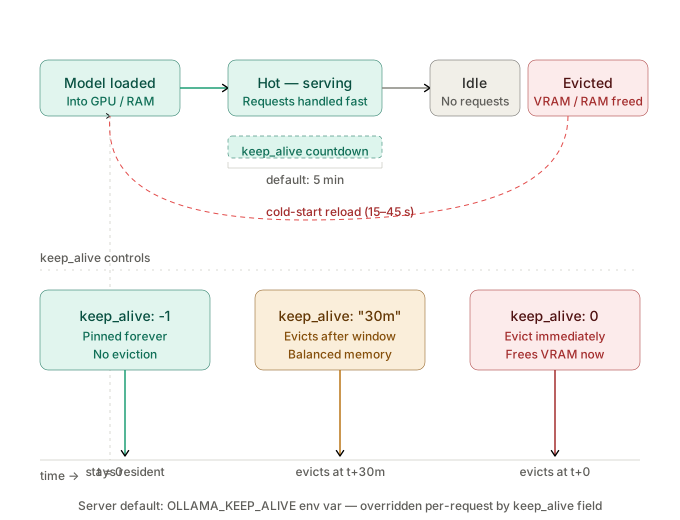 Ollama's model lifecycle: the keep_alive window is the only thing standing between hot inference and a full reload penalty
Solution
Step 1: Set keep_alive Per Request
The fastest way to control residency is in the request body itself. The keep_alive field accepts a Go duration string or a plain integer (seconds).
# Keep the model loaded for 30 minutes after this request
curl http://localhost:11434/api/generate \
  -d '{
    "model": "llama3.2",
    "prompt": "Explain VRAM paging",
    "keep_alive": "30m"
  }'
# Pin indefinitely — model stays until you explicitly unload or restart Ollama
curl http://localhost:11434/api/generate \
  -d '{
    "model": "llama3.2",
    "prompt": "Explain VRAM paging",
    "keep_alive": -1
  }'
# Evict immediately after this request completes — frees VRAM right away
curl http://localhost:11434/api/generate \
  -d '{
    "model": "llama3.2",
    "prompt": "Explain VRAM paging",
    "keep_alive": 0
  }'
Valid duration formats: "5m", "1h", "30s", "-1" (infinite), 0 (immediate evict)
Expected output: Response streams normally. Check GPU memory with nvidia-smi or sudo powermetrics --samplers gpu_power on Apple Silicon — the model stays resident after the -1 request.
If it fails:
unknown field keep_alive→ You're hitting an Ollama version older than 0.1.24. Runollama --versionand upgrade withcurl -fsSL https://ollama.com/install.sh | sh.- Model still evicts after
"keep_alive": -1→ The server-levelOLLAMA_KEEP_ALIVEenv var may be overriding per-request values on some builds. Set both (Step 2).
Step 2: Set the Server-Level Default with OLLAMA_KEEP_ALIVE
Per-request keep_alive controls individual calls. For a persistent server where every request should keep the model hot, set the environment variable instead of touching every API call.
# systemd — edit the Ollama service drop-in
sudo systemctl edit ollama.service
[Service]
Environment="OLLAMA_KEEP_ALIVE=1h"
sudo systemctl daemon-reload && sudo systemctl restart ollama
For Docker deployments (the most common production pattern in 2026):
# docker-compose.yml
services:
  ollama:
    image: ollama/ollama:latest
    runtime: nvidia          # requires nvidia-container-toolkit
    environment:
      - OLLAMA_KEEP_ALIVE=24h
      - OLLAMA_NUM_PARALLEL=4    # handle concurrent requests without unloading
    volumes:
      - ollama_data:/root/.ollama
    ports:
      - "11434:11434"
    deploy:
      resources:
        reservations:
          devices:
            - driver: nvidia
              count: 1
              capabilities: [gpu]

volumes:
  ollama_data:
docker compose up -d
Expected output: ollama container starts, GPU memory shows the model resident after the first warm-up request.
If it fails:
OLLAMA_KEEP_ALIVEhas no effect → Confirm withdocker exec ollama env | grep OLLAMA. If missing, check YAML indentation —environmentmust be a list under the service, not underdeploy.- OOM on GPU → You set
keep_alive=-1on a model that takes most of your VRAM, then triggered a second model load. See Step 4.
Step 3: Pre-Load a Model at Server Startup
OLLAMA_KEEP_ALIVE only keeps a model in memory after its first inference. To load it before any request arrives, use ollama run in detached mode or a startup curl ping.
# Warm up llama3.2 immediately — model stays loaded per OLLAMA_KEEP_ALIVE setting
curl -s http://localhost:11434/api/generate \
  -d '{"model": "llama3.2", "prompt": "", "keep_alive": -1}' \
  > /dev/null
Add this to your Docker command or a systemd ExecStartPost so every restart auto-warms the model:
# In a shell script run after Ollama starts
#!/bin/bash
sleep 3  # give Ollama time to bind the port
curl -s http://localhost:11434/api/generate \
  -d '{"model": "llama3.2", "prompt": "", "keep_alive": -1}' \
  > /dev/null
echo "Model warm."
Expected output: nvidia-smi shows VRAM allocated for the model before any real traffic hits.
Step 4: Manage Multiple Models and VRAM Budgets
When you run two or more models, Ollama evicts the least-recently-used model when a new one needs to load — unless you've set keep_alive: -1 on both, which blocks eviction and causes OOM.
The production pattern: pin your primary model to infinite, and let secondary models use a finite window.
# Primary model — always hot (8–12 GB VRAM on a 24 GB card)
curl http://localhost:11434/api/generate \
  -d '{"model": "llama3.2", "prompt": "", "keep_alive": -1}' \
  > /dev/null

# Secondary model — 20-minute window covers most session lengths
curl http://localhost:11434/api/generate \
  -d '{"model": "nomic-embed-text", "prompt": "", "keep_alive": "20m"}' \
  > /dev/null
VRAM budget planning for common 2026 setups:
| Model | Quant | VRAM | Recommended keep_alive |
|---|---|---|---|
| llama3.2 3B | Q4_K_M | ~2.4 GB | -1 (always-on) |
| llama3.3 70B | Q4_K_M | ~43 GB | "1h" (session-scoped) |
| mistral-nemo 12B | Q4_K_M | ~8 GB | -1 on 24 GB card |
| nomic-embed-text | F16 | ~0.3 GB | "30m" |
| qwen2.5-coder 32B | Q4_K_M | ~20 GB | "2h" on A100 |
Step 5: Force-Unload a Model on Demand
Sometimes you need to free VRAM immediately — before a heavier model call, or to hot-swap to a different quantization. Set keep_alive: 0 on any request to trigger immediate eviction.
# Force unload — useful before loading a large model or after a heavy batch job
curl http://localhost:11434/api/generate \
  -d '{"model": "llama3.2", "prompt": "", "keep_alive": 0}'
You can also list currently loaded models to verify what's resident:
curl http://localhost:11434/api/ps
Expected output:
{
  "models": [
    {
      "name": "llama3.2:latest",
      "size_vram": 2516582400,
      "expires_at": "0001-01-01T00:00:00Z"
    }
  ]
}
"expires_at": "0001-01-01..." means the model is pinned with keep_alive: -1. A real timestamp means it will evict at that time.
Verification
# Check what's loaded and when it expires
curl -s http://localhost:11434/api/ps | python3 -m json.tool
You should see: Your pinned model with expires_at showing the zero value (infinite) or a future timestamp matching your duration setting.
# Real-time VRAM usage (NVIDIA)
watch -n 2 nvidia-smi --query-gpu=memory.used,memory.free --format=csv

# Apple Silicon
sudo powermetrics --samplers gpu_power -i 2000 -n 1
You should see: VRAM stays allocated during idle if keep_alive is non-zero. It drops only after expiry or an explicit keep_alive: 0 call.
What You Learned
keep_aliveis a per-request field that overrides the server default for that call's residency windowOLLAMA_KEEP_ALIVEsets the server-wide default —-1pins all models,0evicts immediately after every request/api/psis your live view into which models are resident and when they expire- Pinning multiple large models with
keep_alive: -1on a single GPU causes OOM — budget VRAM explicitly and use finite windows for secondary models - Pre-loading with an empty-prompt
curlat startup eliminates cold-start latency for production traffic
Tested on Ollama 0.6.2, CUDA 12.4, Docker 27, Ubuntu 24.04 LTS, and macOS Sequoia (M2 Max)
FAQ
Q: Does keep_alive: -1 survive an Ollama restart?
A: No. Infinite pinning is runtime state only. After a restart, the model is unloaded from memory — you need a warm-up request or startup script to reload it. See Step 3.
Q: What is the difference between keep_alive and num_keep?
A: They control different things. keep_alive is a duration — it says how long to keep the model in memory after its last use. num_keep is a token count — it tells Ollama how many tokens of the KV cache to preserve across requests to avoid recomputing context. Both are useful, but solve separate latency problems.
Q: Can I set different keep_alive values for different models on the same server?
A: Yes, per-request keep_alive is model-scoped. Set keep_alive: -1 in your primary model's warm-up call and a shorter duration in the secondary model's call — Ollama tracks expiry per loaded model independently.
Q: What happens if VRAM fills up while a model is pinned with keep_alive: -1?
A: Ollama will fail to load the new model and return an error rather than evict the pinned one. Use /api/ps to check current residency and either increase your VRAM budget, use a smaller quantization, or explicitly unload the pinned model with keep_alive: 0 first.
Q: Does OLLAMA_KEEP_ALIVE work on the Ollama Docker image from Docker Hub?
A: Yes — pass it as an environment variable in your docker run -e OLLAMA_KEEP_ALIVE=1h or in the environment block of docker-compose.yml. Confirm it's set with docker exec <container> env | grep OLLAMA_KEEP_ALIVE.