Problem: Your AI Model Runs on CPU Instead of the NPU
You've got a Snapdragon X Elite or X Plus machine. It has a 45 TOPS NPU sitting idle while your model grinds away on the CPU at 10x the latency and power draw.
Qualcomm's toolchain is fragmented across multiple SDKs, and the docs assume you already know which one to use. This guide cuts through that.
You'll learn:
- Which Qualcomm SDK to use and how to install it
- How to convert a PyTorch or ONNX model to run on the NPU
- How to run inference and verify it's actually hitting the NPU
Time: 45 min | Level: Intermediate
Why This Happens
Snapdragon X devices expose three compute units — CPU, GPU, and NPU (Hexagon) — but the OS doesn't route AI workloads to the NPU automatically. You need to compile your model into a format the Hexagon NPU understands: .dlc (Deep Learning Container).
The Qualcomm AI Engine Direct SDK (QAIRT) handles this. It replaced the older QNN and SNPE SDKs in 2024, though you'll still see both names in older tutorials.
Common symptoms:
- Task Manager shows 0% NPU utilization during inference
- Model runs slower than expected on a "AI PC"
onnxruntimewithout the QNN execution provider defaults to CPU
Solution
Step 1: Install the Qualcomm AI Engine Direct SDK
Download QAIRT from Qualcomm's developer portal. You'll need a free account.
# Verify you're on a Snapdragon X device first
wmic cpu get name
# Should return: Snapdragon X Elite or Snapdragon X Plus
Run the installer, then set up your environment:
# Windows (PowerShell)
$env:QAIRT_SDK_ROOT = "C:\Qualcomm\AIStack\QAIRT\2.27.0"
$env:Path += ";$env:QAIRT_SDK_ROOT\bin"

# Verify installation
qairt-version
# Expected: QAIRT SDK version 2.27.x
Expected: Version string printed with no errors.
If it fails:
- "qairt-version not recognized": Close and reopen PowerShell after setting env vars, or restart your Terminal session.
- Installer blocked by antivirus: Temporarily disable real-time protection — the SDK's unsigned binaries trigger false positives.
Step 2: Convert Your Model to DLC Format
QAIRT's qairt-converter handles PyTorch, TensorFlow, and ONNX. ONNX is the most reliable path.
First, export your PyTorch model to ONNX:
import torch
import torch.onnx

model = YourModel()
model.load_state_dict(torch.load("model.pth"))
model.eval()

dummy_input = torch.randn(1, 3, 224, 224)  # Match your model's input shape

torch.onnx.export(
    model,
    dummy_input,
    "model.onnx",
    opset_version=17,          # QAIRT works best with opset 17
    input_names=["input"],
    output_names=["output"],
    dynamic_axes={"input": {0: "batch_size"}}
)
Then convert to DLC:
qairt-converter \
  --input_network model.onnx \
  --output_path model.dlc \
  --input_dim input 1,3,224,224

# Expected output:
# [INFO] Conversion complete: model.dlc
# [INFO] Model size: 23.4 MB
 Successful conversion — note the op compatibility summary at the bottom
If it fails:
- "Unsupported op: LayerNorm": Add
--use_cpu_for_unsupported_opsflag. Unsupported ops fall back to CPU automatically, everything else runs on NPU. - Shape mismatch errors: Double-check
--input_dimmatches exactly what your model expects, including batch size.
Step 3: Quantize for Maximum NPU Performance
The Hexagon NPU is optimized for INT8 operations. FP32 models run on the NPU but at reduced throughput. Quantization typically gives 3-4x speedup with minimal accuracy loss.
You need a small calibration dataset — 100-500 representative samples:
# prepare_calibration_data.py
import numpy as np

# Generate or load real samples from your dataset
calibration_inputs = []
for i in range(200):
    # Use real data if possible — random data produces poor quantization
    sample = load_real_sample(i)
    calibration_inputs.append(sample)

# Save as raw binary files QAIRT expects
for i, sample in enumerate(calibration_inputs):
    sample.astype(np.float32).tofile(f"cal_data/input_{i}.raw")
Run quantization:
qairt-quantizer \
  --input_dlc model.dlc \
  --output_dlc model_quantized.dlc \
  --input_list cal_data_list.txt \
  --act_bitwidth 8 \
  --weights_bitwidth 8

# cal_data_list.txt lists one .raw file path per line
If accuracy drops more than 2%: Switch to --act_bitwidth 16 for activations only. Keeps most of the speedup while recovering accuracy.
Step 4: Run Inference on the NPU
# infer.py
import qairt_runtime as qrt
import numpy as np

# Load the quantized model
session = qrt.InferenceSession(
    "model_quantized.dlc",
    runtime=qrt.Runtime.DSP,   # DSP = Hexagon NPU
    perf_profile=qrt.PerfProfile.BURST  # Max clock for latency-sensitive tasks
)

# Prepare input — must match the shape from conversion
input_data = np.random.randn(1, 3, 224, 224).astype(np.float32)

# Run inference
outputs = session.run(
    input_names=["input"],
    input_values=[input_data]
)

print(f"Output shape: {outputs[0].shape}")
print(f"Latency: {session.last_inference_time_ms:.1f} ms")
 Task Manager Neural Processor view — should spike during inference
Verification
Run the script and check two things: output correctness and actual NPU utilization.
python infer.py
You should see:
Output shape: (1, 1000)
Latency: 4.2 ms
Open Task Manager → Performance → Neural Processor. You should see utilization spike during inference runs.
For a more precise check:
# Log detailed runtime info
qairt-profile \
  --model model_quantized.dlc \
  --runtime DSP \
  --iterations 100 \
  --output profile_report.html
Open profile_report.html to see per-layer execution — layers on NPU are marked HTP, layers falling back to CPU are marked CPU.
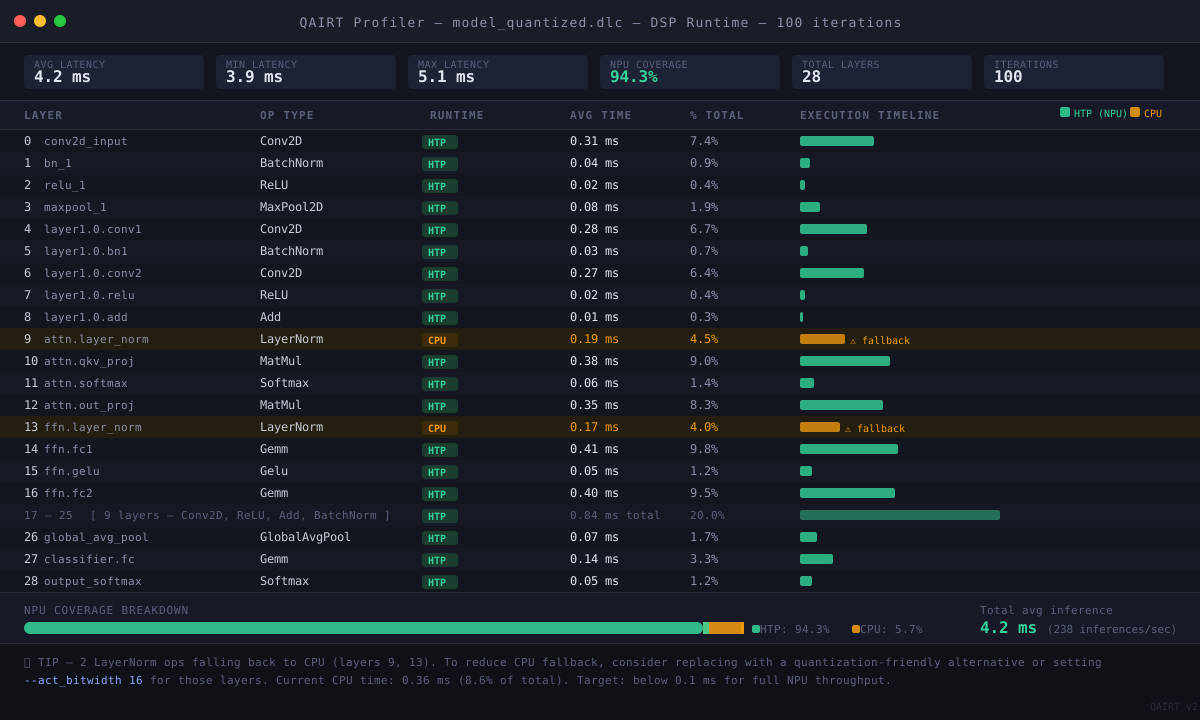 Green rows run on the NPU (HTP), yellow fall back to CPU — aim for 90%+ NPU coverage
What You Learned
- Snapdragon X NPU requires explicit model compilation to
.dlc— no automatic routing - QAIRT SDK is the current unified toolchain; ignore older SNPE/QNN tutorials for new projects
- INT8 quantization is essential for full NPU throughput — FP32 works but leaves performance on the table
- The
--use_cpu_for_unsupported_opsflag handles ops the NPU can't run without failing the whole model
Limitations: QAIRT currently runs only on Windows ARM64 and Linux ARM64. macOS is not supported. The DSP runtime requires a Snapdragon X Elite or X Plus — older Snapdragon 8cx Gen 3 devices use a different runtime path.
When NOT to use this: For models that are mostly transformer attention layers, check NPU coverage with the profiler before committing to quantization — attention ops have mixed NPU support and you may see heavy CPU fallback that erases the latency gains.
Tested on Snapdragon X Elite (X1E-80-100), Windows 11 ARM 24H2, QAIRT SDK 2.27.0, Python 3.12