Problem: Manually Generating Images with DALL-E Doesn't Scale
You can generate a single image in the OpenAI Playground, but the moment you need to produce dozens of images from a spreadsheet, a form, or an incoming webhook — the manual approach collapses.
n8n solves this by letting you wire a trigger (webhook, schedule, Google Sheets row) directly into the OpenAI DALL-E node, then route the output image to storage, Slack, email, or wherever you need it.
You'll learn:
- How to configure the OpenAI node in n8n for DALL-E 3 image generation
- How to pass dynamic prompts from upstream nodes into the image request
- How to save the returned image URL or binary to Google Drive, S3, or a local folder
- How to handle API errors and rate limits without breaking the workflow
Time: 20 min | Difficulty: Intermediate
Why the OpenAI Node Works Differently for Images
The n8n OpenAI node has two distinct operation modes: text (chat completions) and image (generations). They return different data shapes.
- Text operations return
message.content— a string - Image operations return a URL (
data[0].url) or base64 (data[0].b64_json) depending on theresponse_formatyou set
If you route image output the same way you route chat output, you get empty fields or broken binaries. The steps below handle each case explicitly.
When to use URL vs. base64:
| Response format | Use when |
|---|---|
url | You want to store the link or display it immediately — URLs expire after 60 minutes |
b64_json | You need the raw binary for upload to S3, Google Drive, or disk before the URL expires |
For any pipeline that stores images, always use b64_json.
Solution
Step 1: Add Your OpenAI Credential
In n8n, go to Credentials → New → OpenAI API.
Paste your API key from platform.openai.com/api-keys. Name it openai-main — you'll reference this in every OpenAI node.
Credential name: openai-main
API Key: sk-proj-...
Test the credential before continuing. A failed test here will surface as a confusing error later.
Step 2: Set Up a Trigger Node
Choose the trigger that fits your use case. Three common setups:
Webhook trigger (for external systems posting prompts):
- Add a Webhook node
- Set method to
POST - Note the generated URL — you'll
POSTto this with{ "prompt": "..." }
Manual trigger (for testing):
- Add a Manual Trigger node
- Click Execute Workflow to fire it
Google Sheets trigger (for batch generation from a spreadsheet):
- Add a Google Sheets node set to Trigger on Row Added
- Point it at a sheet with a
promptcolumn
For the rest of this guide, the trigger passes {{ $json.prompt }} downstream. Adapt the expression to match your actual field name.
Step 3: Add the OpenAI Image Generation Node
- Add an OpenAI node after your trigger
- Set Resource to
Image - Set Operation to
Generate - Select your
openai-maincredential
Configure these fields:
| Field | Value | Notes |
|---|---|---|
| Prompt | {{ $json.prompt }} | Dynamic from upstream trigger |
| Model | dall-e-3 | Use dall-e-2 only if cost is a hard constraint |
| Size | 1024x1024 | DALL-E 3 supports 1024x1792 and 1792x1024 for portrait/landscape |
| Quality | standard | Use hd for product shots or hero images |
| Response Format | b64_json | Required if you plan to upload the file anywhere |
| Number of Images | 1 | DALL-E 3 only supports 1 per request |
Expected output shape:
{
  "data": [
    {
      "b64_json": "/9j/4AAQSkZJRgABAQAA...",
      "revised_prompt": "A photorealistic image of..."
    }
  ]
}
Note: DALL-E 3 always rewrites your prompt. The revised_prompt field shows what was actually used — useful for debugging unexpected results.
Step 4: Convert Base64 to Binary
n8n stores files as binary data, not raw base64 strings. You need a Code node to bridge them.
Add a Code node after the OpenAI node:
// Convert DALL-E base64 response to n8n binary item
// so downstream nodes (Google Drive, S3, Write File) can handle it

const b64 = $input.item.json.data[0].b64_json;
const revisedPrompt = $input.item.json.data[0].revised_prompt;
const originalPrompt = $input.item.json.prompt ?? 'image';

// Build a filename from the prompt — replace spaces, strip special chars
const safeName = originalPrompt
  .toLowerCase()
  .replace(/[^a-z0-9]+/g, '-')
  .slice(0, 60);

const filename = `${safeName}-${Date.now()}.png`;

// Convert base64 string to Buffer
const buffer = Buffer.from(b64, 'base64');

return [
  {
    json: {
      filename,
      revisedPrompt,
      originalPrompt,
    },
    binary: {
      image: await this.helpers.prepareBinaryData(buffer, filename, 'image/png'),
    },
  },
];
Expected output: A single item with json.filename and binary.image populated.
Step 5: Route the Image to Storage
Pick the destination that fits your stack.
Option A — Google Drive:
- Add a Google Drive node
- Set Operation to
Upload - Set Binary Property to
image - Set the destination folder ID (copy from the Drive URL)
- Set File Name to
{{ $json.filename }}
Option B — AWS S3:
- Add an AWS S3 node
- Set Operation to
Upload - Set Binary Property to
image - Set Bucket Name and File Name (
{{ $json.filename }}) - Set ACL to
public-readif the image needs a public URL after upload
Option C — Local filesystem (self-hosted n8n only):
- Add a Write Binary File node
- Set File Name to
/data/images/{{ $json.filename }} - Set Binary Property to
image
The /data/ directory is the mounted volume in the default n8n Docker setup.
Step 6: Add Error Handling
The OpenAI API returns a 400 if the prompt violates the content policy and a 429 on rate limit. Neither of these should silently crash your workflow.
Add an Error Trigger node at the workflow level:
- Click the three-dot menu on the workflow canvas → Settings
- Enable Error Workflow and point it to a separate error-handling workflow
- That workflow can Slack-notify you with
{{ $json.error.message }}
For inline retry logic on rate limits, wrap the OpenAI node with a Loop Over Items node and add a Wait node (set to 60 seconds) on the retry path:
OpenAI Node
  → On Error → Wait (60s) → Loop back to OpenAI Node (max 3 retries)
  → On Success → Code Node → Storage Node
This covers transient 429 errors without manual intervention.
Verification
Trigger the workflow with a test prompt:
POST https://your-n8n-instance/webhook/your-webhook-id
Content-Type: application/json

{
  "prompt": "A futuristic cityscape at night, neon lights reflecting on wet pavement, cyberpunk style"
}
You should see:
- OpenAI node returns green with
data[0].b64_jsonpopulated - Code node outputs
binary.imagewith a valid PNG - Storage node confirms upload with a file ID or URL
- Total execution time: 8–15 seconds (DALL-E 3 generation takes 6–12s on average)
Check the execution log in n8n (left sidebar → Executions) to inspect each node's input and output if anything looks off.
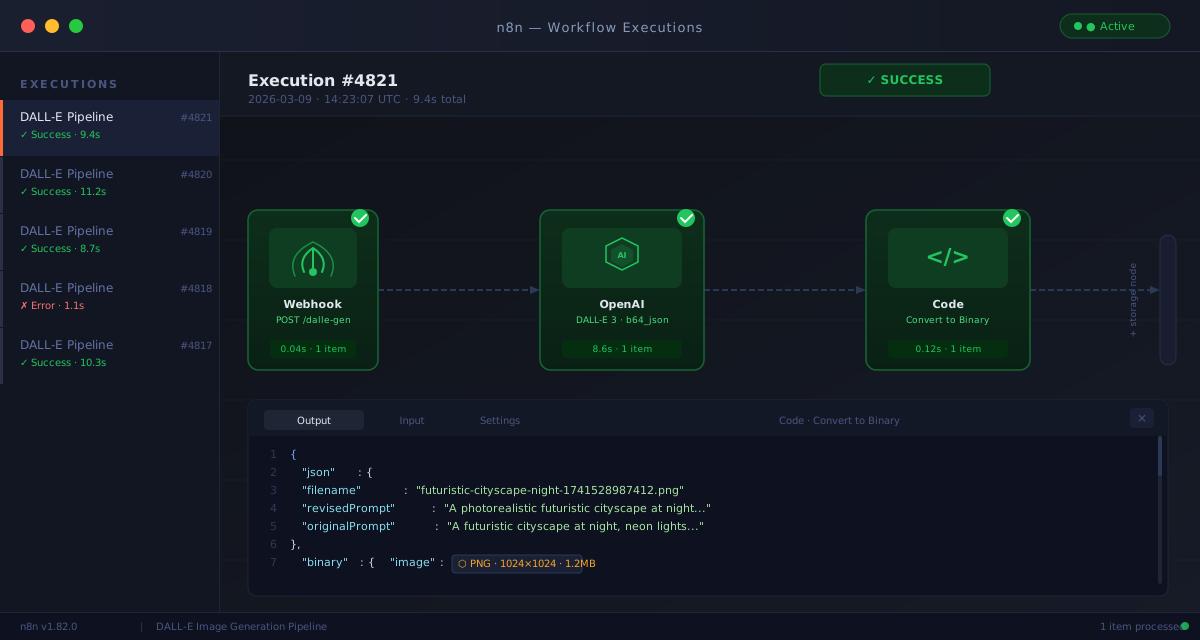 Caption: Green checkmarks across all nodes confirm the image was generated and uploaded successfully
Full Workflow JSON
You can import this directly into n8n via Import from JSON:
{
  "name": "DALL-E Image Generation Pipeline",
  "nodes": [
    {
      "parameters": {
        "httpMethod": "POST",
        "path": "dalle-generate",
        "responseMode": "lastNode"
      },
      "name": "Webhook",
      "type": "n8n-nodes-base.webhook",
      "typeVersion": 1,
      "position": [240, 300]
    },
    {
      "parameters": {
        "resource": "image",
        "operation": "create",
        "prompt": "={{ $json.prompt }}",
        "size": "1024x1024",
        "responseFormat": "b64_json"
      },
      "name": "OpenAI",
      "type": "n8n-nodes-base.openAi",
      "typeVersion": 1,
      "position": [460, 300],
      "credentials": {
        "openAiApi": {
          "name": "openai-main"
        }
      }
    },
    {
      "parameters": {
        "jsCode": "const b64 = $input.item.json.data[0].b64_json;\nconst revisedPrompt = $input.item.json.data[0].revised_prompt;\nconst originalPrompt = $input.item.json.prompt ?? 'image';\nconst safeName = originalPrompt.toLowerCase().replace(/[^a-z0-9]+/g, '-').slice(0, 60);\nconst filename = `${safeName}-${Date.now()}.png`;\nconst buffer = Buffer.from(b64, 'base64');\nreturn [{ json: { filename, revisedPrompt, originalPrompt }, binary: { image: await this.helpers.prepareBinaryData(buffer, filename, 'image/png') } }];"
      },
      "name": "Convert to Binary",
      "type": "n8n-nodes-base.code",
      "typeVersion": 2,
      "position": [680, 300]
    }
  ],
  "connections": {
    "Webhook": { "main": [[{ "node": "OpenAI", "type": "main", "index": 0 }]] },
    "OpenAI": { "main": [[{ "node": "Convert to Binary", "type": "main", "index": 0 }]] }
  }
}
Add your preferred storage node after Convert to Binary and connect it to complete the pipeline.
What You Learned
- The OpenAI node's image operation returns
b64_jsonor a URL — not a string like chat completions - Always use
b64_jsonfor any pipeline that uploads or persists images; URLs expire in 60 minutes - A Code node is required to bridge base64 → n8n binary data before storage nodes can accept the file
- DALL-E 3 rewrites prompts automatically — log
revised_promptif results don't match expectations - Rate limit retries belong in a Loop node, not in n8n's built-in retry — the built-in retry doesn't add a wait delay
Limitation: DALL-E 3 enforces one image per API call. For batch generation of 50+ images, add a SplitInBatches node upstream and set a delay between iterations to stay under the rate limit (currently 5 images/minute on Tier 1).
Tested on n8n 1.82.0, OpenAI node v1.x, DALL-E 3, self-hosted Docker on Ubuntu 24.04