Problem: Claude Can't See Your Database Without MCP
Claude has no way to query your PostgreSQL database out of the box. You paste schema snippets into the chat, Claude hallucinates column names, and you waste time debugging queries that don't match reality.
The MCP PostgreSQL server fixes this. It gives Claude a live connection to your database so it can inspect schemas, run queries, and return real data — all from natural language.
You'll learn:
- How to install and configure the official MCP PostgreSQL server
- How to wire it into Claude Desktop's config
- How to query tables, inspect schemas, and debug SQL with Claude
Time: 20 min | Difficulty: Intermediate
Why This Happens
Claude Desktop supports MCP (Model Context Protocol) servers as plugins. Each server exposes a set of tools the model can call at runtime. The official @modelcontextprotocol/server-postgres package wraps a PostgreSQL connection and exposes three tools: query, list_tables, and describe_table.
Without this server, Claude only knows what you paste into the context window. With it, Claude can inspect your live schema and execute SELECT queries directly.
What you need:
- Node.js 20 or later
- Claude Desktop (macOS or Windows)
- A running PostgreSQL instance (local or remote)
- A database user with SELECT privileges
Solution
Step 1: Verify Node.js Version
node --version
# Must be v20.0.0 or higher
If it fails:
command not found→ Install Node via nodejs.org orbrew install node- Version below 20 → Run
nvm install 20 && nvm use 20
Step 2: Install the MCP PostgreSQL Package
The server runs via npx — no global install needed. Verify it pulls cleanly:
# Dry run to confirm the package resolves
npx -y @modelcontextprotocol/server-postgres --help
Expected output:
MCP PostgreSQL Server
Usage: mcp-server-postgres <connection-string>
If you see this, the package is available and your Node version is compatible.
Step 3: Create a Read-Only Database User
Never give Claude access to a user with write permissions. Create a dedicated read-only user first:
-- Run as superuser (e.g., psql -U postgres)
CREATE USER claude_readonly WITH PASSWORD 'your-secure-password';

-- Grant connect on your target database
GRANT CONNECT ON DATABASE your_database TO claude_readonly;

-- Grant usage on the schema
GRANT USAGE ON SCHEMA public TO claude_readonly;

-- Grant SELECT on all current tables
GRANT SELECT ON ALL TABLES IN SCHEMA public TO claude_readonly;

-- Grant SELECT on future tables automatically
ALTER DEFAULT PRIVILEGES IN SCHEMA public
  GRANT SELECT ON TABLES TO claude_readonly;
This ensures Claude can read but never mutate data — important even on dev databases.
Step 4: Build Your Connection String
Format:
postgresql://USERNAME:PASSWORD@HOST:PORT/DATABASE
Examples:
# Local database
postgresql://claude_readonly:your-secure-password@localhost:5432/myapp

# Remote database (Supabase, RDS, Render, etc.)
postgresql://claude_readonly:your-secure-password@db.example.com:5432/myapp

# With SSL required (most hosted providers)
postgresql://claude_readonly:your-secure-password@db.example.com:5432/myapp?sslmode=require
Test the connection string before adding it to Claude Desktop:
npx -y @modelcontextprotocol/server-postgres \
  "postgresql://claude_readonly:your-secure-password@localhost:5432/myapp"
Expected output:
MCP PostgreSQL server running on stdio
The server starts and waits for input — that's correct. Press Ctrl+C to stop it.
If it fails:
ECONNREFUSED→ PostgreSQL isn't running, or the port is wrongpassword authentication failed→ Check the username and passwordSSL required→ Append?sslmode=requireto the connection string
Step 5: Add the Server to Claude Desktop Config
Open Claude Desktop's MCP config file:
# macOS
open ~/Library/Application\ Support/Claude/claude_desktop_config.json

# Windows
notepad %APPDATA%\Claude\claude_desktop_config.json
Add the PostgreSQL server under mcpServers. If the file doesn't exist yet, create it with this structure:
{
  "mcpServers": {
    "postgres": {
      "command": "npx",
      "args": [
        "-y",
        "@modelcontextprotocol/server-postgres",
        "postgresql://claude_readonly:your-secure-password@localhost:5432/myapp"
      ]
    }
  }
}
If you already have other MCP servers configured, add "postgres" alongside them inside mcpServers.
Security note: The connection string is stored in plaintext. Use an environment variable if your machine is shared:
{
  "mcpServers": {
    "postgres": {
      "command": "npx",
      "args": [
        "-y",
        "@modelcontextprotocol/server-postgres"
      ],
      "env": {
        "DATABASE_URL": "postgresql://claude_readonly:your-secure-password@localhost:5432/myapp"
      }
    }
  }
}
Then update the server invocation to read the env variable — or simply use the inline args approach on a personal machine.
Step 6: Restart Claude Desktop
Fully quit Claude Desktop (don't just close the window) and reopen it:
# macOS — force quit if needed
osascript -e 'quit app "Claude"'
open -a Claude
On Windows: right-click the Claude tray icon → Quit, then relaunch.
Verification
Once Claude Desktop restarts, open a new conversation. You should see a tools icon (hammer) in the input bar. Click it — postgres should appear in the list.
Now test it with a natural language prompt:
List all tables in my database
You should see: Claude calling list_tables and returning a list of your table names.
Then try a schema inspection:
Describe the structure of the users table
You should see: Claude calling describe_table and returning column names, types, and constraints.
Finally, a real query:
Show me the 5 most recently created users
You should see: Claude generating and executing a SELECT query, returning actual rows from your database.
 Claude's tool icon confirms the MCP server is connected and available
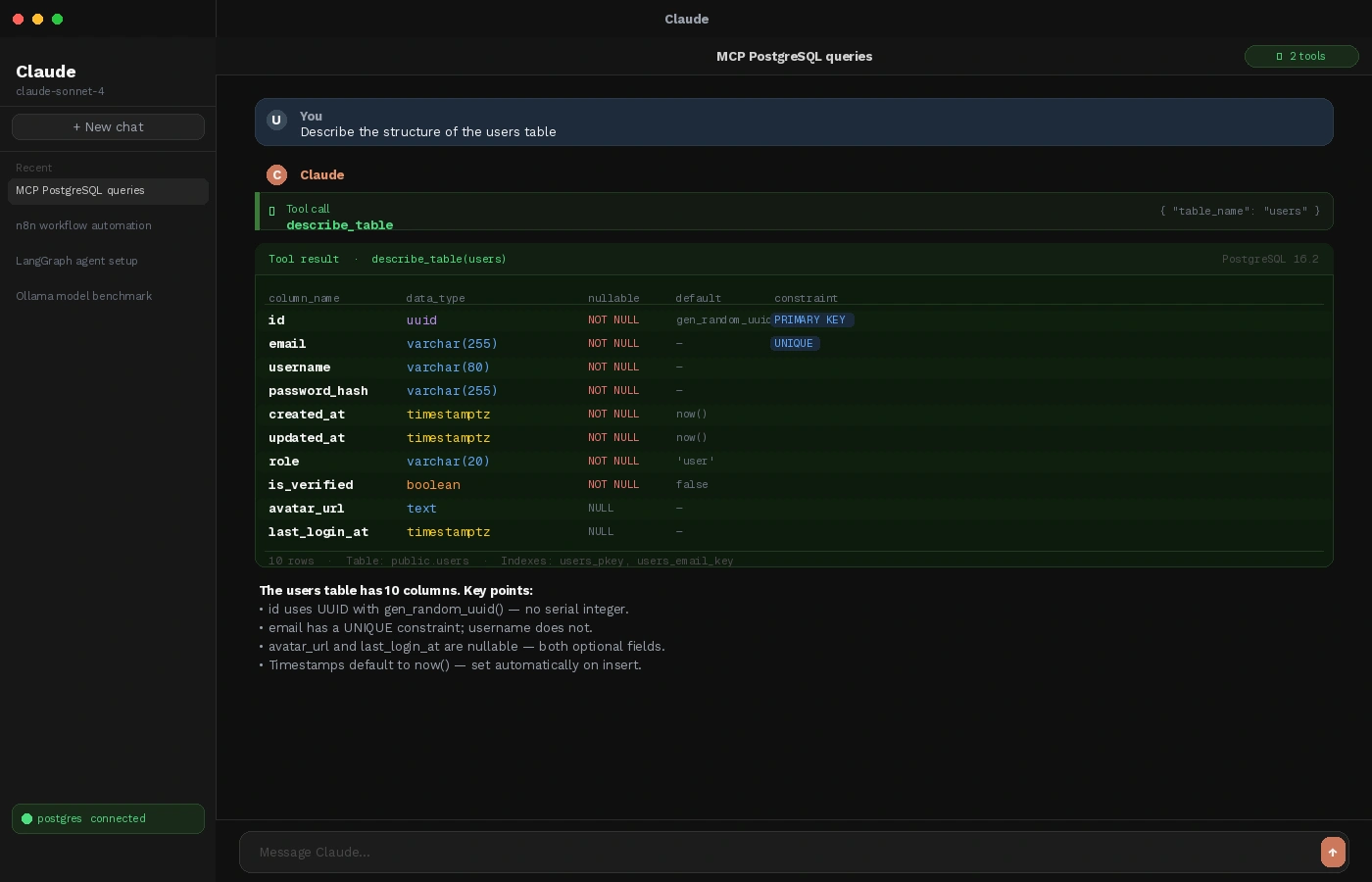 Claude inspecting live schema — no copy-pasting DDL required
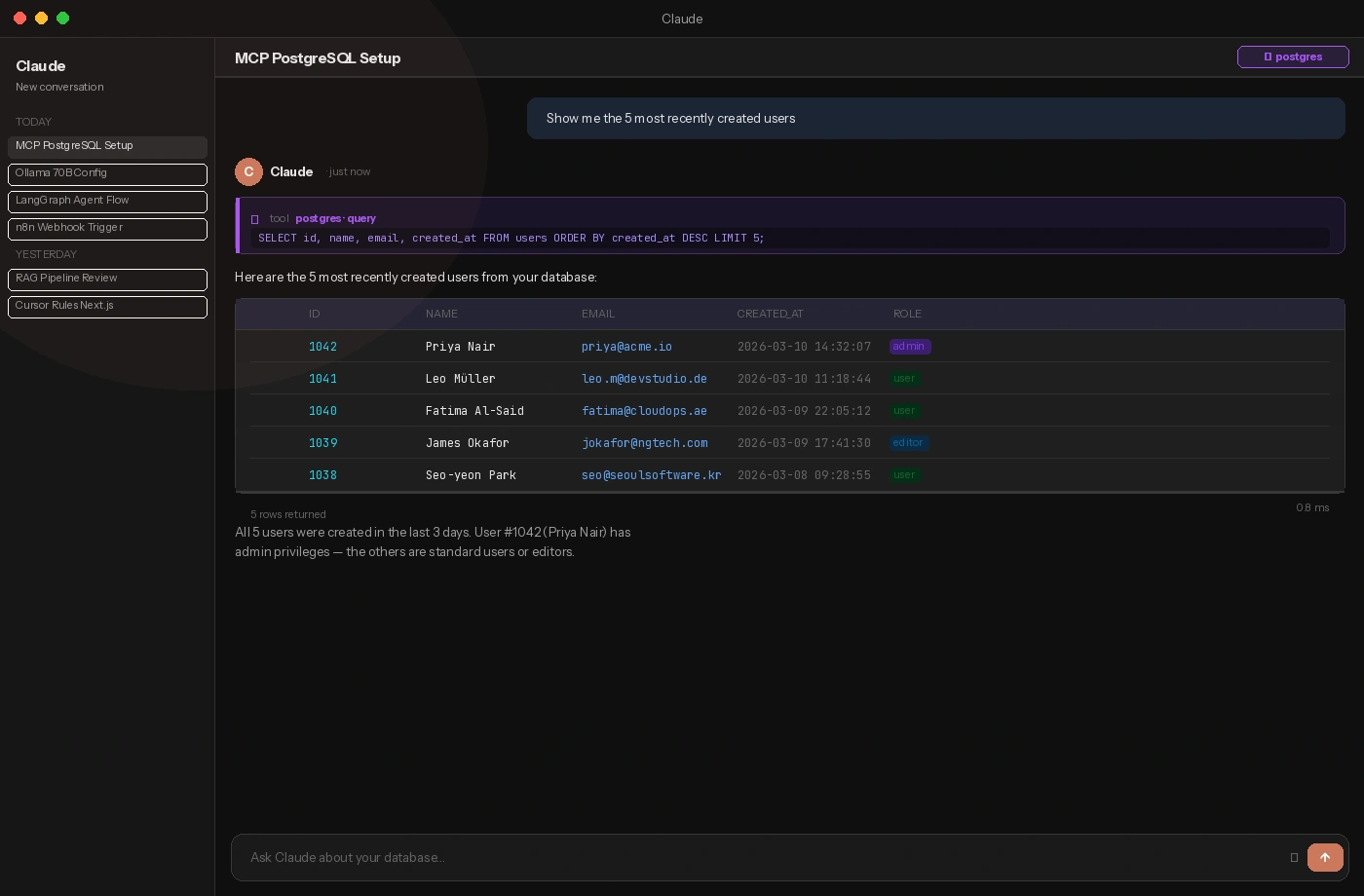 Real rows from your database, retrieved via natural language
Troubleshooting Common Issues
MCP server doesn't appear in Claude Desktop
Check the config file for JSON syntax errors — a trailing comma breaks parsing:
# macOS: validate JSON
cat ~/Library/Application\ Support/Claude/claude_desktop_config.json | python3 -m json.tool
Fix any errors and restart Claude Desktop.
spawn npx ENOENT error in Claude logs
Claude can't find npx. Use the full path instead:
# Find the full path
which npx
# e.g., /usr/local/bin/npx or /Users/you/.nvm/versions/node/v20.11.0/bin/npx
Replace "command": "npx" with the absolute path in your config.
Queries succeed but return no data
The claude_readonly user may lack SELECT on specific tables. Check:
-- As superuser
\dp your_table_name
Re-run the GRANT SELECT statement for that table.
What You Learned
- The MCP PostgreSQL server exposes
query,list_tables, anddescribe_tableto Claude at runtime - Always use a read-only database user — never connect Claude to a user with write privileges
- Claude Desktop reads MCP config from a JSON file; JSON syntax errors silently prevent servers from loading
npx -yruns the server without a global install, which keeps your environment clean
When NOT to use this approach: Don't point this server at a production database from your local Claude Desktop. Use it against a dev or staging replica. For production AI queries, build a proper backend with rate limiting, query allowlisting, and audit logging instead.
Tested on @modelcontextprotocol/server-postgres 0.6.x, Node.js 20.11, Claude Desktop 0.9, macOS Sequoia and Windows 11