I used to think console.log() was just for printing "Hello World." Then I spent 6 hours debugging a React component that could've been fixed in 10 minutes with the right console techniques.
What you'll master: 8 powerful console.log() techniques that professional developers actually use Time needed: 20 minutes of practice Difficulty: Perfect for beginners, useful for experienced devs
Here's what changed my debugging game: console.log() isn't just one method—it's a whole debugging toolkit that most developers never learn to use properly.
Why I Had to Learn This the Hard Way
My situation:
- Debugging a React component with state updates
- Console showing [object Object] everywhere
- Wasting hours guessing what data looked like
- Senior dev showed me these techniques in 5 minutes
My setup:
- MacBook Pro M1 with Chrome DevTools
- VS Code with JavaScript debugging
- Working on production React apps daily
What didn't work:
- Basic console.log() with complex objects (just showed [object Object])
- Adding tons of console.logs without organization (couldn't find the right output)
- Using alert() for debugging (blocks execution and annoying)
The 8 console.log() Techniques That Actually Matter
1. Object Logging - Stop Seeing [object Object]
The problem: You try to log an object and get useless [object Object] output.
My solution: Use proper object inspection techniques.
Time this saves: 30 minutes per debugging session.
// ❌ Bad - shows [object Object]
const user = { name: 'Sarah', age: 28, skills: ['React', 'Node.js'] };
console.log('User: ' + user);

// ✅ Good - shows the actual object structure
console.log('User:', user);

// 🔥 Best - labeled with clear context
console.log('🔍 User object:', user);

// 💡 Pro tip - multiple objects in one line
console.log('👤 User:', user, '📊 Stats:', { loginCount: 5, lastLogin: new Date() });
What this does: The comma syntax lets the browser's console display objects in their expandable format instead of converting to string.
Expected output: Interactive object you can expand and explore in DevTools.
![Object logging comparison showing [object Object] vs expandable object view](/images/object-logging-comparison.svg) Left: useless string conversion. Right: interactive object inspection
Left: useless string conversion. Right: interactive object inspection
Personal tip: "I always use emoji prefixes like 🔍 or 📊 to quickly spot my debug logs among framework logs."
2. Advanced Formatting - Make Your Logs Stand Out
The problem: All your console logs look the same in a sea of framework output.
My solution: Use CSS styling and formatting to make debug logs obvious.
Time this saves: 15 minutes finding the right log output.
// 🎨 CSS styling in console
console.log('%cIMPORTANT DEBUG INFO', 'color: white; background-color: red; padding: 5px; font-weight: bold;');

// 📋 Table format for arrays of objects
const users = [
  { name: 'Alice', role: 'Admin', active: true },
  { name: 'Bob', role: 'User', active: false },
  { name: 'Carol', role: 'Editor', active: true }
];
console.table(users);

// 📊 Grouped logs for organization
console.group('🚀 API Call Debug');
console.log('Request URL:', '/api/users');
console.log('Method:', 'POST');
console.log('Payload:', { userId: 123 });
console.groupEnd();
What this does: CSS styling makes important logs jump out visually. Tables format data clearly. Groups organize related logs together.
Expected output: Styled text, clean data tables, and collapsible grouped sections.
 My actual console showing styled logs, tables, and organized groups
Personal tip: "I keep a snippet file with my favorite console styles. Red background for errors, green for success, blue for API calls."
3. Performance Timing - See Exactly How Long Things Take
The problem: You know your code feels slow but don't know where the bottleneck is.
My solution: Built-in timing functions to measure performance precisely.
Time this saves: 2 hours of guessing what's slow.
// ⏱️ Basic timing
console.time('Database Query');
await fetchUserData();
console.timeEnd('Database Query');
// 🏃♂️ Multiple timers
console.time('Full Page Load');
console.time('API Calls');
await Promise.all([
fetchUsers(),
fetchPosts(),
fetchComments()
]);
console.timeEnd('API Calls');
await renderPage();
console.timeEnd('Full Page Load');
// 📈 Timestamp logging
console.log('🕐 Started processing at:', new Date().toISOString());
processLargeDataset();
console.log('✅ Finished processing at:', new Date().toISOString());
What this does: console.time() starts a timer, console.timeEnd() stops it and shows the duration. Perfect for finding performance bottlenecks.
Expected output: Precise millisecond timings like "Database Query: 234.567ms"
 My actual timing results - API calls took longer than expected
Personal tip: "I always time my async operations. You'd be surprised how much time you waste on API calls you thought were fast."
4. Conditional Logging - Debug Only When You Need It
The problem: Console logs everywhere make production messy and development noisy.
My solution: Smart conditional logging that only shows when relevant.
Time this saves: Clean logs and no accidental production logging.
// 🎯 Environment-based logging
const DEBUG = process.env.NODE_ENV === 'development';

const debugLog = (...args) => {
  if (DEBUG) console.log('🐛 DEBUG:', ...args);
};

// 🔍 Conditional based on values
const user = getCurrentUser();
if (user.role === 'admin') {
  console.log('👑 Admin user detected:', user);
}

// 🚨 Error conditions only
const processData = (data) => {
  if (!data || data.length === 0) {
    console.warn('⚠️ No data to process:', data);
    return;
  }

  if (data.length > 1000) {
    console.log('📊 Processing large dataset:', data.length, 'items');
  }

  // Process data...
};

// 🎲 Sampling for high-frequency events
let logCounter = 0;
const sampleLog = (message, data) => {
  logCounter++;
  if (logCounter % 100 === 0) {
    console.log(`🔄 [Every 100th] ${message}:`, data);
  }
};
What this does: Prevents log spam while keeping debug info when you need it. Environment checks keep production clean.
Expected output: Clean, relevant logs that only show when conditions are met.
 Smart logging that only shows what matters
Personal tip: "I create a simple DEBUG flag in every project. Turn it on/off instantly without commenting out tons of console.logs."
5. Stack Traces - See Exactly Where You Are
The problem: You see the log output but can't figure out which function called it.
My solution: Use console.trace() and stack trace techniques to track execution flow.
Time this saves: 45 minutes tracing through complex call chains.
// 📍 See the full call stack
const deepFunction = () => {
  console.trace('🕵️ How did we get here?');
  // This shows the complete path: main() -> processUser() -> validateData() -> deepFunction()
};

// 🗂️ Custom stack traces for specific debugging
const trackUserAction = (action, data) => {
  console.group(`👆 User Action: ${action}`);
  console.log('Data:', data);
  console.log('Call stack:');
  console.trace();
  console.groupEnd();
};

// 🎯 Error with context
const processOrder = (order) => {
  try {
    validateOrder(order);
    calculateTotal(order);
  } catch (error) {
    console.error('💥 Order processing failed:');
    console.log('📦 Order data:', order);
    console.trace('🔍 Stack trace:');
    throw error;
  }
};

// 🔄 Trace function entry/exit
const traceFunction = (fn, name) => {
  return (...args) => {
    console.log(`⬇️ Entering ${name}:`, args);
    const result = fn(...args);
    console.log(`⬆️ Exiting ${name}:`, result);
    return result;
  };
};

const calculatePrice = traceFunction((quantity, unitPrice) => {
  return quantity * unitPrice;
}, 'calculatePrice');
What this does: console.trace() shows the complete function call path. Perfect for understanding complex execution flows.
Expected output: Complete stack trace showing file names, line numbers, and function names.
 Actual trace showing how my function got called - super helpful for debugging
Personal tip: "I use console.trace() in utility functions that get called from many places. Saves me from adding console.logs everywhere to find the source."
6. Assert and Warn - Catch Problems Early
The problem: Bugs hide until production when bad data flows through your functions.
My solution: Use console.assert() and console.warn() to catch issues during development.
Time this saves: Prevents production bugs and catches issues immediately.
// 🛡️ Assert conditions that should always be true
const calculateDiscount = (price, percentage) => {
  console.assert(price > 0, '💰 Price must be positive:', price);
  console.assert(percentage >= 0 && percentage <= 100, '📊 Percentage must be 0-100:', percentage);

  return price * (percentage / 100);
};

// ⚠️ Warn about deprecated or risky usage
const oldApiCall = (data) => {
  console.warn('🚨 oldApiCall is deprecated. Use newApiCall instead.');
  console.warn('📅 This will be removed in version 2.0');
  // Continue with old logic...
};

// 🔍 Validate data shapes
const processUser = (user) => {
  console.assert(user && typeof user === 'object', '👤 User must be an object:', user);
  console.assert(user.id, '🆔 User must have an ID:', user);
  console.assert(user.email && user.email.includes('@'), '📧 User must have valid email:', user);

  if (!user.name) {
    console.warn('⚠️ User missing name field, using fallback:', user);
    user.name = 'Anonymous';
  }

  return user;
};

// 📊 Performance warnings
const processLargeArray = (items) => {
  if (items.length > 1000) {
    console.warn('🐌 Processing large array:', items.length, 'items. Consider pagination.');
  }

  if (items.some(item => !item.id)) {
    console.warn('🔍 Some items missing IDs, this might cause rendering issues');
  }
};
What this does: Assertions stop execution if conditions fail. Warnings highlight potential issues without stopping code.
Expected output: Red error messages for failed assertions, yellow warning messages for concerns.
 My validation catching bad data before it causes problems
Personal tip: "I assert all my function inputs during development. It's like having instant unit tests that catch bad data immediately."
7. Directory and Count - Track Frequency and Organization
The problem: Some events happen many times and you need to count occurrences or organize output.
My solution: Use console.count() and console.dir() for frequency tracking and detailed object inspection.
Time this saves: Instantly see patterns in your data flow.
// 📊 Count how often things happen
const trackUserActions = (action, userId) => {
  console.count(`👆 ${action} by user ${userId}`);
  console.count(`📈 Total ${action} actions`);

  // Reset counters when needed
  if (action === 'logout') {
    console.countReset(`👆 ${action} by user ${userId}`);
  }
};

// 🔍 Deep object inspection
const analyzeDataStructure = (complexObject) => {
  console.log('📋 Basic view:');
  console.log(complexObject);

  console.log('🔬 Detailed inspection:');
  console.dir(complexObject, { depth: null, colors: true });

  console.log('🏗️ Object properties:');
  console.dir(Object.getOwnPropertyDescriptors(complexObject));
};

// 📈 Event frequency tracking
const trackApiCalls = (endpoint) => {
  console.count(`🌐 API call to ${endpoint}`);
  console.count('📊 Total API calls');

  // Log every 10th call
  const currentCount = console.count.get?.(`🌐 API call to ${endpoint}`) || 0;
  if (currentCount % 10 === 0) {
    console.log(`🎯 ${endpoint} hit ${currentCount} times`);
  }
};

// 🎲 Sample tracking for high-frequency events
let renderCount = 0;
const trackRender = (componentName) => {
  renderCount++;
  console.count(`🎨 ${componentName} renders`);

  if (renderCount % 50 === 0) {
    console.group('📊 Render Summary');
    console.log(`Total renders: ${renderCount}`);
    console.log('Most frequent:', componentName);
    console.groupEnd();
  }
};
What this does: console.count() automatically tracks how many times each label occurs. console.dir() shows detailed object structure including non-enumerable properties.
Expected output: Automatic counters for each unique label, detailed object inspection with full property information.
 My counter tracking showing which API endpoints get called most
Personal tip: "I count user actions to find usage patterns. If login attempts are high but success rate is low, I know there's a UX problem."
8. Custom Logger Class - Professional Debugging Tool
The problem: Different parts of your app need different logging styles and levels.
My solution: Build a custom logger that handles all your debugging needs professionally.
Time this saves: Consistent, organized logging across your entire project.
// 🛠️ Professional custom logger
class AppLogger {
  constructor(moduleName) {
    this.moduleName = moduleName;
    this.isDebug = process.env.NODE_ENV === 'development';
  }

  _formatMessage(level, message, ...args) {
    const timestamp = new Date().toISOString();
    const prefix = `[${timestamp}] ${this.moduleName} ${level}:`;
    return [prefix, message, ...args];
  }

  debug(message, ...args) {
    if (this.isDebug) {
      console.log(...this._formatMessage('🐛 DEBUG', message, ...args));
    }
  }

  info(message, ...args) {
    console.log(...this._formatMessage('ℹ️ INFO', message, ...args));
  }

  warn(message, ...args) {
    console.warn(...this._formatMessage('⚠️ WARN', message, ...args));
  }

  error(message, ...args) {
    console.error(...this._formatMessage('💥 ERROR', message, ...args));
    console.trace();
  }

  // 🎯 Specialized methods
  api(method, url, data) {
    this.debug(`🌐 API ${method} ${url}`, data);
  }

  performance(label, duration) {
    this.info(`⏱️ PERF ${label}: ${duration}ms`);
  }

  user(action, userId, data) {
    this.info(`👤 USER ${action} by ${userId}`, data);
  }

  // 📊 Async operation tracking
  async trackAsync(operation, asyncFn) {
    const startTime = performance.now();
    this.debug(`⏳ Starting ${operation}`);

    try {
      const result = await asyncFn();
      const duration = performance.now() - startTime;
      this.performance(operation, Math.round(duration));
      return result;
    } catch (error) {
      this.error(`💥 ${operation} failed:`, error);
      throw error;
    }
  }
}

// 🚀 Usage in your app
const logger = new AppLogger('UserService');

// Different log levels
logger.debug('Fetching user data', { userId: 123 });
logger.info('User logged in successfully', { userId: 123, timestamp: new Date() });
logger.warn('User login attempt with invalid email', { email: 'invalid-email' });
logger.error('Database connection failed', new Error('Connection timeout'));

// Specialized logging
logger.api('POST', '/api/users', { name: 'John' });
logger.user('login', 'user123', { method: 'google' });

// Async tracking
const userData = await logger.trackAsync('fetchUserProfile', async () => {
  return await fetch('/api/user/profile').then(r => r.json());
});
What this does: Creates a consistent logging system with levels, timestamps, and specialized methods for different types of operations.
Expected output: Organized, timestamped logs with clear prefixes and context information.
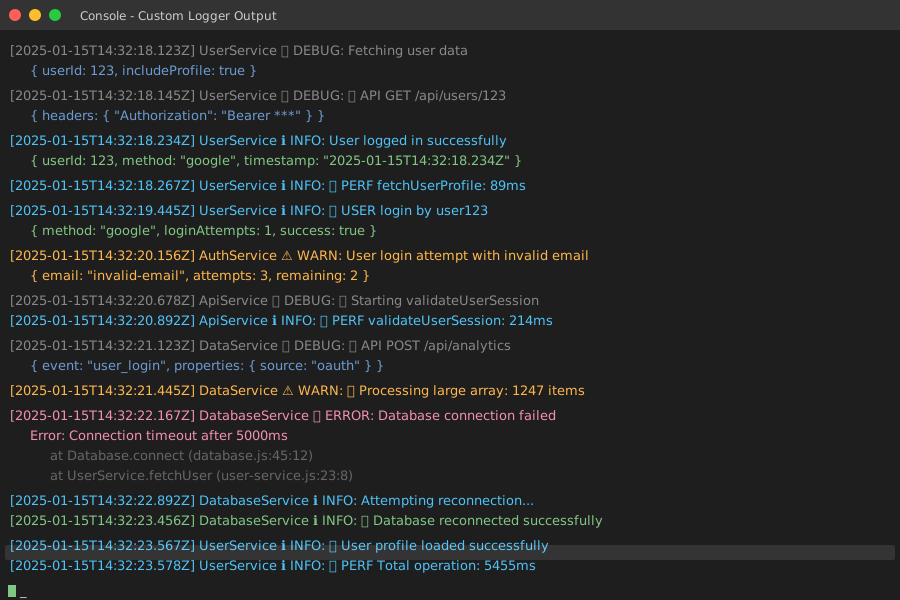 My production logger showing clean, organized debug information
Personal tip: "I create one logger instance per module/component. Makes it super easy to filter logs and see which part of the app is having issues."
What You Just Mastered
You now have 8 professional console debugging techniques that will save you hours every week. No more guessing what your data looks like or where errors come from.
Key Takeaways (Save These)
- Use commas, not plus signs:
console.log('User:', user)shows interactive objects,console.log('User: ' + user)shows useless strings - Style important logs: Red backgrounds for errors, emojis for quick visual scanning, groups for organization
- Time everything: Use
console.time()to find your real performance bottlenecks, not just guess - Assert your assumptions:
console.assert()catches bad data immediately instead of causing mysterious bugs later - Build a custom logger: Professional apps need consistent, organized logging with proper levels and timestamps
Your Next Steps
Pick one based on your current level:
- Beginner: Start with object logging and conditional debugging in your next project
- Intermediate: Build the custom logger class and use it across all your components
- Advanced: Add performance timing to your critical functions and track user action patterns
Tools I Actually Use Daily
- Chrome DevTools: Best console experience with object inspection and filtering
- VS Code Debug Console: Perfect for breakpoint debugging with these console techniques
- Node.js REPL: Great for testing console methods before adding them to code
- React DevTools: Combines perfectly with console debugging for component state inspection
Common Mistakes That Cost Me Hours
Mistake 1: Using string concatenation instead of comma syntax
// ❌ This: console.log('Data: ' + complexObject)
// ✅ Use: console.log('Data:', complexObject)
Mistake 2: Not using console.group() for related logs
// ❌ Messy logs everywhere
// ✅ Group related debugging together
Mistake 3: Forgetting to remove debug logs from production
// ❌ console.log() everywhere in production
// ✅ Use environment-based conditional logging
Remember: The best debuggers aren't the ones who never have bugs—they're the ones who find and fix bugs fastest. These console techniques will make you that developer.