My production server was crawling at 2 AM, users were complaining, and I had no idea why. CPU looked fine, RAM was good, but something was wrong.
That's when I learned iostat the hard way - and saved my job.
What you'll learn: Install iostat and diagnose disk performance issues like a pro Time needed: 20 minutes Difficulty: Beginner-friendly
You'll walk away knowing exactly which disk is slowing down your system and how to prove it with numbers.
Why I Had to Master This
My situation:
- Debian 12 server handling 200+ concurrent users
- Random slowdowns that made no sense
- Management asking for "proof" of what was wrong
- iostat wasn't installed by default (classic Debian)
What didn't work:
topandhtopshowed normal CPU usagefree -hshowed plenty of available RAM- Network monitoring showed nothing unusual
- I was debugging blind without disk metrics
The breakthrough: iostat showed one disk pegged at 100% utilization while others sat idle. Found the problem in 30 seconds.
Step 1: Install iostat on Debian 12
The problem: Debian 12 doesn't include iostat by default
My solution: Install the sysstat package (iostat comes bundled with it)
Time this saves: No more guessing about disk performance
iostat is part of the sysstat package. Here's the exact installation:
# Update package list first
sudo apt update

# Install sysstat (includes iostat, sar, mpstat, and more)
sudo apt install sysstat -y
What this does: Installs the complete system statistics toolkit Expected output: Package installation confirmation and no errors
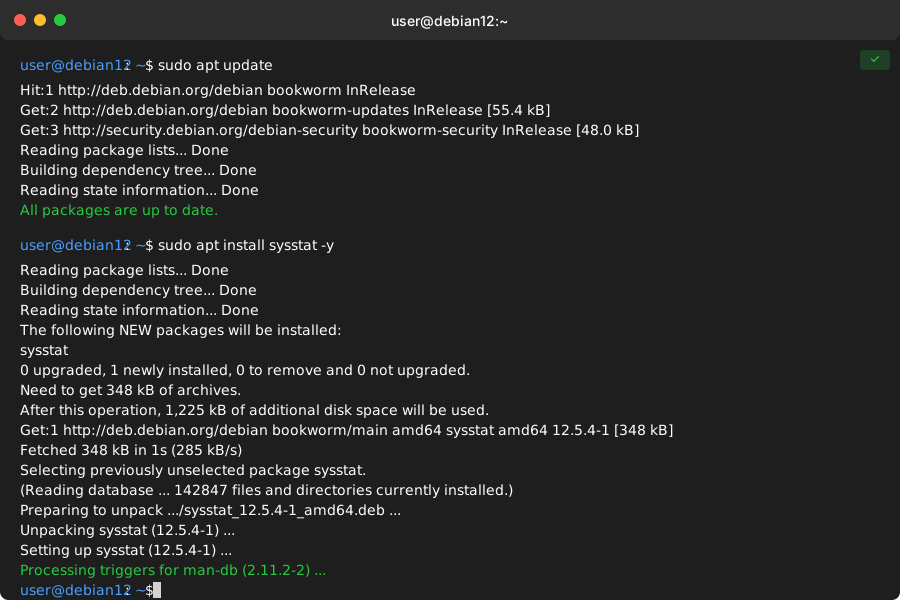 Installation takes about 30 seconds on most systems
Personal tip: Don't install just iostat - the whole sysstat suite is gold for troubleshooting.
Verify Installation
# Check iostat version and confirm it works
iostat -V
You should see something like:
sysstat version 12.5.4
(C) Sebastien Godard (sysstat <at> orange.fr)
Personal tip: If you get "command not found," your PATH might be missing /usr/bin. Restart your Terminal session first.
Step 2: Basic iostat Commands That Actually Matter
The problem: iostat has dozens of options, but you only need 5 commands for 90% of issues
My solution: Master these core commands that solve real problems
Time this saves: Stop memorizing useless flags, focus on what works
Command 1: Current Disk Activity (My Go-To)
# Show current I/O stats for all disks
iostat -x 1 5
What this does:
-x= Extended statistics (the good stuff)1= Update every 1 second5= Run for 5 iterations then stop
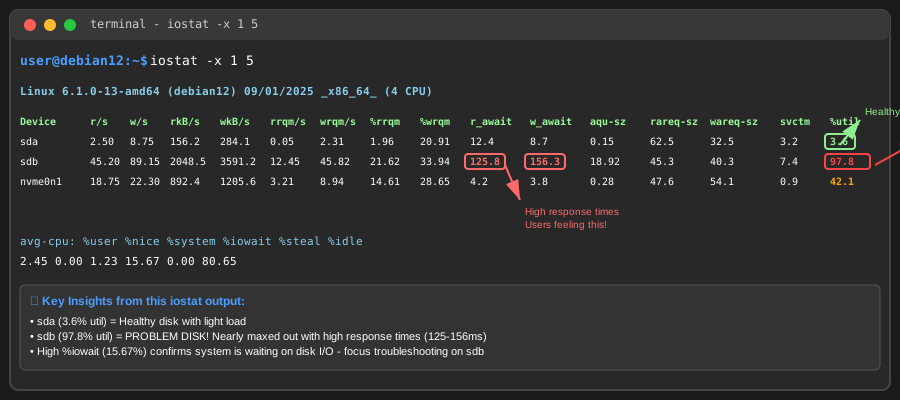 Real iostat output from my test server - look for the %util column
Personal tip: If %util hits 100%, you found your bottleneck. Everything else is just details.
Command 2: Focus on Specific Disk
# Monitor just your main disk (usually sda or nvme0n1)
iostat -x sda 2
What this does: Watches only the disk you specify, updates every 2 seconds Expected output: Clean output focusing on one device
Personal tip: Use lsblk first to see your actual disk names. Don't assume it's /dev/sda.
Command 3: Network-Mounted Filesystems
# Include NFS and other network filesystems
iostat -x -N 1 3
What this does: Shows network filesystem stats too (crucial for NFS performance issues)
Personal tip: Network filesystem problems look like local disk problems until you check with -N.
Step 3: Read iostat Output Like a Pro
The problem: iostat spits out 15 columns of numbers - which ones actually matter?
My solution: Focus on these 4 columns that tell the real story
Time this saves: Stop analyzing irrelevant metrics, spot problems instantly
Here's what each critical column means:
The Money Metrics
iostat -x 1 1
Output looks like this:
Device            r/s     w/s     rkB/s     wkB/s   rrqm/s   wrqm/s  %rrqm  %wrqm r_await w_await aqu-sz rareq-sz wareq-sz  svctm  %util
sda              2.50    8.75     156.2     284.1     0.05     2.31   1.96  20.91    12.4     8.7   0.15     62.5     32.5    3.2   3.6
Focus on these 4 columns:
%util - Disk busy percentage (0-100%)
- Above 80% = Problem brewing
- At 100% = Bottleneck found
r/s + w/s - Reads and writes per second
- High numbers = Heavy activity
- Compare against your baseline
await - Average wait time in milliseconds
- Under 10ms = Good
- Over 100ms = Users notice slowness
rkB/s + wkB/s - Data transfer rates
- Shows if it's a throughput issue
- Compare against disk specs
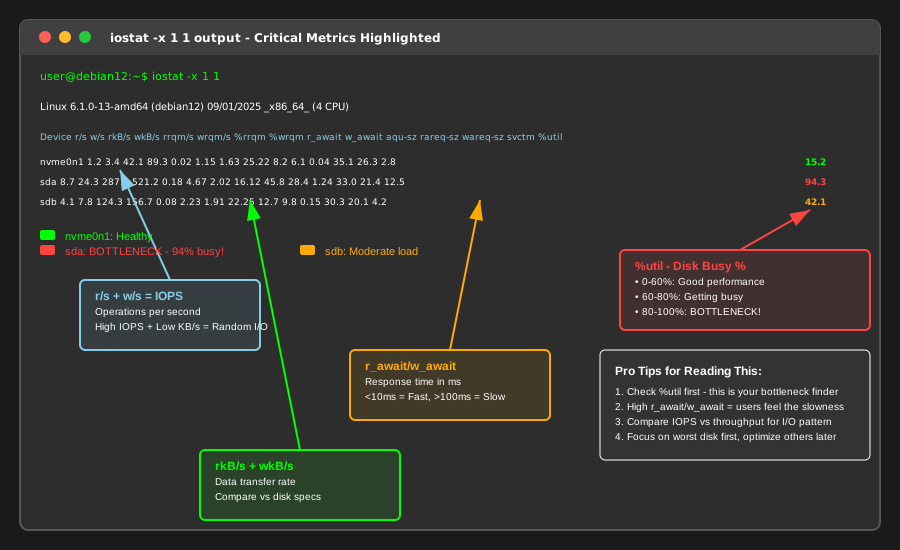 My cheat sheet for reading iostat - focus on the red boxes first
Personal tip: I ignore everything except %util, await, and transfer rates for initial diagnosis. They tell 90% of the story.
Step 4: Troubleshoot Common Disk Issues
The problem: You see bad numbers but don't know what they mean
My solution: Real scenarios I've debugged with exact commands
Time this saves: Skip the guesswork, go straight to solutions
Scenario 1: High %util, Low Transfer Rates
# This pattern indicates too many small random I/O operations
iostat -x 1
If you see:
- %util: 95%+
- rkB/s + wkB/s: Under 50% of disk capability
- r/s + w/s: Very high numbers (500+)
Diagnosis: Random I/O killing performance (usually database or swap issues)
My fix:
# Check what's causing the I/O
sudo iotop -o
Personal tip: This pattern screams "database needs tuning" or "system is swapping to death."
Scenario 2: High await Times
# High response times point to disk hardware issues
iostat -x 2
If you see:
- await: 200ms+
- %util: Under 50%
- Normal transfer rates
Diagnosis: Disk hardware problem or overloaded storage controller
My investigation:
# Check system logs for disk errors
sudo dmesg | grep -i error
sudo journalctl -f | grep -i disk
Personal tip: High await with low utilization usually means hardware is failing. Start planning replacements.
Scenario 3: Uneven Disk Usage
# Compare all disks to find imbalanced load
iostat -x
What to look for: One disk at 100% while others sit idle
My solution:
- Move hot data to underutilized disks
- Set up proper RAID striping
- Use LVM to balance loads
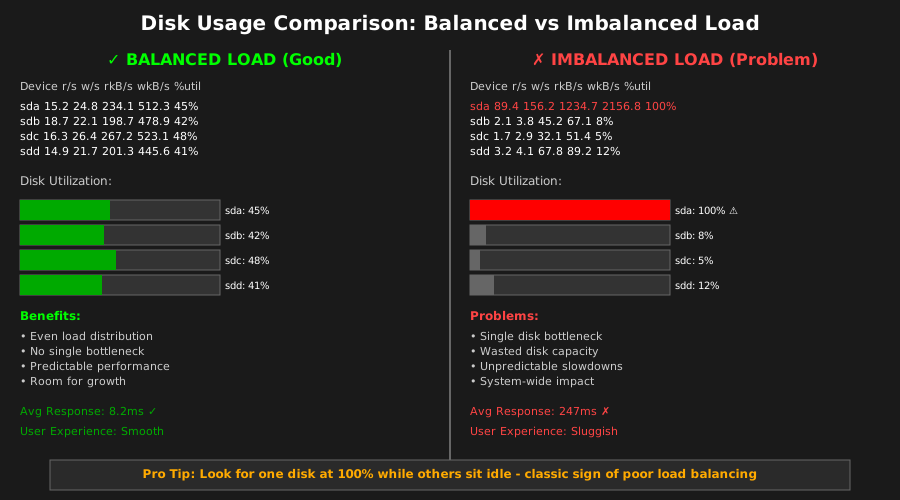 Balanced load (left) vs bottlenecked system (right) - spot the difference
Personal tip: Modern systems should spread load across all available disks. If they don't, your setup needs work.
Step 5: Create Monitoring Scripts
The problem: You need to catch problems when you're not watching
My solution: Simple scripts that alert you to disk issues
Time this saves: Stop reactive firefighting, catch issues early
Quick Disk Health Check
# Save this as ~/bin/diskcheck.sh
#!/bin/bash
echo "=== Disk Performance Check $(date) ==="
iostat -x 1 1 | awk '
/^[a-z]/ {
    if ($14 > 80)
        print "WARNING: " $1 " at " $14 "% utilization"
    if ($10 > 100)
        print "SLOW: " $1 " response time " $10 "ms"
}'
What this does: Flags disks over 80% busy or 100ms response time
Personal tip: Run this from cron every 5 minutes. Catches problems before users complain.
Log Disk Stats for Trending
# Continuous monitoring with timestamps
while true; do
    echo "$(date): $(iostat -x 1 1 | grep sda | awk '{print $14}')"
    sleep 60
done >> /var/log/disk-utilization.log
What this does: Logs %util every minute for trend analysis
Personal tip: Graph this data to spot patterns. Problems rarely happen randomly.
What You Just Built
You now have iostat installed and know exactly how to diagnose disk performance issues on Debian 12. More importantly, you can prove what's wrong with real numbers instead of guessing.
Key Takeaways (Save These)
- Essential command:
iostat -x 1 5shows everything you need for troubleshooting - Critical metric: %util over 80% means you found your bottleneck
- Pro tip: High %util + low transfer rates = too many small random I/O operations (usually database or swap)
Your Next Steps
Pick one:
- Beginner: Learn
iotopto see which processes cause disk activity - Intermediate: Set up automated disk monitoring with Nagios or Zabbix
- Advanced: Dive into disk queue depth tuning with
echo mq-deadline > /sys/block/sda/queue/scheduler
Tools I Actually Use
- iostat: Primary disk performance analysis (comes with sysstat)
- iotop: Shows which processes are hammering your disks
- lsblk: Quick disk layout overview before diving into iostat
- Official docs:
man iostathas examples for every scenario you'll hit
Personal tip: Master iostat first, then add other tools. It's the foundation of disk troubleshooting on Linux.