Problem: Your AI Can't Touch Your Local Files or Tools
You're building with Claude or other LLMs, but they can't read your project files, query your database, or call your internal APIs without copying everything into prompts.
You'll learn:
- What MCP is and why it beats manual context injection
- How to connect Claude to your filesystem in under 5 minutes
- Building custom MCP servers for databases and APIs
- Production deployment patterns developers actually use
Time: 20 min | Level: Intermediate
Why This Happens
LLMs run in isolated environments with no filesystem or network access. Model Context Protocol (MCP) is Anthropic's open standard that lets AI models securely call tools on your machine through a client-server architecture.
Common symptoms:
- Copying file contents into every prompt
- Can't query databases without manual exports
- No way to trigger local scripts or APIs
- Context windows fill up with repetitive data
What MCP solves: Gives models on-demand access to local resources through standardized tool interfaces, without sending everything upfront.
How MCP Works
MCP uses three components that talk over stdio or HTTP:
┌─────────────┠     ┌─────────────┠     ┌──────────────┐
│   Client    │────▶│ MCP Server  │────▶│ Local Tool   │
│ (Claude.ai) │◀────│  (Python)   │◀────│ (Filesystem) │
└─────────────┘     └─────────────┘     └──────────────┘
Client: AI application (Claude.ai, custom apps) that needs data
Server: Lightweight process exposing tools via MCP protocol
Tools: Your actual resources (files, databases, APIs)
The server translates AI requests into function calls, returns results in a structured format.
Solution
Step 1: Install the MCP Inspector
The official debugging tool shows you exactly what your server exposes:
npm install -g @modelcontextprotocol/inspector
Expected: Installs mcp-inspector command globally
Why this first: You'll use it to test servers before connecting to Claude
Step 2: Create a Filesystem Server
Build a server that lets AI read/write files in a specific directory:
# mcp_filesystem_server.py
import asyncio
import json
from pathlib import Path
from mcp.server import Server
from mcp.server.stdio import stdio_server
from mcp.types import Tool, TextContent

# Only allow access to this directory
ALLOWED_DIR = Path.home() / "mcp-workspace"
ALLOWED_DIR.mkdir(exist_ok=True)

app = Server("filesystem-server")

@app.list_tools()
async def list_tools() -> list[Tool]:
    """Expose available file operations"""
    return [
        Tool(
            name="read_file",
            description="Read contents of a file in workspace",
            inputSchema={
                "type": "object",
                "properties": {
                    "path": {"type": "string", "description": "Relative file path"}
                },
                "required": ["path"]
            }
        ),
        Tool(
            name="write_file",
            description="Write content to a file in workspace",
            inputSchema={
                "type": "object",
                "properties": {
                    "path": {"type": "string"},
                    "content": {"type": "string"}
                },
                "required": ["path", "content"]
            }
        )
    ]

@app.call_tool()
async def call_tool(name: str, arguments: dict):
    """Execute the requested file operation"""
    path = ALLOWED_DIR / arguments["path"]

    # Security: prevent path traversal
    if not path.resolve().is_relative_to(ALLOWED_DIR):
        raise ValueError("Path outside workspace")

    if name == "read_file":
        content = path.read_text()
        return [TextContent(type="text", text=content)]

    elif name == "write_file":
        path.parent.mkdir(parents=True, exist_ok=True)
        path.write_text(arguments["content"])
        return [TextContent(type="text", text=f"Wrote {len(arguments['content'])} chars")]

async def main():
    async with stdio_server() as (read, write):
        await app.run(read, write, app.create_initialization_options())

if __name__ == "__main__":
    asyncio.run(main())
Why this works: The @app.list_tools() decorator tells clients what tools exist. @app.call_tool() executes them. Security enforced by path validation.
Install dependencies:
pip install mcp --break-system-packages
If it fails:
- Error: "No module named 'mcp'": Use
pip3instead ofpip - Permission denied: Add
sudoon Linux/Mac
Step 3: Test with MCP Inspector
Run the inspector to verify your server:
mcp-inspector python mcp_filesystem_server.py
Expected: Browser opens to http://localhost:5173 showing your two tools
Try the read_file tool in the inspector:
- Click "read_file"
- Enter
{"path": "test.txt"} - If file doesn't exist, use
write_filefirst
You should see: Tool responses in the inspector UI proving the server works
Step 4: Connect to Claude.ai
Add your server to Claude's config file:
On macOS/Linux:
mkdir -p ~/Library/Application\ Support/Claude
nano ~/Library/Application\ Support/Claude/claude_desktop_config.json
On Windows:
mkdir "$env:APPDATA\Claude"
notepad "$env:APPDATA\Claude\claude_desktop_config.json"
Add this configuration:
{
  "mcpServers": {
    "filesystem": {
      "command": "python",
      "args": ["/absolute/path/to/mcp_filesystem_server.py"]
    }
  }
}
Critical: Use absolute paths. ~ won't expand. Find it with pwd in the server directory.
Restart Claude desktop app completely (Cmd+Q on Mac, close from system tray on Windows).
Step 5: Verify in Claude
Open a new conversation and type:
"What files are in my MCP workspace?"
Claude should use the read_file tool (you'll see a tool use indicator).
If it fails:
- No tool access: Check Claude desktop logs at
~/Library/Logs/Claude(Mac) or%APPDATA%\Claude\logs(Windows) - Server crashes: Run
python mcp_filesystem_server.pydirectly to see errors - Wrong Python: Specify full path like
"command": "/usr/bin/python3"
Real-World MCP Servers
Database Query Server
Connect Claude to PostgreSQL:
# mcp_database_server.py
import asyncio
import psycopg2
from mcp.server import Server
from mcp.server.stdio import stdio_server
from mcp.types import Tool, TextContent

app = Server("database-server")

DB_CONFIG = {
    "host": "localhost",
    "database": "myapp",
    "user": "readonly_user",  # Use read-only credentials
    "password": "safe_password"
}

@app.list_tools()
async def list_tools() -> list[Tool]:
    return [
        Tool(
            name="query_db",
            description="Execute SQL SELECT query (read-only)",
            inputSchema={
                "type": "object",
                "properties": {
                    "sql": {"type": "string", "description": "SELECT query"}
                },
                "required": ["sql"]
            }
        )
    ]

@app.call_tool()
async def call_tool(name: str, arguments: dict):
    # Security: block dangerous keywords
    sql = arguments["sql"].upper()
    if any(word in sql for word in ["DROP", "DELETE", "UPDATE", "INSERT"]):
        raise ValueError("Only SELECT queries allowed")

    conn = psycopg2.connect(**DB_CONFIG)
    cursor = conn.cursor()
    cursor.execute(arguments["sql"])
    results = cursor.fetchall()
    cursor.close()
    conn.close()

    # Format as markdown table
    if results:
        headers = [desc[0] for desc in cursor.description]
        table = "| " + " | ".join(headers) + " |\n"
        table += "|" + "|".join(["---"] * len(headers)) + "|\n"
        for row in results:
            table += "| " + " | ".join(str(val) for val in row) + " |\n"
        return [TextContent(type="text", text=table)]

    return [TextContent(type="text", text="No results")]

async def main():
    async with stdio_server() as (read, write):
        await app.run(read, write, app.create_initialization_options())

if __name__ == "__main__":
    asyncio.run(main())
Security notes: Always use read-only database users. Validate queries before execution. Never expose production write access.
API Integration Server
Let Claude call your internal APIs:
# mcp_api_server.py
import asyncio
import httpx
from mcp.server import Server
from mcp.server.stdio import stdio_server
from mcp.types import Tool, TextContent

app = Server("api-server")

API_BASE = "https://api.internal.company.com"
API_KEY = "your-key-here"  # Better: load from environment

@app.list_tools()
async def list_tools() -> list[Tool]:
    return [
        Tool(
            name="get_user",
            description="Fetch user details by ID",
            inputSchema={
                "type": "object",
                "properties": {
                    "user_id": {"type": "string"}
                },
                "required": ["user_id"]
            }
        )
    ]

@app.call_tool()
async def call_tool(name: str, arguments: dict):
    async with httpx.AsyncClient() as client:
        response = await client.get(
            f"{API_BASE}/users/{arguments['user_id']}",
            headers={"Authorization": f"Bearer {API_KEY}"}
        )
        response.raise_for_status()
        return [TextContent(type="text", text=response.text)]

async def main():
    async with stdio_server() as (read, write):
        await app.run(read, write, app.create_initialization_options())

if __name__ == "__main__":
    asyncio.run(main())
Install httpx for async requests:
pip install httpx --break-system-packages
Production Patterns
Environment-Based Configuration
Never hardcode credentials:
import os
from pathlib import Path

# Load from .env file
from dotenv import load_dotenv
load_dotenv()

DB_CONFIG = {
    "host": os.getenv("DB_HOST", "localhost"),
    "database": os.getenv("DB_NAME"),
    "user": os.getenv("DB_USER"),
    "password": os.getenv("DB_PASSWORD")
}

# Validate required vars
if not all([DB_CONFIG["database"], DB_CONFIG["user"]]):
    raise ValueError("Missing required environment variables")
Create .env:
DB_HOST=localhost
DB_NAME=myapp
DB_USER=readonly_user
DB_PASSWORD=safe_password
Install dependency:
pip install python-dotenv --break-system-packages
Logging and Debugging
Add structured logging to servers:
import logging

logging.basicConfig(
    level=logging.INFO,
    format='%(asctime)s - %(name)s - %(levelname)s - %(message)s',
    handlers=[
        logging.FileHandler('mcp_server.log'),
        logging.StreamHandler()
    ]
)
logger = logging.getLogger(__name__)

@app.call_tool()
async def call_tool(name: str, arguments: dict):
    logger.info(f"Tool called: {name} with args: {arguments}")
    try:
        # ... tool logic ...
        logger.info(f"Tool {name} completed successfully")
    except Exception as e:
        logger.error(f"Tool {name} failed: {e}")
        raise
Check logs: tail -f mcp_server.log while Claude uses the server
Multi-Server Configuration
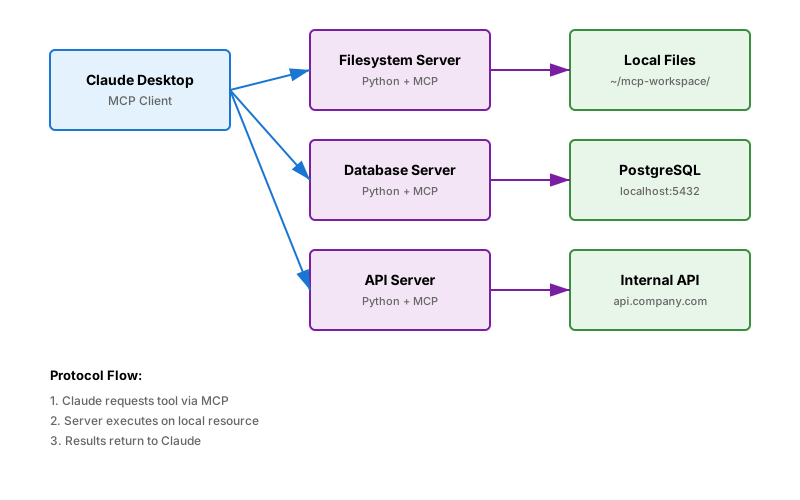
Run multiple servers for different capabilities:
{
  "mcpServers": {
    "filesystem": {
      "command": "python",
      "args": ["/path/to/mcp_filesystem_server.py"]
    },
    "database": {
      "command": "python",
      "args": ["/path/to/mcp_database_server.py"],
      "env": {
        "DB_HOST": "localhost"
      }
    },
    "api": {
      "command": "python",
      "args": ["/path/to/mcp_api_server.py"]
    }
  }
}
Claude can now use tools from all three servers simultaneously.
Verification
Test end-to-end workflow:
Start inspector:
mcp-inspector python mcp_filesystem_server.pyConfirm tools appear
Test in Claude:
"Create a file called notes.txt with content: Hello MCP"
You should see: Claude uses
write_filetool, confirms creationVerify locally:
cat ~/mcp-workspace/notes.txtExpected: File exists with "Hello MCP" content
Read back:
"What's in notes.txt?"
You should see: Claude uses
read_file, shows content
Common Issues
Server Won't Start
Symptom: Claude shows "MCP server connection failed"
Debug:
# Run server directly to see errors
python mcp_filesystem_server.py

# Check Python path
which python
Fix: Update claude_desktop_config.json with correct Python path
Tools Not Appearing
Symptom: Claude doesn't see your tools
Debug:
- Check server implements
@app.list_tools()decorator - Verify schema has required
name,description,inputSchemafields - Test with MCP inspector before Claude
Permission Errors
Symptom: "Permission denied" when accessing files/database
Fix:
- Files: Check
ALLOWED_DIRpermissions withls -la - Database: Verify user has
SELECTgrants withSHOW GRANTS - API: Confirm token hasn't expired
What You Learned
- MCP enables AI to call local tools without copying data into prompts
- Servers expose tools via
@app.list_tools()and execute via@app.call_tool() - Security is critical: validate inputs, use read-only credentials, restrict paths
- Production servers need logging, environment configs, and error handling
Limitations:
- Servers must be running when Claude starts (no auto-restart yet)
- stdio transport means one server per process
- No built-in authentication beyond what you implement
When NOT to use MCP:
- Public APIs better accessed via Claude's built-in web tools
- One-off tasks where copying is faster than server setup
- Sensitive data that shouldn't be AI-accessible at all
Advanced: HTTP Transport
For production deployments, use HTTP instead of stdio:
# mcp_http_server.py
from mcp.server import Server
from mcp.server.sse import sse_server

app = Server("http-filesystem-server")

# ... same tool definitions ...

async def main():
    # Runs on http://localhost:8000/sse
    await sse_server(app, host="0.0.0.0", port=8000)

if __name__ == "__main__":
    import uvicorn
    uvicorn.run(main(), host="0.0.0.0", port=8000)
Configure Claude to use HTTP endpoint:
{
  "mcpServers": {
    "filesystem": {
      "transport": "sse",
      "url": "http://localhost:8000/sse"
    }
  }
}
Benefits: Server runs independently, supports multiple clients, easier monitoring
Dependencies:
pip install uvicorn --break-system-packages
Architecture Diagram
Tested on Python 3.11+, MCP SDK 0.9.0, Claude Desktop 1.2.0, macOS Sonoma & Ubuntu 22.04