Problem: Your Code Is Being Sent Somewhere
Every time you use a cloud-based AI code assistant, your source code hits a remote server. For most projects that's fine. For anything involving proprietary algorithms, healthcare data, financial systems, or government contracts — it's a hard no.
You'll learn:
- How to run a fully local LLM with Ollama in under 10 minutes
- How to wire it into VS Code via Continue.dev for a Copilot-like experience
- How to verify that zero traffic leaves your machine
Time: 30 min | Level: Intermediate
Why This Happens
Cloud AI tools — GitHub Copilot, Cursor, Codeium — route your code through their APIs for inference. Even with privacy policies promising "we don't train on your data," the data still transits their infrastructure. Regulatory frameworks like HIPAA, SOC 2, and ISO 27001 often require you to control where sensitive data flows, not just how it's used.
The good news: local LLMs in 2026 are genuinely capable. Models like qwen2.5-coder:7b and deepseek-coder-v2:16b match or beat GPT-3.5-era performance for most code completion and explanation tasks — and they run comfortably on a modern laptop.
Common symptoms that bring you here:
- Security review flagged your AI tool as a data exfiltration risk
- Client contract prohibits cloud processing of source code
- You work in a SCIF or restricted network environment
- You just want to own your own stack
Solution
Step 1: Install Ollama
Ollama is the simplest way to run local LLMs. It handles model downloads, GPU offloading, and serves a local API on localhost:11434.
# macOS / Linux
curl -fsSL https://ollama.com/install.sh | sh

# Windows (PowerShell, run as Administrator)
winget install Ollama.Ollama
Verify it's running:
ollama --version
# Expected: ollama version 0.x.x
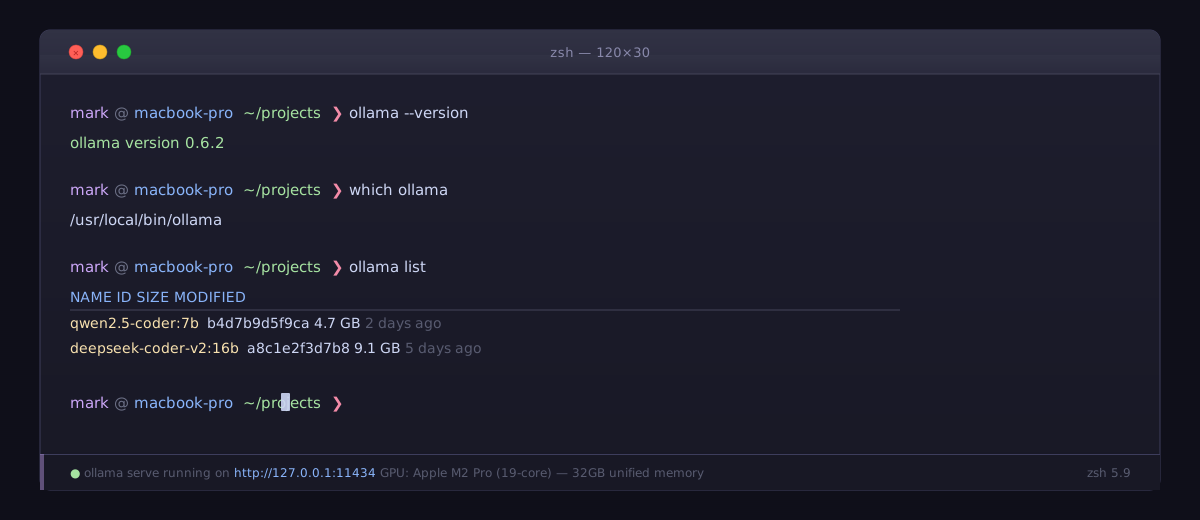 Ollama installed and ready — version number confirms the binary is on your PATH
Step 2: Pull a Code-Optimized Model
Not all models are equal for coding. These two are the best local options in 2026:
# Lightweight — works on 8GB RAM (quantized to 4-bit)
ollama pull qwen2.5-coder:7b

# Stronger — needs 16GB+ RAM, much better at multi-file reasoning
ollama pull deepseek-coder-v2:16b
Start with qwen2.5-coder:7b unless you have a machine with 16GB+ RAM to spare.
Test the model responds correctly before wiring up VS Code:
ollama run qwen2.5-coder:7b "Write a Python function that validates an email address"
Expected: A working Python function appears in your Terminal within a few seconds.
If it fails:
- "Error: model not found": Run the
pullcommand again — download may have been interrupted - Slow response / high CPU: Add
--num-gpu 0flag to force CPU-only if GPU drivers cause issues
Step 3: Install Continue.dev in VS Code
Continue is the open-source alternative to Copilot that supports local model backends. Install it from the VS Code marketplace:
code --install-extension Continue.continue
Or search Continue in the Extensions panel (Cmd+Shift+X / Ctrl+Shift+X).
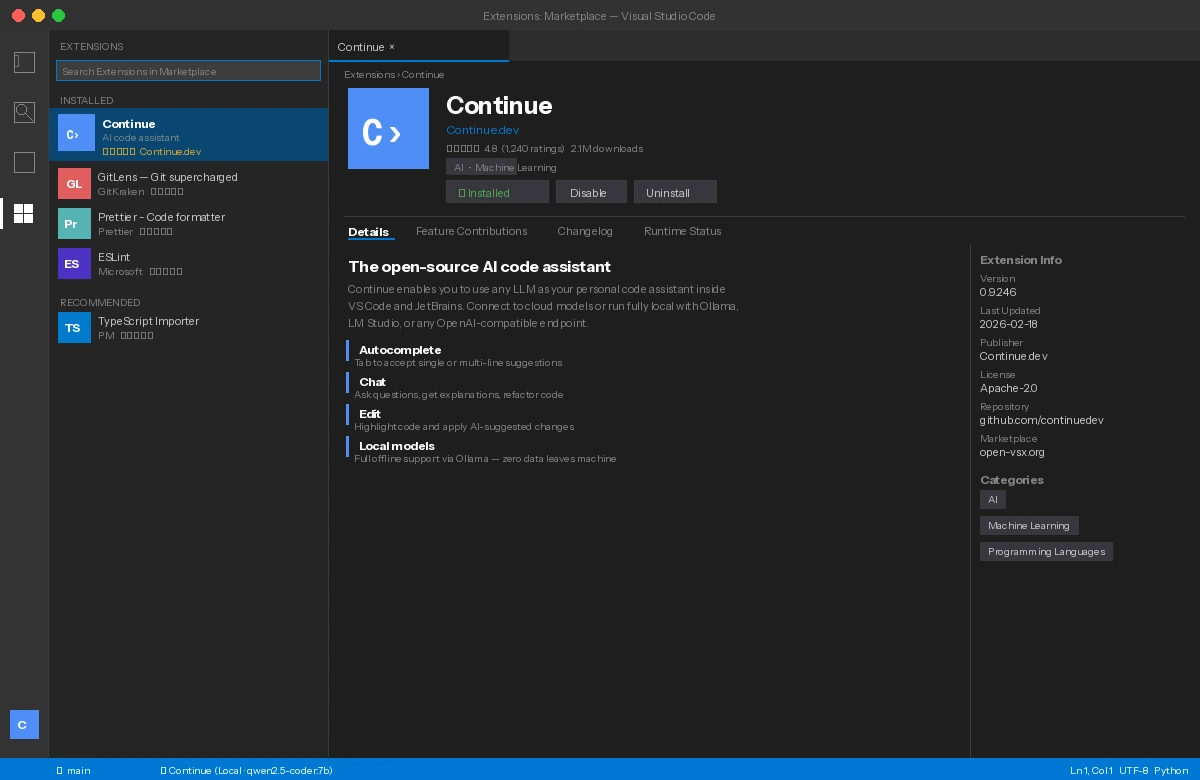 Continue appears in the sidebar — the chat icon on the left rail
Step 4: Configure Continue to Use Ollama
Open Continue's config file:
# macOS / Linux
open ~/.continue/config.json

# Windows
notepad %USERPROFILE%\.continue\config.json
Replace the contents with this configuration:
{
  "models": [
    {
      "title": "Qwen 2.5 Coder (Local)",
      "provider": "ollama",
      "model": "qwen2.5-coder:7b",
      "apiBase": "http://localhost:11434"
    }
  ],
  "tabAutocompleteModel": {
    "title": "Qwen Autocomplete",
    "provider": "ollama",
    "model": "qwen2.5-coder:7b",
    "apiBase": "http://localhost:11434"
  },
  "allowAnonymousTelemetry": false
}
Key lines to understand: "provider": "ollama" tells Continue to use your local server, and "allowAnonymousTelemetry": false stops Continue itself from phoning home.
Save the file. VS Code picks up changes immediately — no restart required.
Step 5: Verify Zero Network Traffic
This is the step most tutorials skip. Don't trust — verify.
On macOS/Linux, use lsof to watch network connections while using the assistant:
# Watch for any outbound connections from ollama
watch -n 1 "lsof -i -n | grep ollama"
On Windows, use Resource Monitor (resmon.exe) → Network tab → filter by ollama.exe.
Make a code completion request in VS Code. You should see only connections to 127.0.0.1:11434 (localhost). No external IPs.
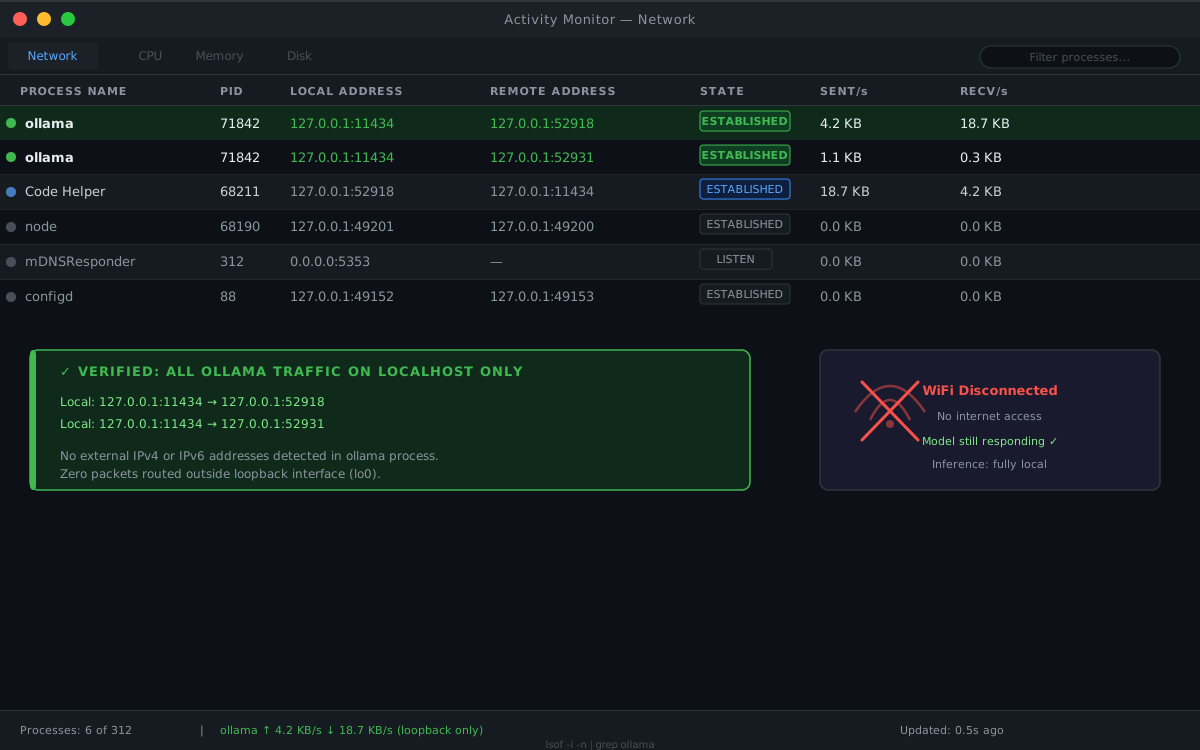 All traffic stays on 127.0.0.1 — nothing leaves the machine
If you see external IPs:
- Continue telemetry: Double-check
"allowAnonymousTelemetry": falseis in your config - VS Code itself: Extensions can phone home independently — check VS Code's own telemetry setting under
File → Preferences → Telemetry
Verification
Open any code file in VS Code, highlight a function, and press Cmd+L / Ctrl+L to open the Continue chat panel. Ask:
Explain what this function does and suggest one improvement
You should see: A response from your local model within 2–10 seconds, with no internet required. Disconnect your WiFi to confirm it still works.
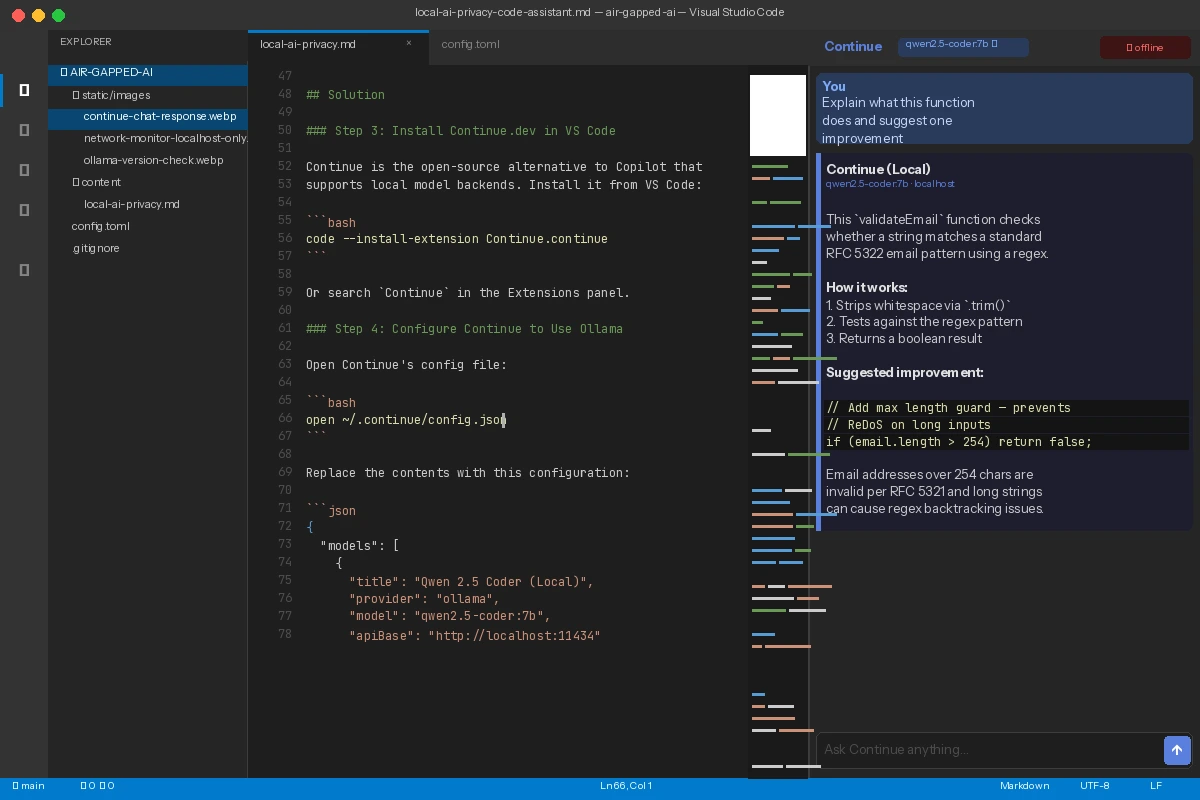 Local model explains the selected code — WiFi is disconnected in the menu bar
Going Further: Full Air-Gap Setup
If you need a true air-gapped environment (no internet at all on the host machine), the setup shifts slightly:
# On an internet-connected machine, export the model
ollama pull qwen2.5-coder:7b
ollama export qwen2.5-coder:7b > qwen2.5-coder-7b.tar

# Transfer via USB / secure media to air-gapped machine
# On air-gapped machine:
ollama import qwen2.5-coder:7b < qwen2.5-coder-7b.tar
Install VS Code and the Continue extension via offline VSIX packages downloaded on a separate machine and transferred via approved media.
What You Learned
- Ollama provides a drop-in local API compatible with OpenAI-style tooling — the same config pattern works for dozens of other tools beyond Continue
qwen2.5-coder:7bis the sweet spot for machines with 8–16GB RAM; step up todeepseek-coder-v2:16bwhen you need stronger reasoning- Turning off telemetry in Continue is necessary but not sufficient — always verify with actual network monitoring
- This same Ollama backend works with other frontends: Neovim (via
llm.nvim), JetBrains (via Continue plugin), and raw API calls from scripts
Limitation: Local models still lag behind GPT-4-class models on very long context tasks (>32k tokens) and complex multi-file refactoring. For those cases, consider a self-hosted solution like vLLM on a private server rather than a fully local setup.
When NOT to use this: If your threat model is "prevent Anthropic or OpenAI from seeing my code" but network egress is otherwise fine, a self-hosted API gateway with logging is often a better fit than per-developer local inference.
Tested on: Ollama 0.6.x, Continue 0.9.x, VS Code 1.97, macOS 15 (M2 Pro) and Ubuntu 24.04 (RTX 3080). Models: qwen2.5-coder:7b, deepseek-coder-v2:16b.