Problem: You Want Local LLM Inference Without Cloud Costs
LM Studio REST API gives you an OpenAI-compatible HTTP interface for any local model — no API key, no usage bill, no data leaving your machine. If you've tried wiring a Python or Node.js app to a cloud LLM and balked at the per-token cost for development work, this is your exit ramp.
You'll learn:
- Start LM Studio's local server and verify it's running
- Send chat completion requests from Python and Node.js
- Stream token-by-token responses to a terminal or web client
- Swap models at runtime without changing your app code
Time: 20 min | Difficulty: Intermediate
Why This Works: LM Studio's OpenAI-Compatible Server
LM Studio ships a built-in HTTP server that mirrors the OpenAI /v1/chat/completions endpoint exactly. Any library that speaks to OpenAI — openai Python SDK, the Node openai package, raw fetch, curl — talks to LM Studio without modification. You just swap api.openai.com for localhost:1234.
The server runs on your machine, so latency is wire speed to RAM. There's no rate limit, no content filter you can't control, and no cost per token. Models stay loaded in VRAM or unified memory between requests, so the first call after load is the only slow one.
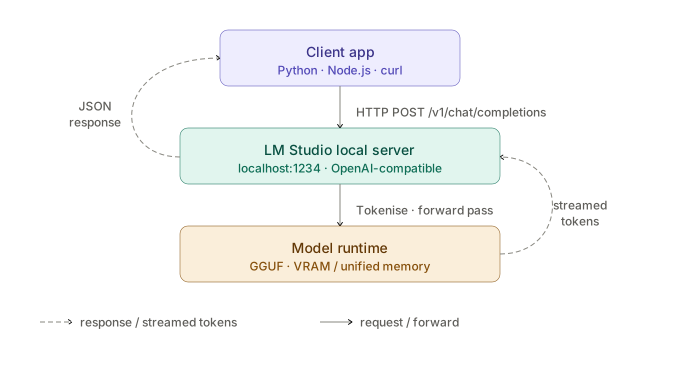 Request lifecycle: your app calls the local server, which routes to the loaded model and streams tokens back over HTTP
Step 1: Start the LM Studio Local Server
Open LM Studio and switch to the Developer tab (the </> icon in the left sidebar). Load any model using the model picker at the top — Llama-3.2-3B-Instruct-Q6_K is a good starting point on 8 GB RAM.
Click Start Server. The status bar shows:
Server running at http://localhost:1234
Verify it from a terminal:
curl http://localhost:1234/v1/models
Expected output:
{
  "data": [
    {
      "id": "llama-3.2-3b-instruct",
      "object": "model"
    }
  ]
}
If you get Connection refused, the server hasn't started yet — click the toggle in the Developer tab again.
Port conflict: If 1234 is in use, change it in Settings → Local Server → Port. Update every URL in this guide to match.
Step 2: Install the OpenAI SDK
LM Studio's server is OpenAI-compatible, so the official OpenAI SDKs work out of the box. No LM Studio–specific package needed.
Python (uv recommended):
uv add openai # or: pip install openai --break-system-packages
Node.js:
npm install openai
Step 3: Send Your First Chat Completion (Python)
from openai import OpenAI

# Point the client at your local server — api_key is required by the SDK but ignored by LM Studio
client = OpenAI(base_url="http://localhost:1234/v1", api_key="lm-studio")

response = client.chat.completions.create(
    model="llama-3.2-3b-instruct",   # Must match the model ID from /v1/models
    messages=[
        {"role": "system", "content": "You are a concise technical assistant."},
        {"role": "user", "content": "Explain Python's GIL in two sentences."},
    ],
    temperature=0.2,   # Low temp for factual responses; raise to 0.8+ for creative tasks
)

print(response.choices[0].message.content)
Run it:
python chat.py
Expected output — something like:
The GIL (Global Interpreter Lock) is a mutex in CPython that allows only one thread
to execute Python bytecode at a time, preventing true multi-core parallelism for CPU-bound tasks.
It does not affect I/O-bound workloads, where threads spend most time waiting.
The model string must match the id field from the /v1/models response exactly. If they don't match, LM Studio silently uses whichever model is currently loaded — which is fine during development but will bite you in production.
Step 4: Stream Tokens in Real Time (Python)
Waiting for the full response before printing feels laggy for long outputs. Streaming sends each token as it's generated.
from openai import OpenAI

client = OpenAI(base_url="http://localhost:1234/v1", api_key="lm-studio")

stream = client.chat.completions.create(
    model="llama-3.2-3b-instruct",
    messages=[{"role": "user", "content": "Write a Python quicksort with comments."}],
    stream=True,   # Switches response to server-sent events
)

for chunk in stream:
    delta = chunk.choices[0].delta.content
    if delta:
        print(delta, end="", flush=True)  # flush=True prevents buffering in terminals

print()  # Newline after stream ends
Each chunk.choices[0].delta.content contains the next token fragment. Some chunks arrive with None content (role announcements, finish signals) — the if delta: guard skips those.
Step 5: Same Request in Node.js
import OpenAI from "openai";

const client = new OpenAI({
  baseURL: "http://localhost:1234/v1",
  apiKey: "lm-studio", // Required by SDK; ignored by LM Studio
});

async function main() {
  const stream = await client.chat.completions.create({
    model: "llama-3.2-3b-instruct",
    messages: [{ role: "user", content: "What is a transformer attention head?" }],
    stream: true,
  });

  for await (const chunk of stream) {
    const token = chunk.choices[0]?.delta?.content ?? "";
    process.stdout.write(token); // Stream tokens without newlines between them
  }

  console.log(); // Final newline
}

main();
Run with:
node --input-type=module < app.js
# or if saved as app.mjs:
node app.mjs
Step 6: Build a Multi-Turn Conversation
The API is stateless — you send the full conversation history on every request. Maintain it in a list.
from openai import OpenAI

client = OpenAI(base_url="http://localhost:1234/v1", api_key="lm-studio")

history = [
    {"role": "system", "content": "You are a senior Python engineer. Be direct and specific."}
]

def chat(user_input: str) -> str:
    history.append({"role": "user", "content": user_input})

    response = client.chat.completions.create(
        model="llama-3.2-3b-instruct",
        messages=history,
        temperature=0.3,
        max_tokens=512,  # Cap per-turn output; prevents runaway generation on open-ended prompts
    )

    reply = response.choices[0].message.content
    history.append({"role": "assistant", "content": reply})
    return reply

# REPL loop
while True:
    user = input("You: ")
    if user.lower() in ("exit", "quit"):
        break
    print(f"Assistant: {chat(user)}\n")
The history list grows with each turn. For long conversations, trim it by keeping the system message and the last N exchanges to stay within the model's context window.
Step 7: Swap Models Without Changing App Code
LM Studio exposes whichever model is currently loaded. To switch models at runtime, hit the model picker in the Developer tab and load a different one. Your app doesn't need to restart.
To make your code explicit about which model it expects:
MODELS = {
    "fast": "llama-3.2-3b-instruct",     # ~2 s/response on M2 Pro — good for dev iteration
    "smart": "qwen2.5-14b-instruct-q4",  # ~8 s/response — better reasoning, higher RAM
}

response = client.chat.completions.create(
    model=MODELS["fast"],
    messages=messages,
)
If the requested model isn't loaded, LM Studio returns a 404 with "model not found". Catch it and surface a clear error rather than letting the SDK throw a generic HTTP exception.
LM Studio vs Ollama: API Comparison
| LM Studio | Ollama | |
|---|---|---|
| API compatibility | OpenAI /v1 | OpenAI /v1 + native /api |
| GUI model manager | ✅ Full UI | ❌ CLI only |
| Model formats | GGUF | GGUF |
| Streaming | ✅ | ✅ |
| Headless / Docker | ❌ (GUI required) | ✅ |
| Pricing | Free (personal) / $99/yr (Pro) | Free, open-source |
| Best for | Local dev with GUI | CI/CD, Docker, server deploy |
Choose LM Studio if you want a polished GUI for browsing, downloading, and switching models during development. Choose Ollama if you need headless operation, Docker containers, or a fully open-source stack.
Verification
Start the server, run this one-liner, and confirm you get a response:
curl http://localhost:1234/v1/chat/completions \
  -H "Content-Type: application/json" \
  -d '{
    "model": "llama-3.2-3b-instruct",
    "messages": [{"role": "user", "content": "Say: API works"}],
    "temperature": 0
  }'
You should see a JSON response with "choices"[0]["message"]["content"] containing "API works" or similar.
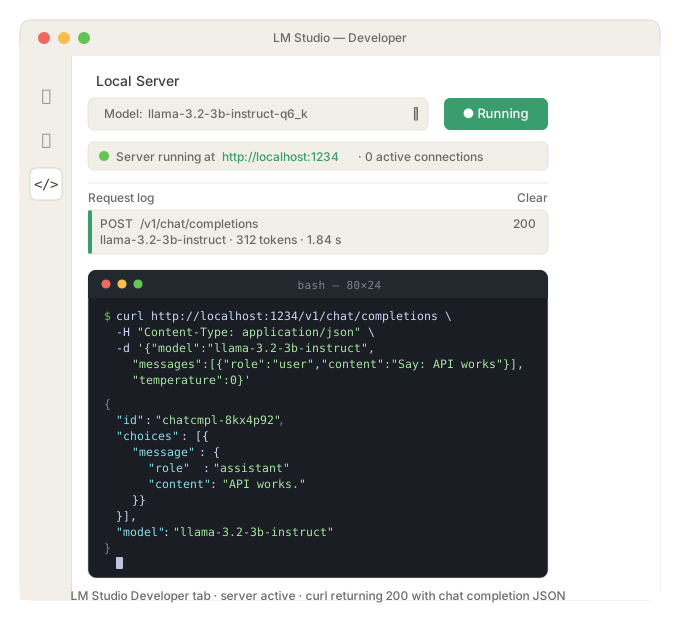 The Developer tab shows connected clients, active model, and request logs in real time
What You Learned
- LM Studio's server mirrors the OpenAI API — any OpenAI SDK client connects with a single
base_urlchange - Streaming requires
stream=Trueand iterating overchunk.choices[0].delta.content - Multi-turn conversations are stateless — you manage history in your app, not the server
- LM Studio is GUI-first; Ollama is the better pick for Docker or headless deployments
Tested on LM Studio 0.3.6, Python 3.12, Node.js 22 LTS, macOS Sequoia (M2 Pro) and Ubuntu 24.04
FAQ
Q: Does LM Studio's API work with LangChain or LlamaIndex?
A: Yes. Set openai_api_base="http://localhost:1234/v1" and openai_api_key="lm-studio" in either framework's OpenAI provider config — no other changes needed.
Q: What's the minimum RAM to run a useful model with this setup?
A: 8 GB unified memory (Apple Silicon) or 8 GB system RAM + 6 GB VRAM runs Llama-3.2-3B-Q6_K comfortably. For 7B–8B models, 16 GB RAM is the practical floor.
Q: Can I call the LM Studio API from a Docker container on the same machine?
A: Not with localhost — containers don't share the host network by default. Use host.docker.internal:1234 on macOS/Windows or --network host on Linux.
Q: Does LM Studio support function calling / tool use?
A: Yes, for models that include tool-use fine-tuning (e.g. Qwen2.5-Instruct, Llama-3.1-Instruct). Pass tools and tool_choice parameters exactly as you would to the OpenAI API.
Q: How do I handle the LM Studio server not being ready when my app starts?
A: Add a startup health check against GET /v1/models. Retry with exponential backoff (starting at 500 ms) up to 5 times before surfacing an error. The server typically responds within 2–3 seconds of the GUI loading the model.