Problem: LM Studio Ignores Your Instructions Without a System Prompt
LM Studio preset system prompts let you define persistent instructions that apply to every chat session — without retyping them each time. Without one, models default to generic behavior: no persona, no format rules, no domain constraints.
You'll learn:
- How to create and save a preset system prompt in LM Studio
- How to write a custom chat template (ChatML / Jinja2) for precise control
- How to wire a preset to a specific model so it loads automatically
Time: 15 min | Difficulty: Intermediate
Why This Happens
LM Studio loads models with no system prompt by default. The model's behavior is entirely shaped by the chat template baked into its GGUF metadata — which may or may not match what you need.
Symptoms:
- Model responds in the wrong language or tone despite your instructions
- Each new chat session loses your previous setup instructions
- Output format (JSON, markdown, bullet points) is inconsistent across sessions
- Model breaks character mid-conversation when no system context is set
The fix is a preset — a named configuration that stores your system prompt, temperature, context length, and chat template together. LM Studio 0.3+ supports saving and auto-loading these per model.
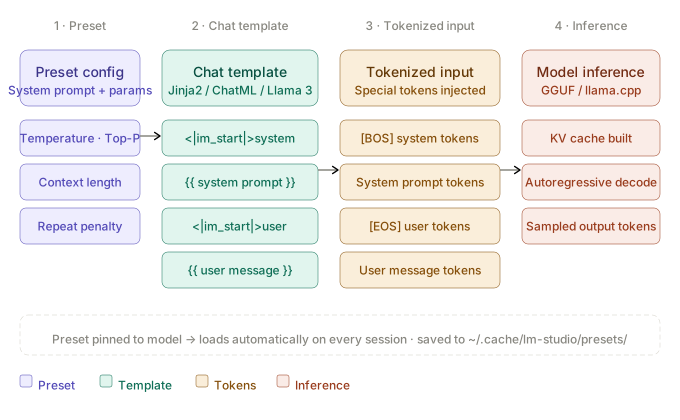 How LM Studio assembles a conversation: preset system prompt → chat template → tokenized input → model inference
Solution
Step 1: Open the Preset Panel in LM Studio
Launch LM Studio and load a model. In the right sidebar, locate the Presets section at the top of the panel. Click the dropdown that shows Default.
If you don't see the sidebar: View → Show Right Panel (Cmd+Shift+P on macOS, Ctrl+Shift+P on Windows).
Expected output: A dropdown listing Default and any previously saved presets.
Step 2: Create a New Preset
Click the dropdown → Save current settings as new preset. Name it after its purpose: coding-assistant, json-extractor, technical-writer.
LM Studio saves presets in:
# macOS
~/.cache/lm-studio/presets/

# Windows
%APPDATA%\LM Studio\presets\
Each preset is a .json file. You can version-control these or share them across machines.
Step 3: Write Your System Prompt
In the right sidebar, scroll to System Prompt. Click the text area and write your instructions.
Keep system prompts directive and specific. Vague instructions degrade output quality.
Example — JSON extraction assistant:
You are a structured data extraction API. Always respond with valid JSON only.
No prose, no markdown fences, no explanation.
Schema: { "entities": [], "intent": "", "confidence": 0.0 }
If you cannot extract structured data, return: { "error": "insufficient context" }
Example — Senior Python code reviewer:
You are a senior Python engineer at a Series B startup. Review code for:
1. PEP 8 compliance (flag violations with line numbers)
2. Security issues (OWASP Top 10)
3. Performance bottlenecks (flag O(n²) and above)
Respond with: ISSUES (list), SEVERITY (critical/major/minor), SUGGESTED_FIX (code block).
Do not praise the code. Be direct.
If it fails:
- Model ignores the system prompt → Check that the chat template supports
systemrole (see Step 5) - Instructions apply inconsistently → Shorten to under 300 tokens; long system prompts compete with context window
Step 4: Set Temperature and Context Length
Still in the preset panel, configure:
| Parameter | Recommended value | Why |
|---|---|---|
Temperature | 0.1 for extraction / 0.7 for creative | Low temp = deterministic; high = varied |
Context Length | 4096 minimum; 8192 for long docs | System prompt consumes ~100–300 tokens |
Top P | 0.9 | Nucleus sampling; leave default unless tuning |
Repeat Penalty | 1.1 | Prevents looping; critical for structured output |
Click Save to write these into the preset.
Step 5: Customize the Chat Template (Advanced)
LM Studio reads the chat template from the model's GGUF metadata. For most models (Llama 3, Mistral, Qwen 2.5), this is correct. Override it only when:
- The model was converted without a template
- You're using a fine-tune with a non-standard format
- You need explicit
systemrole injection
Go to Advanced → Chat Template and select Custom.
ChatML format (works with most instruct models):
{% for message in messages %}
{%- if message['role'] == 'system' %}
<|im_start|>system
{{ message['content'] }}<|im_end|>
{%- elif message['role'] == 'user' %}
<|im_start|>user
{{ message['content'] }}<|im_end|>
{%- elif message['role'] == 'assistant' %}
<|im_start|>assistant
{{ message['content'] }}<|im_end|>
{%- endif %}
{%- endfor %}
<|im_start|>assistant
Llama 3 format (required for Meta-Llama-3-8B-Instruct and variants):
{% for message in messages %}{%- if message['role'] == 'system' %}<|begin_of_text|><|start_header_id|>system<|end_header_id|>

{{ message['content'] }}<|eot_id|>{%- elif message['role'] == 'user' %}<|start_header_id|>user<|end_header_id|>

{{ message['content'] }}<|eot_id|>{%- elif message['role'] == 'assistant' %}<|start_header_id|>assistant<|end_header_id|>

{{ message['content'] }}<|eot_id|>{%- endif %}{%- endfor %}<|start_header_id|>assistant<|end_header_id|>
Expected output: The token preview at the bottom of the template editor shows your system prompt correctly wrapped in the model's special tokens.
If it fails:
<|im_start|>not recognized → Model is not ChatML-trained; switch to the model's native template- System prompt appears as user turn → The Jinja2
rolecheck is malformed; verify bracket syntax
Step 6: Bind the Preset to a Model
To auto-load a preset when a specific model loads:
- Load the model in LM Studio
- Select your preset from the dropdown
- Click the pin icon next to the preset name
LM Studio writes this binding to ~/.cache/lm-studio/model-presets.json. The preset loads automatically on every subsequent model load — no manual selection needed.
Verification
Open a new chat session with the model and send a minimal test message:
What are you? Describe your purpose in one sentence.
You should see: A response that reflects your system prompt persona and format rules — not the model's default introduction.
For JSON presets, test with:
Extract entities from: "Anthropic released Claude 3.7 Sonnet in San Francisco."
You should see: Raw JSON output matching your schema, no prose wrapper.
What You Learned
- Presets are portable
.jsonfiles — commit them to your project repo alongside your model configs - The chat template determines how the system prompt is tokenized; a mismatch silently breaks instruction-following
- Binding a preset to a model is the most reliable way to enforce consistent behavior in local workflows
- Keep system prompts under 300 tokens; anything longer competes with your actual context window and degrades recall on long conversations
Tested on LM Studio 0.3.5, macOS Sequoia 15.3 (M3 Max) and Windows 11 (RTX 4090), with Llama-3-8B-Instruct Q4_K_M and Qwen2.5-7B-Instruct Q5_K_M
FAQ
Q: Does the system prompt persist across LM Studio restarts?
A: Yes — as long as the preset is saved and bound to the model. A preset that is not bound resets to Default on restart.
Q: What is the maximum system prompt length in LM Studio? A: LM Studio has no hard cap, but the effective limit is your model's context window minus your expected conversation length. For a 4096-token context, stay under 512 tokens for the system prompt.
Q: Can I use LM Studio presets via the local API?
A: Partially. The LM Studio local server (http://localhost:1234/v1/chat/completions) accepts a system role message in the request body. Presets defined in the GUI don't auto-apply to API calls — inject the system prompt in your request payload explicitly.
Q: Does LM Studio support multiple system prompts or conditional templates? A: Not natively. Each preset has one system prompt. For conditional behavior, encode branching logic inside the single system prompt using numbered rules, or run two separate model instances with different presets on different ports.
Q: Which chat template should I use for Mistral 7B v0.3?
A: Mistral v0.3 uses its own instruction format with [INST] and [/INST] tokens, not ChatML. LM Studio auto-detects this from the GGUF metadata — only override if you see the system prompt being ignored, then select the Mistral template from the dropdown.