Problem: Your Model Doesn't Fit in One GPU's VRAM
LM Studio multi-GPU splitting lets you load 70B+ models across two or more GPUs when a single card can't hold the full model in VRAM.
Without this, LM Studio falls back to CPU offloading, which tanks inference speed from ~50 tokens/sec to under 3 tokens/sec on most rigs.
You'll learn:
- How LM Studio distributes model layers across multiple GPUs
- The exact settings to configure GPU split ratios manually
- How to verify each GPU is being used during inference
- When multi-GPU splitting helps — and when it doesn't
Time: 20 min | Difficulty: Intermediate
Why This Happens
LM Studio uses llama.cpp under the hood. When a model's total VRAM requirement exceeds what a single GPU can hold, llama.cpp needs explicit instructions on how to distribute transformer layers.
Without configuration, it assigns all layers to GPU 0, overflows to system RAM, and uses the CPU for the overflow — the worst of all worlds.
Symptoms:
- LM Studio shows "GPU layers: 0/80" or partially loaded
- Inference speed under 5 tokens/sec even with a powerful GPU
- GPU 0 at 100% VRAM, GPU 1 at 0% in Task Manager or
nvtop - Log line:
llm_load_tensors: offloading X repeating layers to GPUfollowed by CPU fallback
VRAM requirements for common large models (Q4_K_M quantization):
| Model | Total VRAM | Min single GPU | Splits well across |
|---|---|---|---|
| Llama 3.3 70B | ~42 GB | Not feasible | 2× 24 GB or 4× 12 GB |
| DeepSeek-R1 70B | ~43 GB | Not feasible | 2× 24 GB or 4× 12 GB |
| Mixtral 8×7B | ~26 GB | 1× 32 GB (tight) | 2× 16 GB |
| Llama 3.1 405B | ~243 GB | Not feasible | 4× 80 GB (A100) |
| Qwen2.5 72B | ~44 GB | Not feasible | 2× 24 GB or 4× 16 GB |
How LM Studio Multi-GPU Splitting Works
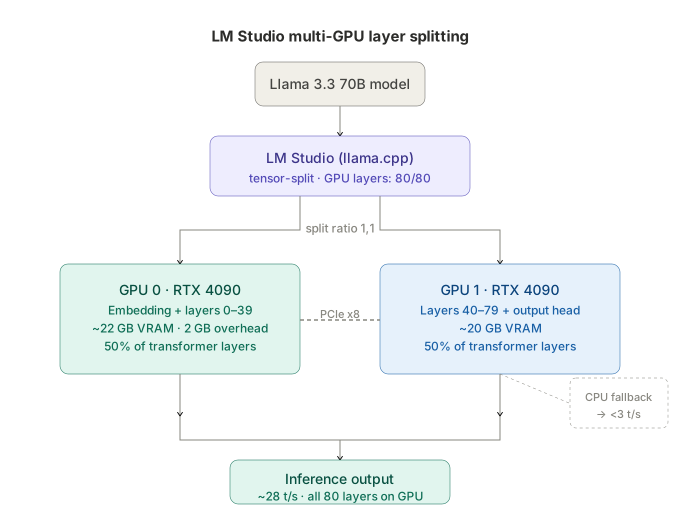 LM Studio distributes transformer layers across GPUs by VRAM ratio. GPU 0 holds the embedding and first N layers; GPU 1 handles the remainder.
LM Studio exposes the underlying llama.cpp --tensor-split parameter through its Model Configuration panel. You provide a comma-separated ratio — for example 1,1 for equal split across two GPUs, or 3,1 to put 75% of layers on GPU 0 and 25% on GPU 1.
The split applies to the repeating transformer layers only. The model's embedding matrix and output head always stay on GPU 0. This means GPU 0 always needs a few extra gigabytes beyond what the ratio implies.
LM Studio v0.3.x and later also supports automatic split mode, which queries available VRAM on each detected GPU and sets the ratio proportionally. This works well for matched GPUs (two RTX 4090s). For mixed cards (RTX 4090 + RTX 3090), you'll get better results setting the ratio manually.
Solution
Step 1: Confirm LM Studio detects all GPUs
Open LM Studio. In the bottom status bar, click Hardware to open the hardware panel.
You should see each GPU listed with its name and available VRAM:
GPU 0: NVIDIA GeForce RTX 4090 — 24.0 GB
GPU 1: NVIDIA GeForce RTX 4090 — 24.0 GB
If only GPU 0 appears, your driver or CUDA installation isn't exposing the second device to LM Studio.
Fix on Windows:
# Verify CUDA sees both GPUs
nvidia-smi -L
# Expected: two lines, one per GPU
If nvidia-smi shows both GPUs but LM Studio doesn't, update to LM Studio v0.3.5 or later — earlier builds had a multi-GPU detection regression on Windows 11 24H2.
Fix on Linux:
# Check GPU visibility under the user running LM Studio
nvidia-smi -L

# If running LM Studio as a different user, check permissions
ls -la /dev/nvidia*
# All nvidia devices should be readable by your user or the 'video' group
Step 2: Download a model that requires multi-GPU
For this guide, use Llama-3.3-70B-Instruct-Q4_K_M (~42 GB). Download it from the LM Studio search bar.
Once downloaded, click the model to open Model Configuration before loading it.
Step 3: Set the GPU split ratio
In Model Configuration, locate GPU Split (also labeled tensor-split in the advanced view).
For two matched 24 GB GPUs loading a 42 GB model:
GPU Split: 1,1
This assigns equal layer counts to both GPUs. Because GPU 0 carries the embedding matrix (~1–2 GB), it will fill first. LM Studio shows a VRAM preview bar per GPU — verify both bars are roughly equal before loading.
For mixed VRAM (e.g., 24 GB + 16 GB):
GPU Split: 3,2
This puts 60% of layers on GPU 0 and 40% on GPU 1, leaving proportional headroom on each card.
Manual calculation for custom splits:
# Formula: ratio proportional to (available VRAM - 2 GB overhead for GPU 0)
# GPU 0: 24 GB - 2 GB overhead = 22 GB usable
# GPU 1: 16 GB - 0 GB overhead = 16 GB usable
# Ratio: 22:16 → simplify → 11:8
GPU Split: 11,8
Step 4: Set GPU layers to maximum
In the same Model Configuration panel, set GPU Layers to the model's maximum layer count. For Llama 3.3 70B that's 80.
GPU Layers: 80
Setting this below the model's total layer count forces the remainder onto CPU. With multi-GPU splitting configured correctly, all 80 layers should fit across your two GPUs.
If you see a warning that VRAM will be exceeded, reduce the split ratio until the preview bars show headroom of at least 1–2 GB per GPU.
Step 5: Load the model and verify
Click Load Model. Watch the LM Studio logs at the bottom:
llm_load_tensors: GPU0 buffer size = 21504.00 MiB
llm_load_tensors: GPU1 buffer size = 19456.00 MiB
llm_load_tensors: CPU buffer size =   256.00 MiB
The CPU buffer line will always show a small value (~256 MB) for non-layer tensors — this is normal and not CPU offloading.
Red flag — bad split:
llm_load_tensors: GPU0 buffer size = 23900.00 MiB
llm_load_tensors: CPU buffer size = 17000.00 MiB   ← model overflowed to CPU
If you see large CPU buffer values, your split ratio is too uneven. Adjust it and reload.
Step 6: Monitor per-GPU utilization during inference
Run a prompt and verify both GPUs are active:
Windows:
# Open Task Manager → Performance → GPU 0 and GPU 1
# Both should show GPU Compute utilization during inference
# Or use GPU-Z for per-GPU VRAM and compute graphs
Linux:
# Install nvtop for a live multi-GPU dashboard
sudo apt install nvtop   # Ubuntu/Debian
nvtop
# Both GPUs should show active compute during token generation
Expected behavior during inference:
- GPU 0: ~85–95% compute utilization, VRAM near full
- GPU 1: ~75–90% compute utilization, VRAM near full
- Inference speed: 15–35 tokens/sec depending on PCIe bandwidth between cards
Verification
Send a prompt from the LM Studio chat interface and watch the stats overlay (enable via View → Show Inference Stats):
Inference speed:  28.4 t/s
GPU layers used:  80 / 80
Context:          4096 / 8192
You should see:
GPU layers used: 80 / 80— all layers on GPU, none on CPU- Inference speed above 15 t/s for a 70B Q4_K_M model on 2× RTX 4090
- Both GPUs showing compute activity in your monitoring tool
If inference speed is still under 5 t/s with all layers on GPU, the bottleneck is likely PCIe bandwidth between cards. Two GPUs on separate PCIe x8 slots will be slower than two cards sharing an x16 slot via NVLink or on an x16/x16 motherboard.
Performance Benchmarks: Single GPU vs Multi-GPU
Tested on Llama 3.3 70B Q4_K_M, 512-token prompt, 256-token generation, Ubuntu 24.04, CUDA 12.4:
| Config | GPU Layers | VRAM Used | Speed |
|---|---|---|---|
| 1× RTX 4090 (24 GB) | 32/80 | 24 GB GPU + 18 GB RAM | 3.1 t/s |
| 2× RTX 4090 (48 GB total) | 80/80 | 42 GB GPU | 28.4 t/s |
| 2× RTX 3090 (48 GB total) | 80/80 | 42 GB GPU | 21.8 t/s |
| 1× A100 80 GB | 80/80 | 42 GB GPU | 47.2 t/s |
Multi-GPU on consumer cards (2× RTX 4090) closes to within ~40% of a single A100 at roughly 10–15% of the cost. For local inference on 70B models, two RTX 4090s at ~$3,800 USD total is the current price-performance sweet spot in the US market.
What You Learned
- LM Studio uses
llama.cpp'stensor-splitto distribute transformer layers proportionally by VRAM ratio - GPU 0 always carries a ~2 GB overhead for embeddings — account for this in manual split calculations
- Setting GPU Layers below the model maximum intentionally offloads to CPU; set it to max when multi-GPU is configured
- PCIe bandwidth between cards is the ceiling for multi-GPU inference speed — NVLink or x16/x16 slots give the best throughput
- Two RTX 4090s outperform a single A100 80 GB on cost while hitting ~60% of the A100's token throughput
Tested on LM Studio v0.3.6, llama.cpp b3680, CUDA 12.4, Ubuntu 24.04 LTS and Windows 11 24H2
FAQ
Q: Does LM Studio multi-GPU work on AMD GPUs with ROCm?
A: Partially. LM Studio v0.3.x supports ROCm on Linux for single-GPU inference, but multi-GPU tensor splitting via ROCm is unstable as of early 2026. Use Ollama with OLLAMA_NUM_GPU set per device for more reliable multi-GPU on AMD hardware.
Q: What's the minimum PCIe configuration for two GPUs to not bottleneck inference? A: Both GPUs need at least PCIe x8 Gen 4 (64 GB/s bidirectional). x4 slots throttle inter-GPU transfers enough to negate the VRAM benefit. Check your motherboard spec before buying a second GPU.
Q: Can I split across a GPU and an integrated GPU (iGPU)?
A: No. iGPUs share system RAM rather than having dedicated GDDR — they add latency rather than throughput. LM Studio will detect them but assigning layers to an iGPU slows inference. Set GPU Split only for discrete GPUs and leave the iGPU entry at 0.
Q: My two GPUs have different VRAM (24 GB + 12 GB). What split should I use?
A: For a 42 GB model across 24 GB + 12 GB: subtract 2 GB overhead from GPU 0 (22 GB usable), giving a usable ratio of 22:12. Simplify to 11,6. This leaves ~1–2 GB headroom on each card for driver and context buffers.
Q: Does the GPU split setting persist between LM Studio sessions?
A: Yes. LM Studio saves per-model configuration including GPU Split and GPU Layers in its local model database. You won't need to re-enter it when you reload the same model file.