Problem: LM Studio's Model Library Gets Unmanageable Fast
LM Studio model management trips up most developers once they hit five or more downloaded models. Disk fills up with duplicate quantizations, switching models mid-session restarts the server, and there's no obvious way to keep your GGUF library organized across projects.
You'll learn:
- How to download the right quantization for your RAM and use case
- How to organize your local model library so you can find anything in under 10 seconds
- How to switch models instantly without killing an active LM Studio server session
Time: 20 min | Difficulty: Intermediate
Why Model Chaos Happens in LM Studio
LM Studio downloads models into a flat directory structure by default. Every model you pull from Hugging Face lands in ~/.cache/lm-studio/models/ (macOS/Linux) or C:\Users\<you>\.cache\lm-studio\models\ (Windows), sorted by author username — not by task, size, or quantization level.
The result: after a month of experimenting, you have 40 GB of models with names like Q4_K_M, Q5_K_S, and IQ3_XXS and no memory of what you downloaded them for.
Symptoms:
- LM Studio shows 12+ models in the sidebar with no clear order
- You're not sure which quantization you loaded last for your coding assistant
- Switching models during a long chat session resets your context window
- Your SSD is 80% full and you can't tell what's safe to delete
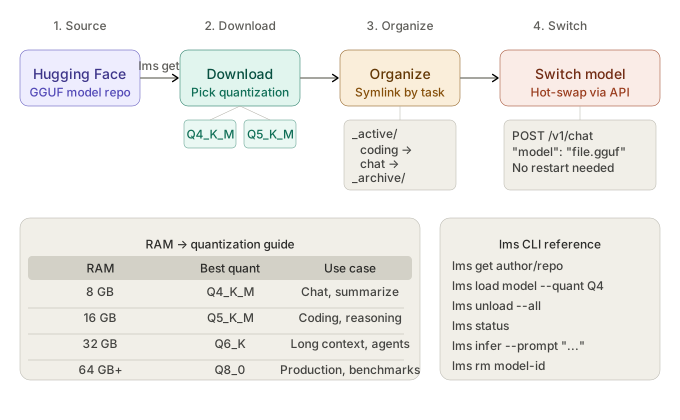 End-to-end flow: pick a model on Hugging Face → download the right quant → organize into task folders → switch via the local server API
Step 1: Download the Right Quantization the First Time
The biggest source of wasted disk space is downloading the wrong quantization and then re-downloading.
Here's the decision matrix:
| RAM Available | Use Case | Recommended Quant |
|---|---|---|
| 8 GB | Chat, summarization | Q4_K_M |
| 16 GB | Coding, reasoning | Q5_K_M |
| 32 GB | Long context, agents | Q6_K or Q8_0 |
| 64 GB+ | Production, benchmarks | Q8_0 or F16 |
Q4_K_M is the safe default for most developers on 16 GB RAM. It drops perplexity by roughly 0.5% versus Q8_0 while using 40% less VRAM. Only go lower (Q3_K_S, IQ3_XXS) if you're RAM-constrained and understand the quality trade-off.
How to download in LM Studio
- Open LM Studio → click Discover (search icon, left sidebar)
- Search for your model — e.g.
mistral-7b-instruct - Click the model card → expand Versions
- Filter by quantization using the dropdown: select
Q4_K_MorQ5_K_M - Click Download
# LM Studio also ships a CLI for scripted downloads (lms v0.3+)
lms get bartowski/Mistral-7B-Instruct-v0.3-GGUF --quant Q4_K_M
Expected output:
Downloading Mistral-7B-Instruct-v0.3-Q4_K_M.gguf (4.37 GB)
████████████████████ 100% | 4.37/4.37 GB | 85 MB/s
Model saved to: ~/.cache/lm-studio/models/bartowski/Mistral-7B-Instruct-v0.3-GGUF/
If it fails:
Error: disk quota exceeded→ Runlms lsto list installed models and delete unused ones withlms rm <model-id>Network timeout→ LM Studio uses Hugging Face CDN; switch to a different Hugging Face mirror in Settings → Downloads → Mirror URL
Step 2: Organize Your Model Library
LM Studio respects symlinks and subdirectories inside its model root. Use this to create a task-based layout without moving any files — just create symlinks.
Recommended folder structure
~/.cache/lm-studio/models/
├── _active/               # symlinks to models currently in use
│   ├── coding -> ../bartowski/DeepSeek-Coder-V2-Lite-Instruct-GGUF/
│   └── chat   -> ../bartowski/Mistral-7B-Instruct-v0.3-GGUF/
├── _archive/              # models kept for reference, not loaded by default
└── bartowski/             # original author directories (untouched)
Create the _active symlinks on macOS/Linux:
# Create a task-based alias for your coding model
ln -s \
  ~/.cache/lm-studio/models/bartowski/DeepSeek-Coder-V2-Lite-Instruct-GGUF \
  ~/.cache/lm-studio/models/_active/coding

# Verify
ls -la ~/.cache/lm-studio/models/_active/
On Windows (PowerShell, run as Administrator):
# mklink /D creates a directory junction — works without admin on Windows 11 Dev Mode
New-Item -ItemType Junction `
  -Path "$env:USERPROFILE\.cache\lm-studio\models\_active\coding" `
  -Target "$env:USERPROFILE\.cache\lm-studio\models\bartowski\DeepSeek-Coder-V2-Lite-Instruct-GGUF"
LM Studio picks up the symlinked directories on next launch. Your _active/coding entry appears in the sidebar alongside the original.
Clean up duplicate quantizations
If you've downloaded multiple quants of the same model:
# List all GGUF files sorted by size
find ~/.cache/lm-studio/models -name "*.gguf" -exec du -sh {} \; | sort -rh

# Delete a specific quantization you no longer need
lms rm bartowski/Mistral-7B-Instruct-v0.3-GGUF/Mistral-7B-Instruct-v0.3-Q3_K_S.gguf
Keep one quant per model per task. Delete the rest.
Step 3: Switch Models Without Restarting the Server
This is where most developers lose time. The default assumption is: switching models = restart LM Studio server = lose active connections.
It doesn't have to be. LM Studio's local server (available from v0.2.19+) supports hot model swapping via its OpenAI-compatible API.
Load a model via API without touching the UI
import openai

client = openai.OpenAI(
    base_url="http://localhost:1234/v1",
    api_key="lm-studio"  # any non-empty string; LM Studio ignores the key value
)

# Specify the model by its exact filename — LM Studio loads it on demand
response = client.chat.completions.create(
    model="bartowski/Mistral-7B-Instruct-v0.3-GGUF/Mistral-7B-Instruct-v0.3-Q4_K_M.gguf",
    messages=[{"role": "user", "content": "Summarize the key risks in this contract."}],
    temperature=0.3,
)

print(response.choices[0].message.content)
LM Studio sees the model field, checks whether that file is already loaded, and swaps it in if not. No server restart. No lost connections on other threads.
Expected output: Model loads in 2–6 seconds on NVMe, then streams the response normally.
Switch models from the CLI
# Load a model directly from the command line (lms v0.3+)
lms load bartowski/Mistral-7B-Instruct-v0.3-GGUF --quant Q4_K_M

# Check what's currently loaded
lms status

# Unload without stopping the server
lms unload --all
lms status output:
LM Studio server: running (port 1234)
Loaded model: Mistral-7B-Instruct-v0.3-Q4_K_M.gguf
Context used: 2048 / 32768 tokens
VRAM: 4.2 GB / 8.0 GB
Use the --model flag for one-shot inference
# Run a single prompt against a specific model without loading the full UI
lms infer --model bartowski/DeepSeek-Coder-V2-Lite-Instruct-GGUF \
          --quant Q5_K_M \
          --prompt "Write a Python function to parse ISO 8601 dates"
The --model flag accepts either the full path or the author/repo format. If the model isn't downloaded yet, lms infer fetches it first.
Verification
Run this after completing the steps above:
# Confirm your organized library
lms ls --format table

# Expected output:
# MODEL                                      QUANT     SIZE    STATUS
# bartowski/Mistral-7B-Instruct-v0.3-GGUF  Q4_K_M   4.4 GB  loaded
# bartowski/DeepSeek-Coder-V2-Lite-GGUF    Q5_K_M   8.9 GB  available
# _active/coding -> DeepSeek-Coder-V2-Lite  (symlink)        available
Then send a test request to confirm hot-swap works:
curl http://localhost:1234/v1/chat/completions \
  -H "Content-Type: application/json" \
  -d '{
    "model": "bartowski/Mistral-7B-Instruct-v0.3-GGUF/Mistral-7B-Instruct-v0.3-Q4_K_M.gguf",
    "messages": [{"role": "user", "content": "ping"}]
  }'
You should see: a JSON response with "content": "pong" or similar, with no server restart in the LM Studio console.
What You Learned
Q4_K_Mhits the best quality-to-size ratio for 8–16 GB RAM machines — don't default to the smallest quant- Symlinks inside
~/.cache/lm-studio/models/let you build a task-based library without moving files or breaking LM Studio's internal index - LM Studio hot-swaps models when you pass a specific filename in the
modelfield of an OpenAI API request — no server restart needed - The
lmsCLI (lms get,lms load,lms unload,lms infer) handles everything the UI does, making model management scriptable in CI or dotfiles
When NOT to use this approach: If you're running LM Studio on a shared machine with multiple users, symlink-based organization can cause permission issues. Use absolute paths in the API model field instead and skip the symlink layer.
Tested on LM Studio v0.3.5, macOS Sequoia 15.3, Windows 11 24H2, Ubuntu 24.04 · RTX 4080 and M2 Max
FAQ
Q: How do I delete a model in LM Studio without using the CLI?
A: In the UI, go to My Models → hover the model card → click the trash icon. This removes the GGUF file from disk. Symlinks pointing to the deleted directory will break, so remove those manually from _active/.
Q: Does LM Studio support multiple models loaded at the same time? A: Yes, from v0.3.0+. Go to Settings → Server → enable Multi-model mode. Each model occupies its own VRAM slice. With 16 GB VRAM you can run two Q4_K_M 7B models simultaneously without swapping.
Q: What's the difference between Q4_K_M and Q4_K_S?
A: Both use 4-bit quantization. _M (medium) applies higher-precision quantization to attention layers, which matters most for reasoning tasks. _S (small) is ~5% smaller on disk but noticeably weaker on multi-step reasoning. Default to _M unless you're under strict disk constraints.
Q: Can I use LM Studio models with external tools like Continue or Cursor?
A: Yes. Point the tool's OpenAI base URL to http://localhost:1234/v1 and set any non-empty string as the API key. Pass the exact GGUF filename as the model ID. Both Continue (VS Code) and Cursor Agent mode work with this setup at no cost beyond the initial download.
Q: How much disk space should I budget for a working local LLM setup? A: A practical three-model setup (7B chat, 7B coder, 13B reasoning) using Q4_K_M quantizations costs roughly 15–22 GB. Budget 50 GB total to leave room for experimentation without constant cleanup. NVMe SSDs load models 3–5× faster than SATA SSDs — worth prioritizing for the model cache directory specifically.