Problem: LM Studio Is Slow or Ignoring Your GPU
LM Studio GPU layers control how much of the model runs on your GPU versus CPU — and the default setting leaves most users with sluggish inference they blame on the model.
You'll learn:
- How to calculate the right GPU layer count for your VRAM
- How to set
n_gpu_layersfor any quantized model - How to verify full GPU offload is actually happening
Time: 15 min | Difficulty: Intermediate
Why GPU Layers Matter
LM Studio loads transformer models as a stack of layers. Each layer you offload to GPU memory runs 10–40× faster than on CPU — but only if your VRAM can hold it without spilling.
The default n_gpu_layers = 0 in LM Studio means CPU-only inference. On a modern GPU with 8GB+ VRAM, you're leaving most of your hardware idle.
Symptoms of misconfigured GPU layers:
- Token generation below 5 tok/s on models under 13B
- GPU utilization shows 0–5% in Task Manager or
nvtop - The "GPU" indicator in LM Studio stays grey
- High CPU usage (90–100%) during generation
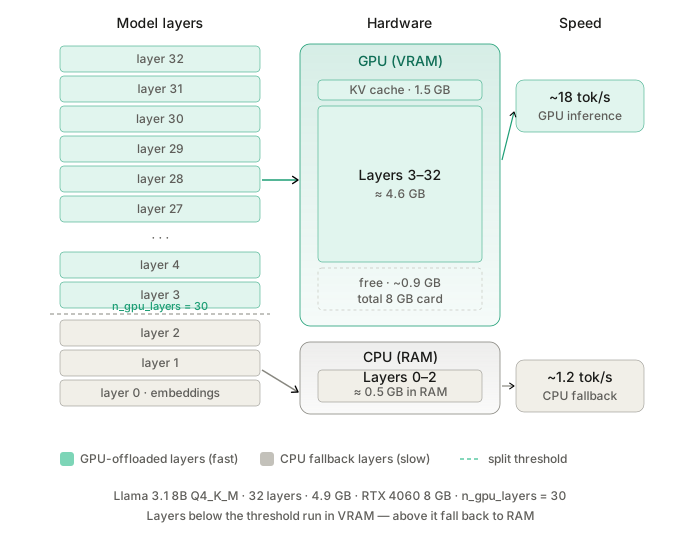 How LM Studio splits a quantized model across GPU and CPU: layers below the threshold run in VRAM, the remainder fall back to RAM.
How to Calculate Your GPU Layer Count
Every transformer model has a fixed number of layers. The formula is straightforward:
layers_to_offload = floor((available_vram_gb - overhead_gb) / vram_per_layer_gb)
Step 1: Find your model's layer count
Open the model card on Hugging Face and look for num_hidden_layers in config.json:
| Model | Layers | Q4_K_M size |
|---|---|---|
| Llama 3.2 3B | 28 | 1.9 GB |
| Llama 3.1 8B | 32 | 4.9 GB |
| Mistral 7B | 32 | 4.4 GB |
| Qwen2.5 14B | 48 | 9.0 GB |
| Llama 3.1 70B | 80 | 43 GB |
Step 2: Calculate VRAM per layer
vram_per_layer = model_size_gb / num_layers
For Llama 3.1 8B Q4_K_M: 4.9 / 32 = ~0.153 GB per layer
Step 3: Subtract overhead
LM Studio reserves roughly 1–1.5 GB for the KV cache and runtime at default context (2048 tokens). Use 1.5 GB as a safe buffer.
Configuring GPU Layers in LM Studio
Step 1: Open the Model Settings Panel
Load your model in LM Studio, then click the gear icon next to the loaded model name in the left sidebar.
Look for the GPU Offload slider or the advanced field labeled GPU Layers (n_gpu_layers).
Step 2: Set the Layer Count
Use these reference values based on tested hardware:
8 GB VRAM (RTX 3070, RTX 4060, RX 7600)
# Llama 3.1 8B Q4_K_M — fits entirely
n_gpu_layers = 32   # all layers offloaded → ~18 tok/s

# Mistral 7B Q4_K_M — fits entirely
n_gpu_layers = 32

# Qwen2.5 14B Q4_K_M — partial offload
n_gpu_layers = 43   # leaves 5 layers on CPU; still ~9 tok/s
16 GB VRAM (RTX 4080, RTX 3090, M2 Pro 16GB)
# Llama 3.1 8B Q4_K_M — full offload
n_gpu_layers = 32

# Qwen2.5 14B Q4_K_M — full offload
n_gpu_layers = 48

# Llama 3.1 70B Q4_K_M — partial offload
n_gpu_layers = 26   # ~6.5 tok/s; rest runs in RAM
24 GB VRAM (RTX 3090, RTX 4090, A5000)
# Llama 3.1 70B Q4_K_M — full offload
n_gpu_layers = 80   # ~22 tok/s

# Qwen2.5 72B Q4_K_M — full offload
n_gpu_layers = 80
Step 3: Set Context Length to Match VRAM
Context length directly inflates KV cache size. Longer context = more VRAM consumed = fewer layers offloaded.
# Safe starting points per VRAM tier
8 GB VRAM  → context_length = 2048–4096
16 GB VRAM → context_length = 4096–8192
24 GB VRAM → context_length = 8192–16384
In LM Studio: Model Settings → Context Length (n_ctx) — lower this before bumping layer count.
Step 4: Save and Reload the Model
Changes don't apply until you eject and reload the model. Click the red eject button, then reload with your updated settings.
Expected output: The GPU indicator turns green. Token generation speed should increase 5–15× versus CPU-only.
If it fails:
CUDA out of memory→ Reducen_gpu_layersby 4 and retryMetal: insufficient memory(Apple Silicon) → Lower context to 2048 first- GPU stays at 0% utilization → Check that CUDA drivers are up to date; LM Studio 0.3.x requires CUDA 12.1+
Verification
Open the model chat and run a quick benchmark using LM Studio's built-in performance overlay:
Enable: Settings → Advanced → Show Performance Stats
Check for:
# Healthy GPU-offloaded output
Eval speed:  18.4 tok/s    ✅
GPU layers:  32 / 32       ✅
GPU memory:  7.1 GB / 8 GB ✅

# CPU fallback (bad)
Eval speed:  1.2 tok/s     ❌
GPU layers:  0 / 32        ❌
You can also verify from the terminal:
# NVIDIA — watch VRAM usage climb during load
watch -n 1 nvidia-smi

# Apple Silicon
sudo powermetrics --samplers gpu_power -i 1000
You should see: VRAM usage jump to 60–95% of your card's capacity during inference.
Advanced: Edit config.json Directly
LM Studio stores per-model settings in JSON. You can set layers without the GUI:
# Location on macOS / Linux
~/.lmstudio/models/<model-name>/config.json

# Windows
%USERPROFILE%\.lmstudio\models\<model-name>\config.json
{
  "n_gpu_layers": 32,
  "n_ctx": 4096,
  "n_batch": 512,
  "use_mmap": true,
  "use_mlock": false
}
Set n_gpu_layers: -1 to offload all layers automatically — LM Studio will fit as many as VRAM allows and fall back to CPU for the rest.
n_batch controls prompt processing speed (not generation). 512 is safe for 8 GB cards; 1024 gives faster prompt eval on 24 GB cards.
What You Learned
n_gpu_layersis the single most impactful setting in LM Studio — defaulting it to 0 wastes your GPU- Layer count × bytes-per-layer gives you a reliable VRAM estimate before loading
- Context length and GPU layers compete for the same VRAM budget — tune both together
-1(auto) works well if you don't want to calculate manually, but explicit values prevent surprise OOM crashes on long contexts
Tested on LM Studio 0.3.6, CUDA 12.3, RTX 4070 (12 GB), RTX 3090 (24 GB), and M2 Max (32 GB unified). Ubuntu 22.04 and Windows 11.
FAQ
Q: What does n_gpu_layers = -1 do in LM Studio?
A: It tells LM Studio to offload as many layers as VRAM allows, with no fixed ceiling. It works well in practice but can cause silent CPU fallback at long context lengths — use an explicit count if you want predictable behavior.
Q: How much VRAM does each context token consume?
A: Roughly 2 × num_layers × head_dim × num_heads × 2 bytes per token for FP16 KV cache. For Llama 3.1 8B at 4096 tokens that's about 0.5 GB — significant if you're already near the VRAM limit.
Q: Can I use GPU layers with AMD cards on Windows?
A: Yes — LM Studio supports Vulkan and ROCm backends. Set n_gpu_layers the same way. Performance is roughly 20–30% below equivalent NVIDIA hardware on the same model.
Q: Does setting more layers than the model has cause an error?
A: No. If n_gpu_layers exceeds the actual layer count, LM Studio clamps it to the model maximum. Setting 999 is equivalent to -1 for any model under 999 layers.
Q: What is the minimum VRAM to get any GPU acceleration in LM Studio? A: 4 GB. On a 4 GB card you can fully offload 3B Q4 models and partially offload 7B models (~16–20 layers), which still yields 4–6× speedup over CPU for generation.