Problem: LM Studio Won't Serve API Requests to Your Code
The LM Studio API server lets you swap any OpenAI API call for a local LLM endpoint — zero cost, no rate limits, no data leaving your machine. But the server tab is easy to misconfigure, and the default OpenAI SDK setup points at api.openai.com, not localhost:1234.
You'll learn:
- How to start the LM Studio local server and load a model correctly
- How to point the OpenAI Python and Node.js SDKs at
localhost:1234 - How to verify requests end-to-end with curl and confirm streaming works
Time: 20 min | Difficulty: Intermediate
Why the LM Studio API Server Exists
LM Studio ships a built-in HTTP server that mimics the OpenAI REST API. Any client that speaks OpenAI — LangChain, LlamaIndex, Continue.dev, your own scripts — can talk to it by changing one URL and removing the API key check.
The server exposes three endpoints:
| Endpoint | OpenAI equivalent | Use |
|---|---|---|
POST /v1/chat/completions | ChatCompletion.create | Chat, agents, tools |
POST /v1/completions | Completion.create | Raw text completion |
GET /v1/models | Model.list | Discover loaded model |
No authentication is required on localhost. For LAN access you'll bind to 0.0.0.0 and optionally add a static API key — covered in Step 4.
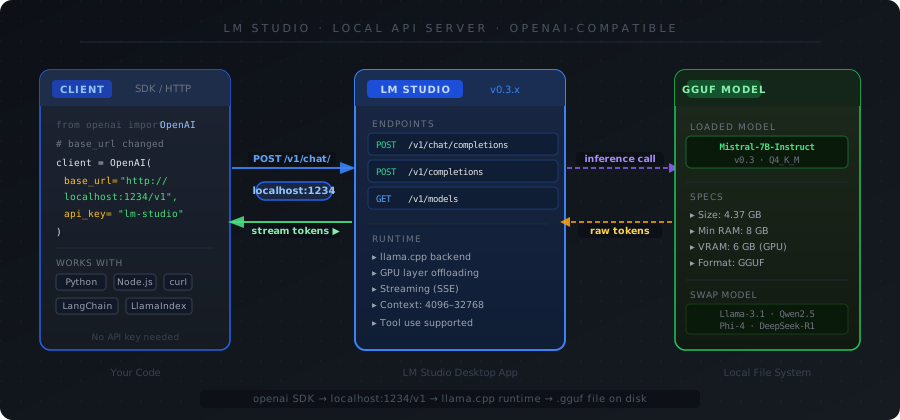 Request flow: your code sends an OpenAI-format payload → LM Studio routes it to the loaded GGUF model → streams tokens back over HTTP
Step 1: Download LM Studio and Load a Model
Download LM Studio 0.3.x from lmstudio.ai — available for macOS (Apple Silicon + Intel), Windows, and Ubuntu 22.04+. The current stable release is 0.3.6.
Open LM Studio, go to the Search tab, and pull a model. For this guide we use Mistral 7B Instruct v0.3 Q4_K_M — it fits in 8 GB RAM and performs well for chat.
Model: mistralai/Mistral-7B-Instruct-v0.3
Quant: Q4_K_M  (4.37 GB)
Min RAM: 8 GB
Wait for the download to finish (the progress bar fills green). You'll see the model in My Models.
Step 2: Start the Local Server
Click the Local Server tab (the <-> icon in the left sidebar).
Configure these fields before clicking Start:
| Setting | Value | Why |
|---|---|---|
| Port | 1234 | Default; change only if 1234 is occupied |
| Bind to | localhost | LAN sharing: use 0.0.0.0 |
| Model | Select your downloaded model | Must be set — server won't load a model automatically |
| Context length | 4096 | Match your use case; higher = more RAM |
| GPU layers | Auto or set manually | More layers offloaded = faster inference |
Click Start Server. You should see:
[LM Studio] Server listening on http://localhost:1234
[LM Studio] Model loaded: mistral-7b-instruct-v0.3.Q4_K_M.gguf
If the server starts but shows "No model loaded": Go back to the model selector dropdown in the Server tab and explicitly choose your model. The chat model loaded in the Chat tab does NOT carry over automatically.
Step 3: Verify with curl
Before touching any SDK, confirm the raw endpoint works. Open a terminal:
# Check that the server lists your model
curl http://localhost:1234/v1/models | python3 -m json.tool
Expected output:
{
  "data": [
    {
      "id": "mistral-7b-instruct-v0.3",
      "object": "model"
    }
  ]
}
Now send a chat completion:
curl http://localhost:1234/v1/chat/completions \
  -H "Content-Type: application/json" \
  -d '{
    "model": "mistral-7b-instruct-v0.3",
    "messages": [{"role": "user", "content": "Reply with: API is working"}],
    "temperature": 0.1,
    "max_tokens": 20
  }'
You should see: A JSON response with "content": "API is working" inside choices[0].message.
If you get Connection refused: The server is not running. Return to Step 2 and confirm the green "Running" indicator is visible in LM Studio.
If you get 500 Internal Server Error: The model ID in "model" doesn't match — copy the exact id string from the /v1/models response.
Step 4: Connect the OpenAI Python SDK
Install the SDK if you haven't already:
pip install openai
Change only base_url and api_key. Everything else — ChatCompletion.create, streaming, system messages — works identically to the real OpenAI API:
from openai import OpenAI

client = OpenAI(
    base_url="http://localhost:1234/v1",  # LM Studio server
    api_key="lm-studio",                  # any non-empty string — LM Studio ignores it
)

response = client.chat.completions.create(
    model="mistral-7b-instruct-v0.3",     # must match /v1/models id exactly
    messages=[
        {"role": "system", "content": "You are a concise assistant."},
        {"role": "user", "content": "What is the OpenAI-compatible endpoint LM Studio exposes?"},
    ],
    temperature=0.3,
    max_tokens=256,
)

print(response.choices[0].message.content)
Streaming version — same change, just add stream=True:
stream = client.chat.completions.create(
    model="mistral-7b-instruct-v0.3",
    messages=[{"role": "user", "content": "Count to 5 slowly."}],
    stream=True,  # tokens arrive as they're generated
)

for chunk in stream:
    delta = chunk.choices[0].delta.content
    if delta:
        print(delta, end="", flush=True)
Expected output: Tokens print one by one instead of waiting for the full response.
Step 5: Connect with Node.js / TypeScript
npm install openai
import OpenAI from "openai";

const client = new OpenAI({
  baseURL: "http://localhost:1234/v1",
  apiKey: "lm-studio", // required by SDK constructor — value is ignored by LM Studio
});

async function main() {
  const response = await client.chat.completions.create({
    model: "mistral-7b-instruct-v0.3",
    messages: [{ role: "user", content: "Explain GGUF in one sentence." }],
    temperature: 0.2,
    max_tokens: 80,
  });

  console.log(response.choices[0].message.content);
}

main();
Run with:
npx tsx index.ts
# or: node --experimental-strip-types index.ts  (Node 22+)
Step 6: LAN Access (Optional)
To reach the server from other machines on your network — useful for shared dev environments:
- In LM Studio Server tab, set Bind to →
0.0.0.0 - Restart the server
- Find your local IP:
ipconfig(Windows) orifconfig | grep inet(macOS/Linux) - Update
base_urlin your client:http://192.168.x.x:1234/v1
For basic auth, LM Studio 0.3.x lets you set a static API Key in the server settings. Set it, then pass it as api_key in the SDK — LM Studio will reject requests without it.
Windows firewall note: You'll need to allow inbound TCP on port 1234. Run in an elevated PowerShell:
New-NetFirewallRule -DisplayName "LM Studio API" -Direction Inbound -Protocol TCP -LocalPort 1234 -Action Allow
LM Studio vs Ollama: API Server Comparison
| LM Studio | Ollama | |
|---|---|---|
| API compatibility | OpenAI /v1/ | OpenAI /v1/ + native |
| GUI | ✅ Full desktop app | ❌ CLI only |
| Model management | GUI download + search | ollama pull |
| Custom system prompts | Per-session in GUI | Modelfile |
| Windows support | ✅ Native | ✅ Native |
| Docker | ❌ | ✅ Official image |
| Concurrent models | ❌ One at a time | ✅ Multiple |
| Price | Free (desktop) | Free |
Choose LM Studio if: you want a GUI to browse, download, and test models before wiring them to code.
Choose Ollama if: you need Docker, multiple concurrent models, or a headless server on a remote machine.
Verification
Run the full stack check:
# 1. Server status
curl -s http://localhost:1234/v1/models | python3 -c "import sys,json; d=json.load(sys.stdin); print('Model ID:', d['data'][0]['id'])"

# 2. Round-trip latency
time curl -s http://localhost:1234/v1/chat/completions \
  -H "Content-Type: application/json" \
  -d '{"model":"mistral-7b-instruct-v0.3","messages":[{"role":"user","content":"hi"}],"max_tokens":5}' \
  > /dev/null
You should see:
Model ID: mistral-7b-instruct-v0.3- A
realtime under 5 seconds for first-token latency on CPU, under 1s with GPU offloading
What You Learned
- LM Studio's local server is a drop-in OpenAI API replacement — change
base_urland a dummyapi_key, nothing else - The model in the Server tab must be set explicitly; the Chat tab model does not carry over
- Streaming, system messages, and temperature work identically to the OpenAI API
- For multi-model or Docker deployments, Ollama is the better fit
Tested on LM Studio 0.3.6, Mistral 7B Instruct v0.3 Q4_K_M, Python 3.12, openai SDK 1.30, Node.js 22, macOS 15 (M2) & Windows 11
FAQ
Q: Do I need an OpenAI API key to use LM Studio's server?
A: No. LM Studio ignores the api_key field on localhost. Pass any non-empty string like "lm-studio" to satisfy the SDK constructor.
Q: Why does /v1/chat/completions return a 500 error?
A: The model field in your request doesn't match the ID returned by /v1/models. Copy the exact string from GET /v1/models — it usually includes the quantization suffix.
Q: What is the minimum RAM to run a model with the LM Studio API server? A: 8 GB RAM for a Q4_K_M 7B model with CPU inference. For GPU offloading you need at least 6 GB VRAM to fit most layers of a 7B model. Add 2–3 GB headroom for the OS.
Q: Can LM Studio serve multiple models at the same time? A: No — LM Studio 0.3.x loads one model per server instance. For concurrent models use Ollama or run two separate LM Studio instances on different ports.
Q: Does LM Studio's API support function calling / tool use?
A: Yes, for models that have been fine-tuned for tool use (e.g., Mistral 7B Instruct v0.3, Llama 3.1 Instruct). Pass a tools array the same way you would with the OpenAI SDK — LM Studio forwards the schema to the model.