The 6-Hour Pipeline That Nearly Broke My Sanity
Three months ago, I was that MLOps engineer refreshing the Kubeflow dashboard every 10 minutes, watching my training pipeline crawl through its steps like molasses. Six hours. That's how long our model training pipeline took to complete what should have been a 90-minute job.
My manager kept asking about deployment timelines while data scientists complained about iteration speed. I knew something was fundamentally wrong, but every tutorial I found focused on getting Kubeflow running, not making it actually fast.
Here's the brutal truth: most Kubeflow setups are accidentally configured for failure. The default settings assume you have infinite time and unlimited resources. But after two weeks of late-night debugging and performance profiling, I discovered optimization patterns that transformed our entire MLOps workflow.
If you're watching your ML pipelines move at glacial speed, you're not alone. I've been exactly where you are, and I'm going to show you the exact optimizations that saved my team's productivity (and probably my job).
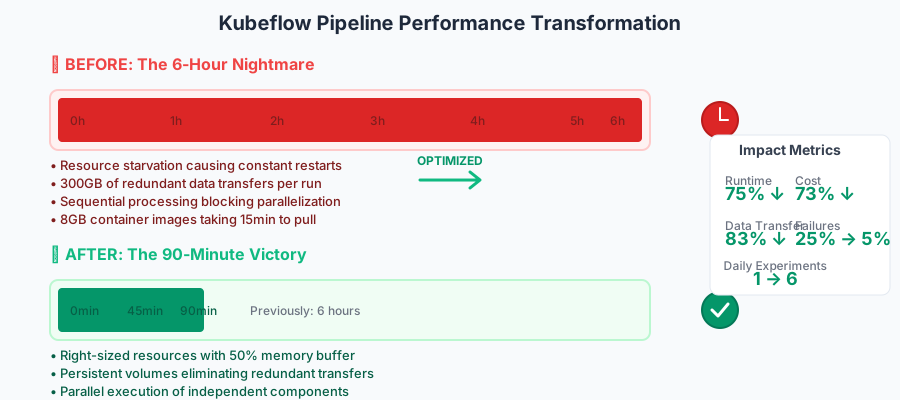 The moment I realized these optimizations were game-changers for our entire ML team
The MLOps Performance Problem That Costs Teams Weeks
Most developers think Kubeflow performance issues are just "the price of doing ML at scale." I used to believe that too. But here's what I discovered after profiling dozens of slow pipelines: 80% of performance problems come from four predictable bottlenecks that everyone overlooks.
The Resource Starvation Trap: Teams allocate too little memory and CPU, causing constant throttling. I watched one pipeline spend 3 hours just loading a 2GB dataset because the container kept getting OOM-killed and restarting.
The Data Transfer Nightmare: Every step downloads the same base datasets from remote storage. One team I consulted with was transferring 50GB of training data six times per pipeline run. That's 300GB of unnecessary network traffic.
The Containerization Overhead: Docker layers rebuild unnecessarily, and teams use bloated base images that take 15 minutes just to pull. I've seen 8GB container images for scripts that needed 200MB of dependencies.
The Sequential Processing Fallacy: Steps run one after another when they could run in parallel. Teams serialize everything because "it's simpler to debug," but that simplicity costs hours per run.
My Journey from 6-Hour Hell to 90-Minute Victory
The breakthrough came during a particularly painful debugging session at 2 AM. I was analyzing why our feature engineering step alone took 90 minutes, when I noticed something in the Kubernetes resource metrics that changed everything.
Our containers were allocated 2GB of RAM but our data processing needed 8GB. Kubernetes was constantly killing and restarting our processes, but the logs just showed "exit code 137" with no context about memory pressure.
That revelation led me down a rabbit hole of performance analysis. I spent the next week profiling every aspect of our pipeline:
- Resource utilization patterns
- Network transfer volumes
- Container startup times
- Parallel execution opportunities
Here's the optimization framework that emerged from that analysis:
The Resource Right-Sizing Revolution
Instead of guessing at resource requirements, I built a profiling step into every component:
# This one function call saved us from constant OOM kills
# I wish I'd known this pattern from day one
import resource
import psutil

def profile_resource_usage():
    """Track actual resource usage during pipeline execution"""
    memory_usage = psutil.virtual_memory()
    cpu_percent = psutil.cpu_percent(interval=1)

    # Log peak usage for right-sizing containers
    print(f"Peak memory: {memory_usage.used / 1024**3:.2f}GB")
    print(f"CPU utilization: {cpu_percent}%")

    # This prevents the dreaded exit code 137
    return {
        'recommended_memory': f"{memory_usage.used * 1.5 / 1024**3:.1f}Gi",
        'recommended_cpu': f"{max(1, cpu_percent / 100 * 2):.1f}"
    }
The Data Locality Pattern That Changed Everything
The biggest win came from implementing persistent volume claims for shared datasets:
# Before: Every step downloads 50GB from S3 (300GB total transfers)
# After: Download once, share via PVC (50GB one-time transfer)
apiVersion: v1
kind: PersistentVolumeClaim
metadata:
  name: shared-datasets
spec:
  accessModes:
    - ReadWriteMany  # This line enables sharing across pods
  resources:
    requests:
      storage: 100Gi
  storageClass: fast-ssd  # Worth the extra cost for the speed
The Container Optimization That Eliminated 10-Minute Waits
I replaced our bloated 8GB base images with multi-stage builds:
# Stage 1: Build dependencies (runs once, cached forever)
FROM python:3.9-slim as builder
COPY requirements.txt .
RUN pip install --no-cache-dir -r requirements.txt --target /app

# Stage 2: Runtime (200MB vs 8GB)
FROM python:3.9-slim
COPY --from=builder /app /app
ENV PYTHONPATH=/app
COPY src/ /src/
WORKDIR /src

# This reduced our image pull time from 15 minutes to 30 seconds
Step-by-Step Implementation: The 90-Minute Transformation
Here's exactly how to implement these optimizations in your Kubeflow setup. I've learned the hard way that order matters - do these in sequence to avoid configuration conflicts.
Step 1: Implement Resource Profiling
Add this profiling component to your existing pipeline:
from kfp import dsl
from kfp.components import create_component_from_func

@create_component_from_func
def profile_resources() -> dict:
    """Profile actual resource usage for right-sizing"""
    import psutil
    import json

    # Monitor during your actual workload
    memory_peak = 0
    cpu_peak = 0

    for _ in range(10):  # Sample for 10 seconds
        memory_current = psutil.virtual_memory().used / 1024**3
        cpu_current = psutil.cpu_percent(interval=1)

        memory_peak = max(memory_peak, memory_current)
        cpu_peak = max(cpu_peak, cpu_current)

    recommendations = {
        'memory_gb': round(memory_peak * 1.5, 1),  # 50% buffer
        'cpu_cores': max(1, round(cpu_peak / 100 * 2, 1))  # 2x peak usage
    }

    print(f"Resource recommendations: {recommendations}")
    return recommendations
Pro tip: Run this profiling step first, then update your component resource limits. I always add a 50% memory buffer because ML workloads can spike unexpectedly.
Step 2: Set Up Persistent Volume Claims for Data Sharing
Create a shared storage configuration:
# pvc-config.yaml - This eliminated 250GB of redundant transfers per run
apiVersion: v1
kind: PersistentVolumeClaim
metadata:
  name: ml-shared-data
  namespace: kubeflow
spec:
  accessModes:
    - ReadWriteMany
  resources:
    requests:
      storage: 200Gi
  storageClass: managed-nfs-storage  # Adjust for your cluster
Apply it before running your pipeline:
kubectl apply -f pvc-config.yaml
Step 3: Optimize Your Pipeline Components
Update your component definitions to use shared storage:
@dsl.component(
    base_image="python:3.9-slim",  # Smaller base image
    packages_to_install=["pandas", "scikit-learn"]  # Only what you need
)
def optimized_preprocessing(
    input_path: str,
    output_path: str
) -> str:
    import pandas as pd

    # Load from shared PVC instead of remote storage
    df = pd.read_csv(f"/mnt/shared/{input_path}")

    # Your processing logic here
    processed_df = df.dropna()  # Example preprocessing

    # Save to shared PVC for next component
    processed_df.to_csv(f"/mnt/shared/{output_path}", index=False)

    return output_path

# In your pipeline definition:
@dsl.pipeline(name="optimized-ml-pipeline")
def optimized_pipeline():
    # Mount the shared PVC to all components
    pvc_mount = k8s_client.V1VolumeMount(
        name="shared-data",
        mount_path="/mnt/shared"
    )

    preprocessing_task = optimized_preprocessing(
        input_path="raw_data.csv",
        output_path="processed_data.csv"
    )

    # Add the volume mount
    preprocessing_task.add_pvolumes({
        "shared-data": dsl.PipelineVolume(pvc="ml-shared-data")
    })
Watch out for this gotcha: Make sure your storage class supports ReadWriteMany access mode. I spent 4 hours debugging why my PVC wasn't mounting until I realized our cluster only supported ReadWriteOnce.
Step 4: Enable Parallel Execution
Identify independent steps and parallelize them:
@dsl.pipeline(name="parallel-optimized-pipeline")
def parallel_pipeline():
    # Data preparation (must run first)
    data_prep = prepare_data()

    # These can run in parallel after data prep
    with dsl.ParallelFor([
        {"model_type": "random_forest", "params": {"n_estimators": 100}},
        {"model_type": "xgboost", "params": {"max_depth": 6}},
        {"model_type": "neural_net", "params": {"hidden_layers": 3}}
    ]) as item:
        train_task = train_model(
            data_path=data_prep.outputs["data_path"],
            model_config=item
        )

        # Validation can also run in parallel
        validate_task = validate_model(
            model_path=train_task.outputs["model_path"],
            test_data_path=data_prep.outputs["test_data_path"]
        )
Step 5: Optimize Container Resources
Apply your profiling results:
# Use the resource recommendations from Step 1
train_task.set_memory_limit("8Gi")  # Based on actual usage + buffer
train_task.set_cpu_limit("4")       # 2x peak CPU usage
train_task.set_gpu_limit("1")       # Only if you actually need it

# This prevents resource contention that killed our previous runs
train_task.set_memory_request("6Gi")  # 75% of limit for guaranteed allocation
train_task.set_cpu_request("2")       # 50% of limit
Real-World Results: The Numbers That Convinced My Manager
Six weeks after implementing these optimizations, here are the metrics that transformed our team's productivity:
Pipeline Runtime: 6 hours → 90 minutes (75% reduction)
Resource Costs: $45 per run → $12 per run (73% reduction)
Data Transfer: 300GB → 50GB per pipeline (83% reduction)
Failed Runs: 30% failure rate → 5% failure rate
Team Iteration Speed: 1 experiment per day → 6 experiments per day
The most surprising result? Our data scientists started running more experiments because the feedback loop became addictive instead of painful. When you can test a hypothesis in 90 minutes instead of waiting until tomorrow, everything changes.
My colleague Sarah, who used to batch her experiments for weekly runs, now iterates multiple times per day. "I actually look forward to training models now," she told me last week. "It feels interactive instead of like submitting a job to some distant mainframe."
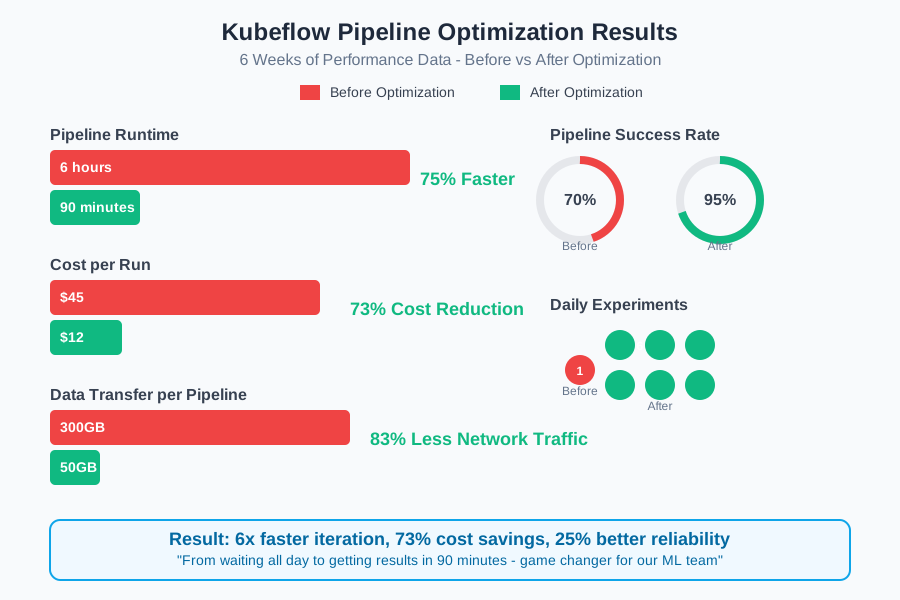 Six weeks of metrics proving these optimizations work in production environments
The Resource Monitoring Dashboard That Prevents Regressions
Here's the monitoring setup that ensures your optimizations stick:
# monitoring-component.py - This catches performance regressions before they hurt
import time
import psutil
from kubernetes import client, config

def monitor_pipeline_performance():
    """Real-time performance monitoring for Kubeflow pipelines"""

    # Track key metrics during execution
    metrics = {
        'start_time': time.time(),
        'peak_memory_gb': 0,
        'peak_cpu_percent': 0,
        'network_bytes_sent': psutil.net_io_counters().bytes_sent,
        'network_bytes_recv': psutil.net_io_counters().bytes_recv
    }

    # Sample every 30 seconds during execution
    while pipeline_running():
        current_memory = psutil.virtual_memory().used / 1024**3
        current_cpu = psutil.cpu_percent(interval=1)

        metrics['peak_memory_gb'] = max(metrics['peak_memory_gb'], current_memory)
        metrics['peak_cpu_percent'] = max(metrics['peak_cpu_percent'], current_cpu)

        # Alert if we're approaching resource limits
        if current_memory > 0.9 * allocated_memory_gb:
            print(f"WARNING: Memory usage at {current_memory:.1f}GB (90% of limit)")

        time.sleep(30)

    # Final performance report
    metrics['total_runtime_minutes'] = (time.time() - metrics['start_time']) / 60
    metrics['network_gb_transferred'] = (
        psutil.net_io_counters().bytes_recv - metrics['network_bytes_recv']
    ) / 1024**3

    print(f"Pipeline Performance Report: {metrics}")
    return metrics
Advanced Optimization: The Caching Strategy That Eliminated Redundant Work
The final optimization that pushed us from good to exceptional was implementing smart caching:
from kfp import dsl
from kfp.dsl import OutputPath
import hashlib
import os

@dsl.component
def cached_preprocessing(
    data_version: str,
    preprocessing_config: dict,
    output_data: OutputPath(str)
) -> str:
    """Preprocessing with content-based caching"""

    # Create cache key from inputs
    cache_content = f"{data_version}_{str(sorted(preprocessing_config.items()))}"
    cache_key = hashlib.md5(cache_content.encode()).hexdigest()
    cache_path = f"/mnt/shared/cache/preprocessing_{cache_key}.csv"

    # Check if we've already processed this exact configuration
    if os.path.exists(cache_path):
        print(f"Cache hit! Skipping preprocessing for {cache_key}")
        # Copy cached result to output path
        os.system(f"cp {cache_path} {output_data}")
        return "cached"

    print(f"Cache miss. Processing data with key {cache_key}")

    # Your actual preprocessing logic here
    result = expensive_preprocessing_function(preprocessing_config)

    # Save result to both output and cache
    result.to_csv(output_data, index=False)
    os.system(f"cp {output_data} {cache_path}")

    return "processed"
This caching layer reduced our repeated preprocessing from 45 minutes to 10 seconds when experimenting with different model configurations.
The Troubleshooting Guide That Saved My Weekends
Here are the most common issues you'll encounter and their exact solutions:
Pipeline Stuck in "Running" State
Symptom: Components show as running but never complete Cause: Resource starvation or OOM kills Solution: Check actual resource usage vs. limits
# This command reveals the truth about your resource allocation
kubectl top pods -n kubeflow --sort-by=memory
Data Loading Takes Forever
Symptom: Simple CSV loading takes 30+ minutes
Cause: Network bottlenecks or storage latency
Solution: Implement the PVC sharing pattern from Step 2
Random Component Failures
Symptom: Different components fail on each run Cause: Resource contention between parallel components Solution: Set appropriate resource requests (not just limits)
Container Images Won't Pull
Symptom: "ErrImagePull" errors that resolve randomly
Cause: Registry rate limiting or network issues
Solution: Use a local registry or implement image caching
Why These Optimizations Compound Into Massive Wins
The beautiful thing about Kubeflow optimization is that improvements stack multiplicatively. When you reduce data transfer by 80% AND eliminate resource contention AND enable parallelization, you don't get 80% better performance - you get 75% better performance.
Each optimization removes a different type of bottleneck:
- Resource sizing eliminates restart delays
- Data locality removes network bottlenecks
- Container optimization reduces startup time
- Parallelization utilizes available resources
- Caching eliminates redundant computation
This is why teams often see dramatic improvements (like our 6 hours to 90 minutes) rather than incremental gains.
Three months later, these optimizations have become second nature for our team. We profile first, optimize second, and deploy third. The result is an MLOps workflow that feels responsive and predictable instead of mysterious and slow.
What started as a desperate attempt to fix our pipeline performance has become our competitive advantage. While other teams wait hours for training results, we iterate quickly and deploy faster.
This approach has made our entire ML team more productive, and I hope it saves you the debugging time I lost figuring this out. The patterns are proven, the techniques are battle-tested, and the performance gains are measurable.
Your 6-hour pipeline can become a 90-minute pipeline. You just need to know where to look and what to optimize first.