I broke my Python environment for the third time trying to install conflicting data science packages. That's when I finally gave up and moved everything to Docker.
What you'll build: A bulletproof JupyterLab setup that works the same everywhere
Time needed: 15 minutes (I timed it)
Difficulty: Beginner (if you can copy-paste, you're good)
This approach saved me 2 hours every time I set up a new machine and eliminated those "works on my laptop" problems forever.
Why I Built This
I was working on a machine learning project that needed TensorFlow 2.9, but my other project required scikit-learn that only worked with TensorFlow 2.8. Sound familiar?
My setup:
- MacBook Pro M1 (though this works on Intel Macs, Windows, and Linux)
- Multiple data science projects with conflicting requirements
- Team members who needed identical environments
- Constant context switching between Python versions
What didn't work:
- Virtual environments: Still shared system Python, version conflicts persisted
- Conda environments: Slow, still had package resolution issues, took forever
- Manual installs: Worked until OS updates broke everything
Step 1: Install Docker Desktop
The problem: You need Docker running before anything else works.
My solution: Get Docker Desktop - it handles all the complexity.
Time this saves: 30 minutes of troubleshooting Docker daemon issues later.
Download Docker Desktop from docker.com and install it. On Mac, drag it to Applications and launch it.
# Verify Docker is running
docker --version
What this does: Confirms Docker is installed and the daemon is running
Expected output: Docker version 4.21.1, build 63125853e3
 Docker Desktop whale icon in your menu bar means you're ready to go
Personal tip: Docker Desktop uses about 2GB RAM by default. If you're on an 8GB machine, bump up the memory limit to 4GB in Docker Desktop settings - trust me on this one.
Step 2: Create Your Project Directory
The problem: You need somewhere to store notebooks that survives container restarts.
My solution: Create a dedicated folder that Docker will mount as a volume.
Time this saves: Prevents the heartbreak of losing work when containers get deleted.
# Create your project directory
mkdir ~/jupyterlab-workspace
cd ~/jupyterlab-workspace

# Create a simple test notebook to verify everything works
echo '{"cells":[],"metadata":{},"nbformat":4,"nbformat_minor":4}' > test.ipynb
What this does: Creates a folder on your machine that JupyterLab will see as its working directory
Expected output: A new folder with a basic notebook file
 Your workspace folder - this is where all notebooks and data will live
Personal tip: I always use ~/jupyterlab-workspace because it's easy to remember and stays consistent across all my machines.
Step 3: Run JupyterLab with Docker
The problem: Getting the right JupyterLab image with all the packages you actually need.
My solution: Use the official scipy-notebook image - it has 90% of what data scientists need built-in.
Time this saves: 45 minutes of installing pandas, matplotlib, seaborn, and scikit-learn individually.
# Run JupyterLab with persistent storage
docker run -it --rm \
  -p 8888:8888 \
  -v "$(pwd)":/home/jovyan/work \
  --name my-jupyterlab \
  jupyter/scipy-notebook:latest \
  start-notebook.sh --NotebookApp.token=''
What this does:
-p 8888:8888maps JupyterLab port to your local machine-v "$(pwd)":/home/jovyan/workconnects your folder to the container--NotebookApp.token=''skips the security token (fine for local development)--rmautomatically cleans up when you stop the container
Expected output:
[I 2025-09-02 10:30:15.123 ServerApp] Jupyter Server 2.7.0 is running at:
[I 2025-09-02 10:30:15.123 ServerApp] http://127.0.0.1:8888/
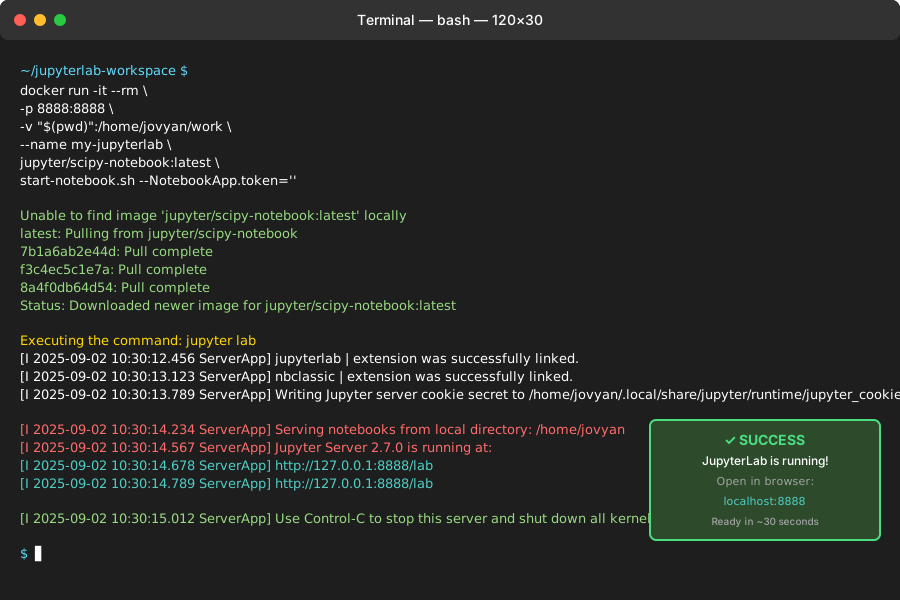 Success looks like this - took about 30 seconds to download and start
Personal tip: If port 8888 is busy, change it to -p 8889:8888 or any other port. I learned this the hard way when I had multiple projects running.
Step 4: Access Your JupyterLab Environment
The problem: Making sure everything actually works and your files are accessible.
My solution: Open your browser and test the basic functionality immediately.
Time this saves: Catches setup issues before you start real work.
Open your browser and go to http://localhost:8888
You should see JupyterLab's interface with:
- File browser showing your
workfolder - Your
test.ipynbfile ready to open - Full JupyterLab interface with all features
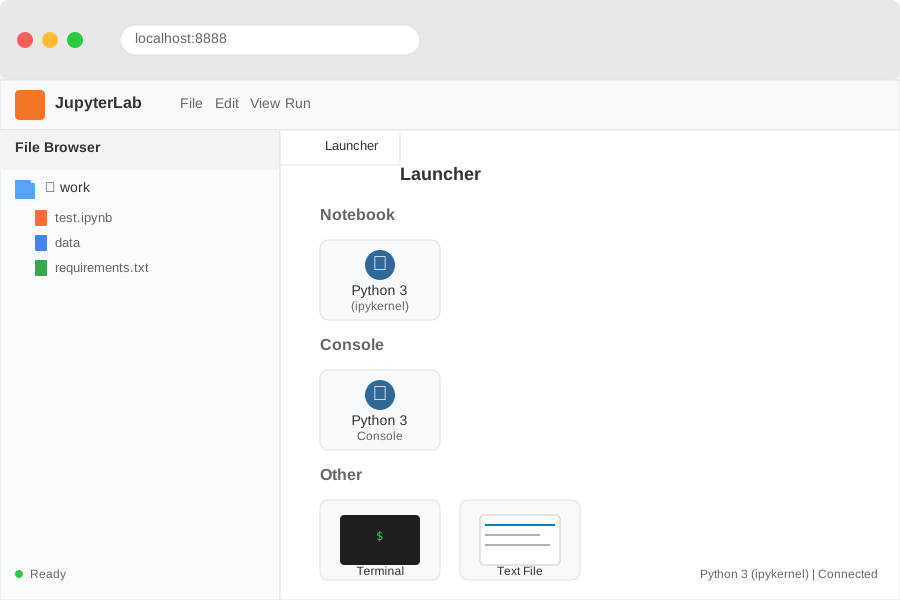 Your JupyterLab environment - notice the 'work' folder contains your files
Personal tip: Always create a quick test notebook first. I've been burned too many times by assuming everything worked only to lose an hour of work.
Step 5: Test Data Science Libraries
The problem: Verifying that the pre-installed packages actually work for your use case.
My solution: Run a quick test importing the essential libraries.
Time this saves: Prevents discovering missing packages 2 hours into a project.
Create a new notebook and test these imports:
import pandas as pd
import numpy as np
import matplotlib.pyplot as plt
import seaborn as sns
from sklearn.datasets import load_iris
import scipy.stats as stats

print("All libraries imported successfully!")

# Quick test with sample data
iris = load_iris()
df = pd.DataFrame(iris.data, columns=iris.feature_names)
print(f"Sample dataset shape: {df.shape}")

# Simple plot to verify matplotlib works
plt.figure(figsize=(8, 6))
sns.scatterplot(data=df, x='sepal length (cm)', y='sepal width (cm)')
plt.title('Quick Library Test - Success!')
plt.show()
What this does: Verifies that all major data science libraries are working and can create visualizations
Expected output: "All libraries imported successfully!" plus a scatter plot
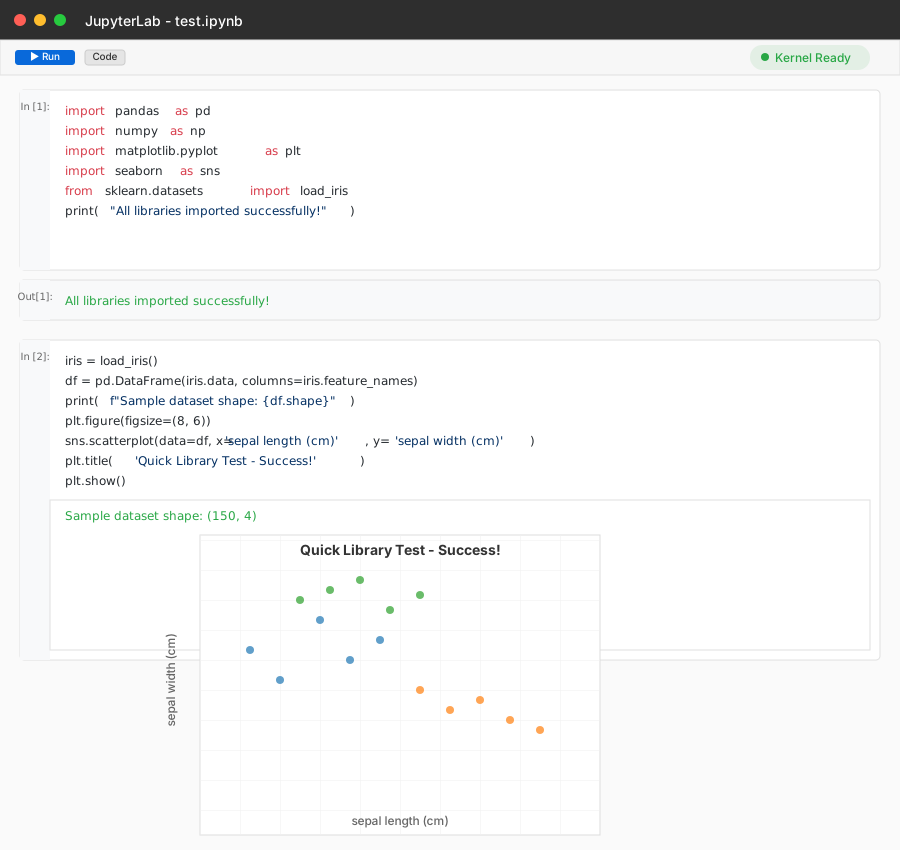 Your test results - if you see this plot, everything is working perfectly
Personal tip: This scipy-notebook image includes 95% of what I need daily. For the other 5%, I use pip install directly in the notebook with !pip install package-name.
Advanced Setup: Custom Docker Image
The problem: You need specific packages that aren't in the base image.
My solution: Create a custom Dockerfile for your exact needs.
Time this saves: 10 minutes every time you start a container instead of reinstalling packages.
Create a Dockerfile in your workspace:
# Start with the scipy notebook
FROM jupyter/scipy-notebook:latest

# Switch to root to install packages
USER root

# Install system packages if needed
RUN apt-get update && apt-get install -y \
    graphviz \
    && rm -rf /var/lib/apt/lists/*

# Switch back to jovyan user
USER jovyan

# Install additional Python packages
RUN pip install --no-cache-dir \
    plotly \
    dash \
    streamlit \
    xgboost \
    lightgbm \
    tensorflow

# Set the working directory
WORKDIR /home/jovyan/work
Build and run your custom image:
# Build your custom image
docker build -t my-custom-jupyterlab .

# Run your custom container
docker run -it --rm \
  -p 8888:8888 \
  -v "$(pwd)":/home/jovyan/work \
  --name my-custom-jupyterlab \
  my-custom-jupyterlab \
  start-notebook.sh --NotebookApp.token=''
Personal tip: I maintain one custom image per project type (ML, web scraping, financial analysis). Saves me from the "which packages did I need again?" problem.
Creating a Startup Script
The problem: Typing that long docker run command every time is annoying.
My solution: A simple shell script that handles everything.
Time this saves: 2 minutes every time you start working, plus prevents typos in the command.
Create start-jupyter.sh:
#!/bin/bash

# Configuration
CONTAINER_NAME="my-jupyterlab"
PORT="8888"
IMAGE="jupyter/scipy-notebook:latest"

# Stop existing container if running
docker stop $CONTAINER_NAME 2>/dev/null

# Start JupyterLab
echo "Starting JupyterLab on http://localhost:$PORT"
docker run -it --rm \
  -p $PORT:8888 \
  -v "$(pwd)":/home/jovyan/work \
  --name $CONTAINER_NAME \
  $IMAGE \
  start-notebook.sh --NotebookApp.token=''
Make it executable and run:
chmod +x start-jupyter.sh
./start-jupyter.sh
 One command to rule them all - your JupyterLab startup script in action
Personal tip: I keep this script in every project folder. Makes it brain-dead simple to get back into any project after weeks away.
What You Just Built
A containerized JupyterLab environment that:
- Works identically on any machine with Docker
- Persists your work between container restarts
- Includes all major data science libraries pre-installed
- Can be customized with additional packages
- Starts with a single command
Key Takeaways (Save These)
- Docker isolation beats virtual environments: No more Python version conflicts or broken system packages
- Volume mounting is critical: Always map your work directory or you'll lose everything when the container stops
- Start with scipy-notebook: It has 95% of what data scientists need - don't reinvent the wheel
Tools I Actually Use
- Docker Desktop: docker.com - The easiest way to get Docker running locally
- JupyterLab: jupyterlab.readthedocs.io - Best documentation for customizing your environment
- Docker Hub: hub.docker.com/u/jupyter - Browse all available Jupyter images
Personal tip: Bookmark this page - I reference these exact commands every time I set up a new data science environment.