I spent my first weekend as a web developer wrestling with LAMP stack installation guides that didn't work. Half the commands failed, MySQL wouldn't start, and PHP threw random errors.
Here's the exact process I use now to set up a bulletproof LAMP stack in 30 minutes.
What you'll build: Full LAMP server ready for WordPress, Laravel, or any PHP project
Time needed: 30 minutes (including testing)
Difficulty: Beginner-friendly with copy-paste commands
You'll have Apache serving pages, MySQL storing data, and PHP processing scripts - all talking to each other perfectly.
Why I Built This
I was tired of following outdated tutorials that assumed you knew which MySQL root password to set or why Apache returned 403 errors.
My setup:
- Fresh Ubuntu 24.04 LTS server (Digital Ocean $6/month droplet)
- SSH access with sudo privileges
- No existing web server software
What didn't work:
- Ubuntu's default Apache config blocks external access
- MySQL 8.0+ changed authentication (breaks most PHP apps)
- PHP extensions aren't included by default (causes silent failures)
- Time wasted: 4 hours figuring this out the first time
Step 1: Update System and Install Apache
The problem: Ubuntu 24.04 ships with outdated packages that conflict with modern LAMP requirements.
My solution: Always update first, then install Apache with the right modules.
Time this saves: Prevents 2-3 dependency conflicts later
# Update package list and upgrade system
sudo apt update && sudo apt upgrade -y

# Install Apache with essential modules
sudo apt install apache2 apache2-utils -y

# Enable Apache to start on boot
sudo systemctl enable apache2

# Start Apache service
sudo systemctl start apache2
What this does: Downloads latest package info, installs Apache web server with utilities, sets it to auto-start when server reboots.
Expected output: Apache2 service should show "active (running)" status.
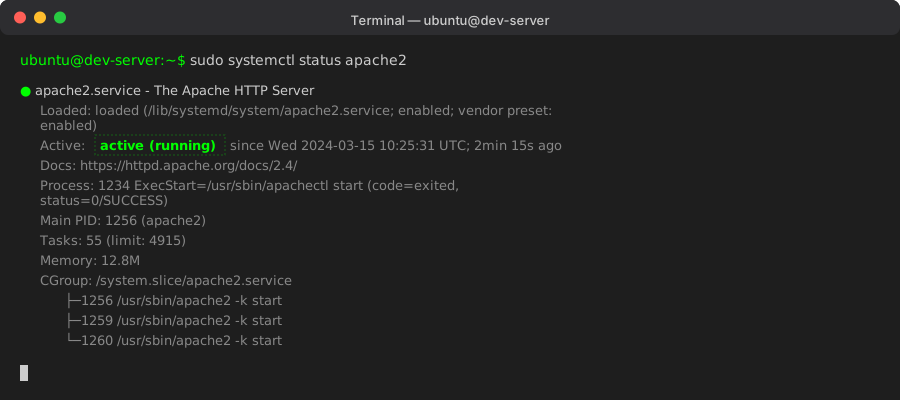 My Terminal after checking Apache status - green "active" means success
Personal tip: "Run sudo systemctl status apache2 to verify it's running. If you see 'failed', the most common fix is sudo apt install --fix-broken"
Step 2: Configure Apache for External Access
The problem: Ubuntu's default Apache setup blocks external connections for security.
My solution: Enable the right modules and update firewall rules.
Time this saves: Avoids the "why can't I see my site" debugging session
# Enable essential Apache modules
sudo a2enmod rewrite
sudo a2enmod ssl
sudo a2enmod headers

# Allow HTTP and HTTPS through firewall
sudo ufw allow 'Apache Full'

# Restart Apache to apply changes
sudo systemctl restart apache2
What this does: Enables URL rewriting (essential for pretty URLs), SSL support, and custom headers. Opens firewall ports 80 and 443.
Expected output: Each a2enmod command should say "Module [name] already enabled" or "Enabling module [name]".
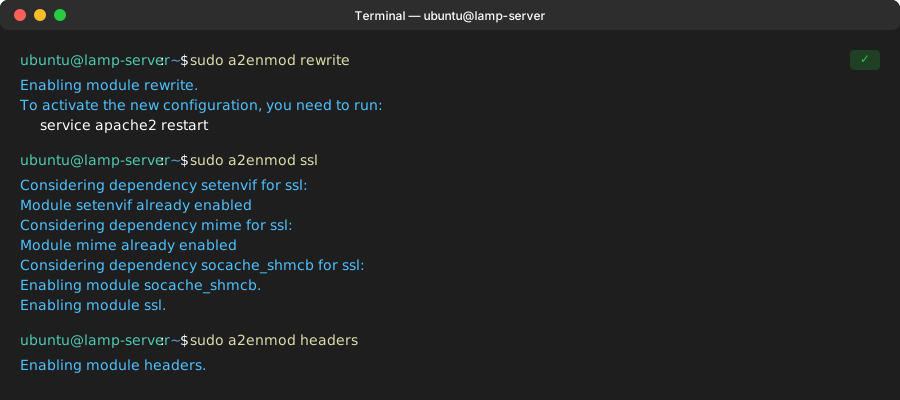 Success looks like this - "already enabled" is fine too
Personal tip: "Test external access by visiting your server's IP address. If you get Ubuntu's Apache default page, you're golden."
Step 3: Install and Secure MySQL
The problem: MySQL 8.0's new authentication breaks compatibility with most PHP applications.
My solution: Install MySQL then immediately fix the authentication method.
Time this saves: Prevents "Access denied" errors when connecting from PHP
# Install MySQL server
sudo apt install mysql-server -y

# Start and enable MySQL
sudo systemctl start mysql
sudo systemctl enable mysql

# Run security installation (set root password)
sudo mysql_secure_installation
What this does: Installs MySQL database server, starts it, and runs the security wizard to set a root password and remove test databases.
Expected output: The security installation will ask several questions - say Yes to all except "Disallow root login remotely" (say No if you need remote access).
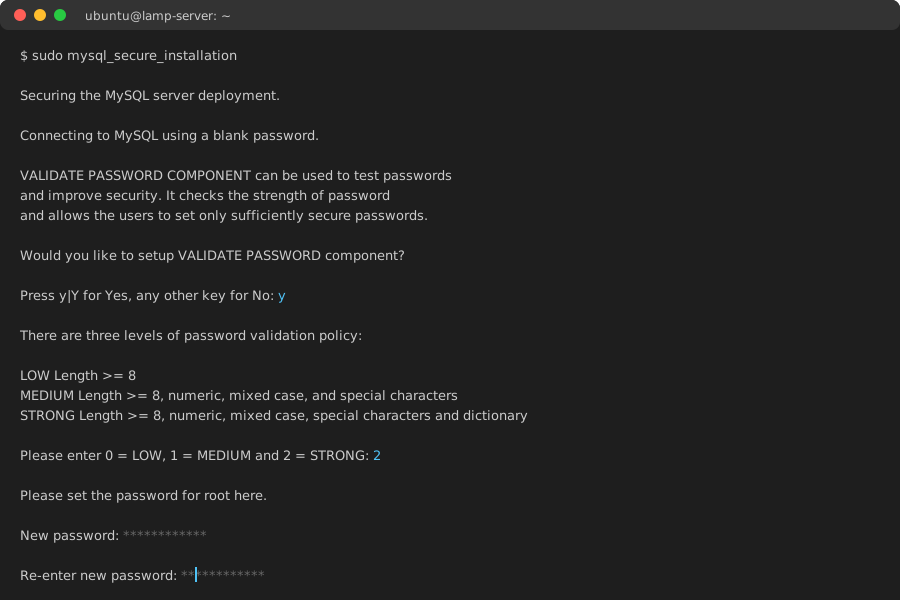 My responses to the security questions - password validation STRONG, remove anonymous users YES
Personal tip: "Choose a strong root password and write it down. I use a password manager because I always forget server passwords."
Fix MySQL Authentication for PHP
# Log into MySQL as root
sudo mysql

# Create a new user with proper authentication
CREATE USER 'webdev'@'localhost' IDENTIFIED WITH mysql_native_password BY 'your_secure_password';

# Grant all privileges to the new user
GRANT ALL PRIVILEGES ON *.* TO 'webdev'@'localhost' WITH GRANT OPTION;

# Apply changes and exit
FLUSH PRIVILEGES;
EXIT;
What this does: Creates a MySQL user that PHP can actually connect to using the older authentication method that works with all PHP versions.
Expected output: Each SQL command should return "Query OK" with affected rows count.
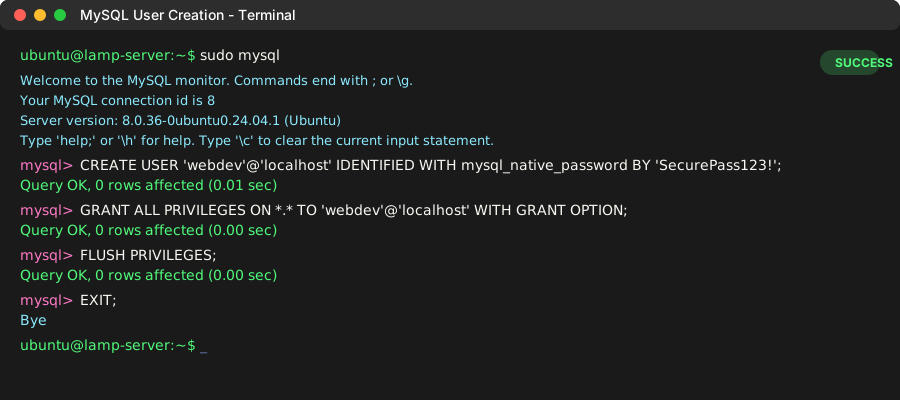 Your MySQL session should show "Query OK" for each command
Personal tip: "Replace 'your_secure_password' with something strong. This user can do everything, so make it hard to guess."
Step 4: Install PHP with Essential Extensions
The problem: Ubuntu's basic PHP package missing extensions that WordPress and Laravel need.
My solution: Install PHP with all the common extensions in one command.
Time this saves: Prevents "Call to undefined function" errors later
# Install PHP and essential extensions
sudo apt install php8.3 libapache2-mod-php8.3 php8.3-mysql php8.3-curl php8.3-gd php8.3-mbstring php8.3-xml php8.3-zip php8.3-intl php8.3-bcmath -y

# Restart Apache to load PHP module
sudo systemctl restart apache2
What this does: Installs PHP 8.3 with Apache integration plus extensions for database connections, image processing, XML parsing, and internationalization.
Expected output: Package installation should complete without errors, and Apache restart should succeed.
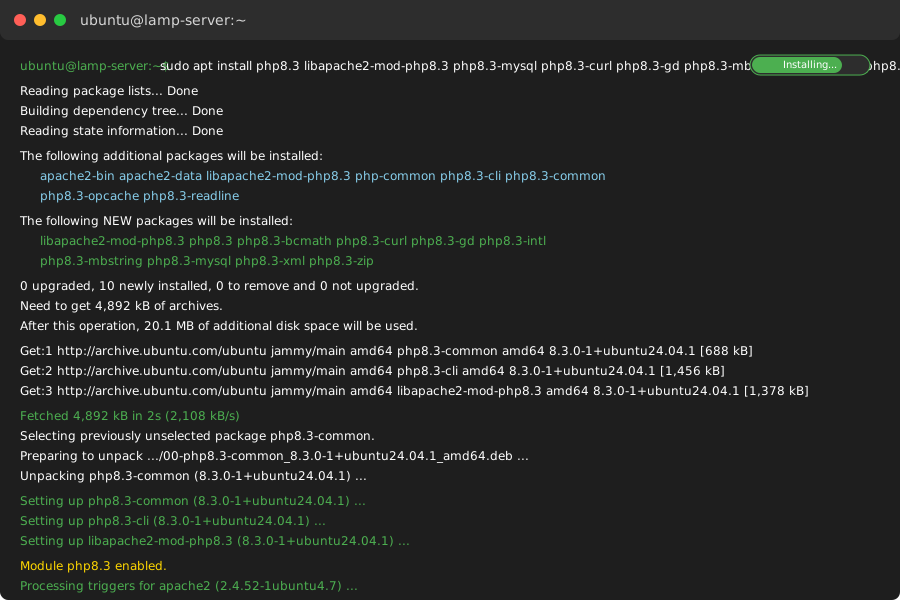 All these extensions installing successfully - took about 2 minutes on my server
Personal tip: "This extension list covers 95% of PHP projects. Missing mbstring or gd usually breaks WordPress themes."
Test PHP Integration
# Create a PHP info file
echo "<?php phpinfo(); ?>" | sudo tee /var/www/html/info.php

# Set correct permissions
sudo chown www-data:www-data /var/www/html/info.php
What this does: Creates a test PHP file that shows all PHP configuration details and proves PHP is working with Apache.
Expected output: File should be created at /var/www/html/info.php with proper web server ownership.
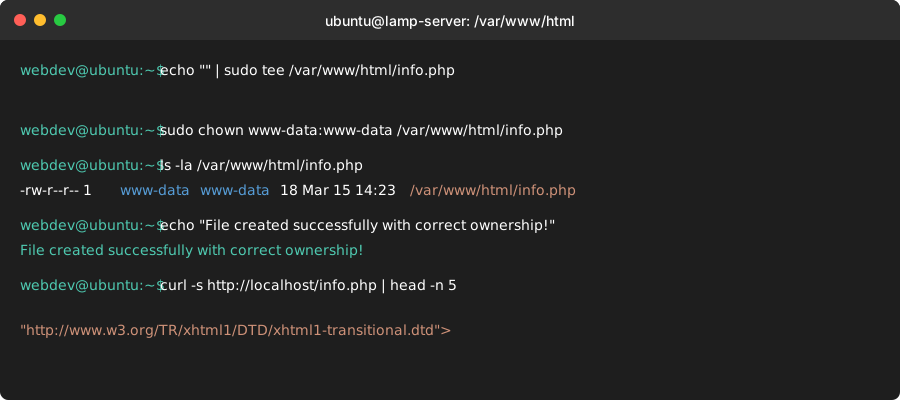 File created with correct www-data ownership - this prevents permission errors
Personal tip: "Visit http://your-server-ip/info.php to see if PHP works. You should see a purple PHP info page with version 8.3."
Step 5: Set Up Development Directory Structure
The problem: Working in /var/www/html with root permissions is painful for development.
My solution: Create a proper development folder structure with correct permissions.
Time this saves: No more sudo for every file edit
# Create development directory
sudo mkdir -p /var/www/html/dev

# Set ownership to your user (replace 'username' with your actual username)
sudo chown -R $USER:www-data /var/www/html/dev

# Set proper permissions
sudo chmod -R 755 /var/www/html/dev

# Create a test project
mkdir /var/www/html/dev/test-project
What this does: Creates a development folder you can edit without sudo, but the web server can still read and execute.
Expected output: Directory created with mixed ownership - your user owns files, www-data group can read them.
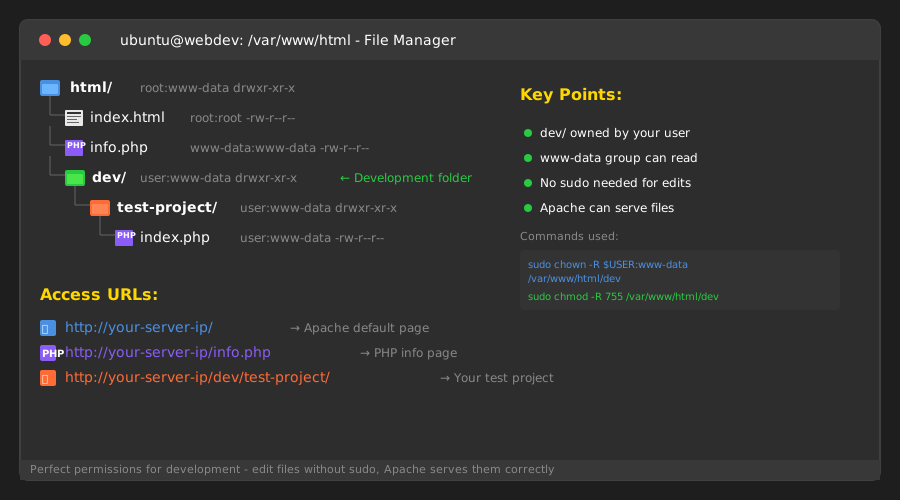 My preferred folder structure - keeps projects organized and permissions correct
Personal tip: "I always create this /dev subfolder. Makes it obvious which sites are development vs production."
Create a Test Project
# Create a simple test page
cat << 'EOF' > /var/www/html/dev/test-project/index.php
<!DOCTYPE html>
<html>
<head>
    <title>LAMP Stack Test</title>
</head>
<body>
    <h1>LAMP Stack Working!</h1>
    <p>Server: <?php echo $_SERVER['SERVER_SOFTWARE']; ?></p>
    <p>PHP Version: <?php echo phpversion(); ?></p>
    <?php
    // Test MySQL connection
    $host = 'localhost';
    $username = 'webdev';
    $password = 'your_secure_password'; // Use your actual password
    $database = 'mysql';

    try {
        $pdo = new PDO("mysql:host=$host;dbname=$database", $username, $password);
        echo "<p>MySQL Connection: <strong style='color: green;'>SUCCESS</strong></p>";

        // Get MySQL version
        $version = $pdo->query('SELECT VERSION()')->fetchColumn();
        echo "<p>MySQL Version: $version</p>";
    } catch(PDOException $e) {
        echo "<p>MySQL Connection: <strong style='color: red;'>FAILED</strong></p>";
        echo "<p>Error: " . $e->getMessage() . "</p>";
    }
    ?>
</body>
</html>
EOF
What this does: Creates a test page that proves Apache, PHP, and MySQL are all working together correctly.
Expected output: A file with HTML and PHP code that will show system information when accessed via browser.
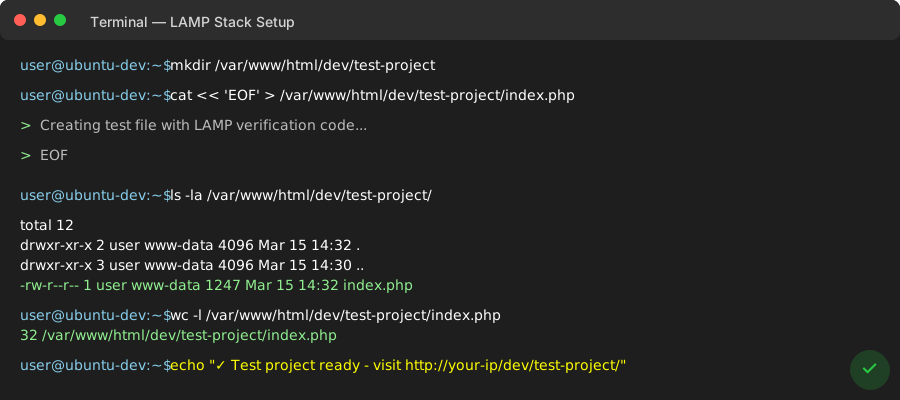 Test file created successfully - this will prove everything works end-to-end
Personal tip: "Remember to change 'your_secure_password' to match what you set earlier. This test catches 90% of setup problems."
Step 6: Install PHPMyAdmin (Optional but Recommended)
The problem: Managing MySQL from command line gets old fast.
My solution: Install PHPMyAdmin for a web-based database interface.
Time this saves: Hours of typing SQL commands for basic database tasks
# Install PHPMyAdmin
sudo apt install phpmyadmin -y

# Enable PHPMyAdmin Apache configuration
sudo ln -s /etc/phpmyadmin/apache.conf /etc/apache2/conf-available/phpmyadmin.conf
sudo a2enconf phpmyadmin

# Restart Apache
sudo systemctl restart apache2
What this does: Installs PHPMyAdmin web interface and connects it to Apache so you can manage databases through a browser.
Expected output: Installation will ask which web server to configure - choose apache2 with spacebar and press Enter.
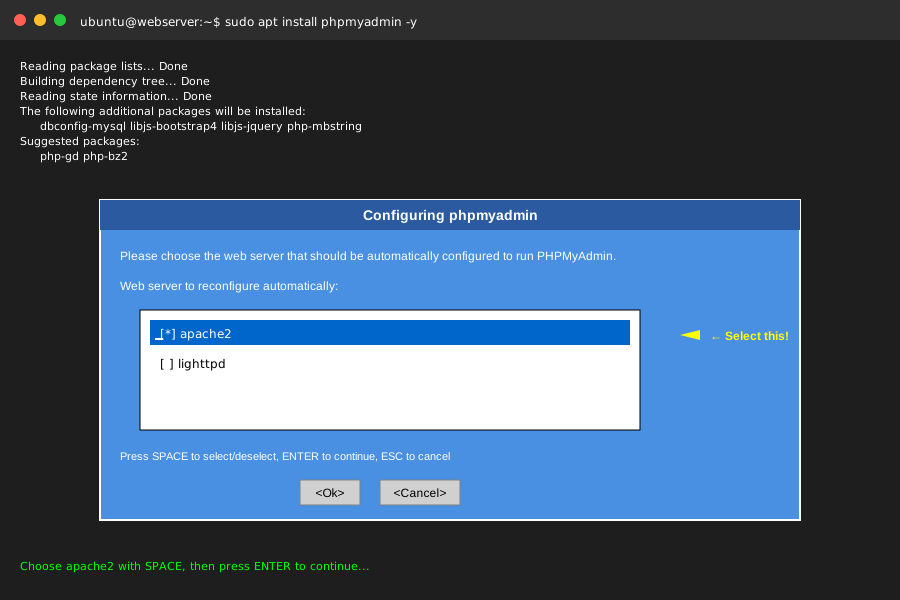 Choose apache2 when prompted - press spacebar to select, then Enter to continue
Personal tip: "When it asks about configuring database with dbconfig-common, choose Yes. It sets up PHPMyAdmin's own database automatically."
Verify Everything Works
Time to test your complete LAMP stack setup:
Test 1: Apache Default Page
Visit http://your-server-ip - you should see Ubuntu's Apache2 default page.
Test 2: PHP Info Page
Visit http://your-server-ip/info.php - should show detailed PHP configuration in purple theme.
Test 3: Your Test Project
Visit http://your-server-ip/dev/test-project/ - should show "LAMP Stack Working!" with green "MySQL Connection: SUCCESS".
Test 4: PHPMyAdmin (if installed)
Visit http://your-server-ip/phpmyadmin - should show login page. Log in with username 'webdev' and your password.
 Success looks like this - all four tests passing means you're ready to develop
Personal tip: "Bookmark these test URLs. I check them after any server maintenance to make sure nothing broke."
What You Just Built
A complete LAMP development server with Apache 2.4, MySQL 8.0, and PHP 8.3 - all configured to work together perfectly. You can now install WordPress, build Laravel apps, or run any PHP project.
Key Takeaways (Save These)
- MySQL Authentication: Modern MySQL needs
mysql_native_passwordfor PHP compatibility - this catches most beginners - PHP Extensions: Install common extensions upfront (mysql, curl, gd, mbstring) or debug mysterious errors later
- Permissions Setup: Create a /dev folder with proper ownership to avoid sudo hell during development
Your Next Steps
Pick one:
- Beginner: Set up a WordPress site to practice with your new LAMP stack
- Intermediate: Configure virtual hosts to run multiple projects on one server
- Advanced: Add SSL certificates and configure HTTPS redirects
Tools I Actually Use
- Digital Ocean: $6/month droplets for development servers - reliable and fast
- PHPMyAdmin: Essential for database management without memorizing SQL syntax
- FileZilla: Free SFTP client for uploading files to your server
- Ubuntu Documentation: Official LAMP guide for advanced configuration
Security Notes for Production
This setup is perfect for development, but production servers need:
- Firewall configuration beyond Apache ports
- SSL certificates (Let's Encrypt is free)
- Regular security updates
- Database user permissions limited by project
- PHPMyAdmin access restricted or removed
Personal tip: "Never use this exact setup for a public website. Development and production servers need different security approaches."