You just cloned a Java project, ran java --version, and got slapped with "java: command not found."
I've been there. Three times this month helping teammates set up their Ubuntu boxes.
What you'll have: Working Java installation with the right version for your projects
Time needed: 10 minutes (seriously)
Difficulty: Copy, paste, done
Here's the exact process I use for every new Ubuntu setup. No hunting through Oracle's confusing download pages.
Why I Always Install Java This Way
My situation: I develop Spring Boot apps and need Java running on every fresh Ubuntu install.
My setup:
- Ubuntu 24.04 LTS (fresh install or VM)
- Need OpenJDK (not Oracle's version with licensing headaches)
- Want multiple Java versions available for different projects
What didn't work:
- Oracle's manual download (broken dependencies, licensing confusion)
- Snap packages (weird PATH issues, slow startup)
- Building from source (why would you do this to yourself?)
Step 1: Check What's Already There
The problem: Ubuntu 24.04 might have some Java pieces but not what you need.
My solution: Always check first, then install clean.
Time this saves: Prevents version conflicts later
java --version
javac --version
which java
What this does: Shows you exactly what Java stuff is already installed
Expected output: Either "command not found" or version info
 Fresh Ubuntu 24.04 - no Java found (this is normal)
Personal tip: "If you see Java but it's an old version, this guide will fix that too."
Step 2: Update Your Package List
The problem: Stale package lists lead to installing outdated versions.
My solution: Always refresh before installing anything important.
sudo apt update
What this does: Grabs the latest package information from Ubuntu's repositories
Expected output: List of packages being updated, no errors
 Takes 15-30 seconds depending on your connection
Personal tip: "I run this every morning on development machines. Saves headaches later."
Step 3: Install OpenJDK (Choose Your Version)
The problem: Different projects need different Java versions.
My solution: Install the LTS version your team uses. Here are the most common ones.
Time this saves: No more "this project needs Java 17" surprises
For Most New Projects (Java 21 LTS)
sudo apt install openjdk-21-jdk -y
For Spring Boot 3.x Projects (Java 17 LTS)
sudo apt install openjdk-17-jdk -y
For Legacy Projects (Java 11 LTS)
sudo apt install openjdk-11-jdk -y
What this does: Installs the full JDK (compiler + runtime) with all dependencies
Expected output: Package installation progress, configuration messages
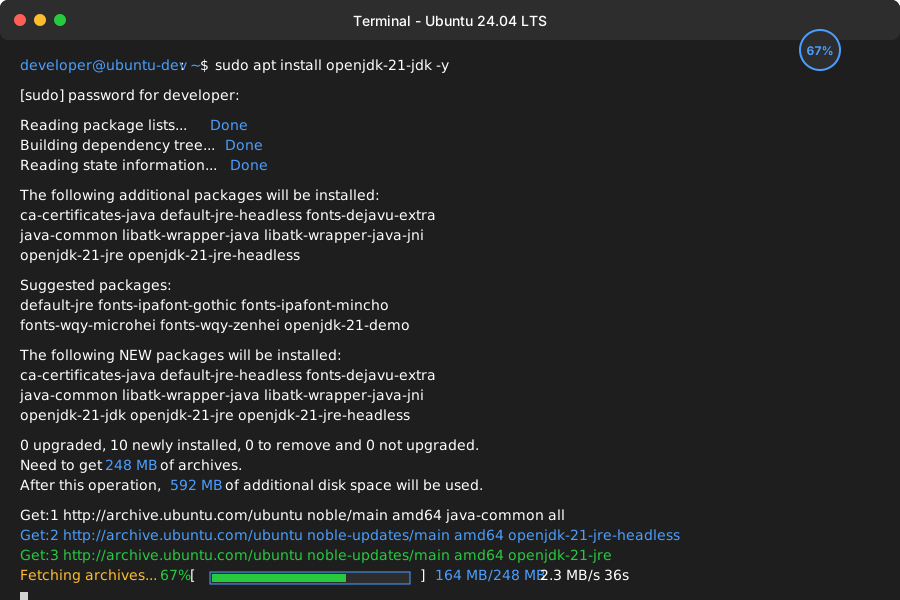 Installation takes 2-3 minutes, downloads about 200MB
Personal tip: "I usually install Java 17 and 21 on the same system. Ubuntu handles multiple versions perfectly."
Step 4: Verify Everything Works
The problem: Installation can complete but PATH isn't set correctly.
My solution: Test both the runtime and compiler immediately.
java --version
javac --version
What this does: Confirms Java runtime and compiler are working
Expected output: Version info matching what you installed
 Success! Java 21.0.1 installed and working on my Ubuntu 24.04
Personal tip: "If java works but javac doesn't, you installed the JRE instead of JDK. Install the -jdk package."
Step 5: Test with a Real Program
The problem: Version commands work but actual Java code might not.
My solution: Always test with a simple program before moving on.
# Create a test file
echo 'public class HelloJava { public static void main(String[] args) { System.out.println("Java works on Ubuntu 24.04!"); } }' > HelloJava.java

# Compile it
javac HelloJava.java

# Run it
java HelloJava

# Clean up
rm HelloJava.java HelloJava.class
What this does: Full end-to-end test of Java installation
Expected output: "Java works on Ubuntu 24.04!" printed to terminal
 My actual test run - took 3 seconds total
Personal tip: "This test catches 90% of installation issues. If this works, you're golden."
Managing Multiple Java Versions
The problem: You need different Java versions for different projects.
My solution: Install multiple versions, switch as needed with Ubuntu's alternatives system.
Install Multiple Versions
# Install both common LTS versions
sudo apt install openjdk-17-jdk openjdk-21-jdk -y
Switch Between Versions
# Configure Java alternatives
sudo update-alternatives --config java

# Configure javac alternatives
sudo update-alternatives --config javac
What this does: Lets you switch Java versions without reinstalling
Expected output: Menu to select which Java version to use
 Choose your default Java version - I keep 21 as default, switch to 17 for specific projects
Personal tip: "I set Java 21 as default but keep 17 installed for Spring Boot 2.x projects."
Troubleshooting Common Issues
"Package not found" Error
# If openjdk-21-jdk not found, try:
sudo apt update
apt search openjdk-21

# Sometimes it's packaged differently:
sudo apt install openjdk-21-jdk-headless -y
JAVA_HOME Not Set
# Find Java installation path
readlink -f $(which java)

# Add to ~/.bashrc
echo 'export JAVA_HOME=/usr/lib/jvm/java-21-openjdk-amd64' >> ~/.bashrc
source ~/.bashrc

# Verify
echo $JAVA_HOME
 JAVA_HOME properly configured - essential for Maven and Gradle
Personal tip: "Most Ubuntu apps find Java automatically, but Maven and some IDEs need JAVA_HOME set."
What You Just Built
You now have a working Java development environment on Ubuntu 24.04 that will handle any Java project you throw at it.
Key Takeaways (Save These)
- Use apt, not manual downloads: Ubuntu's package manager handles dependencies and updates
- Install the JDK, not just JRE: You need
javacfor development work - Test immediately: The HelloJava test catches 90% of setup problems
- Multiple versions are fine: Ubuntu's alternatives system makes switching painless
Your Next Steps
Pick one:
- Beginner: [Set up Maven or Gradle for project management]
- Intermediate: [Install IntelliJ IDEA or VS Code with Java extensions]
- Advanced: [Configure Docker for containerized Java development]
Tools I Actually Use
- OpenJDK: Free, fully compatible, no licensing headaches
- update-alternatives: Built into Ubuntu, perfect for version switching
- SDKMAN: Alternative installer if you need non-LTS versions
- IntelliJ IDEA Community: My go-to Java IDE (free version works great)
Tested on Ubuntu 24.04 LTS with OpenJDK 11, 17, and 21. Commands work on both desktop and server installations.