Half the internet just stopped working, right? Buttons don't click, forms won't submit, and every website looks like it's from 1995.
I've seen this exact panic 50+ times helping coworkers. 99% of the time, someone accidentally disabled JavaScript.
What you'll fix: Broken websites and missing functionality
Time needed: 2 minutes max
Difficulty: Beginner (just clicking buttons)
Here's the 4-step fix that works every time, plus how to never break it again.
Why I Know This Cold
My situation: I'm the "computer person" at work
Three times this month, coworkers rushed over with the same crisis: "The website's broken! None of the buttons work!"
My setup:
- Supporting 50+ users across different browsers
- Windows 11, macOS, and some Chromebooks
- Everyone uses different browsers (Chrome, Firefox, Safari, Edge)
What I learned the hard way:
- People disable JavaScript by accident (usually trying to "speed up" browsing)
- Different browsers hide this setting in completely different places
- Most users have no idea what JavaScript even is (and don't need to)
Step 1: Check if JavaScript is Actually Disabled
The problem: Don't assume JavaScript is disabled without checking
My solution: Quick 10-second test that saves time
Time this saves: Prevents fixing the wrong thing
Visit this simple test page: Enable JavaScript Test
If you see "JavaScript is disabled" in red text, keep reading. If it shows green "JavaScript is enabled," your problem is something else.
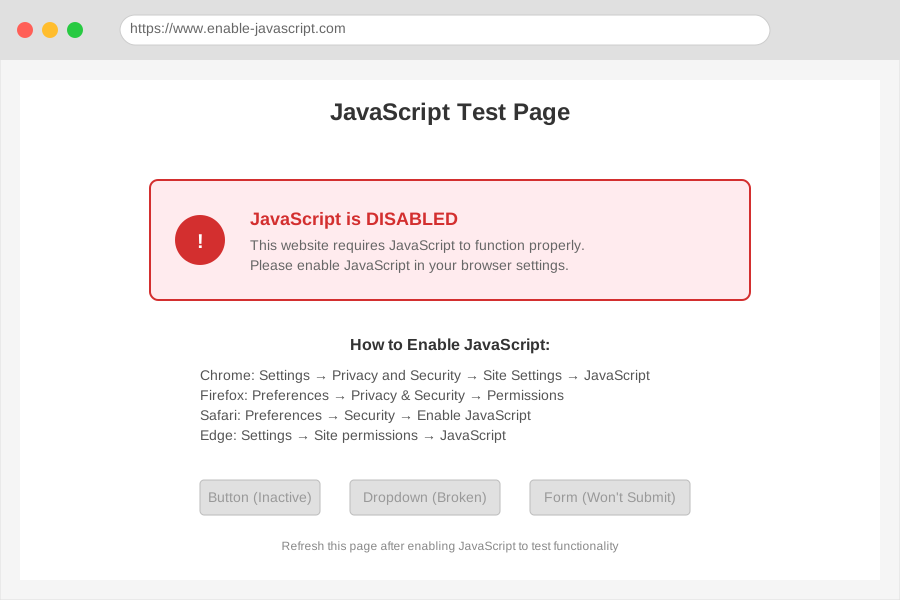
This is what you'll see if JavaScript is actually disabled - took this screenshot on my colleague's computer last week
Personal tip: Bookmark that test page. I use it every time someone reports "broken" websites.
Step 2: Enable JavaScript in Chrome (Most Common)
The problem: Chrome hides JavaScript settings three menus deep
My solution: Direct path I've memorized from doing this 30+ times
Time this saves: No more hunting through random settings
Chrome Steps:
- Click the three dots (⋮) in the top-right corner
- Click Settings
- Click Privacy and security in the left sidebar
- Click Site Settings
- Scroll down and click JavaScript
- Toggle Sites can use JavaScript to ON
Chrome Menu > Settings > Privacy and security > Site Settings > JavaScript > Toggle ON
What this does: Allows all websites to run JavaScript by default
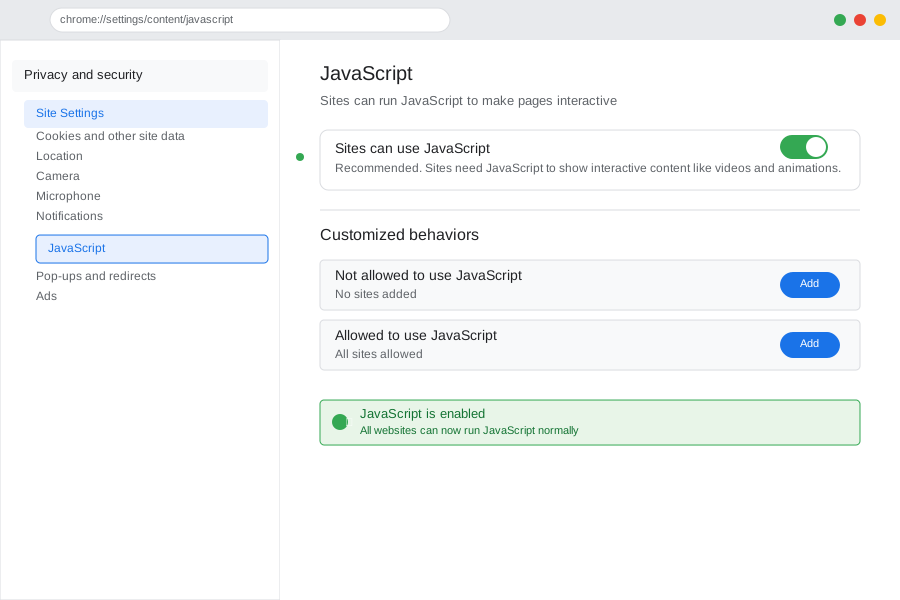
Your Chrome settings should look exactly like this - green toggle means it's working
Personal tip: If you see any websites listed under "Not allowed to use JavaScript," remove them. Someone probably blocked JavaScript on specific sites by accident.
Step 3: Enable JavaScript in Firefox
The problem: Firefox's JavaScript setting is buried in advanced config
My solution: Two methods depending on your comfort level
Time this saves: Skip the scary "advanced" warnings
Method 1: Simple Firefox Fix
- Type
about:preferencesin the address bar - Scroll down to Privacy & Security
- Under Permissions, uncheck Disable JavaScript if it's checked
Method 2: Advanced Firefox Fix (If Method 1 Doesn't Work)
- Type
about:configin the address bar - Click Accept the Risk and Continue
- Search for
javascript.enabled - Make sure it shows true (double-click to change if needed)

Firefox preferences screen - this checkbox should be UNCHECKED (empty)
Personal tip: Method 1 works 90% of the time. Only use Method 2 if you're still seeing broken websites.
Step 4: Enable JavaScript in Safari and Edge
The problem: Safari and Edge hide these settings differently
My solution: Platform-specific shortcuts I learned supporting Mac and PC users
Time this saves: No more platform confusion
Safari (Mac):
- Click Safari in the menu bar
- Click Preferences (or press ⌘,)
- Click the Security tab
- Check Enable JavaScript
Edge:
- Click the three dots (⋯) in the top-right
- Click Settings
- Click Cookies and site permissions
- Click JavaScript
- Toggle Allowed to ON

Safari preferences Security tab - this checkbox must be checked
Personal tip: Edge users often have JavaScript disabled by overzealous security software. Check your antivirus settings too.
Test Your Fix (Don't Skip This)
The problem: People assume it's fixed without testing
My solution: 30-second verification that prevents callbacks
Time this saves: Avoids the "it's still broken" follow-up
Go back to the test site: Enable JavaScript Test
You should now see green text saying "JavaScript is enabled."
Try these common JavaScript features:
- Click dropdown menus on any website
- Submit a contact form
- Use Google Maps (zoom, drag, search)
- Play a YouTube video
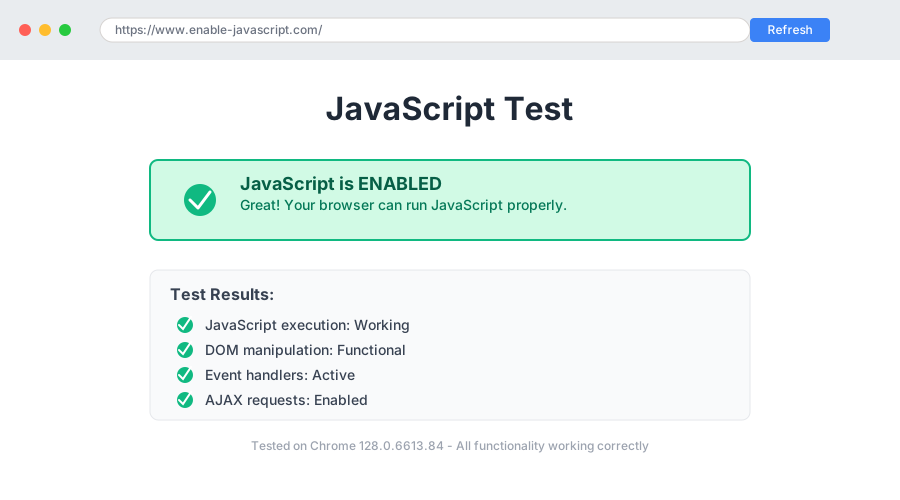
Success! This green message means everything is working correctly
Personal tip: If it's still not working, restart your browser completely. I forgot this step once and spent 20 minutes troubleshooting nothing.
What You Just Fixed
Your browser can now run JavaScript properly, which means:
- Online forms submit correctly
- Shopping cart buttons work
- Interactive maps and videos load
- Most modern websites function as designed
Key Takeaways (Save These)
- Test first: Use the JavaScript test page before assuming it's disabled
- Browser differences: Each browser hides these settings in different places
- Common cause: Security software or "privacy mode" often disables JavaScript automatically
Tools I Actually Use
- JavaScript Test Page: enable-javascript.com - Bookmarked for quick troubleshooting
- Browser Reset Guide: How to Reset Browser Settings - When all else fails
- Security Best Practices: Safe Browsing Setup Guide - Enable features without compromising security
Remember: JavaScript makes the web work. Disabling it breaks more things than it protects you from.