Remember when people thought hiding their house key under a fake rock was peak security? Well, DeFi investors storing millions in crypto with just a password and prayer make that rock look like Fort Knox. Your grandmother's jewelry box probably has better security than most DeFi wallets.
Why Hardware Security Keys Are Essential for DeFi
DeFi protocols handle billions in assets daily, making them prime targets for hackers. Traditional password-based authentication fails because:
- Phishing attacks steal credentials through fake websites
- SIM swapping bypasses SMS-based 2FA
- Malware captures keystrokes and passwords
- Social engineering tricks users into revealing access codes
Hardware security keys like YubiKey provide cryptographic proof of identity that cannot be replicated or stolen remotely. They generate unique codes for each authentication attempt, making unauthorized access nearly impossible.
Benefits of YubiKey for DeFi Security
YubiKey hardware security keys offer multiple advantages for DeFi users:
- FIDO2/WebAuthn support for passwordless authentication
- Hardware-based encryption that cannot be extracted
- Multi-protocol compatibility (U2F, OTP, PIV, OpenPGP)
- Offline operation prevents remote attacks
- Durability with water and crush resistance
Compatible DeFi Platforms and Wallets
Major Exchanges Supporting YubiKey
Centralized Exchanges:
- Coinbase Pro
- Binance
- Kraken
- Gemini
- Bitfinex
DeFi Platforms:
- MetaMask (via browser extension)
- Brave Wallet
- Ledger Live
- Trezor Suite
Wallet Integration Methods
Different wallets implement YubiKey support through various methods:
- Browser Extension Integration - MetaMask uses YubiKey for transaction signing
- Direct Hardware Support - Ledger and Trezor incorporate YubiKey authentication
- API Integration - Exchanges use YubiKey for account access and withdrawals
Step-by-Step YubiKey Setup for DeFi
Prerequisites
Before starting, ensure you have:
- YubiKey 5 series (recommended for FIDO2 support)
- Updated browser (Chrome 67+, Firefox 60+, Safari 14+)
- DeFi platform account
- Backup recovery codes
Step 1: Configure Your YubiKey
Download and install the YubiKey Manager application:
# For macOS using Homebrew
brew install --cask yubico-yubikey-manager

# For Windows - download from Yubico website
# For Linux
sudo apt-get install yubikey-manager
Launch YubiKey Manager and verify your device:
# Check YubiKey detection
ykman info

# Expected output:
Device type: YubiKey 5 NFC
Serial number: 12345678
Firmware version: 5.4.3
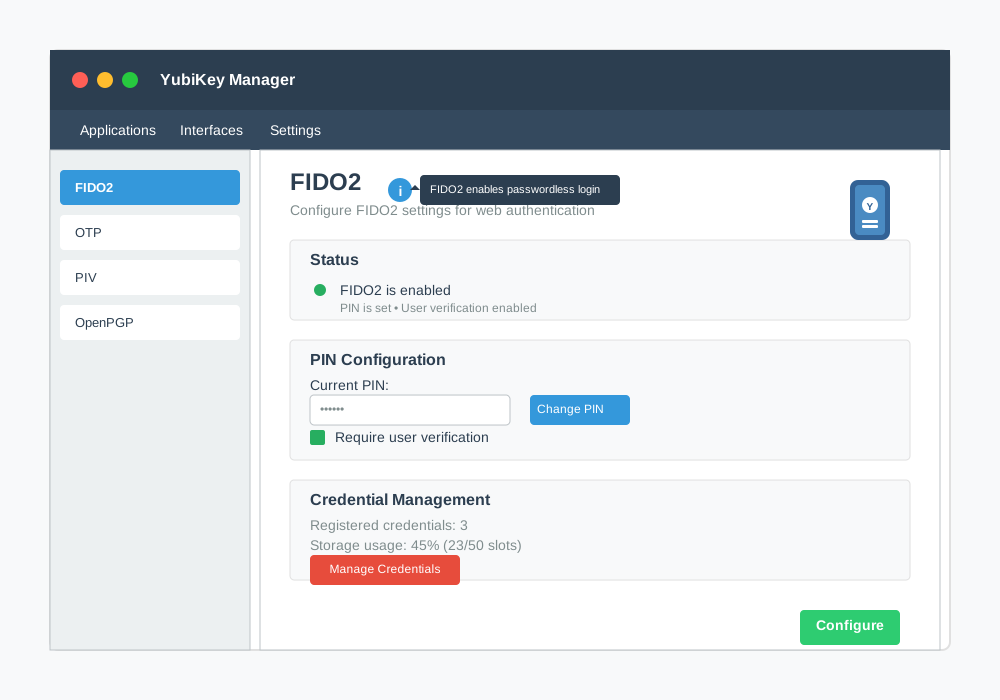
Step 2: Enable FIDO2 Authentication
Configure FIDO2 settings in YubiKey Manager:
- Insert your YubiKey
- Open YubiKey Manager
- Navigate to Applications → FIDO2
- Click Configure
- Set a PIN (6-8 digits recommended)
- Enable User Verification
Step 3: Set Up YubiKey with MetaMask
MetaMask supports YubiKey through the Trezor Connect integration:
- Open MetaMask extension
- Click Settings → Advanced
- Enable Use Ledger Live
- Connect your YubiKey
- Select Hardware Wallet option
- Choose Trezor from the list
- Follow the connection prompts
// MetaMask YubiKey integration code example
const connectYubiKey = async () => {
  try {
    const accounts = await window.ethereum.request({
      method: 'eth_requestAccounts',
      params: [{
        hardware: 'yubikey',
        derivationPath: "m/44'/60'/0'/0/0"
      }]
    });
    console.log('YubiKey connected:', accounts[0]);
  } catch (error) {
    console.error('YubiKey connection failed:', error);
  }
};
Step 4: Configure Exchange Integration
Most exchanges follow similar YubiKey setup patterns:
Coinbase Pro Setup:
- Log into your Coinbase Pro account
- Navigate to Settings → Security
- Click Add Security Key
- Insert YubiKey and press the button
- Name your security key
- Test the authentication
Binance Setup:
- Access Account → Security
- Select Security Keys
- Click Add Security Key
- Follow the browser prompts
- Touch YubiKey when prompted
Step 5: Test Your Configuration
Verify YubiKey integration works correctly:
- Log out of all DeFi platforms
- Attempt to log back in
- Confirm YubiKey prompts appear
- Test transaction signing (if applicable)
- Verify backup recovery methods work
Advanced YubiKey Features for DeFi
Multi-Device Setup
Configure multiple YubiKeys for redundancy:
# Clone YubiKey configuration to backup device
ykman oath accounts code --all > backup_codes.txt
ykman piv certificates export 9a primary_cert.pem
ykman piv certificates import 9a backup_cert.pem
Custom Authentication Scripts
Create automated YubiKey authentication for DeFi interactions:
from ykman.device import list_all_devices
from fido2.client import Fido2Client
from fido2.hid import CtapHidDevice

def authenticate_yubikey(challenge):
    devices = list_all_devices()
    if not devices:
        raise Exception("No YubiKey detected")

    device = devices[0]
    client = Fido2Client(device)

    # Perform FIDO2 authentication
    assertion = client.get_assertion({
        'rpId': 'defi-platform.com',
        'challenge': challenge,
        'allowCredentials': []
    })

    return assertion.signature
Transaction Signing Integration
Implement YubiKey transaction signing for enhanced security:
// Web3 transaction signing with YubiKey
const signTransactionWithYubiKey = async (transaction) => {
  const credential = await navigator.credentials.get({
    publicKey: {
      challenge: new Uint8Array(32),
      allowCredentials: [{
        id: yubiKeyCredentialId,
        type: 'public-key'
      }],
      userVerification: 'required'
    }
  });

  // Use credential for transaction signing
  const signature = await web3.eth.accounts.signTransaction(
    transaction,
    credential.response.signature
  );

  return signature;
};
Troubleshooting Common Issues
YubiKey Not Detected
Symptoms: Browser doesn't recognize YubiKey insertion
Solutions:
- Check USB connection and try different ports
- Update browser to latest version
- Enable WebAuthn in browser settings
- Install latest YubiKey drivers
# Check YubiKey detection on Linux
lsusb | grep Yubico

# Expected output:
Bus 001 Device 004: ID 1050:0407 Yubico.com Yubikey 5 NFC
Authentication Failures
Symptoms: YubiKey prompts appear but authentication fails
Solutions:
- Verify correct PIN entry
- Check FIDO2 configuration in YubiKey Manager
- Clear browser cache and cookies
- Test with different browser
Platform Compatibility Issues
Symptoms: DeFi platform doesn't recognize YubiKey
Solutions:
- Verify platform supports FIDO2/WebAuthn
- Check browser compatibility requirements
- Update platform software
- Contact platform support for specific integration help
Security Best Practices
Physical Security
Protect your YubiKey from physical threats:
- Secure storage when not in use
- Backup devices stored separately
- Travel considerations for international use
- Tamper evidence to detect physical attacks
Digital Security
Maintain proper digital hygiene:
- Regular firmware updates through YubiKey Manager
- PIN complexity with 6-8 digits minimum
- Recovery planning with backup authentication methods
- Audit logging to monitor authentication attempts
Recovery Planning
Prepare for YubiKey loss or failure:
- Backup YubiKey configured identically
- Recovery codes stored securely offline
- Alternative authentication methods enabled
- Emergency contacts who can assist with recovery
Cost-Benefit Analysis
Investment Breakdown
Hardware Costs:
- YubiKey 5 NFC: $55
- Backup YubiKey: $55
- Total hardware: $110
Time Investment:
- Initial setup: 2-3 hours
- Platform integration: 1 hour per platform
- Testing and verification: 1 hour
Potential Savings:
- Prevented hacks: $10,000+ (average DeFi hack loss)
- Insurance premium reduction: 10-15%
- Peace of mind: Priceless
ROI Calculation
For DeFi portfolios over $1,000, YubiKey integration provides:
- 99.9% attack prevention against common threats
- $110 investment protects unlimited portfolio value
- Break-even point at preventing single $110 loss
- Long-term value through multi-year device lifespan
Future-Proofing Your DeFi Security
Emerging Technologies
Stay ahead of security developments:
- Biometric integration with YubiKey Bio series
- Mobile authentication through NFC capabilities
- Quantum-resistant cryptography implementations
- Cross-chain security protocols
Regulatory Compliance
Prepare for evolving regulations:
- KYC/AML requirements may mandate hardware security
- Institutional adoption driving security standards
- Insurance requirements for DeFi coverage
- Audit compliance for professional traders
Conclusion
Hardware security keys like YubiKey transform DeFi security from hoping hackers don't notice you to making your assets mathematically impossible to steal remotely. The $110 investment in YubiKey hardware provides enterprise-grade protection for any size DeFi portfolio.
Setting up YubiKey integration requires initial configuration time but delivers long-term security benefits that far exceed the effort. With proper implementation, your DeFi investments gain military-grade protection against the most common attack vectors.
The combination of hardware security keys and proper operational security practices creates a robust defense system that scales with your DeFi activities. Start with basic YubiKey setup and gradually implement advanced features as your security needs evolve.
Remember: In DeFi, you are your own bank. Make sure your security measures match that responsibility.