Problem: Generating AI Video With Audio Is Still Clunky
Most AI video tools treat audio as an afterthought — you generate the video, then bolt on music or voiceover in a separate app. Google Veo changes this with native audio generation baked into the same prompt pipeline.
But the workflow isn't obvious, and the prompt syntax that works for images doesn't translate directly to video.
You'll learn:
- How to write Veo prompts that produce consistent, professional results
- How to enable and control native audio generation
- How to export and use your videos downstream
Time: 20 min | Level: Intermediate
Why This Happens
Veo is a diffusion-based video model trained on paired video-audio data, which means it understands the relationship between visuals and sound at training time — not as a post-processing step. This is fundamentally different from how tools like Runway or Pika handle audio.
The catch: Veo's prompting system expects you to describe audio alongside visuals in a specific way. Generic prompts produce generic results. Precise prompts that include acoustic context produce video that feels intentional.
Common symptoms of bad Veo output:
- Video looks great but audio is generic background noise
- Camera movement doesn't match the described action
- Short clips cut off mid-motion
Solution
Step 1: Access Google Veo via VideoFX or Vertex AI
Veo is available through two surfaces depending on your use case.
For individual use: Go to labs.google/fx/tools/video-fx and sign in with your Google account. VideoFX is the consumer-facing wrapper around Veo.
For API/production use: Enable the Veo API in Google Cloud Console under Vertex AI > Model Garden. Search "Veo" and click Enable.
# Verify API access via gcloud CLI
gcloud auth login
gcloud config set project YOUR_PROJECT_ID
gcloud ai models list --region=us-central1 | grep veo
Expected: You should see veo-2.0-generate-001 in the model list.
If it fails:
- "Permission denied": Your project needs the
aiplatform.googleapis.comservice enabled. Rungcloud services enable aiplatform.googleapis.com - "Model not found": Veo is currently available in
us-central1andeurope-west4only
 Veo 2.0 listed and enabled in Vertex AI Model Garden
Step 2: Write an Effective Veo Prompt
Veo prompts have four layers. Include all four for best results.
[SUBJECT + ACTION] + [ENVIRONMENT] + [CAMERA] + [AUDIO]
Here's a concrete example broken down:
A barista carefully pouring latte art into a ceramic cup,    ← subject + action
warm coffee shop interior, steam rising, soft morning light, ← environment
slow push-in shot from across the counter,                   ← camera
sounds of espresso machine, quiet cafe ambience, ceramic clink ← audio
Combine it into a single prompt string:
A barista carefully pouring latte art into a ceramic cup, warm coffee shop
interior, steam rising, soft morning light, slow push-in shot from across
the counter, sounds of espresso machine, quiet cafe ambience, ceramic clink
Why this works: Veo's audio model attends to acoustic keywords in the prompt. Without the final clause, it will generate plausible but random ambient sound. With it, audio is actively conditioned on your intent.
Audio keywords that work well:
- Ambient:
quiet street noise,forest ambience,ocean waves - Foley:
footsteps on gravel,keyboard typing,paper rustling - Music:
lo-fi hip hop background,orchestral swell,no music - Silence:
near-silent,no audio(useful for voiceover tracks)
Step 3: Submit via VideoFX UI
In the VideoFX interface, paste your prompt into the text field.
Before generating, set these options:
Duration:     5s (default) or 8s
Aspect Ratio: 16:9 (YouTube/desktop) or 9:16 (Reels/Shorts)
Audio:        ✓ Enable native audio  ← this toggle is easy to miss
Style:        Cinematic (recommended for realistic prompts)
 Make sure "Enable native audio" is checked — it defaults to off
Click Generate. Veo typically takes 45–90 seconds per clip.
Step 4: Submit via Vertex AI API (Programmatic)
For batch generation or integration into a pipeline, use the Python SDK.
import vertexai
from vertexai.preview.vision_models import VideoGenerationModel

# Initialize with your project and region
vertexai.init(project="YOUR_PROJECT_ID", location="us-central1")

model = VideoGenerationModel.from_pretrained("veo-2.0-generate-001")

prompt = """
A barista carefully pouring latte art into a ceramic cup, warm coffee shop
interior, steam rising, soft morning light, slow push-in shot from across
the counter, sounds of espresso machine, quiet cafe ambience, ceramic clink
"""

# generate_video returns a GeneratedVideo object
response = model.generate_video(
    prompt=prompt,
    number_of_videos=1,
    duration_seconds=8,          # 5 or 8
    aspect_ratio="16:9",
    generate_audio=True,         # This is the key parameter for native audio
    output_gcs_uri="gs://YOUR_BUCKET/veo-output/",
)

print(f"Video saved to: {response.videos[0].uri}")
Expected: The script prints a GCS URI pointing to your .mp4 file.
If it fails:
generate_audionot recognized: Updategoogle-cloud-aiplatformto>=1.45.0quota exceeded: Veo has a default quota of 10 videos/minute. Request an increase in Cloud Console > IAM > Quotas
Step 5: Download and Verify Your Output
From VideoFX: Click the video thumbnail, then the download icon (top right). Files download as .mp4 with H.264 video and AAC audio.
From GCS:
# Download from Cloud Storage
gsutil cp gs://YOUR_BUCKET/veo-output/video_001.mp4 ./output/

# Verify the file has an audio track
ffprobe -v quiet -print_format json -show_streams output/video_001.mp4 \
  | python3 -c "import sys,json; streams=json.load(sys.stdin)['streams']; \
    print('Audio tracks:', sum(1 for s in streams if s['codec_type']=='audio'))"
You should see: Audio tracks: 1
If you see Audio tracks: 0, the generate_audio flag wasn't passed correctly or the audio generation failed silently — re-run with the parameter explicitly set.
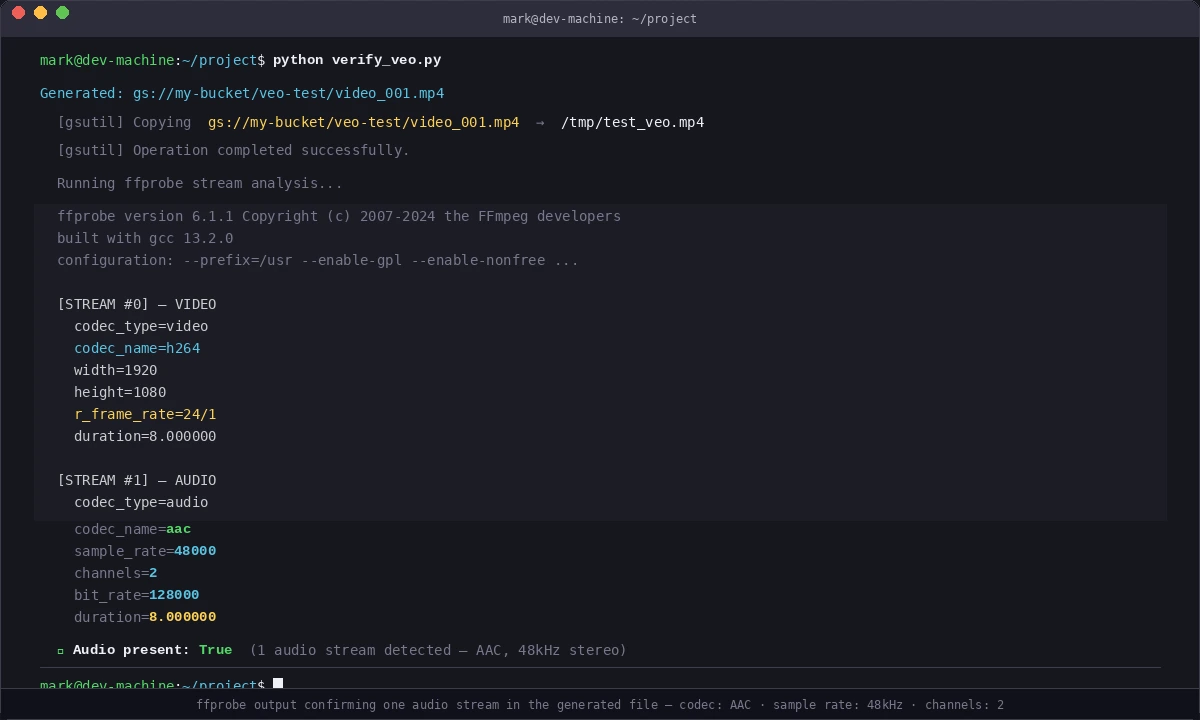 ffprobe output confirming one audio stream in the generated file
Verification
Test a full round-trip with this minimal script:
# verify_veo.py — quick sanity check
import vertexai
from vertexai.preview.vision_models import VideoGenerationModel
import subprocess

vertexai.init(project="YOUR_PROJECT_ID", location="us-central1")
model = VideoGenerationModel.from_pretrained("veo-2.0-generate-001")

response = model.generate_video(
    prompt="A red ball bouncing on a wooden floor, thud sounds with each bounce",
    number_of_videos=1,
    duration_seconds=5,
    aspect_ratio="16:9",
    generate_audio=True,
    output_gcs_uri="gs://YOUR_BUCKET/veo-test/",
)

uri = response.videos[0].uri
print(f"Generated: {uri}")

# Pull down and check
subprocess.run(["gsutil", "cp", uri, "/tmp/test_veo.mp4"])
result = subprocess.run(
    ["ffprobe", "-v", "quiet", "-show_streams", "/tmp/test_veo.mp4"],
    capture_output=True, text=True
)
has_audio = "codec_type=audio" in result.stdout
print(f"Audio present: {has_audio}")
python verify_veo.py
You should see:
Generated: gs://YOUR_BUCKET/veo-test/video_001.mp4
Audio present: True
What You Learned
- Veo generates audio natively — you must opt in via
generate_audio=Trueor the VideoFX UI toggle - Prompt structure matters:
[subject] + [environment] + [camera] + [audio]produces the most consistent output - VideoFX is fastest for iteration; Vertex AI API is right for batch jobs and pipelines
- Output is always H.264/AAC
.mp4— compatible with Premiere, DaVinci Resolve, FFmpeg
Limitation: Veo currently caps at 8 seconds per clip. For longer videos, generate multiple clips and stitch with FFmpeg or your NLE. Consistency across clips requires keeping the environment and lighting description identical.
When NOT to use Veo: If you need frame-level control or compositing with real footage, Veo isn't the right tool yet — use it for standalone B-roll or social content.
Tested on Veo 2.0, google-cloud-aiplatform 1.47.0, Python 3.12, February 2026