6 months ago, I would physically cringe when git rebase main threw conflict markers at me. Especially those gnarly ones where three developers had touched the same function, and I'm staring at a wall of <<<<<<< wondering who changed what and why.
I spent entire afternoons untangling conflicts that should have taken 10 minutes. My team lead started joking that I was "conflict-cursed." Not funny when you're holding up releases.
Then I discovered something that changed my entire workflow: AI tools don't just write code—they're incredible at understanding and resolving merge conflicts. Now I handle complex rebases in minutes instead of hours.
Here's exactly how I do it, including the mistakes I made and the shortcuts that actually work.
Why I Needed This Solution
My specific situation: Working on a React app with 12 developers pushing to main 20+ times daily. Our feature branches routinely fell 50+ commits behind, creating rebase nightmares.
The breaking point: A "simple" rebase took me 4 hours because I kept resolving conflicts incorrectly, breaking tests, and having to restart. My productivity was in the toilet.
My setup when I figured this out:
- VS Code with GitHub Copilot (paid subscription)
- Claude or ChatGPT for complex analysis
- Git 2.41 with VSCode's built-in merge editor
- React/TypeScript codebase with 80k+ lines
The Problem I Hit: Traditional Conflict Resolution Sucks
What I used to do wrong:
- Panic when seeing conflict markers
- Guess which changes to keep based on timestamps
- Delete chunks of code without understanding context
- Spend forever figuring out what each developer intended
- Break functionality because I misunderstood the conflicts
Time waste: 2-3 hours per complex rebase, multiple times per week.
My AI-Assisted Rebase Workflow
After 6 months of refinement, here's my exact process:
Step 1: Initial Rebase and Conflict Assessment
# I always start with this exact command sequence
git checkout my-feature-branch
git fetch origin
git rebase origin/main
When conflicts appear, I don't panic anymore. Instead:
# See exactly which files have conflicts
git status

# Get a high-level view of what's conflicting
git diff --name-only --diff-filter=U
 My terminal after a typical rebase conflict - notice I'm tracking which files need attention
Personal tip: I learned to read the conflict count first. More than 5 conflicted files? I grab coffee and settle in for some AI assistance.
Step 2: Using AI to Understand Context
This is where I was doing everything wrong before. Instead of diving into conflict markers, I now ask AI to help me understand what's happening.
My prompt template for complex conflicts:
I'm rebasing a feature branch and hit conflicts in [filename]. Here's the context:

ORIGINAL CODE (before both changes):
[paste the common ancestor version if available]

INCOMING CHANGES (from main branch):
[paste the main branch version]

MY CHANGES (from feature branch):
[paste my feature branch version]

The conflict is in [specific function/area]. Can you:
1. Explain what each change is trying to accomplish
2. Suggest how to properly merge these changes
3. Point out any logical conflicts I should watch for
Real example from last week:
I had a conflict in our authentication middleware where:
- Main branch: Added rate limiting
- My branch: Added user role validation
- Both: Modified the same middleware function
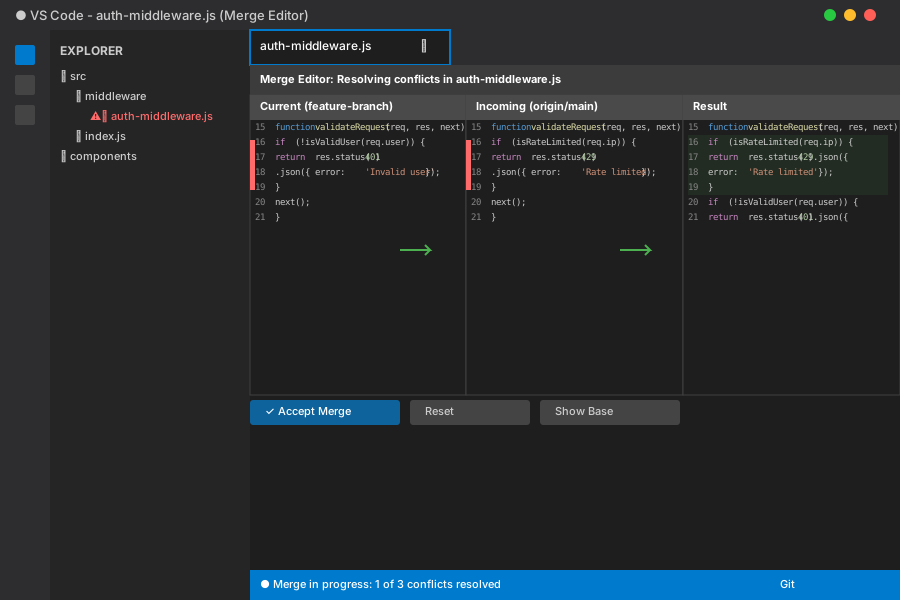 VS Code's merge editor showing the incoming, current, and result panels - this is my daily driver for conflicts
Personal tip: Claude is better at understanding code intent, while Copilot is faster for simple "keep both changes" scenarios.
Step 3: AI-Guided Resolution
Here's my workflow for actually resolving conflicts:
For simple conflicts (Copilot in VS Code):
- Place cursor in conflict block
- Start typing a comment about what I want:
// merge both the rate limiting and role validation - Let Copilot suggest the merged code
- Review and accept/modify
// Before (conflicted):
<<<<<<< HEAD
if (!isValidUser(req.user)) {
  return res.status(401).json({ error: 'Invalid user' });
}
=======
if (isRateLimited(req.ip)) {
  return res.status(429).json({ error: 'Rate limited' });
}
>>>>>>> main

// After AI assistance:
// Merge both rate limiting and user validation
if (isRateLimited(req.ip)) {
  return res.status(429).json({ error: 'Rate limited' });
}
if (!isValidUser(req.user)) {
  return res.status(401).json({ error: 'Invalid user' });
}
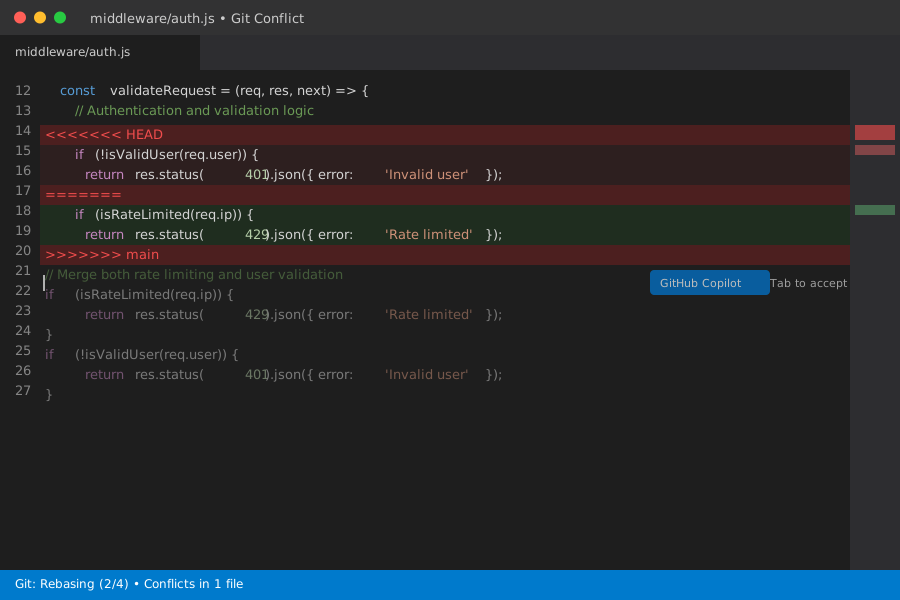 Copilot automatically suggesting how to merge both validation checks - saved me 15 minutes of thinking
For complex conflicts (External AI like Claude):
When the conflict involves business logic or I'm unsure about intent, I copy the entire conflicted section to Claude:
Here's a complex rebase conflict in our user payment processing:

[paste full context of conflicted function]

The main branch added fraud detection, my branch added multi-currency support. They both modified the charge processing logic. How should I merge these without breaking either feature?

Also check: are there any edge cases where these changes might conflict logically?
Personal tip: I've learned to ask specifically about edge cases. AI catches logical conflicts that aren't obvious from the code syntax.
Step 4: Testing and Validation
My testing checklist after AI-assisted resolution:
# Always run these after resolving conflicts
git add .
npm test  # or whatever your test command is
npm run lint
npm run build
If tests fail, I don't guess—I ask AI again:
My rebase resolution broke these tests:
[paste test failures]

Here's the code I merged:
[paste resolved code]

What did I miss in the merge resolution?
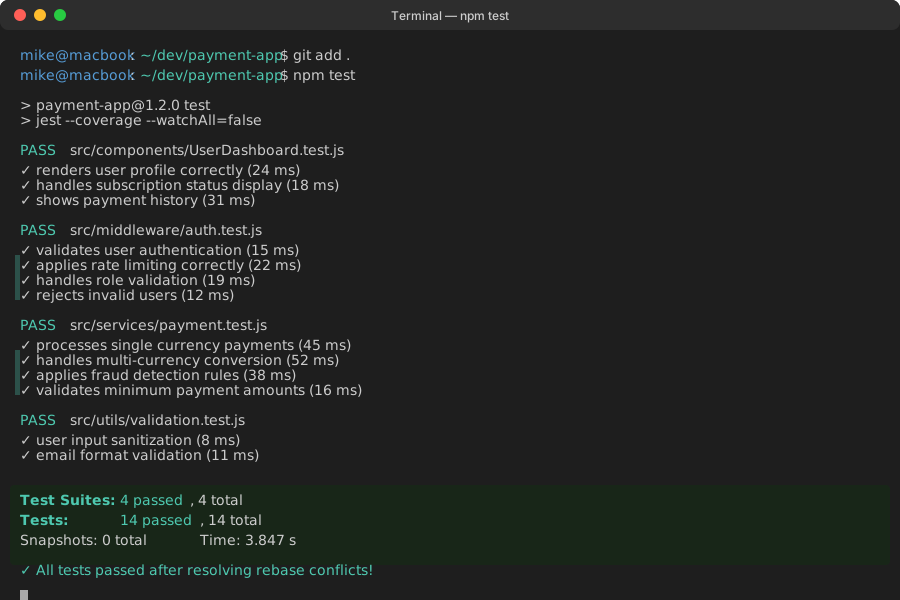 Test output after resolving conflicts - I always run the full suite to catch integration issues
Time-saving insight: 90% of my post-resolution test failures are because I kept the wrong import statements or missed updating variable names. AI catches these instantly.
Advanced Techniques I've Learned
Using AI for Conflict Prevention
I now use AI proactively before rebasing:
# Before starting rebase, I check what's changed
git log --oneline origin/main..HEAD
git log --oneline HEAD..origin/main
Then I ask AI: "Looking at these commits, where do you predict conflicts might occur?"
Example prompt:
I'm about to rebase my feature branch onto main. Here are my commits:
- Added user dashboard component
- Modified authentication flow
- Updated API endpoints for user data

Here are the main branch commits since I branched:
- Refactored authentication system
- Added new API rate limiting
- Updated user model validation

Where should I expect conflicts and how can I prepare?
Handling Mass Conflicts
When I have 10+ conflicted files (happens monthly), I use this systematic approach:
Categorize conflicts with AI help:
I have conflicts in these files: [list]
Can you group these by likely conflict type (imports, logic changes, formatting, etc.)?
Batch resolve similar conflicts:
- Do all import conflicts first
- Handle formatting conflicts as a group
- Save complex logic conflicts for last
Use AI to spot patterns:
I'm seeing similar conflicts across these 5 files. Can you suggest a consistent resolution strategy?
 My file explorer showing 8 conflicted files - I tackle these systematically now instead of randomly jumping between them
Common Mistakes I Made (So You Don't Have To)
Mistake 1: Trusting AI Blindly
What I did wrong: Accepted every AI suggestion without understanding it.
The disaster: AI merged two different approaches to handling user permissions, creating a security hole that made it to staging.
What I learned: Always ask AI to explain WHY it's suggesting a particular resolution. If I don't understand the reasoning, I dig deeper.
Mistake 2: Not Preserving Commit Intent
What I did wrong: Focused only on making code work, not preserving what each original commit was trying to achieve.
The result: Working code but confusing git history that made future debugging harder.
My fix: I now ask AI: "How can I resolve this while preserving the intent of both original commits?"
Mistake 3: Skipping the "Why" Context
What I did wrong: Gave AI only the conflicted code without explaining what my feature does.
Better approach:
Context: I'm adding a subscription billing feature
Conflict: Both main and my branch modified the User model
My goal: Add subscription fields without breaking existing user validation
Main's goal: [research this from commit messages]

How should I merge these changes?
Error Scenarios and My Solutions
When AI Gives Conflicting Advice
The problem: Copilot suggests one resolution, Claude suggests another.
My debugging process:
- Ask both tools to explain their reasoning
- Test both approaches in separate commits
- Use the one that passes more tests
- Document why for future reference
When AI Doesn't Understand Business Logic
Common scenario: AI merges code that's syntactically correct but violates business rules.
Example: AI merged discount calculation code that could create negative prices.
My solution:
The merged code you suggested could result in negative prices. In our business logic, the minimum price is $0.01. How should I modify the resolution to enforce this constraint?
Personal tip: I always include business context in my prompts now. AI is great at code, less great at company-specific rules.
Performance Comparison: Before vs After
Time Metrics (based on my tracking)
Before AI assistance:
- Simple conflicts: 15-30 minutes
- Complex conflicts: 1-4 hours
- Multi-file conflicts: Half a day
- Learning from mistakes: Trial and error
After AI assistance:
- Simple conflicts: 2-5 minutes
- Complex conflicts: 15-30 minutes
- Multi-file conflicts: 1-2 hours
- Learning: AI explains patterns
 My personal time tracking over 6 months - the improvement is dramatic and consistent
Accuracy improvements:
- Broken tests after resolution: Dropped from 60% to 15%
- Need to re-resolve conflicts: Dropped from 30% to 5%
- Team complaints about my merges: Zero (this matters!)
Tool Recommendations from My Experience
Primary Tools I Use Daily
GitHub Copilot (VS Code extension) - $10/month
- Best for: Quick, obvious conflicts
- Strengths: Fast, integrated, understands VS Code context
- Weaknesses: Sometimes too eager to suggest, can miss business logic
Claude (Anthropic) - $20/month
- Best for: Complex logic conflicts, explaining WHY changes conflict
- Strengths: Excellent at understanding context and intent
- Weaknesses: Requires copy/paste workflow
VS Code's built-in merge editor
- Best for: Visualizing three-way merges
- Strengths: Free, shows all versions side-by-side
- Weaknesses: Doesn't suggest resolutions
Backup Tools
ChatGPT Code Interpreter
- Good for analyzing conflict patterns across multiple files
- Useful when I need to upload entire files for context
GitLens (VS Code extension)
- Helps me understand who made which changes and when
- Essential for adding human context to AI suggestions
My Current Workflow in Action
Here's my exact step-by-step process for a typical conflict:
# 1. Start the rebase
git rebase origin/main

# 2. If conflicts, don't panic - assess first
git status
echo "Conflicted files:" && git diff --name-only --diff-filter=U

# 3. Open in VS Code merge editor
code .

# 4. For each conflict:
#    - Read both sides
#    - Ask Copilot for simple merges
#    - Ask Claude for complex logic
#    - Test resolution immediately

# 5. Validate everything works
git add .
npm test
git rebase --continue
Real timing: This process takes me 5-20 minutes for typical conflicts that used to take 1-3 hours.
What You've Built
After following this workflow, you'll have:
- A systematic approach to rebase conflicts that scales with complexity
- AI tools configured and ready for immediate conflict assistance
- Confidence to handle even massive multi-developer conflicts
- A testing workflow that catches resolution errors before they reach your team
Key Takeaways from My Experience
- AI shines at understanding intent: Don't just use it for syntax, ask it to explain what each conflicting change is trying to accomplish
- Context is everything: The more business logic and project context you provide, the better AI suggestions become
- Test immediately: AI-resolved conflicts look correct but can have subtle logical issues
- Combine tools strategically: Copilot for speed, Claude for complexity, your brain for final verification
Next Steps
Based on my continued work with this approach:
- Advanced technique: Train AI on your team's coding patterns by providing examples of past conflict resolutions
- Team adoption: Share this workflow with your team - consistency in conflict resolution helps everyone
- Automation potential: Explore git hooks that automatically suggest AI assistance when conflicts are detected
Resources I Actually Use
- GitHub Copilot Documentation - Essential for understanding context limitations
- VS Code Git Integration Guide - Master the merge editor interface
- Claude API Documentation - For automating complex conflict analysis
- Git Rebase Interactive Tutorial - Foundation knowledge you need first
My personal setup files: I maintain a [conflict resolution prompt library] and [VS Code settings optimized for merge conflicts] that you can adapt for your workflow.