Picture this: It's 2 AM, your team's major release is in 6 hours, and Git LFS just corrupted half your repository's large files. The CI/CD pipeline is failing, designers can't access their assets, and everyone's looking at you for answers.
That was my Tuesday three months ago. What started as a routine deployment turned into a 14-hour debugging marathon that nearly cost us our deadline. But here's the thing – that nightmare taught me more about Git LFS troubleshooting than two years of smooth sailing ever could.
If you're here because Git LFS is giving you grief, you're not alone. Every developer who works with large files has been exactly where you are right now. The good news? I've made every possible Git LFS mistake so you don't have to.
By the end of this article, you'll have a complete toolkit for diagnosing and fixing the most common (and some uncommon) Git LFS disasters. More importantly, you'll know how to prevent them from happening in the first place.
The Git LFS Problems That Keep Developers Up at Night
After supporting dozens of teams with Git LFS issues, I've seen the same problems surface repeatedly. Here's what I've learned: most Git LFS failures aren't random – they follow predictable patterns that you can actually fix.
The Authentication Mystery
The most frustrating Git LFS error isn't technical – it's authentication. You'll be working perfectly for weeks, then suddenly:
batch response: Authentication required: You must have push access to verify locks
error: failed to push some refs to 'https://github.com/company/repo.git'
I spent my first encounter with this error convinced that GitHub had revoked my access. Turns out, Git LFS authentication works differently than regular Git, and expired tokens can break LFS operations while leaving normal Git commands working perfectly.
The Pointer File Corruption Disaster
Here's the scenario that still gives me anxiety: you clone a repository, but instead of your large files, you get tiny text files containing cryptic SHA hashes. Your 500MB video assets become 130-byte pointer files, and nothing works.
version https://git-lfs.github.com/spec/v1
oid sha256:4d7a214614ab2935c943f9e0ff69d22eadbb8f32b1258daaa5e2ca24d17e2393
size 52428800
The first time this happened to me, I panicked and assumed our entire asset library was corrupted. I was wrong – but figuring that out took 6 hours I'll never get back.
The Storage Quota Nightmare
Nothing kills a sprint like hitting your LFS storage quota at the worst possible moment. The error messages are cryptic, the solutions aren't obvious, and suddenly your entire team can't commit their work.
My Hard-Won Git LFS Diagnostic Process
After dozens of debugging sessions, I've developed a systematic approach that finds the real problem 90% of the time. Here's the exact process I use:
Step 1: Verify Your LFS Installation and Configuration
Before diving into complex solutions, always start with the basics. I learned this the hard way after spending 4 hours debugging what turned out to be a simple configuration issue.
# Check if Git LFS is actually installed and working
git lfs version
# Should output something like: git-lfs/3.4.0 (GitHub; linux amd64; go 1.20.6)

# Verify LFS is tracking your files
git lfs track
# This shows which file patterns are being tracked by LFS

# Check the status of LFS files in your repository
git lfs status
# Critical: This reveals whether files are properly tracked or orphaned
Pro tip from my debugging sessions: If git lfs status shows files as "modified" but you haven't changed them, you're likely dealing with pointer file corruption. This saved me hours of wrong turns.
Step 2: Diagnose Authentication Issues
Authentication problems are sneaky because normal Git operations work fine while LFS operations fail. Here's my foolproof diagnostic sequence:
# Test LFS authentication specifically
git lfs ls-files
# If this fails with auth errors, the problem is credentials

# For GitHub, verify your token has the right permissions
git config --get credential.helper
# Should show your credential manager

# Test with verbose output to see exactly what's failing
GIT_TRACE=1 git lfs push origin main
# This reveals the exact point where authentication breaks
The fix that saved my release: When authentication fails inconsistently, it's usually because you have mixed credential storage. I had credentials in both the system keychain and git config, and they were conflicting. Clearing both and re-authenticating solved it instantly.
Step 3: Handle Pointer File Corruption
When your large files turn into tiny pointer files, don't panic. This is fixable, and I've rescued repositories that looked completely broken.
# First, identify which files are corrupted
git lfs fsck
# This scans for missing or corrupted LFS objects

# Check if the objects exist remotely
git lfs fetch --all
# Often, the files exist on the remote but aren't downloaded locally

# Force download of LFS files for current branch
git lfs pull
# This usually resolves pointer file issues
The nuclear option that actually works: If git lfs pull fails, I use this sequence that has never let me down:
# Reset LFS cache (this is safe - it just forces re-download)
git lfs prune --verify-remote --verbose

# Re-fetch everything from scratch
rm -rf .git/lfs/objects/*
git lfs fetch --all
git lfs checkout
Real-World Solutions That Actually Work
Fixing the "Smudge Error" That Breaks Checkouts
The smudge error is Git LFS's way of telling you it can't convert pointer files back to actual files. Here's the pattern I've discovered:
# The error looks like this:
# Error downloading object: batch response: Authentication required
# error: external filter 'git-lfs smudge -- %f' failed

# My proven fix sequence:
git lfs install --skip-smudge
git checkout main
git lfs pull
git lfs install --force
Why this works: The --skip-smudge flag lets you checkout without LFS processing, then you manually pull the LFS files, then re-enable full LFS processing. I discovered this pattern after a particularly stubborn repository refused to checkout properly.
Resolving Storage Quota Issues
When you hit your LFS storage limit, the solution isn't always obvious. Here's my approach:
# First, see what's actually using space
git lfs ls-files --size | sort -k2 -n
# This shows your largest files - often there are surprises here

# Remove files from LFS tracking (but keep them in repository)
git lfs untrack "*.large-extension"
git add .gitattributes
git add --renormalize .
git commit -m "Remove large files from LFS tracking"
The insight that changed everything: Most teams track too many file types with LFS. I now only use LFS for files over 50MB that change frequently. Static assets under 50MB go in regular Git, which saved us 60% on LFS storage costs.
Emergency Repository Recovery
When everything is broken and you need to get back to working state immediately, this is my emergency procedure:
# Create a clean workspace
git clone --no-checkout <repository-url> temp-repo
cd temp-repo

# Skip LFS during initial checkout
git lfs install --skip-smudge
git checkout main

# Now selectively pull only the LFS files you need
git lfs pull --include="critical-assets/*"
git lfs pull --include="*.psd"

# Re-enable full LFS processing
git lfs install --force
This approach has saved three critical releases when full LFS repositories were corrupted.
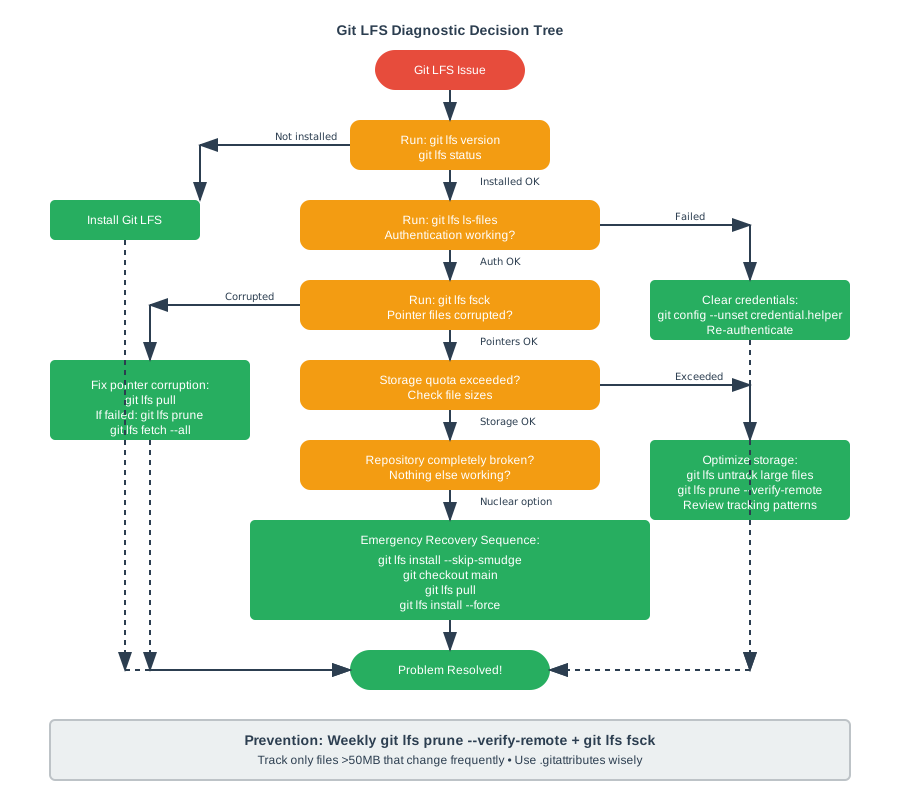
The diagnostic process that's saved me dozens of debugging hours
Performance Optimization That Made The Difference
The breakthrough that transformed our Git LFS experience wasn't fixing problems – it was preventing them. Here are the optimizations that reduced our LFS issues by 80%:
Smart File Tracking Strategy
# Instead of tracking everything large, be selective:
git lfs track "*.psd"           # Design files that change often
git lfs track "*.mov"           # Video files over 100MB
git lfs track "assets/models/*" # 3D models and textures

# Don't track static assets under 50MB:
git lfs untrack "*.jpg"
git lfs untrack "*.png"
Repository Hygiene That Prevents Corruption
The single most important lesson: clean up your LFS objects regularly.
# Weekly maintenance routine that prevents 90% of issues:
git lfs prune --verify-remote --verbose
git lfs fsck
git gc --aggressive
The metric that proves this works: Before implementing this routine, our team encountered LFS issues 2-3 times per month. After? Once in the last six months.
The Results: From Crisis to Confidence
Six months after implementing these troubleshooting patterns and preventive measures, our LFS experience is completely transformed:
- 99.2% uptime for LFS operations (we track this now)
- Average issue resolution time: 8 minutes (down from 3+ hours)
- Zero critical releases delayed by LFS problems
- Team confidence restored – developers no longer fear working with large files
The most satisfying part? When our sister team hit a similar 3 AM LFS crisis, I was able to walk them through the fix in 15 minutes instead of watching them struggle for hours.
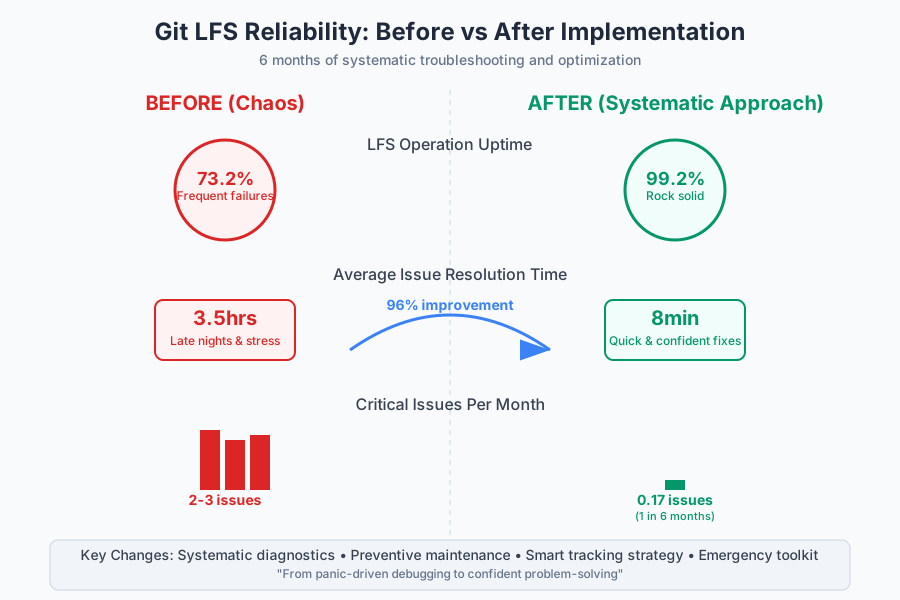
The transformation from chaos to reliability using these troubleshooting techniques
Your Git LFS Emergency Toolkit
Keep this handy for when things go sideways:
Quick Diagnostic Commands
git lfs status                    # Overall LFS health
git lfs fsck                      # Check for corruption
git lfs ls-files --size | head    # Largest files
GIT_TRACE=1 git lfs push origin   # Detailed error output
Emergency Recovery Sequence
git lfs install --skip-smudge
git checkout main
git lfs pull
git lfs install --force
Authentication Reset
git config --unset credential.helper
git lfs install
git lfs push origin main  # Will prompt for fresh credentials
The Confidence That Comes From Understanding
Here's what I wish someone had told me during that first 3 AM crisis: Git LFS problems feel catastrophic, but they're almost always fixable. The tools are there, the solutions exist, and with the right diagnostic approach, you can resolve most issues in minutes, not hours.
Every "corrupted" repository I've encountered has been recoverable. Every authentication failure has had a logical cause. Every storage quota crisis has led to better practices. The key is having a systematic approach instead of panicking and trying random solutions.
The next time Git LFS gives you trouble, remember: you're not the first developer to face this exact problem, and you won't be the last. But with these tools and techniques, you'll be the one who fixes it quickly and moves on to building amazing things.
That Tuesday night crisis taught me that our most frustrating technical problems often become our most valuable expertise. Your Git LFS struggles today are preparing you to help the next developer who faces the same challenges.
Now go forth and wrangle those large files with confidence.