Problem: Your Chatflow Can't React to External Events
Flowise chatflows are great at responding to chat messages. But what happens when a GitHub PR is merged, a Stripe payment fails, or a form gets submitted — and you want your LLM pipeline to handle it automatically?
By default, Flowise has no way to receive those signals. You need a webhook endpoint.
You'll learn:
- How to enable and configure a webhook on any Flowise chatflow
- How to parse the incoming payload inside your flow
- How to test with real external services like GitHub and n8n
Time: 20 min | Difficulty: Intermediate
Why Flowise Webhooks Exist
Flowise exposes a REST API for every chatflow at /api/v1/prediction/:chatflowid. That endpoint expects a question field in the request body — designed for chat UIs.
Webhook mode changes the contract. It lets Flowise accept arbitrary JSON payloads from external systems and route them into your chatflow as the user input. The chatflow processes the payload and returns a response — or fires a side effect like a notification.
Symptoms that you need this:
- You're calling Flowise from n8n, Zapier, or a cron job and want to pass structured data
- An external service (GitHub, Stripe, Slack) needs to trigger your agent
- You want event-driven LLM processing instead of manual chat
Solution
Step 1: Open Your Chatflow and Enable Webhook
In the Flowise UI, open the chatflow you want to expose.
Click the API Endpoint button (top-right toolbar, looks like </> or a chain icon). Switch to the Webhook tab.
You'll see a generated URL like:
https://your-flowise-host/api/v1/webhook/:chatflowid
Toggle Enable Webhook to ON. Flowise now accepts POST requests at that URL without requiring the question field.
 Caption: The webhook toggle lives in the API Endpoint panel, separate from the standard prediction endpoint.
Step 2: Understand the Payload Contract
Flowise webhook mode accepts any valid JSON body. The full body is passed to your chatflow as the input. If your external service sends:
{
  "event": "payment.failed",
  "customer_email": "user@example.com",
  "amount": 4900,
  "currency": "usd"
}
Flowise converts this to a string and passes it as the user message to your first node.
Default behavior: The entire JSON body is stringified and treated as the question. Your prompt template or agent receives it as plain text.
To access specific fields, use a Custom Function node early in your flow to parse and reshape the payload:
// Custom Function node — input: $input (the raw webhook body string)
// Parse the incoming webhook payload and extract what the LLM needs
const payload = JSON.parse($input);

return `A payment failed for ${payload.customer_email}.
Amount: ${(payload.amount / 100).toFixed(2)} ${payload.currency.toUpperCase()}.
Draft a short support email offering a retry link.`;
This gives your LLM a clean, structured prompt instead of raw JSON noise.
Step 3: Secure the Webhook with a Header Token
Unauthenticated webhook endpoints are a security risk. Add a secret header check.
In the Webhook tab, set a Webhook Secret (e.g., wh_prod_abc123). Flowise will reject requests that don't include:
x-flowise-secret: wh_prod_abc123
When configuring your external service (GitHub, Stripe, etc.), add this as a custom header in their webhook settings.
Test that rejection works:
# Should return 401
curl -X POST https://your-flowise-host/api/v1/webhook/YOUR_CHATFLOW_ID \
  -H "Content-Type: application/json" \
  -d '{"test": "no secret"}'

# Should return 200 with LLM response
curl -X POST https://your-flowise-host/api/v1/webhook/YOUR_CHATFLOW_ID \
  -H "Content-Type: application/json" \
  -H "x-flowise-secret: wh_prod_abc123" \
  -d '{"event": "test", "message": "hello from webhook"}'
Expected output for the second request:
{
  "text": "Your LLM response here...",
  "chatId": "...",
  "sessionId": "..."
}
Step 4: Connect a Real External Service
Example: GitHub PR webhook → Flowise code review summary
- Go to your GitHub repo → Settings → Webhooks → Add webhook
- Set Payload URL to your Flowise webhook URL
- Set Content type to
application/json - Add a Secret matching your Flowise webhook secret
- Choose event: Pull requests
In your Flowise chatflow, add a Custom Function node that extracts the PR data:
// Parse GitHub's pull_request event payload
const payload = JSON.parse($input);

// GitHub sends the event type in the payload action field
if (payload.action !== "opened" && payload.action !== "synchronize") {
  return "SKIP"; // Signal downstream nodes to no-op
}

const pr = payload.pull_request;
return `New PR opened: "${pr.title}" by ${pr.user.login}.
Files changed: ${pr.changed_files}. Additions: ${pr.additions}. Deletions: ${pr.deletions}.
Branch: ${pr.head.ref} → ${pr.base.ref}.
Summarize what this PR likely does and flag any risks.`;
Wire that output into your LLM node. Flowise responds with a summary every time a PR opens.
 Caption: Custom Function node reshapes the raw GitHub payload into a focused prompt before it hits the LLM.
Step 5: Handle the Webhook Response
Flowise returns the LLM output synchronously in the HTTP response. For most webhook senders (n8n, Zapier, GitHub), the response body is available for further processing.
If you need to send the output somewhere (Slack, email, database) rather than just return it, add an output node after your LLM node:
- HTTP Request node → POST to a Slack incoming webhook URL
- Custom Function node → call any external API with
fetch()
// Custom Function node — send result to Slack
// $input here is the LLM's response text from the previous node
const slackWebhookUrl = "https://hooks.slack.com/services/YOUR/SLACK/WEBHOOK";

await fetch(slackWebhookUrl, {
  method: "POST",
  headers: { "Content-Type": "application/json" },
  body: JSON.stringify({ text: $input })
});

return $input; // Pass through for the HTTP response
Verification
Send a test POST with a complete payload:
curl -X POST https://your-flowise-host/api/v1/webhook/YOUR_CHATFLOW_ID \
  -H "Content-Type: application/json" \
  -H "x-flowise-secret: wh_prod_abc123" \
  -d '{
    "event": "order.completed",
    "order_id": "ord_9912",
    "customer": "jane@example.com",
    "total": 8900
  }'
You should see: A JSON response with a text field containing your LLM's output within 3–10 seconds depending on your model.
Check the Chatflow Logs in the Flowise UI to confirm the payload arrived and was processed correctly.
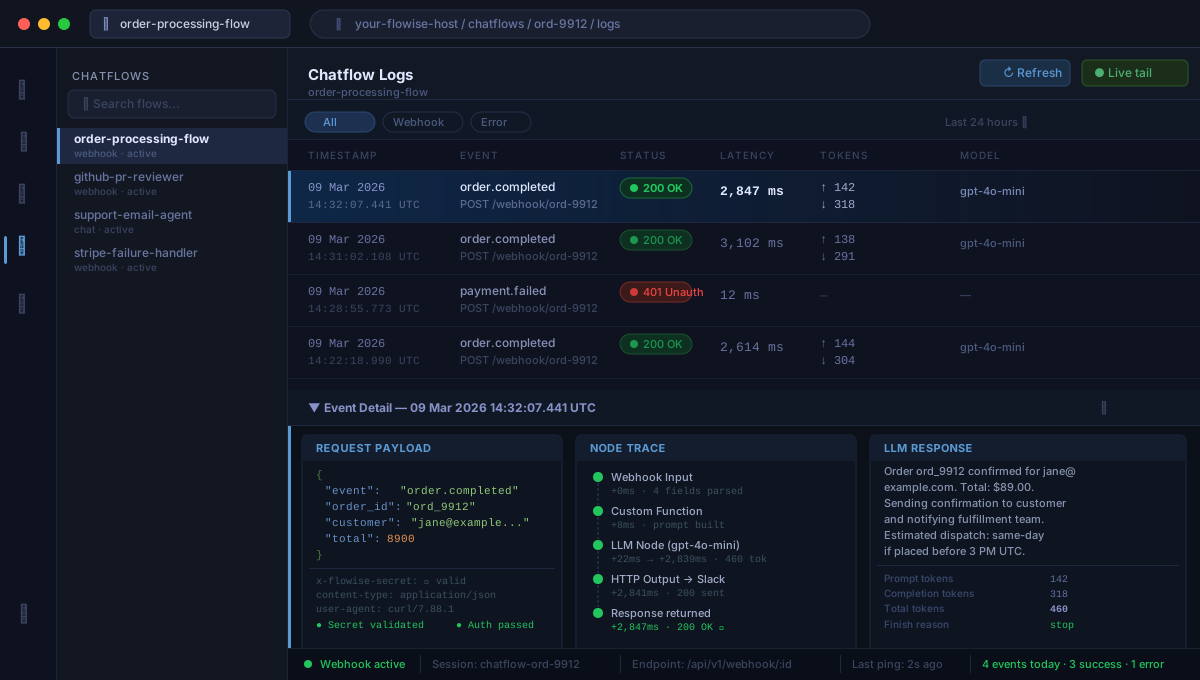 Caption: Chatflow logs confirm the webhook fired, the payload was parsed, and the LLM responded without errors.
What You Learned
- Flowise webhooks live at
/api/v1/webhook/:chatflowid— separate from the prediction endpoint - The full JSON body is stringified as input; use a Custom Function node to reshape it before your LLM
- The
x-flowise-secretheader gates access — always set this in production - Flowise returns the LLM response synchronously, so the calling service gets the output in the HTTP reply
Limitation: Flowise webhooks are synchronous — if your LLM call takes 30+ seconds, some webhook senders (GitHub, Stripe) will time out and retry. For long-running flows, respond immediately with a 200 and process asynchronously via a queue.
Tested on Flowise 2.2.x, Node.js 20, Docker (self-hosted) and Flowise Cloud