Problem: RAG Pipelines Feel Out of Reach Without Coding
Most RAG tutorials assume you can write Python, manage vector databases, and wire LangChain together by hand. If that's not you — or you just want a working chatbot in 30 minutes — Flowise is the answer.
You'll learn:
- How to spin up Flowise locally with Docker
- How to upload documents and embed them into a vector store
- How to build and test a full RAG chatbot flow with no code
Time: 30 min | Difficulty: Beginner
Why RAG Without Code Is Now Practical
RAG (Retrieval-Augmented Generation) used to mean a stack of Python scripts: document loaders, embedding models, vector DBs, prompt templates, and a glue layer. Flowise replaces all of that with a drag-and-drop canvas.
Flowise 2.x (released late 2025) added persistent vector store support and multi-session chatbots. That makes it production-viable, not just a demo toy.
Solution
Step 1: Run Flowise with Docker
# Pull and start Flowise — data persists in ./flowise-data
docker run -d \
  --name flowise \
  -p 3000:3000 \
  -v $(pwd)/flowise-data:/root/.flowise \
  flowiseai/flowise:latest
Expected output:
Status: Downloaded newer image for flowiseai/flowise:latest
<container-id>
Open http://localhost:3000. You should see the Flowise canvas.
If it fails:
Port 3000 already in use→ Change-p 3001:3000and openhttp://localhost:3001docker: command not found→ Install Docker Desktop from docker.com first
Step 2: Create a New Chatflow
- Click Add New in the top-right corner
- Name it
RAG Chatbot — Docs QA - You'll land on a blank canvas
Each node on this canvas is one piece of the RAG pipeline.
Step 3: Add a Document Loader Node
Click + on the canvas and search for PDF File.
Set these fields:
- File → Upload your PDF (product docs, a manual, any reference doc)
- Chunk Size →
1000 - Chunk Overlap →
200
Chunk size 1000 with 200 overlap is a safe default. Smaller chunks (500) retrieve more precisely; larger chunks (2000) retain more context per result. Start here and tune later.
 Caption: The PDF loader splits your document into overlapping chunks before embedding.
Step 4: Add an Embeddings Node
Click + and search for OpenAI Embeddings.
Set these fields:
- OpenAI API Key → Paste your key
- Model Name →
text-embedding-3-small
Connect the PDF File output to the Document input on the Embeddings node.
Free alternative: Use the Ollama Embeddings node with model nomic-embed-text — no API key needed.
Step 5: Add an In-Memory Vector Store
Search for In-Memory Vector Store and drop it on the canvas.
Connect:
- Embeddings node → Embeddings input
- PDF File node → Document input
In-memory is fine for testing. For production, swap to the Qdrant or Postgres PGVector node so embeddings survive restarts.
Step 6: Add a Retriever Node
Search for Vector Store Retriever and connect the vector store output to its input.
Set Top K → 4 (chunks retrieved per query).
Top K = 4 is the right starting point. Too low (1–2) and answers miss context. Too high (8+) and you fill the prompt with noise.
Step 7: Add a Chat Model
Search for ChatOpenAI and configure:
- OpenAI API Key → Same key as Step 4
- Model Name →
gpt-4o-mini - Temperature →
0
Local alternative: Use ChatOllama with model llama3.2 for fully local inference.
Step 8: Connect with a Conversational RAG Chain
Search for Conversational Retrieval QA Chain and drop it on the canvas.
Connect:
- ChatOpenAI → Language Model input
- Vector Store Retriever → Vector Store Retriever input
This node takes the user's question, retrieves matching chunks, and passes both to the LLM.
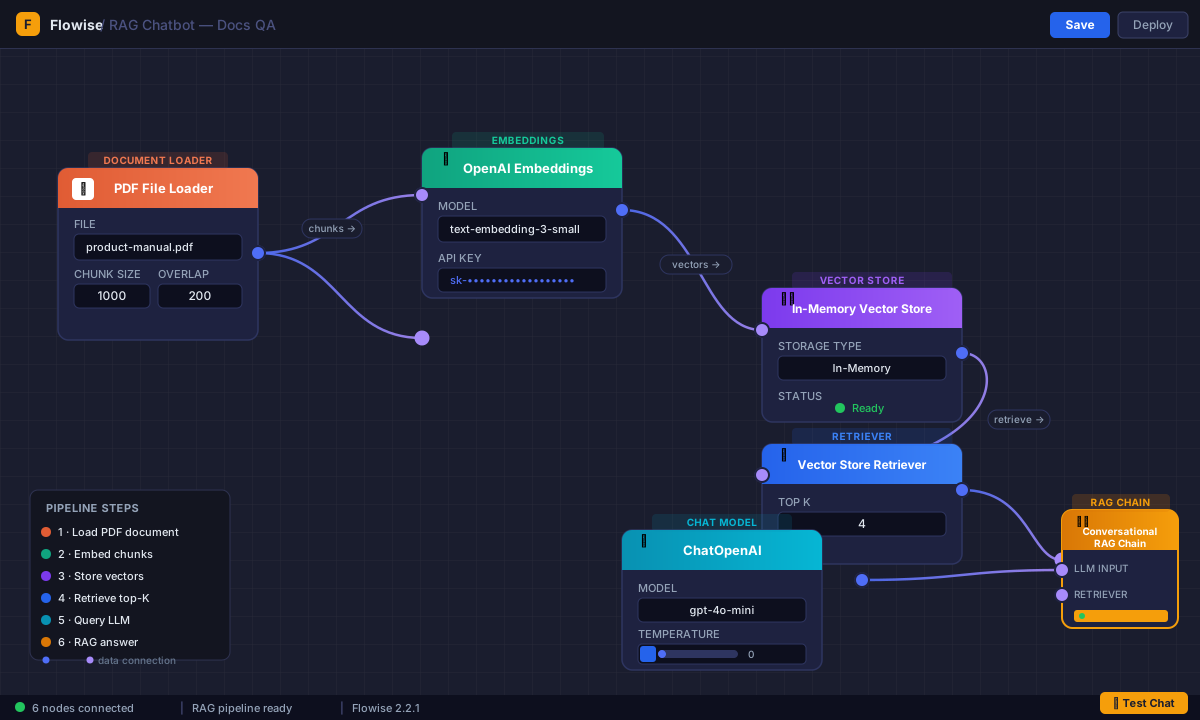 Caption: The complete flow — PDF loader feeds the vector store, the retriever finds relevant chunks, the chain answers.
Step 9: Save and Test
- Click Save (top-right)
- Click the Chat bubble icon (bottom-right of canvas)
- Ask a question about your document
Verification
Ask something that can only be answered from your uploaded document:
What is the maximum operating temperature listed in the safety guidelines?
You should see: A direct answer pulled from your doc. If it's vague or wrong, reduce chunk size to 500 and retest.
Enable Return Source Documents on the QA Chain node to see which chunks were used — this confirms retrieval is working and not hallucinating.
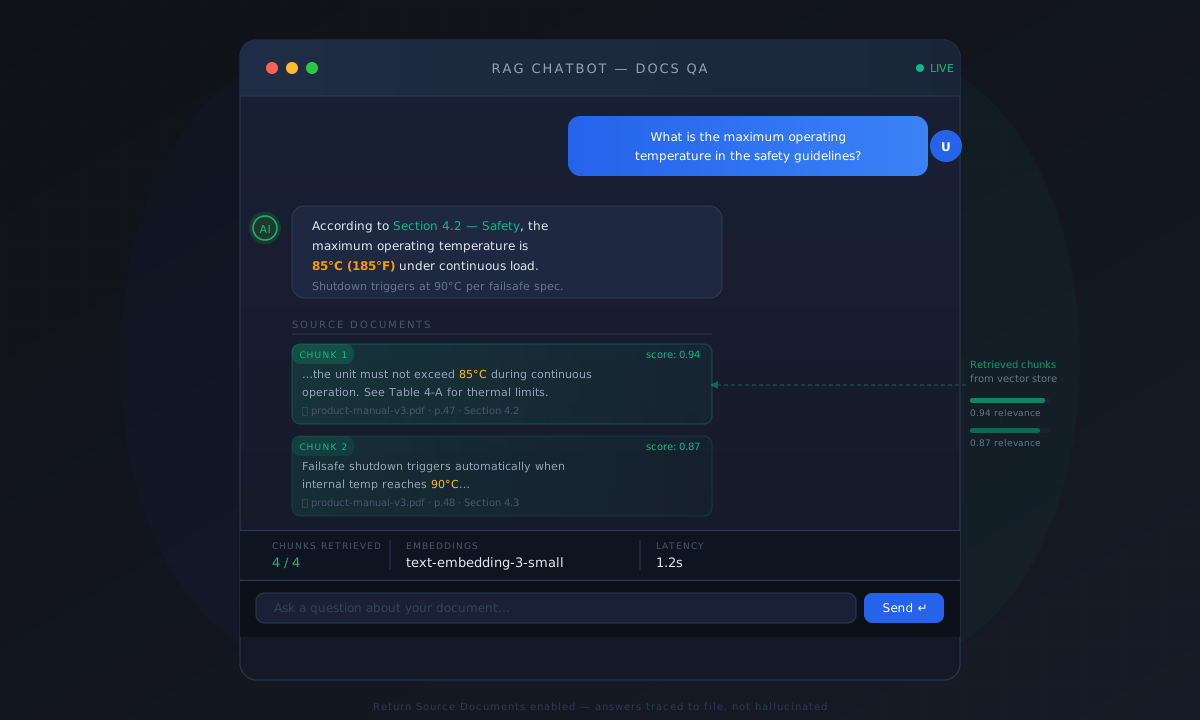 Caption: Source documents confirm the chatbot is pulling answers from your file, not making things up.
What You Learned
- Flowise connects document loaders, embeddings, vector stores, and LLMs visually — no code required
- Chunk size (1000) and overlap (200) are the main retrieval quality levers
- In-memory vector store is fine for testing; use Qdrant or PGVector for production
Limitation: In-memory storage resets on every Docker restart. Switch to the Qdrant node with a persistent volume before going live.
Next step: Click API Endpoint in Flowise to get a REST endpoint — call it from any frontend or n8n workflow.
Tested on Flowise 2.2.1, Docker 27.x, macOS 15 and Ubuntu 24.04