Problem: Your Chatbot Hallucinates Because It Can't See Your Docs
You have PDFs, internal wikis, or product documentation. You want a chatbot that answers questions from those documents — not from the model's training data. Without a proper RAG pipeline, the model guesses. With one built correctly, it retrieves the exact chunk and cites it.
This guide builds a production-ready pipeline: PDF ingestion → OpenAI embeddings → Pinecone storage → Flowise chat interface with source citations.
You'll learn:
- How to ingest and chunk documents in Flowise without writing code
- How to connect Pinecone as your vector store and avoid namespace collisions
- How to wire a conversational retrieval chain that returns sources alongside answers
Time: 30 min | Difficulty: Intermediate
Why Generic Chatbots Fail on Private Documents
LLMs have a hard knowledge cutoff and zero access to your internal data. When you ask GPT-4o about your Q3 pricing sheet, it either refuses or invents an answer that sounds plausible.
RAG (Retrieval-Augmented Generation) fixes this by splitting the problem in two:
- Retrieval — find the relevant text chunks from your document store using semantic search
- Generation — pass those chunks as context to the LLM and instruct it to answer only from them
Pinecone handles step 1 at production scale. Flowise wires everything together visually so you spend time tuning, not plumbing.
The failure mode to avoid: chunking too coarsely (the retriever returns irrelevant paragraphs) or too finely (no single chunk has enough context to answer). This guide uses 1000-character chunks with 200-character overlap — a safe default for most document types.
Architecture
PDF / Docs
    │
    ▼
[Flowise: Document Loader]
    │  splits into chunks
    ▼
[OpenAI Embeddings]  ──▶  [Pinecone Upsert]
                                │
User Question                   │
    │                           │
    ▼                           ▼
[OpenAI Embeddings]  ──▶  [Pinecone Query]
                                │
                        top-k relevant chunks
                                │
                                ▼
                     [LLM: GPT-4o-mini + system prompt]
                                │
                                ▼
                    Answer + Source Documents
Solution
Step 1: Run Flowise Locally with Docker
# Start Flowise — persists flows and credentials in a Docker volume
docker run -d \
  --name flowise \
  -p 3000:3000 \
  -v flowise_data:/root/.flowise \
  flowiseai/flowise:latest

# Verify it's up
curl -s http://localhost:3000/api/v1/ping
Expected output:
{"status":"ok"}
If it fails:
- Port 3000 already in use → change to
-p 3001:3000and openhttp://localhost:3001 - Docker not found → install Docker Desktop from
https://docs.docker.com/get-docker/
Step 2: Create a Pinecone Index
Log in to app.pinecone.io and create a new index with these exact settings:
| Setting | Value | Why |
|---|---|---|
| Index name | docs-rag | Matches what we reference in Flowise |
| Dimensions | 1536 | Matches text-embedding-3-small output |
| Metric | cosine | Best for semantic text similarity |
| Cloud / Region | Any free-tier region | Minimize latency to your server |
Copy your API key from the Pinecone dashboard — you'll add it to Flowise in the next step.
Step 3: Add Credentials to Flowise
Open http://localhost:3000, go to Credentials in the sidebar, and add two entries:
OpenAI API Key
- Credential name:
openai-prod - API key: your OpenAI key from
platform.openai.com
Pinecone API Key
- Credential name:
pinecone-prod - API key: your Pinecone key from step 2
Storing credentials here means your flows never contain raw secrets — Flowise injects them at runtime.
Step 4: Build the Document Ingestion Flow
In Flowise, click Add New to create a flow. You'll build two separate flows — one for ingestion, one for chat. Start with ingestion.
Add these nodes from the node panel (drag and drop):
Node 1 — PDF File Loader
- Search:
PDF File - Settings:
- Usage:
Document - PDF File: upload your document (or use URL for remote PDFs)
- Usage:
Node 2 — Recursive Character Text Splitter
- Search:
Recursive Character Text Splitter - Settings:
- Chunk Size:
1000 - Chunk Overlap:
200
- Chunk Size:
Connect: PDF File Loader → Text Splitter
Node 3 — OpenAI Embeddings
- Search:
OpenAI Embeddings - Settings:
- Credential:
openai-prod - Model:
text-embedding-3-small(1536 dims, cheapest, fast)
- Credential:
Node 4 — Pinecone
- Search:
Pinecone - Settings:
- Credential:
pinecone-prod - Index Name:
docs-rag - Namespace:
v1(use versioned namespaces — makes re-ingestion safe)
- Credential:
Connect: Text Splitter → Pinecone, OpenAI Embeddings → Pinecone
Save the flow as ingest-docs. Click Upsert on the Pinecone node to run ingestion.
Expected: Flowise shows a progress bar and logs the number of chunks upserted. For a 20-page PDF, expect 80–150 chunks.
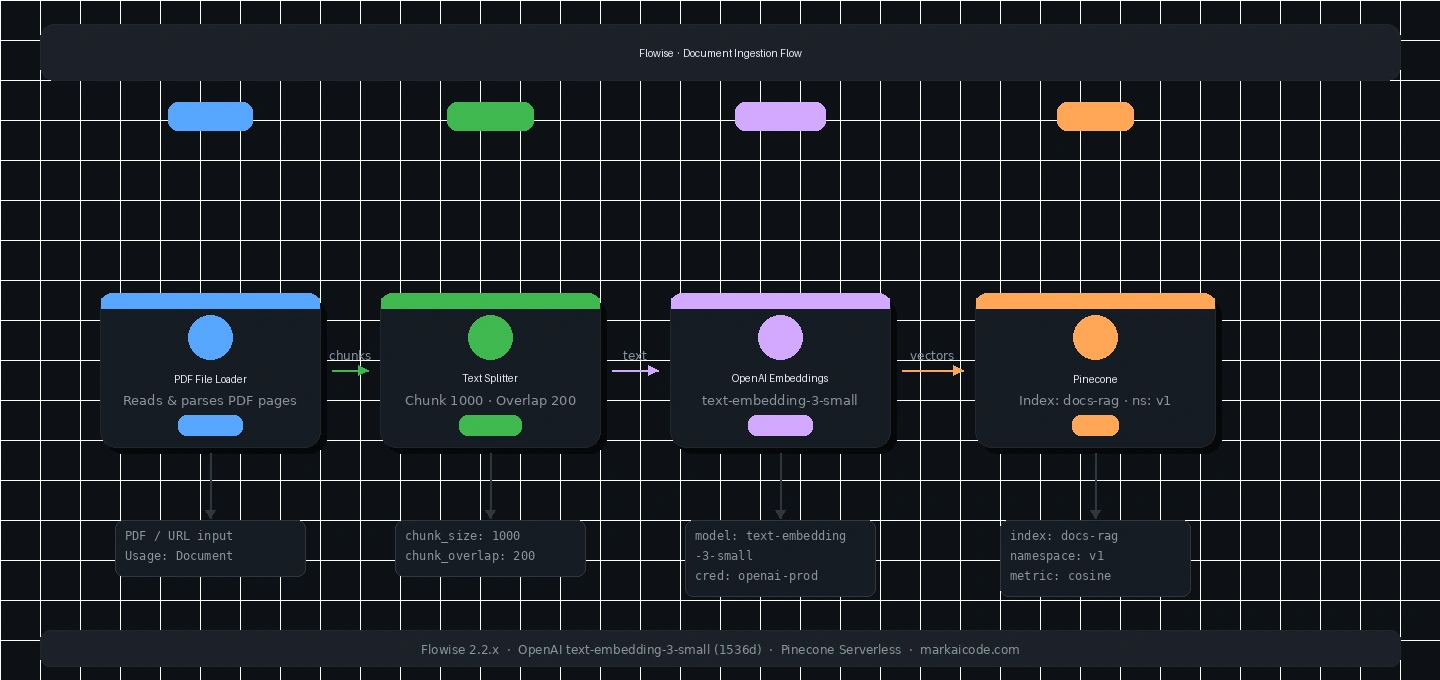 Caption: The ingestion flow — documents flow left to right, ending with a Pinecone upsert
Step 5: Build the Conversational Retrieval Chat Flow
Create a second flow: chat-docs. This is what your users interact with.
Node 1 — ChatOpenAI
- Search:
ChatOpenAI - Settings:
- Credential:
openai-prod - Model:
gpt-4o-mini(cost-effective; upgrade togpt-4ofor complex reasoning) - Temperature:
0(deterministic answers from retrieved context) - Max Tokens:
1000
- Credential:
Node 2 — OpenAI Embeddings (same config as ingestion flow)
Node 3 — Pinecone
- Same credential and index as before
- Namespace:
v1(must match ingestion namespace exactly) - Top K:
4(retrieve 4 chunks — enough context without bloating the prompt)
Node 4 — Conversational Retrieval QA Chain
- Search:
Conversational Retrieval QA Chain - Settings:
- Return Source Documents: ✅ enabled
- System Message:
You are a document assistant. Answer questions using ONLY the provided context.
If the answer is not in the context, say "I don't have that information in the documents."
Never invent facts. Always cite which document section your answer comes from.
Connect: ChatOpenAI → QA Chain, OpenAI Embeddings → Pinecone → QA Chain
Node 5 — Buffer Memory (optional but recommended for multi-turn chat)
- Search:
Buffer Memory - Memory Key:
chat_history - Connect to:
QA Chain
Save as chat-docs.
 Caption: The chat flow — user messages enter the QA chain, which retrieves from Pinecone before calling the LLM
Step 6: Configure the System Prompt for Grounding
The system prompt in step 5 is the most important production lever. A weak prompt lets the model drift outside your documents. A strong one pins it to retrieved context.
Here's a more complete version for strict document-only answers:
You are a precise document assistant for [Your Company Name].

Rules:
1. Answer ONLY from the provided document context below.
2. If the context does not contain enough information, respond with:
   "The documents don't cover this. Try rephrasing or ask about [topic area]."
3. Always end answers with: "Source: [document name, section]"
4. Do not speculate, extrapolate, or use outside knowledge.

Context: {context}
Question: {question}
Flowise automatically injects {context} and {question} — these are template variables, not placeholders you need to fill.
Step 7: Expose the Chatbot via API
Once the chat flow works in Flowise's built-in preview, expose it:
- Click API Endpoint on the chat flow
- Copy the generated endpoint URL and API key
Test it with curl:
# Replace FLOW_ID and YOUR_API_KEY with values from Flowise
curl -X POST \
  http://localhost:3000/api/v1/prediction/FLOW_ID \
  -H "Authorization: Bearer YOUR_API_KEY" \
  -H "Content-Type: application/json" \
  -d '{
    "question": "What are the refund terms in the policy document?",
    "overrideConfig": {
      "sessionId": "user-123"
    }
  }'
Expected output:
{
  "text": "Refunds are processed within 14 business days... Source: Policy Doc, Section 3.2",
  "sourceDocuments": [
    {
      "pageContent": "Refunds are processed within 14 business days of...",
      "metadata": { "source": "policy.pdf", "loc": { "pageNumber": 4 } }
    }
  ]
}
The sourceDocuments array is your citation trail. Surface this in your UI to build user trust.
Verification
Run these three test questions against your chatbot before going live:
# 1. Question the doc DOES answer — expect accurate, cited response
curl ... -d '{"question": "What does section 3 cover?"}'

# 2. Question the doc DOES NOT answer — expect polite refusal
curl ... -d '{"question": "What is the GDP of France?"}'

# 3. Multi-turn memory test — second question refers to first
curl ... -d '{"question": "Summarize the refund policy", "overrideConfig": {"sessionId": "test-abc"}}'
curl ... -d '{"question": "How does that compare to the exchange policy?", "overrideConfig": {"sessionId": "test-abc"}}'
You should see:
- Test 1: Direct answer with source citation
- Test 2: "I don't have that information" — not a hallucinated answer
- Test 3: Second response uses context from the first turn
 Caption: A correctly grounded answer — the source document chunk is returned alongside the response
Production Considerations
Namespace versioning: When you re-ingest updated documents, use a new namespace (v2, v3). Update the chat flow to point to the new namespace. This lets you roll back if the new ingestion degrades answer quality.
v1 → initial ingestion
v2 → after Q2 policy update
v3 → after full doc refresh
Chunk size tuning: 1000/200 is a conservative default. If answers feel incomplete, increase chunk size to 1500. If retrieval returns off-topic chunks, decrease to 600. Always re-ingest after changing chunk settings.
Cost estimate: For a 100-page document corpus, embeddings cost under $0.01 with text-embedding-3-small. Query costs are ~$0.0001 per question with gpt-4o-mini. A chatbot handling 1,000 questions/day runs under $5/month in model costs.
Rate limits: Pinecone free tier handles 100 reads/sec. For production traffic above that, upgrade to the Starter plan or implement a request queue in front of the Flowise API endpoint.
What You Learned
- Flowise lets you build a full RAG pipeline without code — ingestion and chat are separate flows wired to the same Pinecone index
- Namespace versioning in Pinecone is essential for safe re-ingestion — never overwrite production data in place
- Returning
sourceDocumentsin the API response gives you the citation layer needed for user trust and debugging - Temperature
0on the LLM node is non-negotiable for document-grounded answers — any higher and the model starts mixing in outside knowledge
When NOT to use this approach: If your documents change more than once a day, the manual upsert workflow becomes a bottleneck. At that cadence, build a webhook-triggered ingestion pipeline using the Flowise API instead of the visual upsert button.
Tested on Flowise 2.2.x, Pinecone serverless (us-east-1), OpenAI text-embedding-3-small, gpt-4o-mini, Ubuntu 24.04 and macOS Sequoia