Problem: You Can't Flash Custom or Nightly Betaflight Builds
You want to flash a custom build, a nightly release, or a release candidate — but Betaflight Configurator only shows stable releases by default. Developer Mode unlocks the full firmware list and lets you flash any .hex file directly.
You'll learn:
- How to enable Developer Mode in Betaflight Configurator
- How to flash official, nightly, and custom
.hexfirmware files - How to recover if the flash goes wrong
Time: 15 min | Level: Intermediate
Why This Happens
Betaflight Configurator hides nightly builds and custom targets behind Developer Mode to protect beginners from accidentally flashing unstable firmware. Enabling it is a one-toggle change — it doesn't modify your FC, it just unlocks the UI.
Common symptoms:
- Your specific FC target doesn't appear in the firmware list
- You want to test a release candidate before official release
- You have a locally compiled
.hexand need to flash it manually
Solution
Step 1: Enable Developer Mode
Open Betaflight Configurator. Click the gear icon (⚙) in the top-right to open Options.
Scroll down and toggle Developer Mode on.
Options → Developer Mode → ON
The configurator will reload. You'll now see a Load Firmware [Local] button and access to nightly builds in the firmware flasher.
Expected: The firmware flasher now shows a "Show unstable releases" checkbox and a local file loader.
Step 2: Connect Your Flight Controller in DFU Mode
Put your FC into Device Firmware Update (DFU) mode before flashing. There are two ways:
Option A — Via Configurator (easiest):
Connect your FC via USB, go to the Firmware Flasher tab, and click Activate Boot Loader / DFU.
Option B — Hardware (if FC won't connect):
- Locate the BOOT pads on your FC (usually labelled
BOOTorBT) - Short them with a jumper wire or tweezers
- Plug in USB while holding the short
# Verify DFU mode on Linux/macOS
lsusb | grep -i "DFU\|STM"
# Expected: Bus 001 Device 004: ID 0483:df11 STMicroelectronics STM Device in DFU Mode
On Windows: Open Device Manager and look for "STM32 BOOTLOADER" under Universal Serial Bus devices.
If it fails:
- FC not detected: Try a different USB cable (data cable, not charge-only)
- Wrong driver on Windows: Install Zadig and assign the WinUSB driver to the STM32 DFU device
Step 3: Select and Flash Firmware
Option A — Flash a Release or Nightly
In the Firmware Flasher tab:
- Select your Board (e.g.,
BETAFPV_F405) - Check Show unstable releases to see release candidates and nightlies
- Pick the firmware version from the dropdown
- Check Full Chip Erase — always do this for major version upgrades
Click Load Firmware [Online], then Flash Firmware.
Option B — Flash a Local .hex File
If you compiled a custom build or downloaded a .hex manually:
Firmware Flasher → Load Firmware [Local] → select your .hex file
Then click Flash Firmware.
# Expected progress bar output:
Flashing...
Verifying...
Programming Successful
If it fails:
- "No DFU device found": FC is not in DFU mode — repeat Step 2
- "Verification failed": Bad
.hexfile or wrong target — confirm you have the right board name - Flash stalls at 0%: Reinstall the STM32 DFU driver via Zadig (Windows) or check USB permissions (Linux: add user to
dialoutgroup)
Step 4: Restore Your Configuration
After flashing, the FC resets to factory defaults. Before reconnecting:
- Click Connect — Betaflight will detect the new firmware version
- Go to CLI tab and run:
# Restore from a saved diff (recommended before any flash)
diff all
# Then paste your previously saved diff output
If you didn't save a diff first, manually reconfigure: motor order, ESC protocol (DSHOT300/600), receiver mode, and rates.
Always save a diff before flashing:
# In CLI before flashing
diff all
# Copy and save the output to a text file
Verification
Power-cycle the FC (unplug and replug USB). In Betaflight Configurator:
Connect → check firmware version in top bar
You should see: Your target firmware version displayed, e.g., BETAFPV_F405 4.5.0-RC2. The Setup tab should show sensor data moving as you tilt the FC.
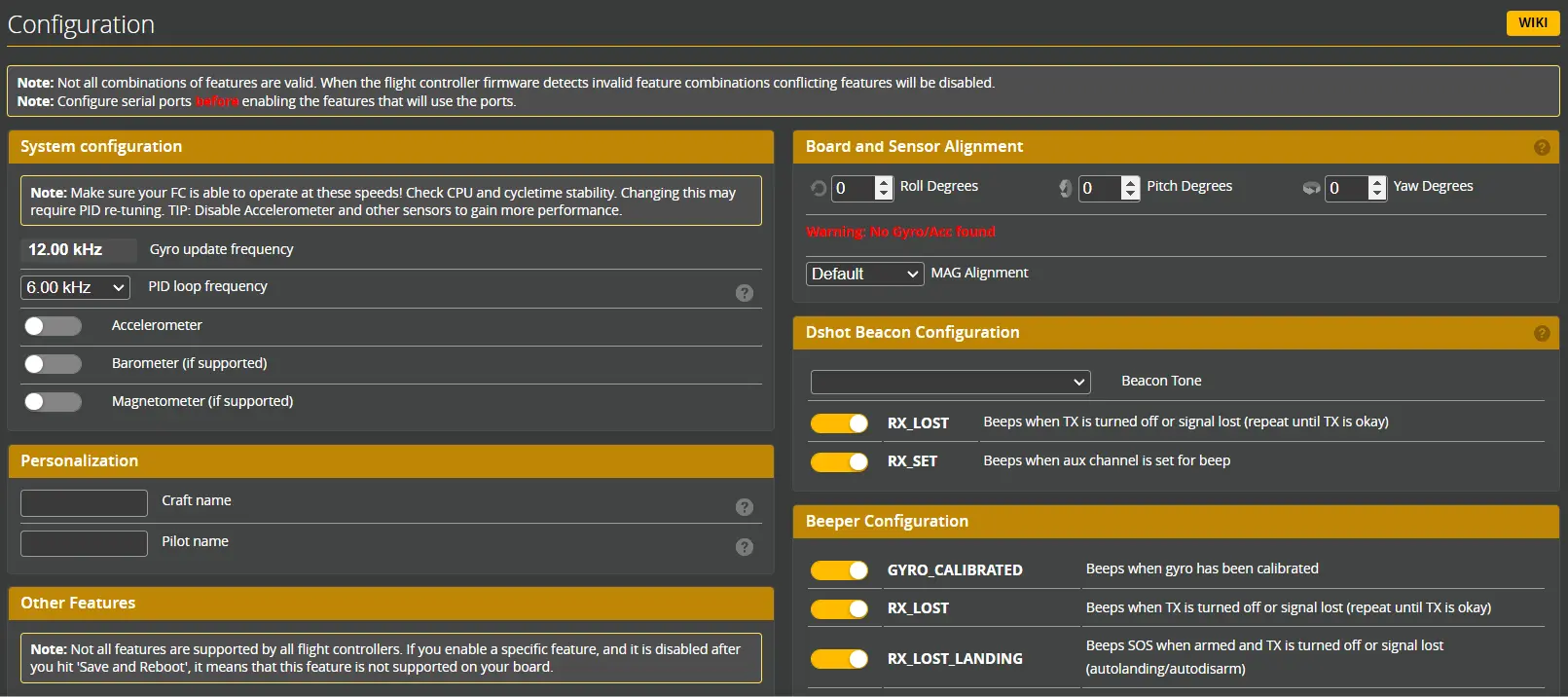 The horizon indicator should move when you tilt the board — confirms sensors are live
What You Learned
- Developer Mode unlocks local
.hexflashing and nightly builds — it's safe to enable - DFU mode is required before any flash; hardware shorting is the fallback
- Always save a
diff allbackup before flashing — configuration doesn't survive a full chip erase - Use Full Chip Erase for major version jumps; skip it for minor patches to preserve settings
Limitation: Custom builds compiled for one board target won't work on another — board name must match exactly.
When NOT to use this: Don't flash nightly builds on a race day or before flying a new build for the first time. Stick to stable releases until you know the airframe flies correctly.
Tested on Betaflight Configurator 10.10.0, Betaflight 4.5.x, Windows 11 and Ubuntu 24.04