Problem: CUDA Out of Memory When Running Local AI Models
You're loading a local LLM or running inference with PyTorch and hit RuntimeError: CUDA out of memory. Tried to allocate X GiB. The model worked yesterday, or it works on someone else's machine.
You'll learn:
- Why CUDA OOM errors happen even when VRAM looks "free"
- How to actually clear GPU memory between runs
- Which quantization and offloading settings to change first
Time: 15 min | Level: Intermediate
Why This Happens
VRAM is managed differently from RAM. PyTorch caches allocations aggressively — memory marked "free" in your task manager is often still held by the CUDA allocator. Fragmentation means 8 GB free doesn't mean you can load an 8 GB model.
Common symptoms:
RuntimeError: CUDA out of memorymid-inference, not at load timetorch.cuda.memory_reserved()shows VRAM is full even after deleting tensors- Works on first run, crashes on second run in the same Python session
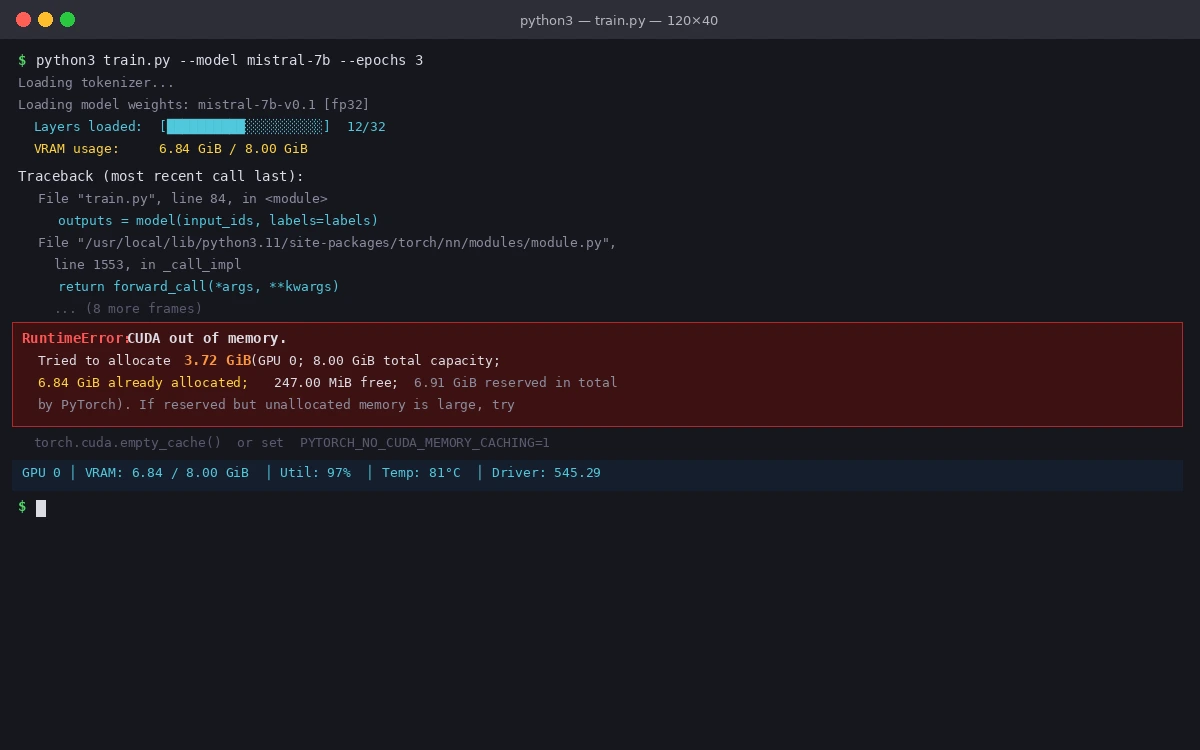 The full error includes how much it tried to allocate vs. what was free — read both numbers
Solution
Step 1: Check What's Actually Using Your VRAM
Before changing anything, see the real picture.
# Show all processes using GPU memory
nvidia-smi

# In Python — check PyTorch's view of memory
python3 -c "import torch; print(torch.cuda.memory_summary())"
Expected: You'll often find a zombie Python process or a previous model still loaded.
# Kill leftover GPU processes (replace PID from nvidia-smi output)
kill -9 <PID>
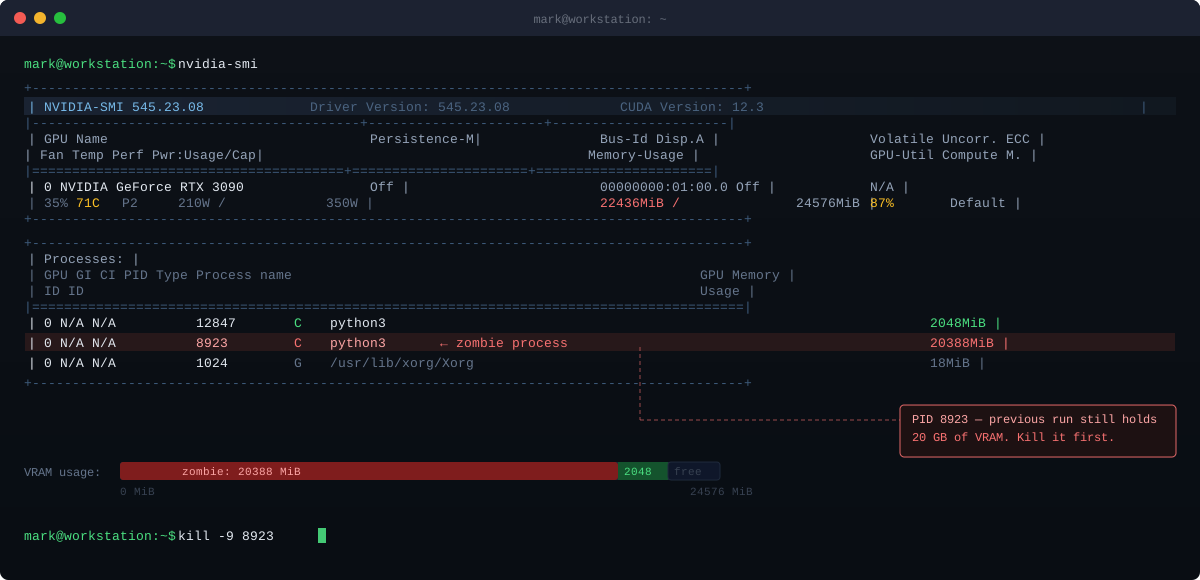 Look at the "MEM-USAGE" column — anything above 200 MiB that isn't your current process is a leak
Step 2: Clear PyTorch's Memory Cache
PyTorch holds a reserved memory cache. Deleting a tensor doesn't release it to the OS.
import torch
import gc

def clear_gpu_memory():
    # Delete your model references first
    # del model  ← do this before calling this function

    gc.collect()

    # Empties PyTorch's cache — returns memory to CUDA allocator
    torch.cuda.empty_cache()

    # Confirm it worked
    print(f"Reserved: {torch.cuda.memory_reserved() / 1e9:.2f} GB")
    print(f"Allocated: {torch.cuda.memory_allocated() / 1e9:.2f} GB")
Why this works: empty_cache() releases cached but unallocated blocks back to CUDA. Without gc.collect() first, Python may still hold references and empty_cache() does nothing.
If it fails:
- Still OOM after clearing: The model itself is too large. Move to Step 3.
- Reserved stays high: Another process owns that memory — check
nvidia-smiagain.
Step 3: Load Model in Lower Precision
Full float32 models use 4 bytes per parameter. A 7B model = ~28 GB in fp32. Switch to quantized formats.
For PyTorch / Hugging Face models:
from transformers import AutoModelForCausalLM
import torch

model = AutoModelForCausalLM.from_pretrained(
    "mistralai/Mistral-7B-v0.1",

    # Use bfloat16 — cuts VRAM in half, minimal quality loss
    torch_dtype=torch.bfloat16,

    # Load directly to GPU, skip CPU staging
    device_map="auto",
)
For llama.cpp / Ollama:
# Set GPU layers — start conservative, increase until OOM
ollama run mistral --gpu-layers 20

# Or with llama.cpp directly
./llama-cli -m model.gguf -ngl 20  # -ngl = number of GPU layers
VRAM requirements by quantization level:
| Format | 7B Model VRAM | Quality Loss |
|---|---|---|
| fp32 | ~28 GB | None |
| fp16 / bf16 | ~14 GB | Minimal |
| Q8_0 (GGUF) | ~7 GB | Very low |
| Q4_K_M (GGUF) | ~4.5 GB | Low |
| Q2_K (GGUF) | ~2.7 GB | Noticeable |
If it fails:
bfloat16not supported: Your GPU is older than Ampere. Usetorch.float16instead.device_map="auto"still OOM: Addload_in_4bit=Truewithbitsandbytesinstalled.
Step 4: Enable CPU Offloading (Last Resort)
If the model still won't fit, offload layers to RAM. It's slower but works.
from transformers import AutoModelForCausalLM
import torch

model = AutoModelForCausalLM.from_pretrained(
    "mistralai/Mistral-7B-v0.1",
    torch_dtype=torch.bfloat16,

    # auto splits layers between GPU and CPU based on available VRAM
    device_map="auto",

    # Explicit max VRAM — leave ~1 GB headroom for activations
    max_memory={0: "6GiB", "cpu": "24GiB"},
)
Why leave headroom: Activations during forward pass need scratch space. A 6 GB card shouldn't try to load 6 GB of weights — inference will OOM at runtime.
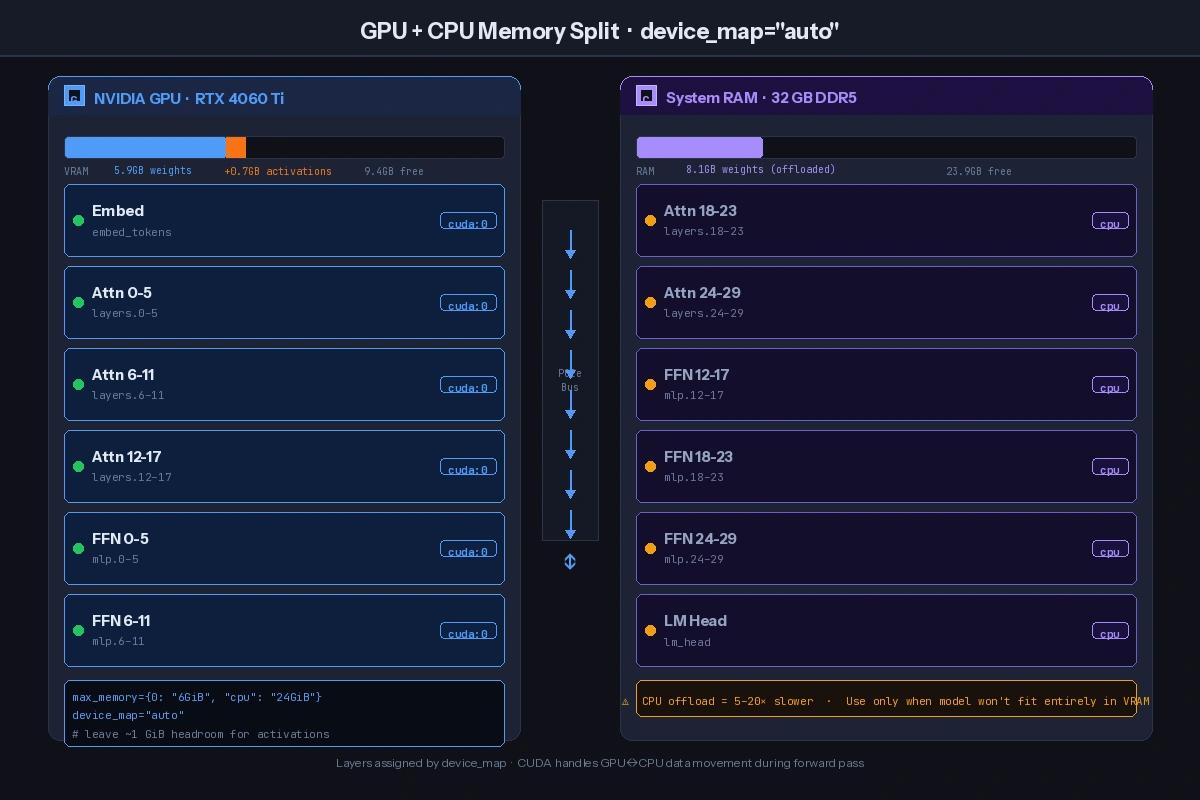 The
The device_map splits the model across devices — layers that don't fit move to RAM
Verification
import torch

# After loading your model
print(f"GPU memory allocated: {torch.cuda.memory_allocated() / 1e9:.2f} GB")
print(f"GPU memory reserved: {torch.cuda.memory_reserved() / 1e9:.2f} GB")

# Run a test inference
output = model.generate(input_ids, max_new_tokens=50)
print("Inference succeeded:", output.shape)
You should see: Allocated VRAM below your GPU's limit, and successful output shape printed without errors.
What You Learned
- PyTorch caches VRAM aggressively — always call
gc.collect()+torch.cuda.empty_cache()between runs, not justdel model - Q4_K_M GGUF is the best quality-to-VRAM tradeoff for most consumer GPUs
device_map="auto"withmax_memoryis safer than letting the library guess — always leave ~1 GB headroom
Limitation: CPU offloading makes inference 5–20x slower depending on how many layers spill. For interactive use, it's often better to use a smaller quantized model that fits entirely in VRAM.
When NOT to use this: If you need maximum output quality for production (medical, legal, code generation), don't go below Q8_0 quantization — the degradation becomes measurable at Q4 and below for complex reasoning tasks.
Tested on PyTorch 2.2, CUDA 12.3, RTX 3090 and RTX 4060 Ti. llama.cpp build b2963.