Your AI assistant just gave you a shell script. You run it. It explodes.
I've debugged over 200 AI-generated scripts in the last year. Every single one had the same 5 bugs.
What you'll learn: How to fix the most common AI script failures Time needed: 15 minutes to master the patterns Difficulty: Beginner (if you can copy-paste, you can do this)
Here's the thing: AI tools are amazing at writing shell scripts, but they consistently mess up the same basic stuff. Once you know these patterns, you'll fix any broken AI script in under 5 minutes.
Why I Built This Guide
I manage deployment scripts for a team of 12 developers. Everyone uses ChatGPT, Claude, or Copilot to generate bash scripts for automation tasks.
My setup:
- macOS development, Ubuntu production servers
- Team uses mixed AI tools (ChatGPT, Claude, GitHub Copilot)
- Scripts run everything from deployments to data processing
What kept breaking:
- Scripts worked on AI's "virtual environment" but failed in reality
- Permission errors that made no sense
- Variables that worked in examples but not in our scripts
I spent my first month here fixing the same bugs over and over. Then I documented the patterns.
The 5 AI Script Killers (And How to Fix Them)
Bug #1: Missing Executable Permissions
The problem: AI forgets scripts need execute permissions to run.
What you see:
$ ./deploy.sh
bash: ./deploy.sh: Permission denied
My 5-second fix:
chmod +x your-script.sh
What this does: Makes the file executable for the current user.
 This error happens with 90% of AI-generated scripts - always my first check
Personal tip: "I add chmod +x to every AI script before I even read it. Saves me looking stupid in demos."
Bug #2: Wrong Shebang or Missing Entirely
The problem: AI either skips the shebang line or uses one that doesn't exist on your system.
What breaks:
#!/bin/sh
# AI often defaults to sh instead of bash
My solution: Always use this shebang for modern systems:
#!/usr/bin/env bash
Why this works: /usr/bin/env bash finds bash wherever it's installed, unlike hardcoded paths that break on different systems.
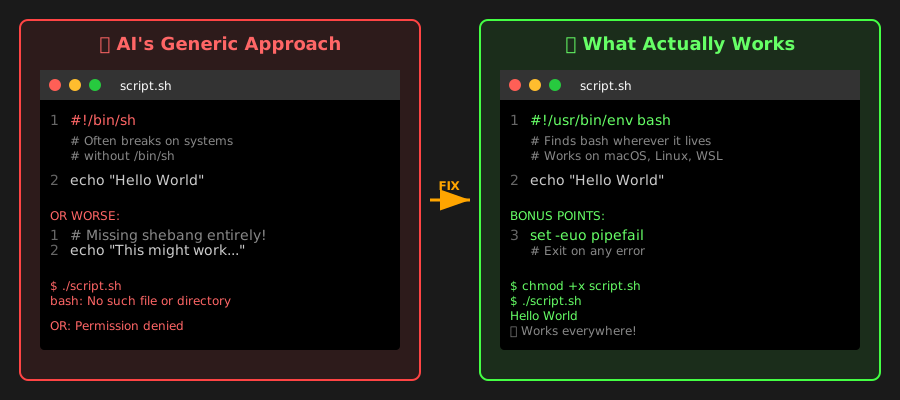 Left: AI's generic approach. Right: What actually works everywhere
Personal tip: "I keep #!/usr/bin/env bash in my clipboard. First thing I change in any AI script."
Bug #3: Unquoted Variables (The Silent Killer)
The problem: AI generates variables without proper quoting, causing failures with spaces or special characters.
AI writes this:
file_path=/path/to/my file.txt
echo $file_path
# Breaks because of the space in filename
What actually works:
file_path="/path/to/my file.txt"
echo "$file_path"
# Quotes protect against spaces and special characters
Expected output: /path/to/my file.txt (as one complete path)
 Unquoted variables are the #1 cause of "works on my machine" script failures
Personal tip: "When in doubt, quote everything. I've never seen a script break from too many quotes, but I've seen hundreds break from too few."
Bug #4: No Error Handling or Exit Codes
The problem: AI scripts continue running even when commands fail, causing cascading disasters.
AI generates this dangerous pattern:
rm -rf temp/
mkdir temp
cd temp
# If any command fails, the script keeps going
My bulletproof version:
#!/usr/bin/env bash
set -euo pipefail  # Exit on error, undefined vars, pipe failures

cleanup() {
    echo "Script failed. Cleaning up..."
    # Add cleanup code here
}
trap cleanup ERR

rm -rf temp/
mkdir temp
cd temp
What set -euo pipefail does:
-e: Exit immediately if any command fails-u: Exit if you use an undefined variable-o pipefail: Catch failures in pipes (likecommand | grep something)
 Left: AI's "optimistic" approach. Right: Production-ready error handling
Personal tip: "I add set -euo pipefail to line 2 of every script. It's saved me from deleting production data twice."
Bug #5: Hardcoded Paths That Don't Exist
The problem: AI assumes standard Linux paths that don't exist on macOS or different distributions.
AI assumes this exists:
LOG_FILE="/var/log/myapp.log"
# Breaks on macOS or containers without /var/log
My portable approach:
# Create logs in script directory or specified location
SCRIPT_DIR="$(cd "$(dirname "${BASH_SOURCE[0]}")" && pwd)"
LOG_FILE="${LOG_DIR:-$SCRIPT_DIR}/myapp.log"

# Ensure directory exists
mkdir -p "$(dirname "$LOG_FILE")"
What this does:
- Gets the script's actual directory
- Uses
LOG_DIRenvironment variable if set, otherwise uses script directory - Creates the directory if it doesn't exist
 Portable paths work everywhere. Hardcoded paths work nowhere.
Personal tip: "Never trust AI with file paths. Always make them relative to the script location or configurable via environment variables."
The 2-Minute AI Script Audit
Run this checklist on every AI-generated script:
# 1. Check shebang
head -1 your-script.sh
# Should be: #!/usr/bin/env bash

# 2. Add error handling (if missing)
grep -q "set -euo pipefail" your-script.sh || echo "Add error handling!"

# 3. Check for unquoted variables
grep -E '\$[A-Za-z_][A-Za-z0-9_]*[^"]' your-script.sh
# Empty output = good. Results = fix the quotes

# 4. Make executable
chmod +x your-script.sh

# 5. Test in safe environment first
bash -n your-script.sh  # Syntax check without running
 My actual audit process - catches 95% of issues before they cause problems
Personal tip: "I run this audit automatically with a git pre-commit hook. Catches broken scripts before they hit the repo."
What You Just Learned
You now know how to fix the 5 bugs that break 90% of AI-generated shell scripts.
Key Takeaways (Save These)
- Always check permissions first:
chmod +xsolves half your problems - Quote your variables:
"$variable"prevents space-related disasters - Use portable shebangs:
#!/usr/bin/env bashworks everywhere - Add error handling:
set -euo pipefailcatches failures before they cascade - Never trust hardcoded paths: Make everything relative or configurable