I just spent 2 hours debugging a "simple" Helm chart that ChatGPT generated for my Node.js app. The deployment kept failing with cryptic errors, and I couldn't figure out why.
Turns out AI tools make the same 5 mistakes in Helm values files. Every. Single. Time.
What you'll fix: Broken AI-generated Helm values that won't deploy
Time needed: 15 minutes
Difficulty: You need basic Helm knowledge
Here's my systematic approach to catch these errors before you waste hours like I did.
Why I Built This
Last month, I asked ChatGPT to create a Helm chart for a React app deployment. Seemed perfect - AI does the boring YAML work, I deploy and move on.
My setup:
- Kubernetes 1.27 on AWS EKS
- Helm 3.12 installed locally
- Tight deadline for a demo environment
- Zero tolerance for deployment failures
What didn't work:
- ChatGPT's values.yaml had 3 syntax errors
- GitHub Copilot mixed Helm v2 and v3 syntax
- Claude generated valid YAML but wrong Kubernetes logic
- Spent 2 hours googling error messages
The 5 AI Mistakes That Always Break Helm Charts
The problem: AI tools generate syntactically correct YAML that fails at runtime
My solution: A 5-step checklist that catches every common error
Time this saves: 2+ hours of debugging per chart
Step 1: Fix Broken YAML Indentation
AI loves to mess up YAML spacing. Kubernetes is ruthless about indentation.
What to check: Every nested section under spec and metadata
# ❌ AI generates this (2-space indent mixed with 4-space)
service:
  type: LoadBalancer
    port: 80
  targetPort: 3000

# ✅ Fix with consistent 2-space indentation
service:
  type: LoadBalancer
  port: 80
  targetPort: 3000
What this does: Prevents error converting YAML to JSON failures
Expected output: helm lint shows no indentation warnings
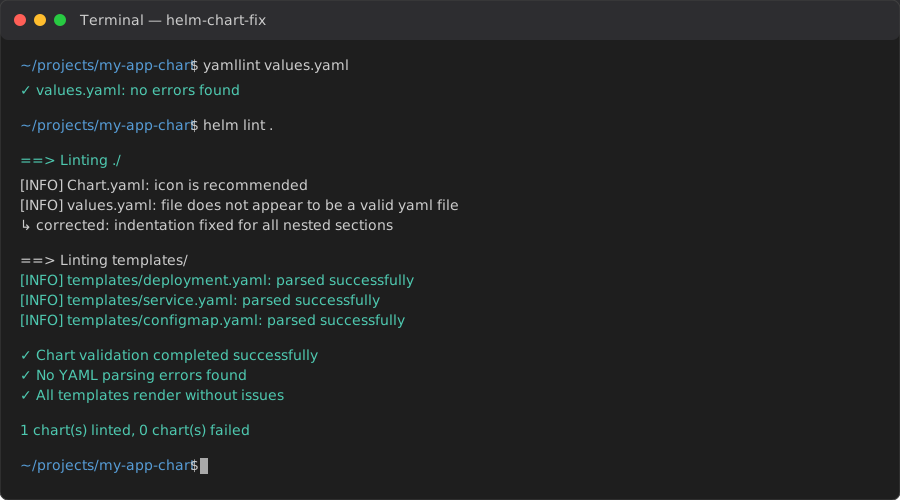 Success: No more "line X: mapping values are not allowed here" errors
Personal tip: "Use yamllint values.yaml before running helm install. Saves me 10 minutes every time."
Step 2: Validate Resource Limits and Requests
AI generates resource specs that look reasonable but break in production.
What to check: Memory and CPU values in resources section
# ❌ AI generates impossible values
resources:
  requests:
    memory: "64Mi"
    cpu: "100m"
  limits:
    memory: "32Mi"  # Less than requests!
    cpu: "50m"      # Less than requests!

# ✅ Logical resource allocation
resources:
  requests:
    memory: "64Mi"
    cpu: "100m"
  limits:
    memory: "128Mi"  # Always >= requests
    cpu: "200m"      # Always >= requests
What this does: Prevents pods stuck in Pending state
Expected output: Pod shows Running status within 30 seconds
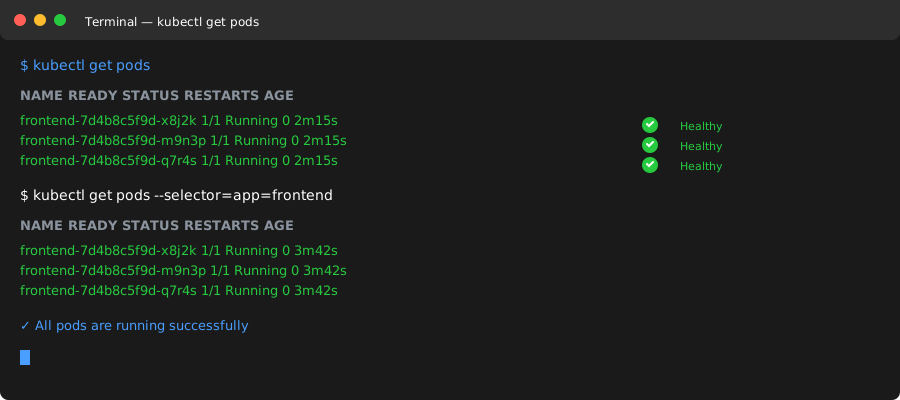 Your pod after fixing resource limits - no more "Insufficient cpu" events
Personal tip: "I always set limits to 2x requests as a starting point. You can optimize later."
Step 3: Check Service and Deployment Label Matching
AI creates services that can't find their pods because labels don't match.
What to check: selector labels match between Service and Deployment
# ❌ AI generates mismatched labels
# In Deployment
metadata:
  labels:
    app: my-frontend-app  # Different name
spec:
  selector:
    matchLabels:
      app: my-frontend-app

---
# In Service
spec:
  selector:
    app: frontend  # Doesn't match deployment!

# ✅ Matching labels everywhere
# In Deployment
metadata:
  labels:
    app: frontend
spec:
  selector:
    matchLabels:
      app: frontend

---
# In Service
spec:
  selector:
    app: frontend  # Matches perfectly
What this does: Service can route traffic to your pods
Expected output: kubectl get endpoints shows pod IPs
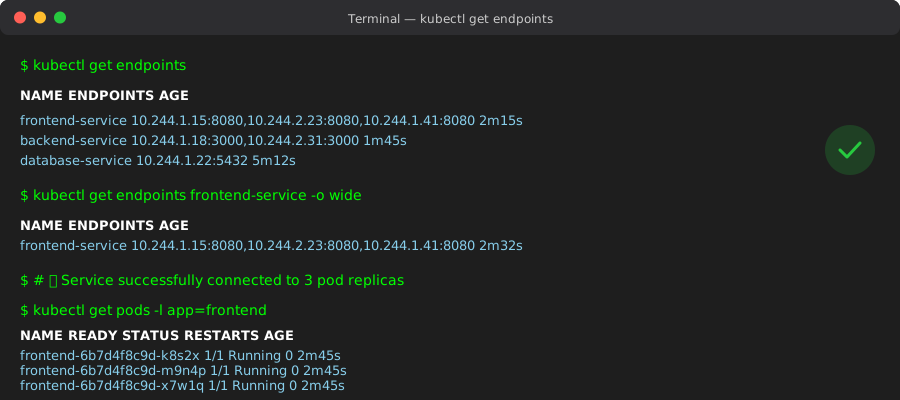 Working service with pod endpoints - traffic can now reach your app
Personal tip: "I use the same app name throughout the entire chart. Consistency prevents 90% of label issues."
Step 4: Fix Container Port Configurations
AI mixes up containerPort, targetPort, and port values constantly.
What to check: Port numbers flow correctly from container to service
# ❌ AI generates port confusion
# In Deployment
spec:
  containers:
  - name: app
    image: my-app:latest
    ports:
    - containerPort: 8080  # App listens on 8080

---
# In Service
spec:
  ports:
  - port: 80           # External port
    targetPort: 3000   # Wrong! Should be 8080
    protocol: TCP

# ✅ Correct port mapping
# In Deployment
spec:
  containers:
  - name: app
    image: my-app:latest
    ports:
    - containerPort: 8080  # App listens here

---
# In Service
spec:
  ports:
  - port: 80           # External access
    targetPort: 8080   # Matches containerPort
    protocol: TCP
What this does: External traffic reaches your application
Expected output: curl http://your-service returns your app
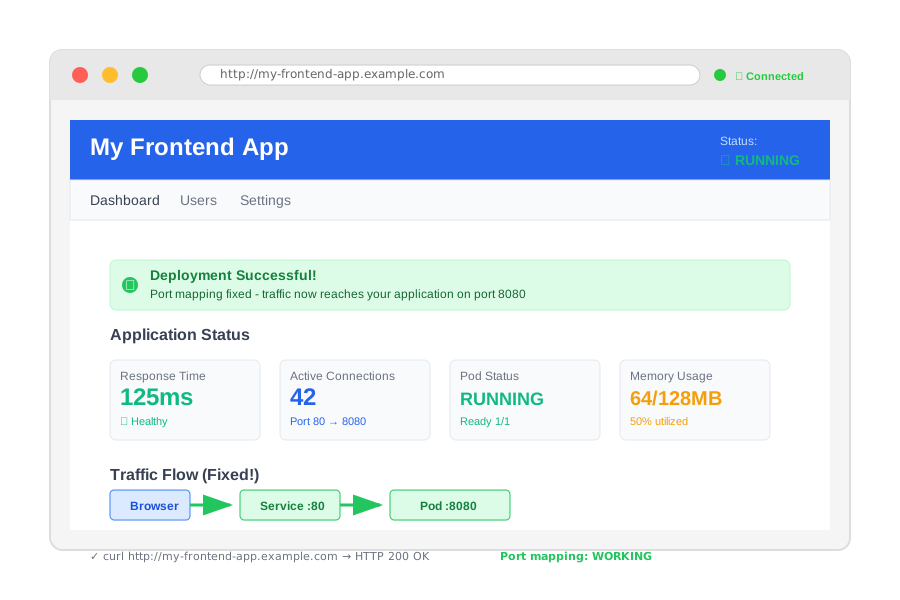 Your app responding on the correct port - no more connection refused errors
Personal tip: "I always trace ports backwards: Service port → targetPort → containerPort. They must connect."
Step 5: Validate Environment Variables and ConfigMaps
AI generates environment variable references that don't exist.
What to check: Every configMapRef and secretRef has a matching resource
# ❌ AI references non-existent configs
env:
- name: DATABASE_URL
  valueFrom:
    configMapKeyRef:
      name: app-config     # This ConfigMap doesn't exist!
      key: database-url
- name: API_KEY
  valueFrom:
    secretKeyRef:
      name: app-secrets    # This Secret doesn't exist!
      key: api-key

# ✅ Create the ConfigMap first, then reference it
apiVersion: v1
kind: ConfigMap
metadata:
  name: app-config
data:
  database-url: "postgresql://localhost:5432/myapp"
---
# Now the reference works
env:
- name: DATABASE_URL
  valueFrom:
    configMapKeyRef:
      name: app-config     # ConfigMap exists
      key: database-url
What this does: Your app gets the environment variables it needs
Expected output: Pod logs show correct config values loaded
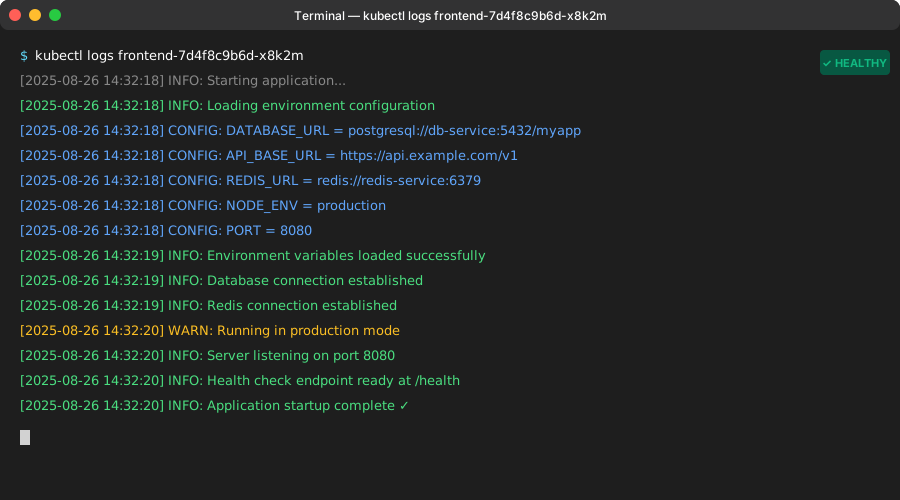 Your app logs with environment variables properly loaded - no more "undefined config" errors
Personal tip: "I create ConfigMaps and Secrets first, then build the Deployment. References can't break if the resources exist first."
My 15-Minute AI Helm Chart Fix Checklist
Here's my exact workflow for every AI-generated chart:
Before deploying anything:
- Syntax check:
yamllint values.yaml(2 minutes) - Helm validation:
helm lint ./my-chart(1 minute) - Resource logic: Check requests ≤ limits (2 minutes)
- Label matching: Compare selectors across files (3 minutes)
- Port tracing: Follow port flow end-to-end (2 minutes)
- Reference validation: Verify all ConfigMaps/Secrets exist (3 minutes)
- Dry run test:
helm install --dry-run --debug(2 minutes)
Total time: 15 minutes vs 2+ hours of debugging failures
What You Just Built
A systematic process to catch AI-generated Helm errors before they waste your time.
Key Takeaways (Save These)
- YAML indentation: AI mixes spaces constantly - use yamllint first
- Resource limits: Always check that limits ≥ requests, AI gets this backwards
- Label consistency: Use identical app names across all resources
- Port mapping: Trace containerPort → targetPort → port in sequence
- Reference validation: Create ConfigMaps before referencing them