Problem: GUI Apps and GPUs Don't Work Inside Docker
You set up a Docker container for ROS 2 or your robotics stack. The container runs — but rviz2 crashes, Gazebo opens a black window, or your CUDA node throws no CUDA-capable device. Docker isolates the GPU and display by default. That's the problem.
You'll learn:
- How to forward X11 so GUI apps render on your host
- How to pass through an NVIDIA GPU with the NVIDIA Container Toolkit
- How to wire both together in a single
docker-compose.yml
Time: 20 min | Level: Intermediate
Why This Happens
Docker containers share the host kernel but run in an isolated namespace. By default they have no access to your X11 socket (which renders windows) or your GPU device files. NVIDIA GPUs need their driver libraries to be accessible inside the container — and those versions must match the host driver.
Common symptoms:
cannot connect to X server :0when launching RViz or GazebolibGL error: No matching fbConfigs or visuals foundon startupcudaErrorNoDeviceorRuntimeError: No CUDA GPUs are available- Works on the host machine, fails identically inside the container
Solution
Step 1: Allow X11 Connections from Docker
On the host, grant Docker access to your X display:
# Run this before starting your container
xhost +local:docker
This lets any local process connect to X11. It's fine for development. For production robots, use xhost +local:root to restrict it further.
Expected: No output means it worked. If you see unable to open display, your $DISPLAY variable isn't set — run echo $DISPLAY to verify.
Step 2: Install the NVIDIA Container Toolkit
Skip this if you're CPU-only. For CUDA/GPU work:
# Add NVIDIA's apt repo
curl -fsSL https://nvidia.github.io/libnvidia-container/gpgkey | \
  sudo gpg --dearmor -o /usr/share/keyrings/nvidia-container-toolkit-keyring.gpg

curl -s -L https://nvidia.github.io/libnvidia-container/stable/deb/nvidia-container-toolkit.list | \
  sed 's#deb https://#deb [signed-by=/usr/share/keyrings/nvidia-container-toolkit-keyring.gpg] https://#g' | \
  sudo tee /etc/apt/sources.list.d/nvidia-container-toolkit.list

sudo apt-get update && sudo apt-get install -y nvidia-container-toolkit

# Configure Docker to use the NVIDIA runtime
sudo nvidia-ctk runtime configure --runtime=docker
sudo systemctl restart docker
Verify it works:
docker run --rm --gpus all nvidia/cuda:12.3.0-base-ubuntu22.04 nvidia-smi
You should see: Your GPU listed with driver version and CUDA version. If you see Error response from daemon: could not select device driver, the toolkit isn't configured — re-run nvidia-ctk runtime configure.
Step 3: Create the docker-compose.yml
This is where everything comes together. Create docker-compose.yml in your project root:
services:
  robot:
    image: osrf/ros:humble-desktop-full
    # Pass through GPU — remove this block if CPU-only
    deploy:
      resources:
        reservations:
          devices:
            - driver: nvidia
              count: all
              capabilities: [gpu]

    environment:
      # X11 display forwarding
      - DISPLAY=${DISPLAY}
      - QT_X11_NO_MITSHM=1        # Prevents Qt shared memory errors in Docker
      - NVIDIA_VISIBLE_DEVICES=all
      - NVIDIA_DRIVER_CAPABILITIES=all  # Required for OpenGL + CUDA together

    volumes:
      # X11 socket — required for GUI
      - /tmp/.X11-unix:/tmp/.X11-unix:rw
      # Your workspace
      - ./ros2_ws:/root/ros2_ws

    network_mode: host  # Simplifies ROS 2 DDS discovery

    stdin_open: true
    tty: true
    command: bash
If it fails:
DISPLAYis empty: Runecho $DISPLAYon the host. Should be:0or:1. Set it explicitly if needed:DISPLAY=:0 docker compose up- Qt plugin errors: Add
- LIBGL_ALWAYS_SOFTWARE=1to environment as a fallback (software rendering, no GPU) network_mode: hostnot supported (WSL2): Remove it and useextra_hosts: - "host.docker.internal:host-gateway"instead
Step 4: Launch and Test
docker compose up -d
docker compose exec robot bash
Inside the container:
# Test X11 — should open a window
xclock

# Test OpenGL
glxinfo | grep "OpenGL renderer"

# Test CUDA (if GPU passthrough configured)
python3 -c "import torch; print(torch.cuda.get_device_name(0))"

# Launch RViz2 (ROS 2 Humble example)
source /opt/ros/humble/setup.bash
rviz2
You should see: xclock opens a clock window on your desktop. glxinfo shows your GPU name (e.g. NVIDIA GeForce RTX 4090). RViz2 opens with its full 3D viewport.
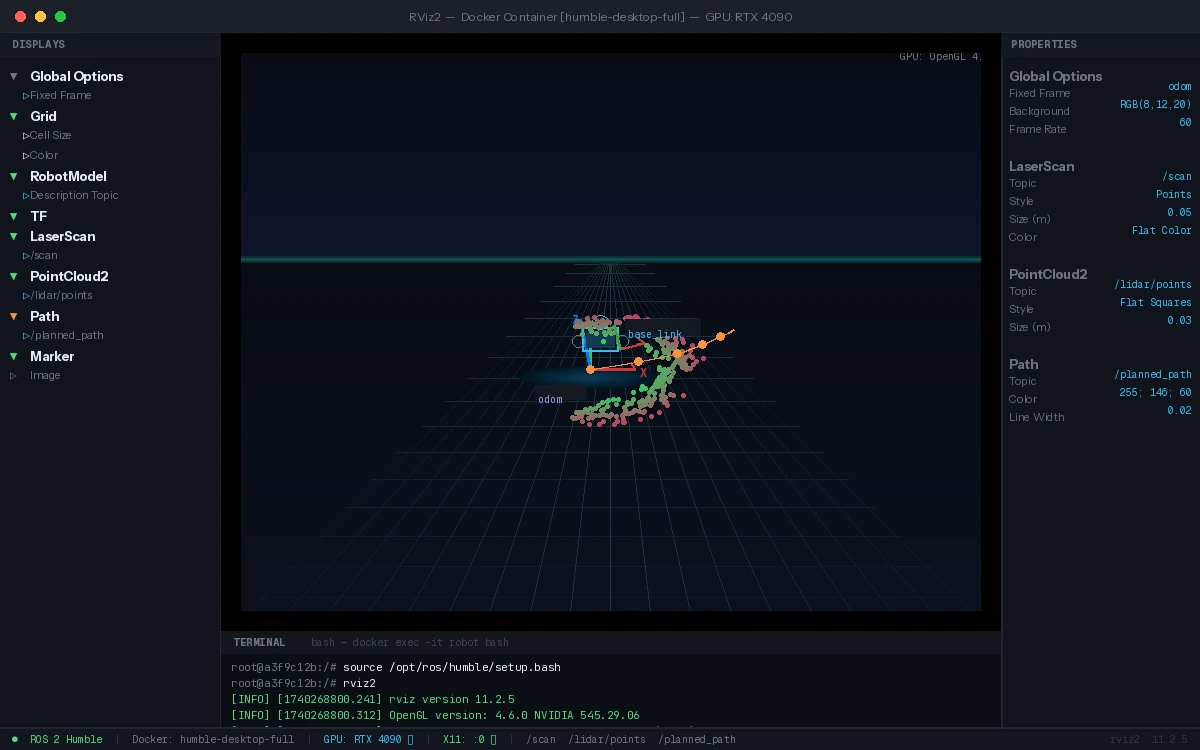 RViz2 rendering correctly via X11 passthrough — GPU-accelerated OpenGL
Step 5: Handle WSL2 (Windows)
WSL2 needs a different approach because it uses its own display server (WSLg):
# In WSL2, DISPLAY and WAYLAND_DISPLAY are set automatically by WSLg
# Just verify them
echo $DISPLAY           # Should be :0
echo $WAYLAND_DISPLAY   # Should be wayland-0
Update docker-compose.yml for WSL2:
environment:
  - DISPLAY=${DISPLAY}
  - WAYLAND_DISPLAY=${WAYLAND_DISPLAY}
  - XDG_RUNTIME_DIR=/tmp/runtime-root

volumes:
  - /tmp/.X11-unix:/tmp/.X11-unix:rw
  - /mnt/wslg:/mnt/wslg               # WSLg runtime socket
  - /usr/lib/wsl:/usr/lib/wsl:ro      # NVIDIA WSL2 driver libs

# GPU passthrough on WSL2 uses a different device path
devices:
  - /dev/dxg                           # DirectX GPU device
Note: NVIDIA GPU passthrough on WSL2 requires Windows 11 or Windows 10 21H2+ with an updated NVIDIA driver (527.41+). CUDA works; OpenGL acceleration may be limited depending on the WSLg version.
Verification
From inside the running container:
# GUI check
xclock &

# GPU check
nvidia-smi

# OpenGL check
glxinfo | grep renderer

# Full ROS + GPU check (Humble)
source /opt/ros/humble/setup.bash && ros2 run rviz2 rviz2
You should see: All four commands succeed without error. glxinfo should show your physical GPU, not llvmpipe (software renderer).
What You Learned
xhost +local:dockerand mounting/tmp/.X11-unixare the minimum needed for X11 GUI apps- The NVIDIA Container Toolkit injects host driver libraries at runtime — your image doesn't need to include them
NVIDIA_DRIVER_CAPABILITIES=allis required when you need both OpenGL (for visualization) and CUDA (for compute) at the same time- WSL2 needs
/mnt/wslgand/dev/dxginstead of standard X11 paths
Limitation: Software rendering fallback (LIBGL_ALWAYS_SOFTWARE=1) works for UI but disables GPU-accelerated simulation — Gazebo physics will be significantly slower.
When NOT to use this: If you're deploying to a robot with no display (headless), skip X11 entirely. Use virtual framebuffers (Xvfb) for offscreen rendering or run GUI tools on a separate visualization machine over a network.
Tested on Ubuntu 22.04, Docker 26.x, NVIDIA Container Toolkit 1.15, ROS 2 Humble. WSL2 section tested on Windows 11 with NVIDIA driver 545.