Problem: Typing the Same Instructions Over and Over in Claude Code
Claude Code slash commands are the fastest way to stop re-explaining your stack, re-setting context, and losing time to repetitive prompts every session.
If you've used Claude Code for more than a week, you've hit this wall: every new session you retype "you're working in a Python 3.12 FastAPI monorepo with PostgreSQL" or "always write pytest tests." Without slash commands, that context vanishes on every restart.
You'll learn:
- All 15 built-in slash commands and exactly when to reach for each
- How to write custom slash commands scoped to a project or your machine
- Patterns to chain commands for a near-zero-friction coding loop
Time: 12 min | Difficulty: Intermediate
Why Slash Commands Save More Time Than You Think
Claude Code is a stateless CLI agent. Each session starts blank — no memory of your file structure, preferences, or decisions from yesterday. That's safe by design, but it's expensive in keystrokes.
Without slash commands, a typical session costs you:
- 3–5 sentences re-establishing project context
- Repeating "check CLAUDE.md before changing anything" on every task
- Manually triggering git summaries or test runs with verbose prompts
Slash commands collapse all of that to a single keystroke. The built-ins handle memory, context, git, and MCP servers. Custom commands handle anything specific to your stack.
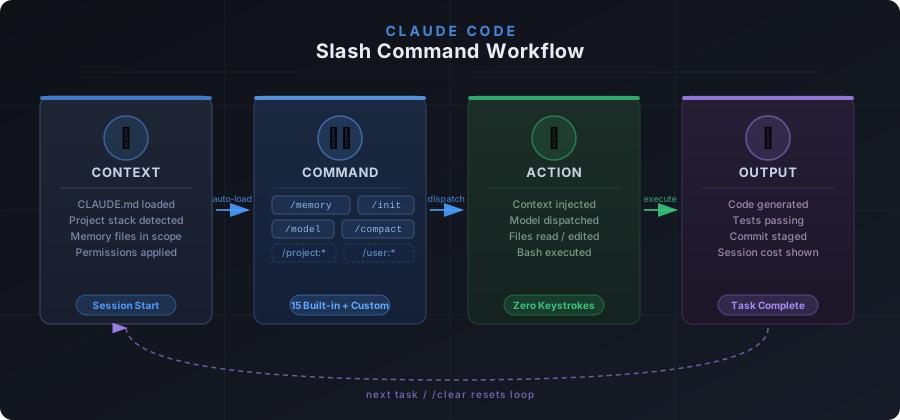 How slash commands short-circuit the context-setting loop: one command loads your project state, flags, and preferences before the first token of your real prompt.
The 15 Slash Commands (Built-in)
/help — Start Here Every Session
Prints the full command list with one-line descriptions. Run it once after any npm install -g @anthropic-ai/claude-code update — the command list changes between versions.
/help
Expected output: A formatted list of all available slash commands and their descriptions.
/clear — Reset Without Quitting
Clears the conversation context but keeps your session open. Reach for this when you've finished one task and don't want its file history bleeding into the next.
/clear
Use /clear instead of quitting and restarting — it's faster and avoids re-initializing the MCP server connections.
/compact — Summarize Before the Window Fills
Compresses the conversation history into a summary and continues. Claude Code's context window is large but not infinite — on a long refactoring session you'll hit the limit without warning.
/compact
When to use it: After finishing a discrete chunk of work (e.g., you've just refactored a module). /compact preserves the outcome without the step-by-step token weight.
/config — View and Set Preferences
Opens the global config or prints current settings depending on your version.
/config
Key settings you'll adjust here: default model, whether to auto-accept edits, and verbose logging. On a fresh install, check this before your first real task.
/cost — See What You've Spent
Prints the token usage and estimated USD cost for the current session.
/cost
On the Pro plan ($20/month), you have a monthly usage cap. /cost tells you where you are before you kick off a large refactor. Useful on Claude.ai Pro to avoid hitting limits mid-task.
/doctor — Diagnose Setup Problems
Runs a health check: Node version, API key, MCP server reachability, and config validity.
/doctor
Expected output: Green checkmarks or specific failure messages with fix suggestions.
Run this first when something feels off — before spending time debugging your prompt. It catches 80% of "why isn't Claude responding correctly" issues: expired API keys, wrong Node version (requires Node 18+), or a broken MCP config.
/init — Bootstrap CLAUDE.md
Scans your project and generates a CLAUDE.md file with auto-detected context: stack, directory structure, key files, and suggested instructions.
/init
Expected output: A CLAUDE.md created in your project root.
Run this once per new project. Then edit the generated file to add the things /init can't infer: team conventions, deployment targets, which files to never touch. Every subsequent session loads this file automatically.
/login and /logout — Switch Accounts
/login
/logout
If you work across personal and work Anthropic accounts, these swap the active API key without touching your shell environment. /logout clears the stored credential; /login triggers the OAuth flow.
/memory — Read What Claude Remembers
Prints the contents of your active memory files: ~/.claude/CLAUDE.md (global) and ./CLAUDE.md (project-level).
/memory
Use this to verify Claude has the context you think it has before starting a complex task. The output shows exactly what instructions are in scope — no guessing.
/model — Switch Models Mid-Session
/model
Lists available models and lets you switch. Use claude-opus-4-6 for architecture decisions and hard debugging, claude-sonnet-4-6 for routine edits and code generation where speed matters more.
Current available model strings: claude-opus-4-6, claude-sonnet-4-6, claude-haiku-4-5-20251001.
/permissions — Review What Claude Can Touch
Lists the current tool permissions: which directories Claude can read/write, whether bash execution is enabled, and any MCP server tools in scope.
/permissions
Run this before a large automated task to confirm Claude can't modify paths outside your project root. Essential on shared machines or CI environments.
/pr_comments — Pull PR Feedback Into Context
Fetches open comments from a GitHub pull request and loads them as context.
/pr_comments
Requires the GitHub MCP server to be configured. Once set up, this replaces the workflow of copying PR comments into your prompt manually — a real time saver on active review cycles.
/review — Trigger a Code Review
Asks Claude to review the current working diff or a specified file with a focus on correctness, style, and test coverage.
/review
Faster than writing "please review the changes in src/api/routes.py with a focus on error handling." The command sends the diff automatically with a structured review prompt.
/terminal-setup — Fix Shell Completions
Installs shell completions and configures your terminal for the best Claude Code experience (key bindings, ANSI support).
/terminal-setup
Run once after install. Without this, tab-completion for slash commands doesn't work in most terminals.
/vim — Toggle Vim Keybindings
Switches the input mode to vim-style navigation. If you already think in hjkl, this makes multi-line prompt editing significantly faster.
/vim
Custom Slash Commands
Built-ins cover the platform. Custom commands cover your stack.
Custom slash commands live in one of two places:
- Project-scoped:
.claude/commands/your-command.md— available only in this repo - Global:
~/.claude/commands/your-command.md— available in every project
The file name becomes the command. A file at .claude/commands/test-and-commit.md is invoked as /project:test-and-commit.
Writing Your First Custom Command
# .claude/commands/test-and-commit.md

Run the full test suite with `pytest -x --tb=short`.
If all tests pass, stage all changes and write a conventional commit message
following the format: `type(scope): description`.
Do not commit if any test fails — explain what broke instead.
# Invoke it:
/project:test-and-commit
This replaces a 40-word prompt you'd otherwise type on every feature branch.
Parameterized Custom Commands
Commands accept a $ARGUMENTS placeholder for dynamic input:
# .claude/commands/explain-function.md

Find the function named `$ARGUMENTS` in the current project.
Explain what it does, its inputs and outputs, any side effects,
and flag any edge cases that could cause bugs.
/project:explain-function process_payment
Global Commands Worth Creating
A few patterns that work across projects:
# ~/.claude/commands/my-stack.md
You are working in a TypeScript monorepo using Node 22, Hono on the backend,
and Next.js 15 on the frontend. The database is PostgreSQL with Drizzle ORM.
Always write tests with Vitest. Never modify migration files directly.
/user:my-stack
Load this at the start of any session on a new machine or after /clear.
Comparison: Slash Commands vs Prompt Templates vs CLAUDE.md
| Slash Commands | Prompt Templates | CLAUDE.md | |
|---|---|---|---|
| Loaded when | You invoke them | You copy-paste | Every session auto |
| Scope | Project or global | Manual | Project or global |
| Best for | Repeatable actions | One-off complex prompts | Persistent project facts |
| Parameterized | Yes ($ARGUMENTS) | Manual substitution | No |
Use all three together: CLAUDE.md for facts that never change, custom slash commands for repeatable actions, and prompt templates for one-off complex requests.
Verification
After setting up your custom commands:
/help
Your custom commands appear under Project commands and User commands sections.
ls .claude/commands/
# test-and-commit.md  explain-function.md
You should see: Your .md files listed, and /project:your-command-name available in /help output.
What You Learned
- Built-in slash commands handle the full session lifecycle: context, memory, cost, model switching, and diagnostics
/init+CLAUDE.mdis the highest-leverage setup step — do this on every new project- Custom commands in
.claude/commands/eliminate the most common repeated prompts $ARGUMENTSmakes custom commands reusable across different inputs without editing the file
Tested on Claude Code CLI latest, Node 22, macOS Sequoia & Ubuntu 24.04
FAQ
Q: Do slash commands work in Claude.ai's web chat? A: No. Slash commands are specific to the Claude Code CLI. The web interface at claude.ai uses a different input model without command dispatch.
Q: Where does /init store the generated CLAUDE.md?
A: In your project root as ./CLAUDE.md. A global one at ~/.claude/CLAUDE.md is also read every session and is the right place for machine-wide preferences.
Q: Can custom slash commands call external tools or run shell commands?
A: Yes — Claude Code will execute bash commands referenced in your custom command file, subject to your current /permissions settings. Scope permissions carefully before enabling broad bash access.
Q: What's the difference between /compact and /clear?
A: /clear discards all history and starts fresh. /compact summarizes the history into a condensed context block and continues — you keep awareness of what was done without the full token weight.
Q: Does Claude Code cost extra on the Pro plan ($20/month) vs API usage?
A: Claude Code usage is billed separately from Claude.ai Pro. Claude Code uses your Anthropic API key and charges at standard API token rates — currently claude-sonnet-4-6 at $3/MTok input and $15/MTok output. Use /cost to track spend per session.