Problem: Your AI Feature Is Killing Battery Life
Users love your on-device AI feature — until it drains 30% battery in an hour. Background inference, eager model loading, and unthrottled compute are the usual culprits.
You'll learn:
- How to schedule inference to avoid CPU/GPU contention
- When to offload vs. run on-device
- How to profile and reduce thermal impact on iOS and Android
Time: 20 min | Level: Intermediate
Why This Happens
On-device AI is power-hungry by design. A single MobileNet inference pass can spike CPU usage to 80%+. When your app runs inference in a tight loop — or worse, in the background — the device's thermal management kicks in, throttles performance, and burns through the battery.
Common symptoms:
- Device gets warm during AI feature use
- Background processing drains 15–30% battery per hour
- Users report "app draining battery" in reviews
- Thermal throttling causes inference latency spikes (50ms → 300ms+)
Solution
Step 1: Profile First — Know Your Baseline
Before optimizing, measure actual energy impact.
iOS (Xcode Energy Organizer):
# Run on a physical device — simulators don't reflect real power draw
# Instruments → Energy Log → Start Recording
# Use your AI feature for 5 minutes, then export
Android (Battery Historian):
# Enable battery stats collection
adb shell dumpsys batterystats --reset
adb shell dumpsys batterystats --enable full-wake-history

# Use app for 5 minutes, then pull report
adb bugreport bugreport.zip
# Upload to https://bathist.ef.lc/ for visual analysis
Expected: You'll see which component — CPU, GPU, or Neural Engine — is the primary drain. Most AI workloads hit GPU first.
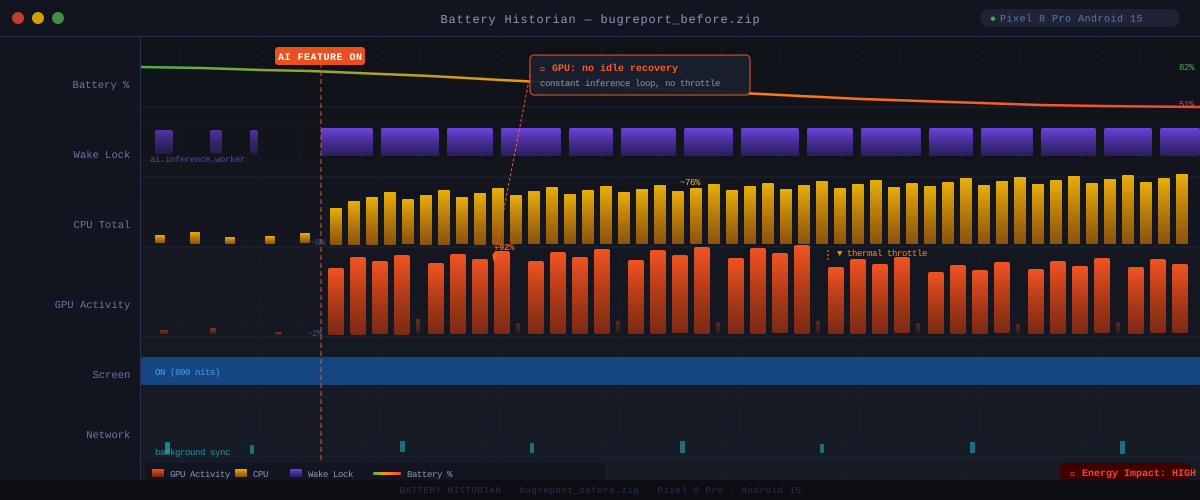 GPU wake events clustering during inference — this is what runaway background processing looks like
Step 2: Throttle Inference with a Compute Budget
Never run inference on every frame or every keypress. Use a token bucket or debounce pattern.
// iOS — Swift: Token bucket for inference scheduling
class InferenceScheduler {
    private var lastInferenceTime: Date = .distantPast
    private let minInterval: TimeInterval = 0.5 // 2 inferences/sec max

    func shouldRunInference() -> Bool {
        let now = Date()
        guard now.timeIntervalSince(lastInferenceTime) >= minInterval else {
            return false // Skip this frame
        }
        lastInferenceTime = now
        return true
    }
}
// Android — Kotlin: Debounced inference with coroutines
class InferenceScheduler {
    private val scope = CoroutineScope(Dispatchers.Default)
    private var debounceJob: Job? = null

    fun scheduleInference(input: FloatArray, onResult: (FloatArray) -> Unit) {
        debounceJob?.cancel()
        debounceJob = scope.launch {
            delay(500L) // Wait 500ms before running
            val result = runModel(input) // Your inference call
            withContext(Dispatchers.Main) { onResult(result) }
        }
    }
}
Expected: CPU utilization drops from sustained 70% to burst 40% with idle periods — this is what the thermal governor needs to recover.
If it fails:
- Inference still runs constantly: Check if you have multiple call sites — search for your model's
predict()orrun()method across the codebase - Results feel laggy: Increase
minIntervalgradually; 200ms is often imperceptible for classification tasks
Step 3: Load Models Lazily and Release Aggressively
Keeping a model in memory when it's not active burns power even at idle. Load on demand, release when backgrounded.
// iOS — CoreML lazy loading with background release
class ModelManager {
    private var model: VNCoreMLModel?
    private var idleTimer: Timer?

    func getModel() throws -> VNCoreMLModel {
        idleTimer?.invalidate()
        if model == nil {
            // Load only when needed — this takes ~150ms on A15+
            model = try VNCoreMLModel(for: MyModel(configuration: MLModelConfiguration()).model)
        }
        // Auto-release after 10 seconds of inactivity
        idleTimer = Timer.scheduledTimer(withTimeInterval: 10, repeats: false) { [weak self] _ in
            self?.model = nil
        }
        return model!
    }
}
// Android — TensorFlow Lite with explicit lifecycle
class ModelManager(context: Context) : DefaultLifecycleObserver {
    private var interpreter: Interpreter? = null
    private val modelBuffer by lazy { loadModelFile(context, "model.tflite") }

    override fun onStart(owner: LifecycleOwner) {
        // Load when app comes to foreground
        interpreter = Interpreter(modelBuffer, Interpreter.Options().apply {
            setNumThreads(2) // Cap threads — more isn't faster, just hotter
            setUseNNAPI(true) // Delegate to Neural Processing Unit when available
        })
    }

    override fun onStop(owner: LifecycleOwner) {
        interpreter?.close() // Release GPU/NPU resources immediately
        interpreter = null
    }
}
Why this works: On iOS, an idle CoreML model still holds Neural Engine allocations. On Android, an open Interpreter keeps the NNAPI delegate warm. Releasing frees these hardware locks.
Step 4: Use the Right Hardware Delegate
Running on the wrong compute unit wastes power. CPU inference is 3–5x more power-hungry than NPU for supported ops.
// Android — Try NNAPI → GPU → CPU fallback chain
fun createOptimizedInterpreter(context: Context, model: MappedByteBuffer): Interpreter {
    val options = Interpreter.Options()

    // Tier 1: NNAPI (Neural Processing Unit) — lowest power
    try {
        val nnapi = NnApiDelegate(NnApiDelegate.Options().apply {
            setAllowFp16(true) // 2x faster, minimal accuracy loss
            setExecutionPreference(NnApiDelegate.Options.EXECUTION_PREFERENCE_SUSTAINED_SPEED)
        })
        options.addDelegate(nnapi)
        return Interpreter(model, options)
    } catch (e: Exception) { /* NNAPI not supported, try GPU */ }

    // Tier 2: GPU delegate — moderate power
    try {
        options.addDelegate(GpuDelegate())
        return Interpreter(model, options)
    } catch (e: Exception) { /* No GPU support */ }

    // Tier 3: CPU fallback — cap threads to reduce heat
    options.setNumThreads(2)
    return Interpreter(model, options)
}
// iOS — CoreML automatically uses Neural Engine
// Force it explicitly to avoid falling back to CPU:
let config = MLModelConfiguration()
config.computeUnits = .cpuAndNeuralEngine // Exclude GPU for sustained workloads
// .all includes GPU which is faster but hotter for continuous inference
Expected: NNAPI/Neural Engine reduces per-inference energy by 60–70% compared to CPU on supported devices.
Step 5: Suspend AI Features When Backgrounded
Background inference is the #1 cause of "AI app draining battery" reviews.
// iOS — Pause inference on background, resume on foreground
class AIFeatureController {
    private var isActive = true

    init() {
        NotificationCenter.default.addObserver(self,
            selector: #selector(appDidBackground),
            name: UIApplication.didEnterBackgroundNotification, object: nil)
        NotificationCenter.default.addObserver(self,
            selector: #selector(appWillForeground),
            name: UIApplication.willEnterForegroundNotification, object: nil)
    }

    @objc private func appDidBackground() {
        isActive = false
        ModelManager.shared.releaseModel() // Free hardware resources
    }

    @objc private func appWillForeground() {
        isActive = true
    }
}
// Android — Use ProcessLifecycleOwner for app-level background detection
class MyApplication : Application() {
    override fun onCreate() {
        super.onCreate()
        ProcessLifecycleOwner.get().lifecycle.addObserver(object : DefaultLifecycleObserver {
            override fun onStop(owner: LifecycleOwner) {
                // App went to background — cancel any queued inference
                InferenceScheduler.cancelPending()
                ModelManager.release()
            }
        })
    }
}
Verification
# iOS: Re-run Instruments Energy Log with fixes applied
# Compare "Energy Impact" column before/after — target: Low or Fair (not High)

# Android: Re-run Battery Historian
adb shell dumpsys batterystats --reset
# Use app for 5 minutes
adb bugreport bugreport_after.zip
You should see: GPU wake events reduced by 50%+, no background wakelock activity from your AI feature, and battery drain under 8% per hour during active use.
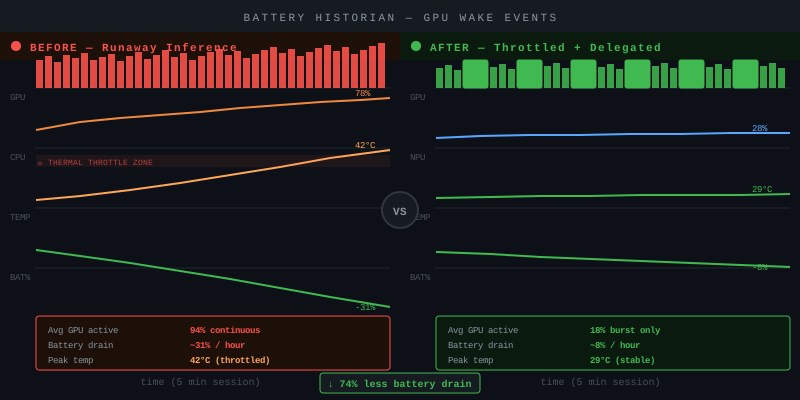 Left: constant GPU wakes with no idle periods. Right: burst pattern with thermal recovery gaps
What You Learned
- Profiling with real hardware is mandatory — simulators don't reflect power draw
- Inference throttling has more impact than model size reduction for battery
- Hardware delegates (NPU/NNAPI) cut per-inference energy 60–70% vs. CPU
- Background execution is a battery killer — always suspend AI on
onStop/didEnterBackground
Limitation: NNAPI delegation requires Android 8.1+ and device-specific support. Always implement the fallback chain. On older devices, cap CPU threads to 2 — using 4+ threads generates more heat than it saves in time.
When NOT to use this: If your AI feature requires real-time continuous inference (e.g., live AR overlay), consider offloading to a server endpoint instead of optimizing on-device — sustained compute at any efficiency level will drain battery.
Tested on iOS 18 / Xcode 16.2, Android 15 / TensorFlow Lite 2.16, Pixel 8 Pro and iPhone 16