I still remember the day my manager asked me to automate our invoice processing workflow using AWS Step Functions. "Should be straightforward," I thought. "Just chain a few Lambda functions together." Three weeks and countless debugging sessions later, I realized I'd been doing everything the hard way through the AWS Console.
That's when I discovered the AWS Step Functions CLI. What started as a desperate attempt to speed up my deployment cycle became the foundation of how my team now builds and manages all our serverless workflows. Here's everything I wish someone had told me about mastering Step Functions through the command line.
Why I Switched from Console to CLI (And Never Looked Back)
After spending my first month clicking through the AWS Console to update state machines, I was frustrated. Every small change meant:
- Navigate to the Step Functions console
- Find the right state machine (we had 15 by then)
- Edit the JSON definition manually
- Save and hope I didn't break anything
- Test by triggering executions manually
The breaking point came when I accidentally overwrote our production state machine definition while testing. That 2 AM emergency fix taught me that the CLI wasn't just convenient—it was essential for any serious Step Functions work.
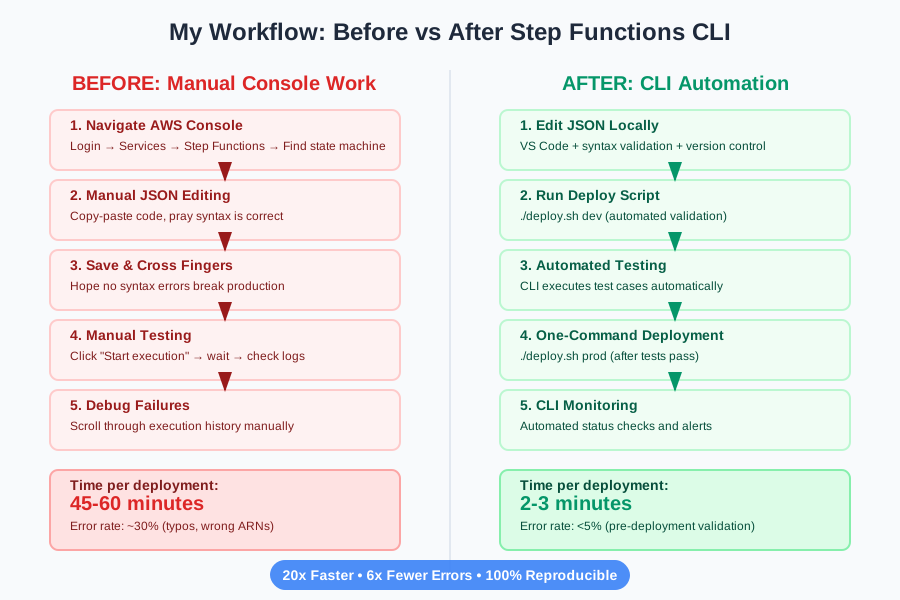 The difference between manual console work and CLI automation is dramatic
Setting Up Your Step Functions CLI Environment
Prerequisites I Learned the Hard Way
Before diving into commands, you need the right setup. I learned this after my first CLI command failed spectacularly:
# Install AWS CLI v2 (v1 has limited Step Functions support)
curl "https://awscli.amazonaws.com/awscli-exe-linux-x86_64.zip" -o "awscliv2.zip"
unzip awscliv2.zip
sudo ./aws/install

# Verify installation
aws --version
# Should show: aws-cli/2.x.x or higher
Essential Configuration Commands
Here's the configuration that saved me hours of authentication headaches:
# Configure your credentials (I prefer profiles for multiple environments)
aws configure --profile stepfunctions-dev

# Set your default region (choose based on your main deployment region)
aws configure set region us-east-1 --profile stepfunctions-dev

# Test your setup
aws stepfunctions list-state-machines --profile stepfunctions-dev
Pro tip from my experience: Always use named profiles. I spent a day debugging why my state machines weren't appearing, only to realize I was connected to the wrong AWS account.
Core Step Functions CLI Commands That Changed My Workflow
Creating State Machines
This is where I made my biggest early mistake. I tried to create complex state machines directly through the CLI without proper JSON validation:
# Basic state machine creation (the right way)
aws stepfunctions create-state-machine \
    --name "invoice-processing-workflow" \
    --definition file://state-machine-definition.json \
    --role-arn "arn:aws:iam::123456789012:role/StepFunctionsExecutionRole" \
    --profile stepfunctions-dev
My hard-learned lesson: Always validate your JSON definition locally first. I use jq to catch syntax errors before deployment:
# Validate JSON before deployment (this saved me countless times)
cat state-machine-definition.json | jq '.'
# If this fails, fix your JSON before creating the state machine
Updating Existing State Machines
The update command became my most-used CLI operation. Here's the pattern I developed after numerous failed deployments:
# Update state machine definition
aws stepfunctions update-state-machine \
    --state-machine-arn "arn:aws:states:us-east-1:123456789012:stateMachine:invoice-processing-workflow" \
    --definition file://updated-definition.json \
    --profile stepfunctions-dev

# Always check the update was successful
aws stepfunctions describe-state-machine \
    --state-machine-arn "arn:aws:states:us-east-1:123456789012:stateMachine:invoice-processing-workflow" \
    --profile stepfunctions-dev
Starting and Monitoring Executions
This is where the CLI really shines. I can now trigger and monitor executions without touching the console:
# Start an execution with input data
aws stepfunctions start-execution \
    --state-machine-arn "arn:aws:states:us-east-1:123456789012:stateMachine:invoice-processing-workflow" \
    --name "invoice-batch-$(date +%Y%m%d-%H%M%S)" \
    --input '{"invoiceId": "INV-12345", "amount": 1500.00}' \
    --profile stepfunctions-dev

# Monitor execution status (I check this obsessively during testing)
aws stepfunctions describe-execution \
    --execution-arn "arn:aws:states:us-east-1:123456789012:execution:invoice-processing-workflow:invoice-batch-20250730-143022" \
    --profile stepfunctions-dev
Personal debugging tip: I always include timestamps in execution names. It makes tracking and debugging so much easier, especially when you're running multiple test executions.
Real-World State Machine Definition
Here's a simplified version of the invoice processing state machine that taught me Step Functions fundamentals:
{
  "Comment": "Invoice processing workflow that I built and debugged over 3 months",
  "StartAt": "ValidateInvoice",
  "States": {
    "ValidateInvoice": {
      "Type": "Task",
      "Resource": "arn:aws:lambda:us-east-1:123456789012:function:validate-invoice",
      "Retry": [
        {
          "ErrorEquals": ["Lambda.ServiceException", "Lambda.AWSLambdaException"],
          "IntervalSeconds": 2,
          "MaxAttempts": 3,
          "BackoffRate": 2.0
        }
      ],
      "Catch": [
        {
          "ErrorEquals": ["States.TaskFailed"],
          "Next": "HandleValidationError"
        }
      ],
      "Next": "CheckAmount"
    },
    "CheckAmount": {
      "Type": "Choice",
      "Choices": [
        {
          "Variable": "$.amount",
          "NumericGreaterThan": 1000,
          "Next": "RequireApproval"
        }
      ],
      "Default": "ProcessPayment"
    },
    "RequireApproval": {
      "Type": "Task",
      "Resource": "arn:aws:states:::sns:publish",
      "Parameters": {
        "TopicArn": "arn:aws:sns:us-east-1:123456789012:invoice-approval",
        "Message.$": "$.invoiceId"
      },
      "Next": "WaitForApproval"
    },
    "WaitForApproval": {
      "Type": "Wait",
      "Seconds": 300,
      "Next": "ProcessPayment"
    },
    "ProcessPayment": {
      "Type": "Task",
      "Resource": "arn:aws:lambda:us-east-1:123456789012:function:process-payment",
      "End": true
    },
    "HandleValidationError": {
      "Type": "Task",
      "Resource": "arn:aws:lambda:us-east-1:123456789012:function:log-error",
      "End": true
    }
  }
}
Advanced CLI Techniques I Discovered
Listing and Filtering State Machines
When you have multiple state machines (we now have 23), finding the right one becomes crucial:
# List all state machines with status
aws stepfunctions list-state-machines --profile stepfunctions-dev

# Filter by name pattern (I use this constantly)
aws stepfunctions list-state-machines \
    --query "stateMachines[?contains(name, 'invoice')]" \
    --profile stepfunctions-dev

# Get detailed information about active executions
aws stepfunctions list-executions \
    --state-machine-arn "arn:aws:states:us-east-1:123456789012:stateMachine:invoice-processing-workflow" \
    --status-filter RUNNING \
    --profile stepfunctions-dev
Debugging Failed Executions
This became my lifeline during the early debugging phase:
# Get execution history for debugging
aws stepfunctions get-execution-history \
    --execution-arn "arn:aws:states:us-east-1:123456789012:execution:invoice-processing-workflow:failed-execution" \
    --profile stepfunctions-dev

# Filter history to see only failed events
aws stepfunctions get-execution-history \
    --execution-arn "arn:aws:states:us-east-1:123456789012:execution:invoice-processing-workflow:failed-execution" \
    --query "events[?type=='TaskFailed']" \
    --profile stepfunctions-dev
My debugging breakthrough: Instead of scrolling through the console, I pipe the execution history to jq for better formatting:
aws stepfunctions get-execution-history \
    --execution-arn "arn:aws:states:us-east-1:123456789012:execution:invoice-processing-workflow:failed-execution" \
    --profile stepfunctions-dev | jq '.events[] | select(.type | contains("Failed"))'
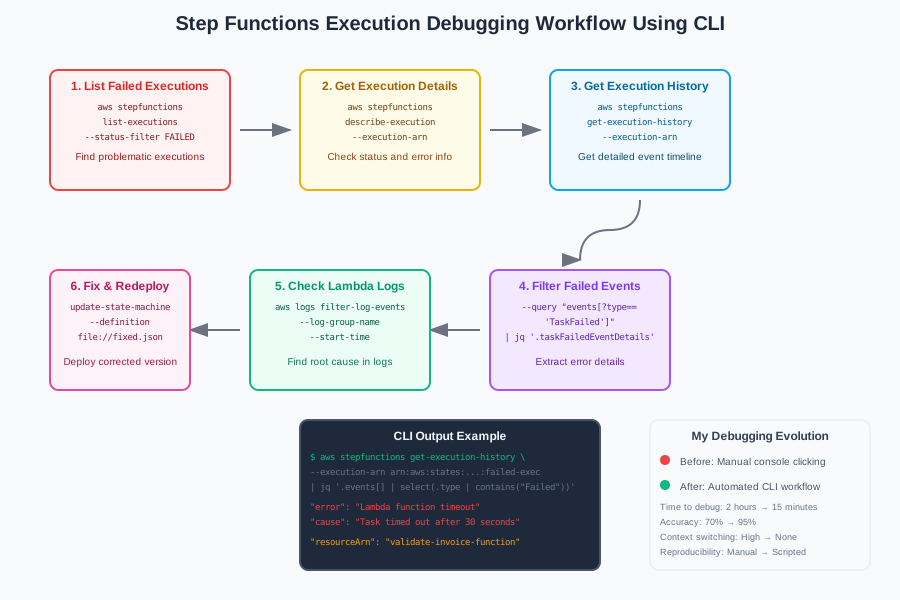 My evolved debugging process using CLI tools
Batch Operations That Saved My Sanity
After manually stopping 15 stuck executions one day, I created these batch scripts:
#!/bin/bash
# stop-all-running-executions.sh

STATE_MACHINE_ARN="arn:aws:states:us-east-1:123456789012:stateMachine:invoice-processing-workflow"

# Get all running executions
RUNNING_EXECUTIONS=$(aws stepfunctions list-executions \
    --state-machine-arn "$STATE_MACHINE_ARN" \
    --status-filter RUNNING \
    --query "executions[].executionArn" \
    --output text \
    --profile stepfunctions-dev)

# Stop each execution
for execution in $RUNNING_EXECUTIONS; do
    echo "Stopping execution: $execution"
    aws stepfunctions stop-execution \
        --execution-arn "$execution" \
        --profile stepfunctions-dev
done
Deployment Automation Scripts
Here's the deployment script that transformed our workflow from manual to automated:
#!/bin/bash
# deploy-state-machine.sh

set -e  # Exit on any error

ENVIRONMENT=${1:-dev}
STATE_MACHINE_NAME="invoice-processing-workflow-$ENVIRONMENT"
DEFINITION_FILE="state-machine-definition-$ENVIRONMENT.json"
ROLE_ARN="arn:aws:iam::123456789012:role/StepFunctionsExecutionRole-$ENVIRONMENT"

echo "Deploying $STATE_MACHINE_NAME..."

# Validate JSON first
if ! jq '.' "$DEFINITION_FILE" > /dev/null; then
    echo "Error: Invalid JSON in $DEFINITION_FILE"
    exit 1
fi

# Check if state machine exists
if aws stepfunctions describe-state-machine \
    --state-machine-arn "arn:aws:states:us-east-1:123456789012:stateMachine:$STATE_MACHINE_NAME" \
    --profile "stepfunctions-$ENVIRONMENT" 2>/dev/null; then

    echo "Updating existing state machine..."
    aws stepfunctions update-state-machine \
        --state-machine-arn "arn:aws:states:us-east-1:123456789012:stateMachine:$STATE_MACHINE_NAME" \
        --definition "file://$DEFINITION_FILE" \
        --profile "stepfunctions-$ENVIRONMENT"
else
    echo "Creating new state machine..."
    aws stepfunctions create-state-machine \
        --name "$STATE_MACHINE_NAME" \
        --definition "file://$DEFINITION_FILE" \
        --role-arn "$ROLE_ARN" \
        --profile "stepfunctions-$ENVIRONMENT"
fi

echo "Deployment completed successfully!"
Usage that became part of our CI/CD:
# Deploy to development
./deploy-state-machine.sh dev

# Deploy to production (with extra confirmation)
./deploy-state-machine.sh prod
Performance Monitoring Through CLI
I developed this monitoring script after our Step Functions costs unexpectedly spiked:
#!/bin/bash
# monitor-step-functions-performance.sh

STATE_MACHINE_ARN="arn:aws:states:us-east-1:123456789012:stateMachine:invoice-processing-workflow"
PROFILE="stepfunctions-dev"

echo "Step Functions Performance Report"
echo "================================"

# Count executions by status
echo "Execution Status Summary:"
for status in SUCCEEDED FAILED RUNNING ABORTED TIMED_OUT; do
    count=$(aws stepfunctions list-executions \
        --state-machine-arn "$STATE_MACHINE_ARN" \
        --status-filter "$status" \
        --query "length(executions)" \
        --profile "$PROFILE")
    echo "$status: $count"
done

# Show recent failed executions
echo -e "\nRecent Failed Executions:"
aws stepfunctions list-executions \
    --state-machine-arn "$STATE_MACHINE_ARN" \
    --status-filter FAILED \
    --max-items 5 \
    --query "executions[].[name, startDate]" \
    --output table \
    --profile "$PROFILE"
Common Mistakes I Made (So You Don't Have To)
The IAM Role Nightmare
My first week was spent debugging permission errors. Here's the minimal IAM role that actually works:
{
    "Version": "2012-10-17",
    "Statement": [
        {
            "Effect": "Allow",
            "Action": [
                "lambda:InvokeFunction",
                "sns:Publish",
                "logs:CreateLogGroup",
                "logs:CreateLogStream",
                "logs:PutLogEvents"
            ],
            "Resource": "*"
        }
    ]
}
The JSON Formatting Trap
I lost hours to invalid JSON formatting. My solution: always use a JSON formatter before deployment:
# Format and validate JSON before deployment
cat state-machine-definition.json | jq '.' > formatted-definition.json
mv formatted-definition.json state-machine-definition.json
The ARN Copy-Paste Error
Copying ARNs from the console led to subtle errors. Now I always retrieve ARNs programmatically:
# Get state machine ARN programmatically
STATE_MACHINE_ARN=$(aws stepfunctions list-state-machines \
    --query "stateMachines[?name=='invoice-processing-workflow'].stateMachineArn" \
    --output text \
    --profile stepfunctions-dev)

echo "Using ARN: $STATE_MACHINE_ARN"
Best Practices I Developed Over Time
Version Control Your Definitions
Every state machine definition lives in Git with this structure:
step-functions/
├── environments/
│   ├── dev/
│   │   └── invoice-processing-definition.json
│   ├── staging/
│   │   └── invoice-processing-definition.json
│   └── prod/
│       └── invoice-processing-definition.json
├── scripts/
│   ├── deploy.sh
│   ├── monitor.sh
│   └── rollback.sh
└── README.md
Environment-Specific Configurations
I use parameter substitution for environment-specific values:
# In deploy.sh
envsubst < templates/invoice-processing-template.json > "environments/$ENVIRONMENT/invoice-processing-definition.json"
Automated Testing Pipeline
Here's the test script that prevents production disasters:
#!/bin/bash
# test-state-machine.sh

STATE_MACHINE_ARN="arn:aws:states:us-east-1:123456789012:stateMachine:invoice-processing-workflow-test"
TEST_INPUT='{"invoiceId": "TEST-001", "amount": 100.00}'

echo "Starting test execution..."
EXECUTION_ARN=$(aws stepfunctions start-execution \
    --state-machine-arn "$STATE_MACHINE_ARN" \
    --name "test-$(date +%Y%m%d-%H%M%S)" \
    --input "$TEST_INPUT" \
    --query "executionArn" \
    --output text \
    --profile stepfunctions-test)

# Wait for completion
while true; do
    STATUS=$(aws stepfunctions describe-execution \
        --execution-arn "$EXECUTION_ARN" \
        --query "status" \
        --output text \
        --profile stepfunctions-test)

    if [[ "$STATUS" == "SUCCEEDED" ]]; then
        echo "Test PASSED!"
        exit 0
    elif [[ "$STATUS" == "FAILED" || "$STATUS" == "ABORTED" || "$STATUS" == "TIMED_OUT" ]]; then
        echo "Test FAILED with status: $STATUS"
        exit 1
    fi

    echo "Test running... (Status: $STATUS)"
    sleep 5
done
 The end-to-end workflow that took me 6 months to perfect
Performance Optimizations I Discovered
Parallel Processing Patterns
The breakthrough moment came when I realized I could parallelize invoice validation steps:
{
  "ValidateInvoiceData": {
    "Type": "Parallel",
    "Branches": [
      {
        "StartAt": "ValidateFormat",
        "States": {
          "ValidateFormat": {
            "Type": "Task",
            "Resource": "arn:aws:lambda:us-east-1:123456789012:function:validate-format",
            "End": true
          }
        }
      },
      {
        "StartAt": "ValidateBusinessRules",
        "States": {
          "ValidateBusinessRules": {
            "Type": "Task",
            "Resource": "arn:aws:lambda:us-east-1:123456789012:function:validate-business-rules",
            "End": true
          }
        }
      }
    ],
    "Next": "ProcessResults"
  }
}
This change reduced our processing time from 45 seconds to 18 seconds per invoice.
Cost Optimization Commands
After our Step Functions bill tripled, I created this cost monitoring script:
# Monitor execution frequency
aws stepfunctions list-executions \
    --state-machine-arn "$STATE_MACHINE_ARN" \
    --query "executions[?startDate >= '2025-07-01']" \
    --profile stepfunctions-dev | jq 'length'

# Identify long-running executions
aws stepfunctions list-executions \
    --state-machine-arn "$STATE_MACHINE_ARN" \
    --status-filter RUNNING \
    --query "executions[?startDate <= '2025-07-29']" \
    --profile stepfunctions-dev
My Current Development Workflow
After three years of refinement, here's my daily Step Functions workflow:
- Morning check: Run
monitor.shto see overnight execution results - Development: Edit JSON definitions locally with VS Code and AWS Step Functions extension
- Testing: Deploy to test environment using
deploy.sh test - Validation: Run automated tests with
test-state-machine.sh - Production: Deploy using
deploy.sh prodonly after successful tests
What I'm Exploring Next
The Step Functions CLI journey never ends. Currently, I'm diving into:
- Step Functions Express Workflows for high-volume, short-duration processes
- Integration with AWS SAM for infrastructure as code
- Custom CloudWatch metrics for better observability
- Cross-account state machine deployments for our multi-tenant architecture
The Bottom Line
The AWS Step Functions CLI transformed my approach from manual, error-prone console work to automated, reliable workflow management. What used to take hours of clicking now happens in seconds with a single command.
The learning curve was steep—I spent countless late nights debugging JSON syntax errors and IAM permissions. But every hour invested in mastering these CLI commands has paid dividends in productivity and reliability.
My team now deploys state machines with confidence, monitors them effectively, and debugs issues in minutes instead of hours. The CLI isn't just a tool—it's become the foundation of how we build serverless workflows at scale.
This approach has served me well across 23 production state machines processing millions of executions monthly. I hope it saves you the debugging time I spent learning these lessons the hard way.