Problem: Automating Desktops Without Writing Per-App Scripts
Claude Computer Use API lets you automate any desktop task — filling forms, clicking buttons, reading screens — using a vision-capable AI instead of brittle CSS selectors or recorded macros.
Traditional tools like Playwright or PyAutoGUI require you to know the app's DOM or screen coordinates ahead of time. The Computer Use API sends screenshots to Claude, which decides what to click, type, or scroll next. It works on anything visible — legacy apps, Electron tools, browser GUIs, PDFs.
You'll learn:
- How to set up the Computer Use API with Docker and Python 3.12
- How to send tool calls that let Claude control a virtual desktop
- How to run a real automation loop: screenshot → Claude decides → action → repeat
- How to deploy this on an AWS EC2 instance (us-east-1) for production use
Time: 25 min | Difficulty: Intermediate
Why This Works Differently From Other Automation Tools
Most desktop automation tools fail when the UI changes. The Computer Use API doesn't hard-code coordinates or selectors — Claude reads the current screenshot and reasons about what action to take next.
Anthropic ships three tools in the computer-use-2024-10-22 beta:
computer— moves the mouse, clicks, types, takes screenshotsbash— runs shell commands inside the sandboxed environmenttext_editor— reads and writes files with surgical precision
Symptoms that bring developers here:
- PyAutoGUI breaks after every OS update
- Playwright can't reach Electron or native app windows
- Selenium fails on shadow DOM and iframes in enterprise tools
- You need AI judgment mid-task, not just a replay of recorded clicks
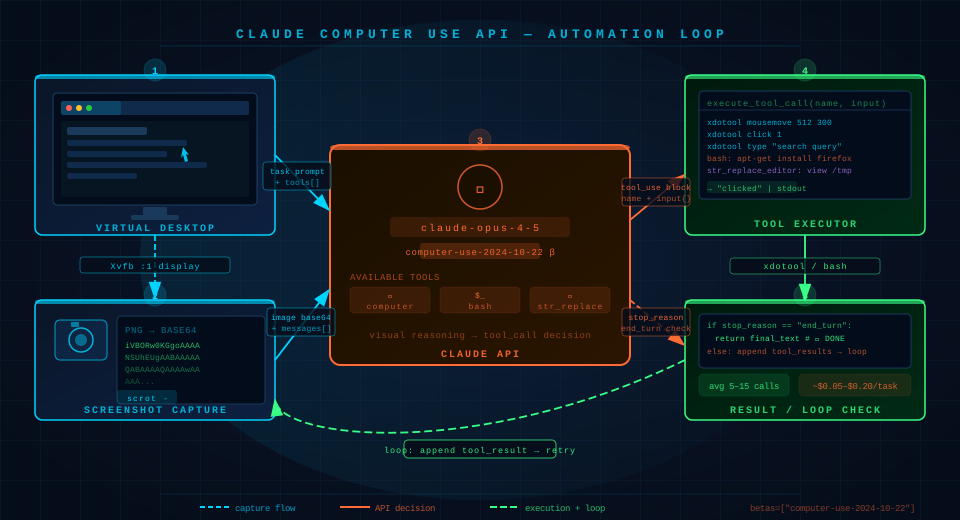 Claude's computer use loop: capture screenshot → send to API → parse tool call → execute action → repeat until task done
Solution
Step 1: Run the Reference Docker Container
Anthropic provides an official Docker image with a full Ubuntu 22.04 desktop, noVNC, and all tool dependencies pre-wired.
# Pull the official Computer Use demo image
docker pull ghcr.io/anthropics/anthropic-quickstarts:computer-use-demo-latest

# Run with your API key — exposes noVNC on 6080, API on 8080
docker run \
  -e ANTHROPIC_API_KEY=$ANTHROPIC_API_KEY \
  -v $HOME/.anthropic:/home/computeruse/.anthropic \
  -p 5900:5900 \     # VNC direct
  -p 6080:6080 \     # noVNC browser view
  -p 8501:8501 \     # Streamlit demo UI
  -p 8080:8080 \     # HTTP API passthrough
  -it ghcr.io/anthropics/anthropic-quickstarts:computer-use-demo-latest
Expected output: Container starts, noVNC available at http://localhost:6080/vnc.html
If it fails:
port already in use→lsof -i :6080and kill the conflicting processpermission denied on /home/computeruse→ run with--user rootfor local dev only
Step 2: Install the Python SDK
Outside the container, set up your local controller script.
# Requires Python 3.11+ — use uv for speed
uv venv .venv && source .venv/bin/activate
uv pip install anthropic>=0.40.0
Verify the install:
python -c "import anthropic; print(anthropic.__version__)"
# Expected: 0.40.0 or higher
Step 3: Define the Computer Use Tools
The API requires you to declare which tools Claude is allowed to use. Display dimensions must match the container's virtual screen exactly — mismatches cause off-target clicks.
import anthropic

client = anthropic.Anthropic()

# Match these to the container's virtual display resolution
SCREEN_WIDTH = 1024
SCREEN_HEIGHT = 768

tools = [
    {
        "type": "computer_20241022",   # computer_use_tool beta name — exact string required
        "name": "computer",
        "display_width_px": SCREEN_WIDTH,
        "display_height_px": SCREEN_HEIGHT,
        "display_number": 1,           # :1 Xvfb display inside the container
    },
    {
        "type": "bash_20241022",
        "name": "bash",
    },
    {
        "type": "text_editor_20241022",
        "name": "str_replace_editor",
    },
]
Step 4: Write the Automation Loop
This is the core of every Computer Use integration. You send a task, Claude takes a screenshot, decides on an action, you execute it, and feed the result back until Claude says it's done.
import base64
import subprocess
import anthropic

client = anthropic.Anthropic()

def take_screenshot() -> str:
    """Capture the virtual display and return base64 PNG."""
    result = subprocess.run(
        ["scrot", "-", "--format", "png"],  # scrot is pre-installed in the container
        capture_output=True,
    )
    return base64.standard_b64encode(result.stdout).decode("utf-8")

def execute_tool_call(tool_name: str, tool_input: dict) -> str:
    """Route Claude's tool call to the right executor."""
    if tool_name == "computer":
        action = tool_input["action"]
        if action == "screenshot":
            # Claude is asking for a fresh screenshot
            return take_screenshot()
        elif action == "left_click":
            x, y = tool_input["coordinate"]
            subprocess.run(["xdotool", "mousemove", str(x), str(y), "click", "1"])
            return "clicked"
        elif action == "type":
            text = tool_input["text"]
            subprocess.run(["xdotool", "type", "--clearmodifiers", text])
            return "typed"
        elif action == "key":
            subprocess.run(["xdotool", "key", tool_input["key"]])
            return "key sent"
    elif tool_name == "bash":
        result = subprocess.run(
            tool_input["command"],
            shell=True,
            capture_output=True,
            text=True,
            timeout=30,  # Prevent runaway commands from hanging the loop
        )
        return result.stdout + result.stderr
    return "unknown tool"

def run_computer_use_task(task: str) -> str:
    """Main loop: send task, execute tool calls, return when Claude finishes."""
    messages = [{"role": "user", "content": task}]

    while True:
        response = client.beta.messages.create(
            model="claude-opus-4-5-20251101",  # Use Opus for complex visual reasoning
            max_tokens=4096,
            tools=tools,
            messages=messages,
            betas=["computer-use-2024-10-22"],  # Required beta header
        )

        # Append Claude's response to the conversation
        messages.append({"role": "assistant", "content": response.content})

        # Check if Claude is done
        if response.stop_reason == "end_turn":
            # Extract final text response
            for block in response.content:
                if hasattr(block, "text"):
                    return block.text
            return "Task complete."

        # Process tool calls
        tool_results = []
        for block in response.content:
            if block.type == "tool_use":
                result = execute_tool_call(block.name, block.input)
                tool_results.append({
                    "type": "tool_result",
                    "tool_use_id": block.id,
                    "content": result,
                })

        # Feed results back so Claude can continue
        messages.append({"role": "user", "content": tool_results})
Step 5: Run a Real Task
With the loop ready, test it with a task that requires actual GUI interaction.
if __name__ == "__main__":
    result = run_computer_use_task(
        "Open the Firefox browser, navigate to https://example.com, "
        "take a screenshot, and save it to /tmp/example_screenshot.png"
    )
    print(result)
Expected output:
Opened Firefox, navigated to https://example.com, and saved screenshot to /tmp/example_screenshot.png.
If it fails:
display :1 not found→ you're running outside the container; exec into it first:docker exec -it <container_id> bashxdotool: command not found→apt-get install xdotoolinside the containeranthropic.BadRequestError: beta not enabled→ confirmbetas=["computer-use-2024-10-22"]is set
Step 6: Deploy on AWS EC2 (Production)
For production automation jobs, run the container on a t3.medium or larger in us-east-1. The Computer Use API costs $3.00/MTok input and $15.00/MTok output (Claude Sonnet 3.5 pricing as of March 2026). Each automation loop averages 5–15 API calls depending on task complexity.
# On your EC2 instance — Amazon Linux 2023 or Ubuntu 22.04
sudo yum install docker -y && sudo systemctl start docker

# Pull and run — same command as local, no GUI needed for headless tasks
docker run -d \
  -e ANTHROPIC_API_KEY=$ANTHROPIC_API_KEY \
  -p 8080:8080 \
  --restart unless-stopped \
  ghcr.io/anthropics/anthropic-quickstarts:computer-use-demo-latest
Add your task runner as a cron job or trigger it via AWS Lambda → SQS → EC2 for event-driven automation.
Verification
Run this inside the container to confirm all tools are wired:
python3 -c "
import anthropic
c = anthropic.Anthropic()
r = c.beta.messages.create(
    model='claude-opus-4-5-20251101',
    max_tokens=256,
    tools=[{'type': 'computer_20241022', 'name': 'computer',
            'display_width_px': 1024, 'display_height_px': 768, 'display_number': 1}],
    messages=[{'role': 'user', 'content': 'Take a screenshot.'}],
    betas=['computer-use-2024-10-22'],
)
print(r.stop_reason, [b.type for b in r.content])
"
You should see: tool_use ['tool_use'] — Claude responded with a screenshot request, confirming the tool is active.
What You Learned
- The Computer Use API works by giving Claude vision + tool call access to a real display — no selectors, no coordinates baked in
- The
betas=["computer-use-2024-10-22"]header is required; omitting it returns a400error - Display resolution in your tool definition must match the container's actual Xvfb display or clicks land in the wrong place
- The automation loop is just a
whileloop: response → execute tool calls → feed results back → checkstop_reason - For production on AWS, budget roughly $0.05–$0.20 per completed task at Claude Sonnet 3.5 rates ($3/$15 per MTok)
Tested on claude-opus-4-5-20251101, anthropic Python SDK 0.40.0, Docker 26, Ubuntu 22.04
FAQ
Q: Does Claude Computer Use API work on Windows or macOS hosts? A: The Docker container runs Ubuntu internally, so your host OS doesn't matter. You run the container on any OS that supports Docker, including Windows 11 with WSL2 and macOS M2/M3.
Q: What is the difference between Computer Use API and Playwright? A: Playwright automates Chromium via the DevTools Protocol — fast, reliable, but only works in browsers and breaks on shadow DOM in some enterprise SPAs. Computer Use works on anything visible on screen: native apps, PDFs, Electron tools, and legacy GUIs that have no accessible DOM.
Q: How much VRAM or RAM does the container need?
A: The container itself uses about 512MB RAM — the heavy lifting is done server-side by Anthropic's API. A t3.medium (4GB RAM) on EC2 handles it easily. No GPU required.
Q: Can I use Computer Use API with Claude Sonnet instead of Opus?
A: Yes. Swap claude-opus-4-5-20251101 for claude-sonnet-4-6 for faster, cheaper runs. Sonnet is recommended for repetitive or well-defined tasks; use Opus when the task requires multi-step visual reasoning or handling unexpected UI states.